Assigning the required permissions to the encryption key

You need to assign the required permissions to the key.

Encryption key created.
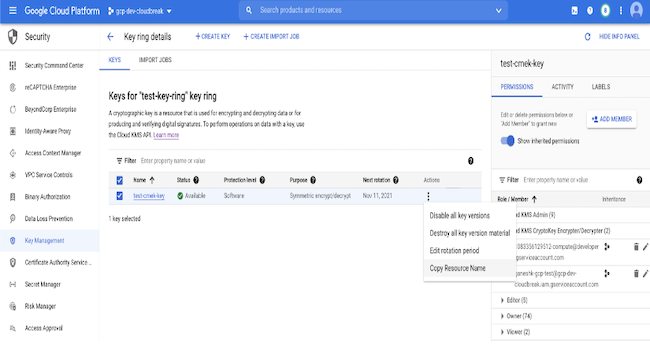
Figure 1. Key resource name
GCP user interface, Key screen, indicating key resource name
Ensure that you have the following available:
  • The project number of the Google project where the compute and SQL resources are created (PROJECT_NUMBER).
  • Copy the key ring resource name (KEYRING_RESOURCE_NAME) and the key resource name (KEY_RESOURCE_NAME) from the Google cloud console. You can copy the key ring resource name from the drop-down list after clicking the three vertical dots next to the key ring. You can copy the key resource name in a similar manner.

  1. If the Cloud SQL service agent does not exist in the project, create it with the following command in Google Cloud Shell to set it up.
    gcloud beta services identity create --service=sqladmin.googleapis.com --project=<project_name> 

    This command creates a service identity in the following format: service-108335612.5..@gcp-sa-cloud-sql.iam.gserviceaccount.com, iin which 108335612.5.. is the PROJECT_NUMBER to be used in steps 2 and 3.

  2. Assign the IAM policy to encrypt and decrypt KMS keys. Replace the variables in caps with the values obtained in Step 1.
    gcloud kms keys add-iam-policy-binding KEY_RESOURCE_NAME \
     --location=GCP_REGION \
     --keyring=KEYRING_RESOURCE_NAME \
     --member=serviceAccount:service-PROJECT_NUMBER@gcp-sa-cloud-sql.iam.gserviceaccount.com \
     --role=roles/cloudkms.cryptoKeyEncrypterDecrypter
  3. Assign the IAM policy to the compute service agent. Replace the variables in caps with the values obtained in Step 1.
    gcloud kms keys add-iam-policy-binding KEY_RESOURCE_NAME \
     --location=GCP_REGION \
     --keyring=KEYRING_RESOURCE_NAME \
     --member=serviceAccount:service-PROJECT_NUMBER@compute-system.iam.gserviceaccount.com \
     --role=roles/cloudkms.cryptoKeyEncrypterDecrypter