Creating a key ring and an encryption key

Create a key ring and en encryption key in Google Cloud.

  1. Go to Security > Key Management in the GCP console.
  2. Create a key ring or use any existing one.

    Ensure that the key ring location and the location of the resources you create for the Cloudera environment are the same.

    Figure 1. Create a key ring or use an existing one
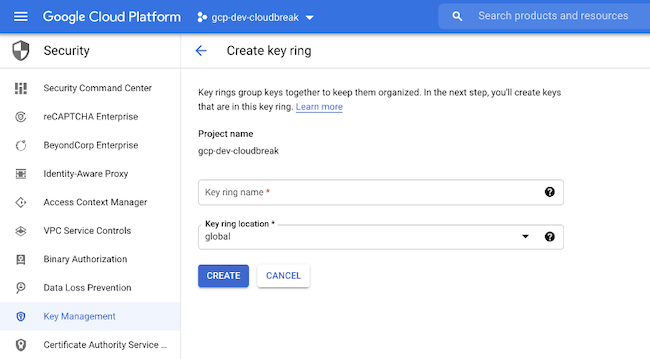
    GCP user interface, Create key ring screen, indicating Project name, Key ring location, and Create button
  3. Go to the key ring that you have previously created.
  4. Click +Create Key to create a new key inside the key ring.
    Figure 2. Create a key in the key ring
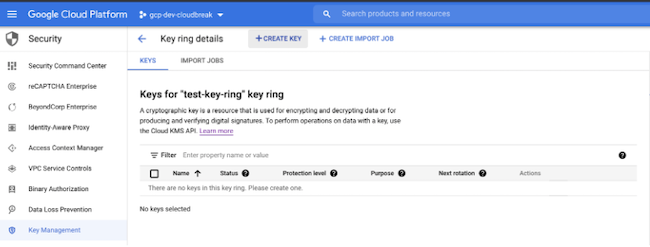
    GCP user interface, Keys for project key ring screen, indicating + Create Key button
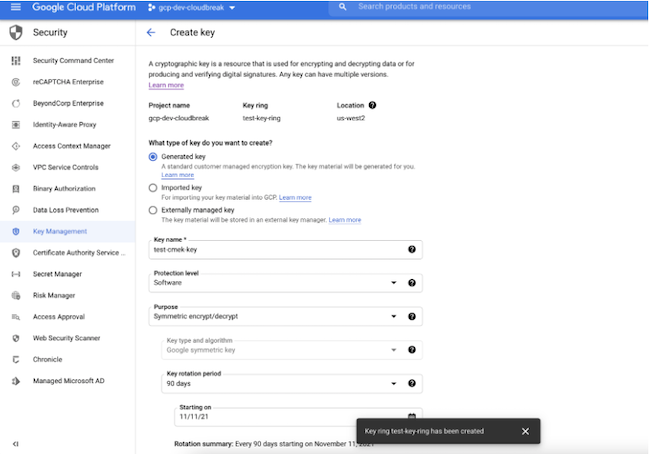
  5. Under What type of key do you want to create?, select Generated key.
  6. Under Key name, enter the name for your key.
  7. Select the protection level from the Protection level drop-down list:
    • If you are using a standard CMEK, select Software.
    • If you are using a Cloud HSM key, select HSM.
  8. From the Purpose drop-down list, select Symmetric encrypt/decrypt.
  9. Use the default values for the Rotation period and Starting on attributes.
  10. Click Create.
    Figure 3. Create key
    GCP user interface, Create key screen, displaying key name, key type, protection level, purpose, rotation period, and starting on fields, indicating Create button