Setting up the domain trust

Set up the domain trust.

  1. Open Active Directory Domains and Trusts on Windows Server 2025.
  2. Right-click on your domain and click Properties.
  3. Select the Trusts tab.
  4. Click New Trust....
    Figure 1. Select New Trust for your server
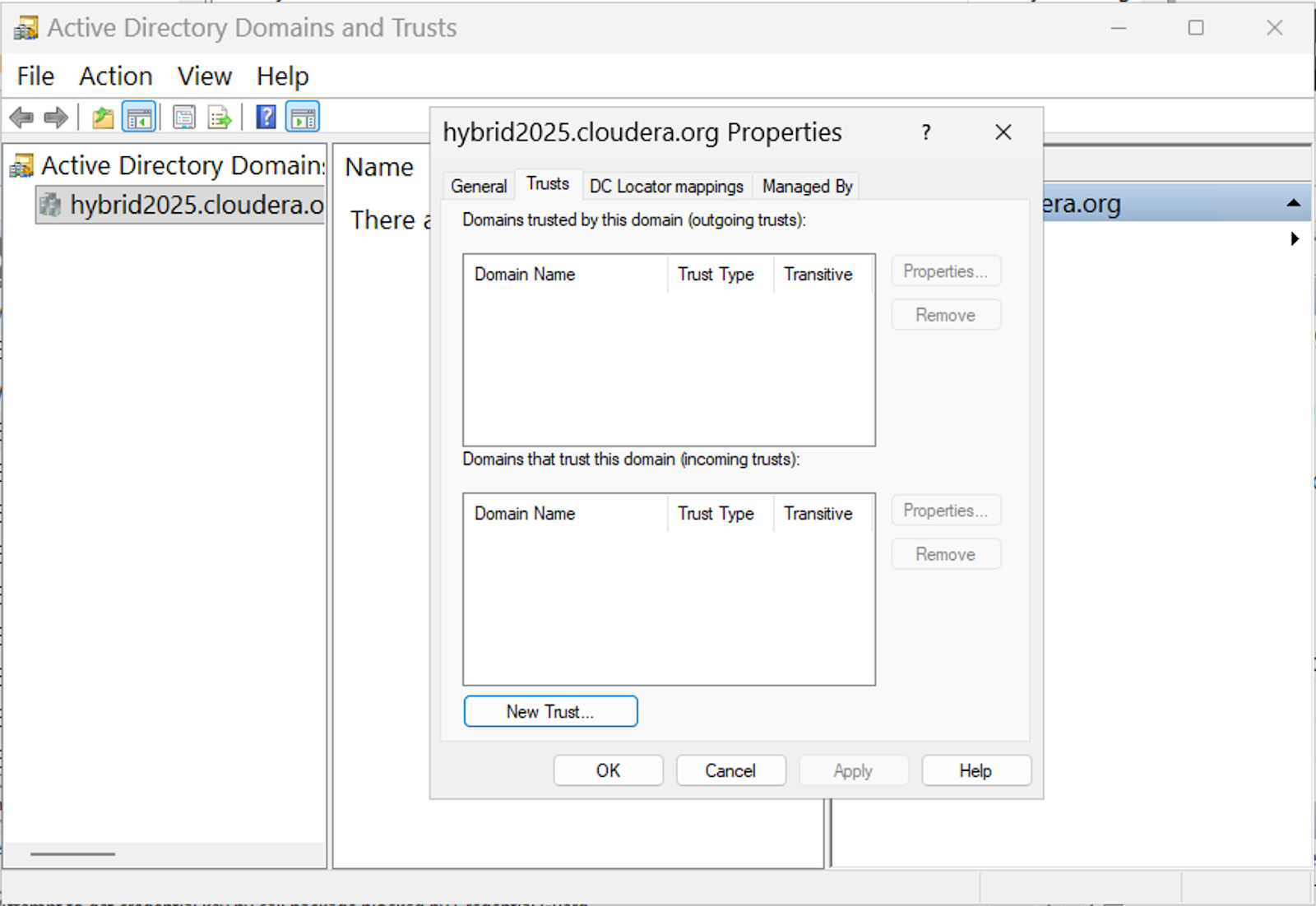
    Windows Server 2025 user interface, Active Directory Domains and Trusts window; server selected
  5. Click Next to start the wizard.
  6. Enter the Cloudera-generated FreeIPA domain name in the Name field.
    Figure 2. Enter FreeIPA domain name
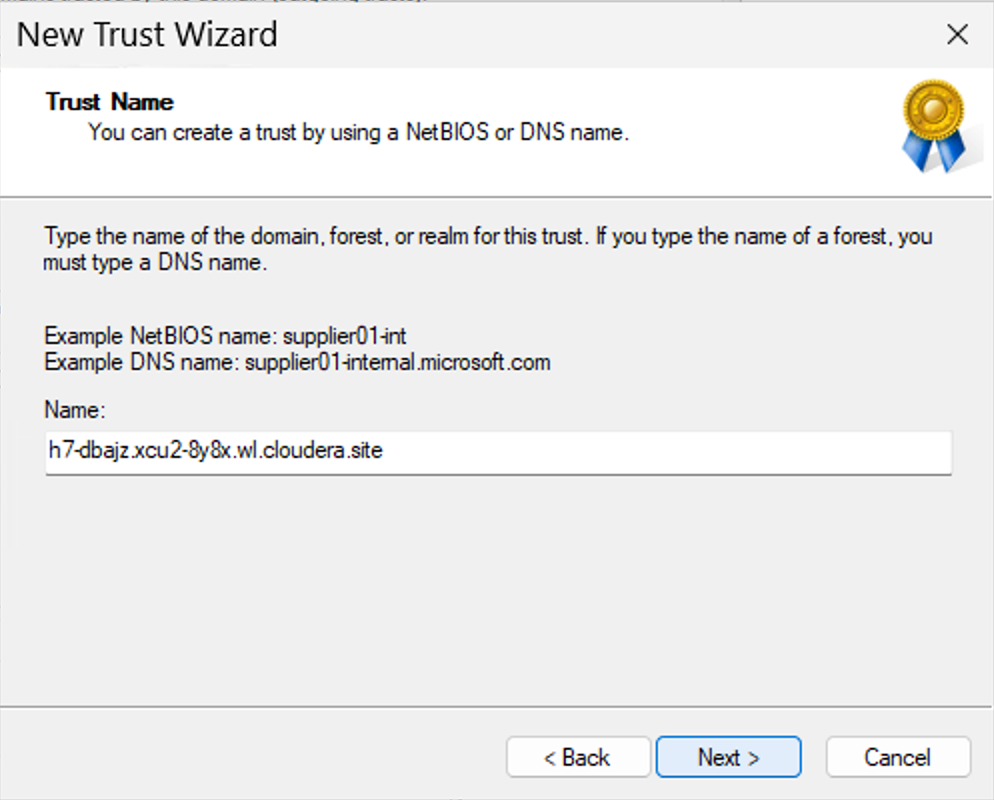
    Windows Server 2025 user interface, Trust Name modal window
  7. Click Next.
  8. Select Forest trust in the Trust Type modal window.
    Figure 3. Select Forest trust type
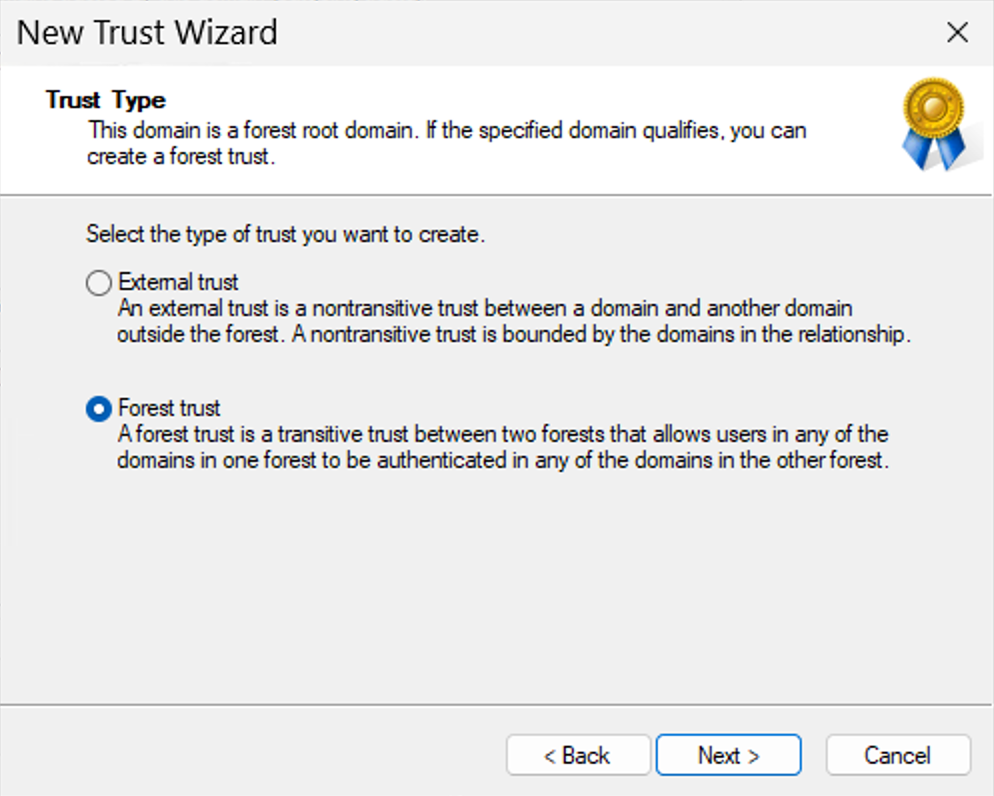
    Windows Server 2025 user interface, Trust Type modal window
  9. Click Next.
  10. Select Two-way in the Direction of Trust modal window.
    Figure 4. Select Two way trust direction
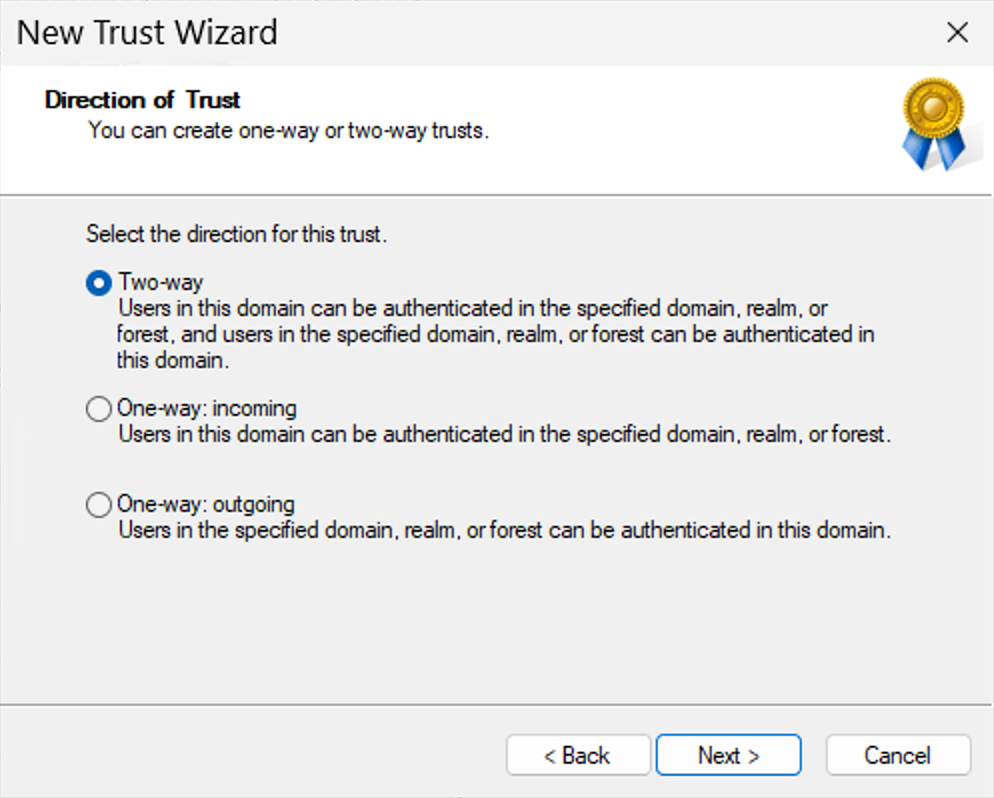
    Windows Server 2025 user interface, Direction of Trust modal window
  11. Click Next.
  12. Select This domain only in the Sides of Trust modal window.
    Figure 5. Select This domain only
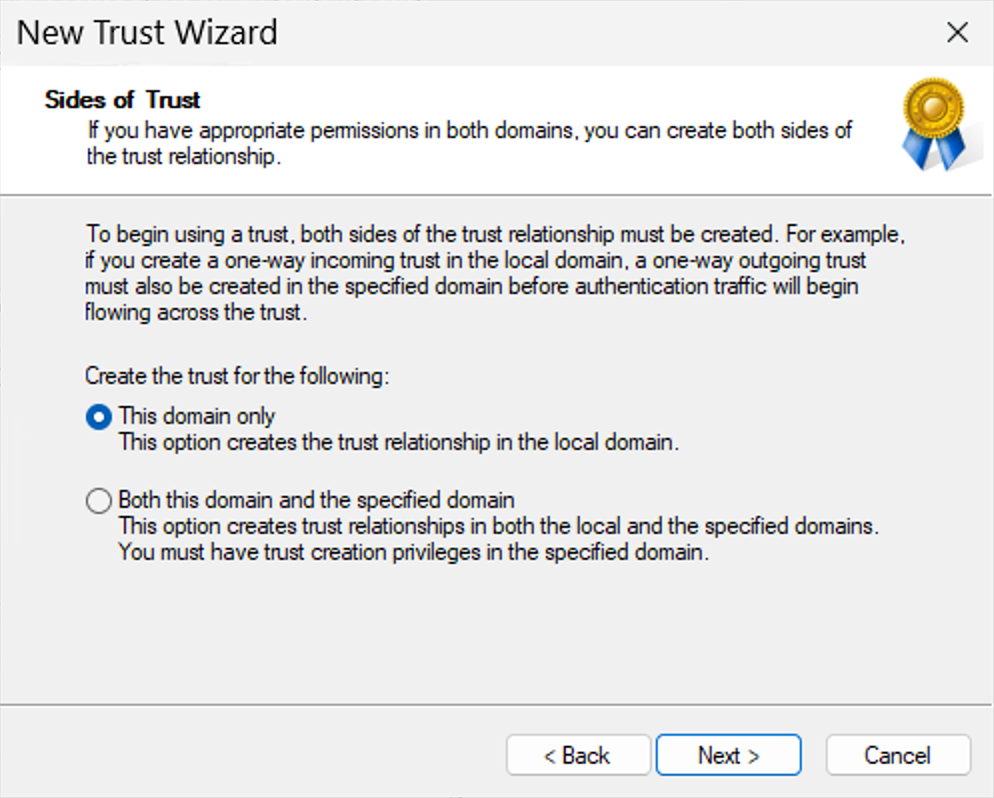
    Windows Server 2025 user interface, Sides of Trust modal window
  13. Click Next.
  14. Select Forest-wide authentication in the Outgoing Trust Authentication Level modal window.
    Figure 6. Select Forest-wide authentication
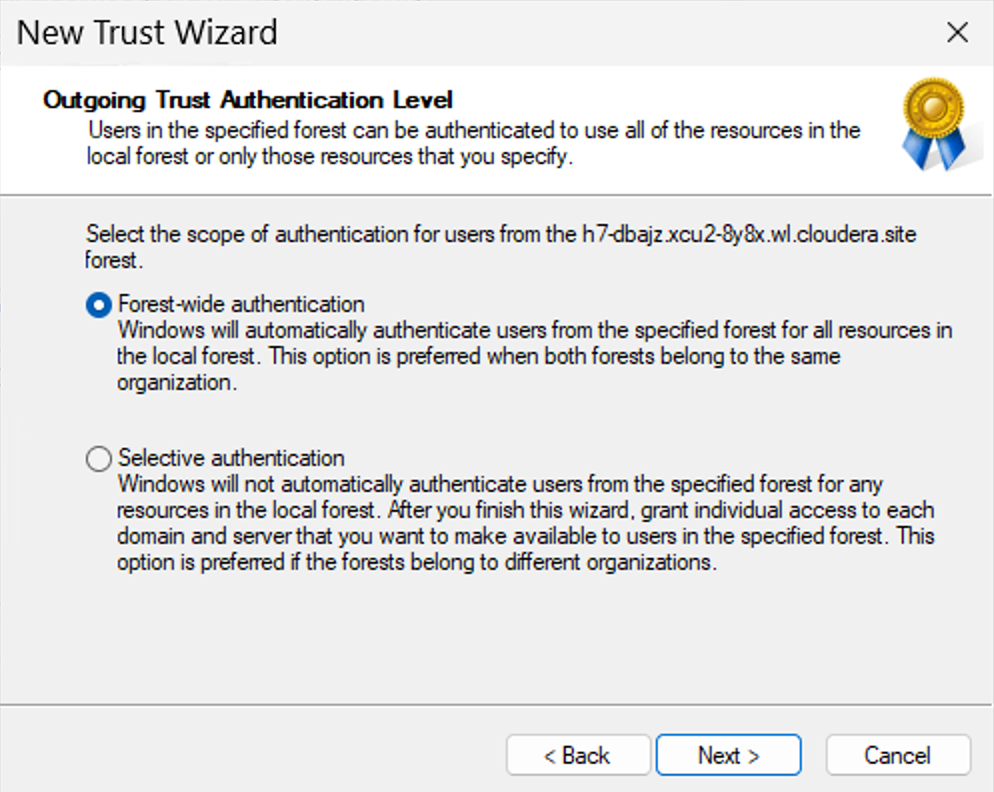
    Windows Server 2025 useer interface, Outgoing Trust Authentication Level modal window
  15. Click Next.
  16. Enter the Cloudera-generated trust password.
    Figure 7. Enter the Cloudera-generated password
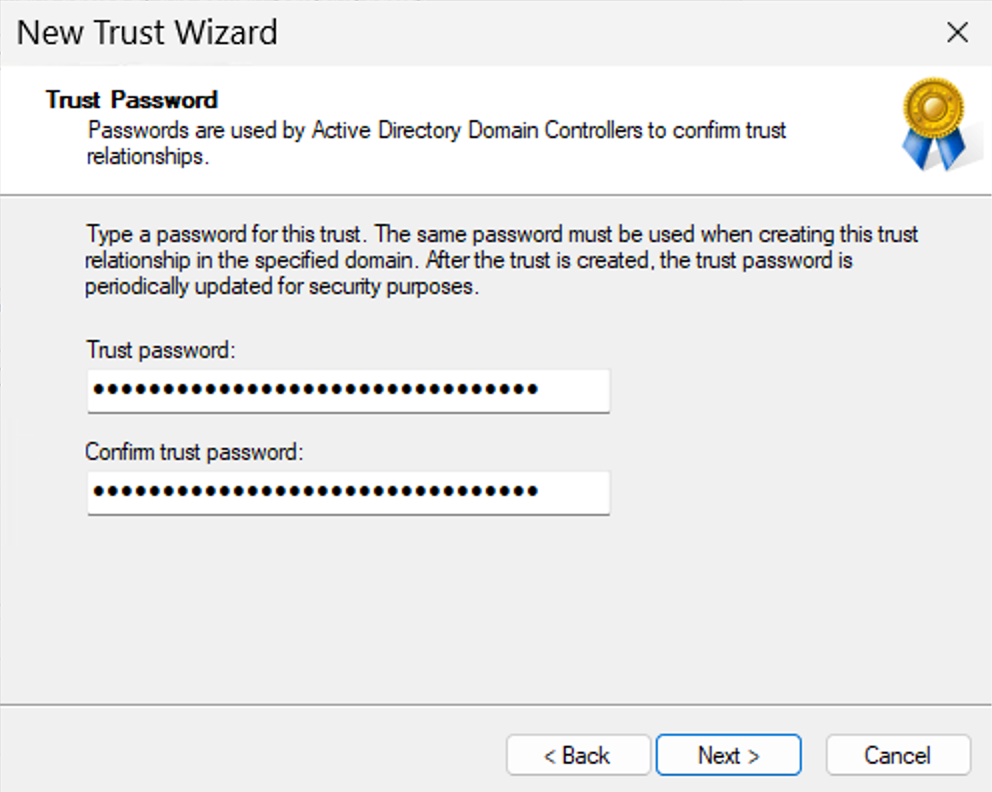
    Windows Server 2025 user interface, Trust Password modal window
  17. Click Next.
  18. Select No, do not confirm the outgoing trust in the Confirm Outgoing Trust modal window.
    The other side of the trust will be created automatically by FreeIPA.
    Figure 8. Confirm outgoing trust
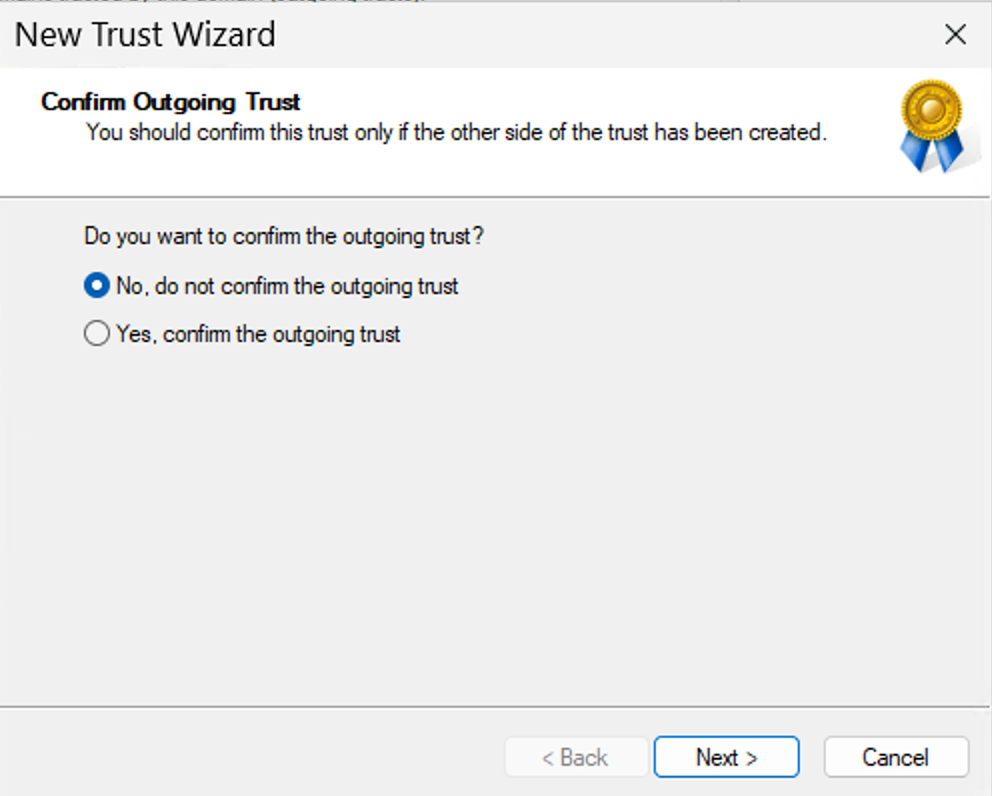
    Windows Server 2025 user interface, Confirm Outgoing Trust modal window
  19. Click Next.
You have successfully completed the New Trust Wizard.
