Launch Agent Studio to build, test, and deploy multi-agent workflows when AI Studios
is enabled in your environment.
In the Cloudera console,
click the Cloudera AI tile.
The Cloudera AI Workbenches page is displayed.
Click on the name of the workbench.
The workbench Home page is displayed.
In the left navigation pane, click AI Studios.
The AI Studios window is displayed. If the option is not
visible, then follow these steps:
Click Site Administration. The Overview
page is displayed.
Click on Settings. The Settings window
is displayed.
Check the Enable AI Studios chekbox.
Click Launch in the Agent Studio box to
initiate installation.
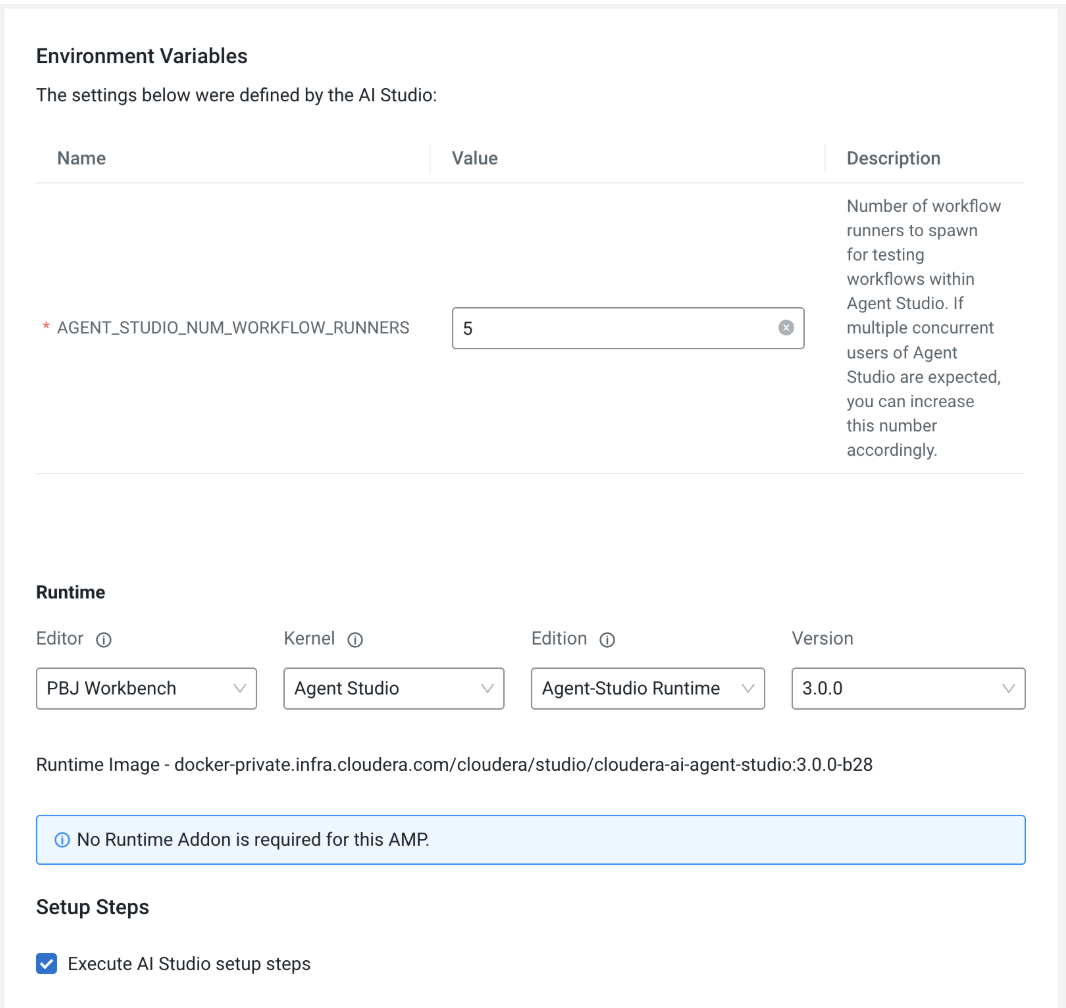
The Configure Studio: Agent Studio page is displayed.
Set the environment variables for Agent Studio.
Select PBJ Workbench as the Editor.
Select Agent Studio as the Kernel under
Runtime .
Figure 1. Configure Agent Studio window
Click Launch AI Studio.
The AI Studio Setup Steps page is displayed. After launching,
you can view the list of tasks running as part of the AI studio deployment. After
configuration, Agent Studio is displayed in the left navigation
page under AI Studios.
Click Agent Studio and click Get Started
to orchestrate AI agents to collaborate on complex tasks, powered by custom tools and
seamless workflow automation.