Creating custom tools while creating workflows

Custom tools can be integrated to extend platform functionality.

To create a custom tool for an Agentic Workflow, follow these steps as part of the workflow creation process:

  1. In the Cloudera console, click the Cloudera AI tile. The Cloudera AI Home page displays.
  2. Click on the name of the workbench. The Cloudera AI Workbench Home page displays.
  3. Click AI Studios, in the left navigation pane. The AI Studios page displays.
  4. Click the Open button on the Agent Studio tile. The Agent Studio page is displayed.
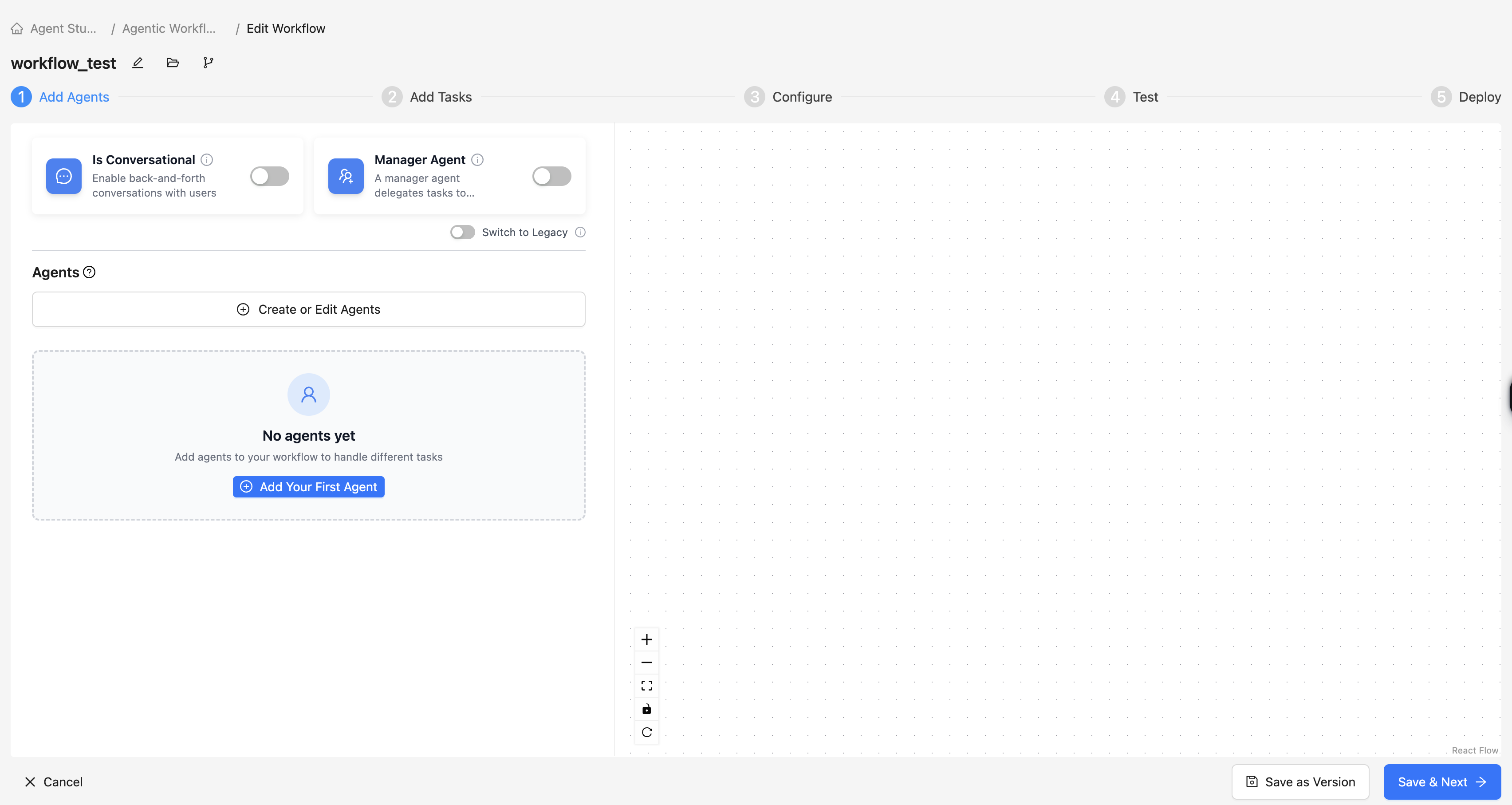
  5. Click the Create button. The Create New Workflow window is displayed.
  6. Provide a Workflow Name and click the Create Workflow button. A draft workflow is created and the Edit Workflow window pops up.
  7. Click the Create or Edit Agents button. The Create or Edit Agent window pops up.
  8. Enter the Agent details, if you want to create a new Agent. Alternatively, you can click on the existing Agents to edit them.
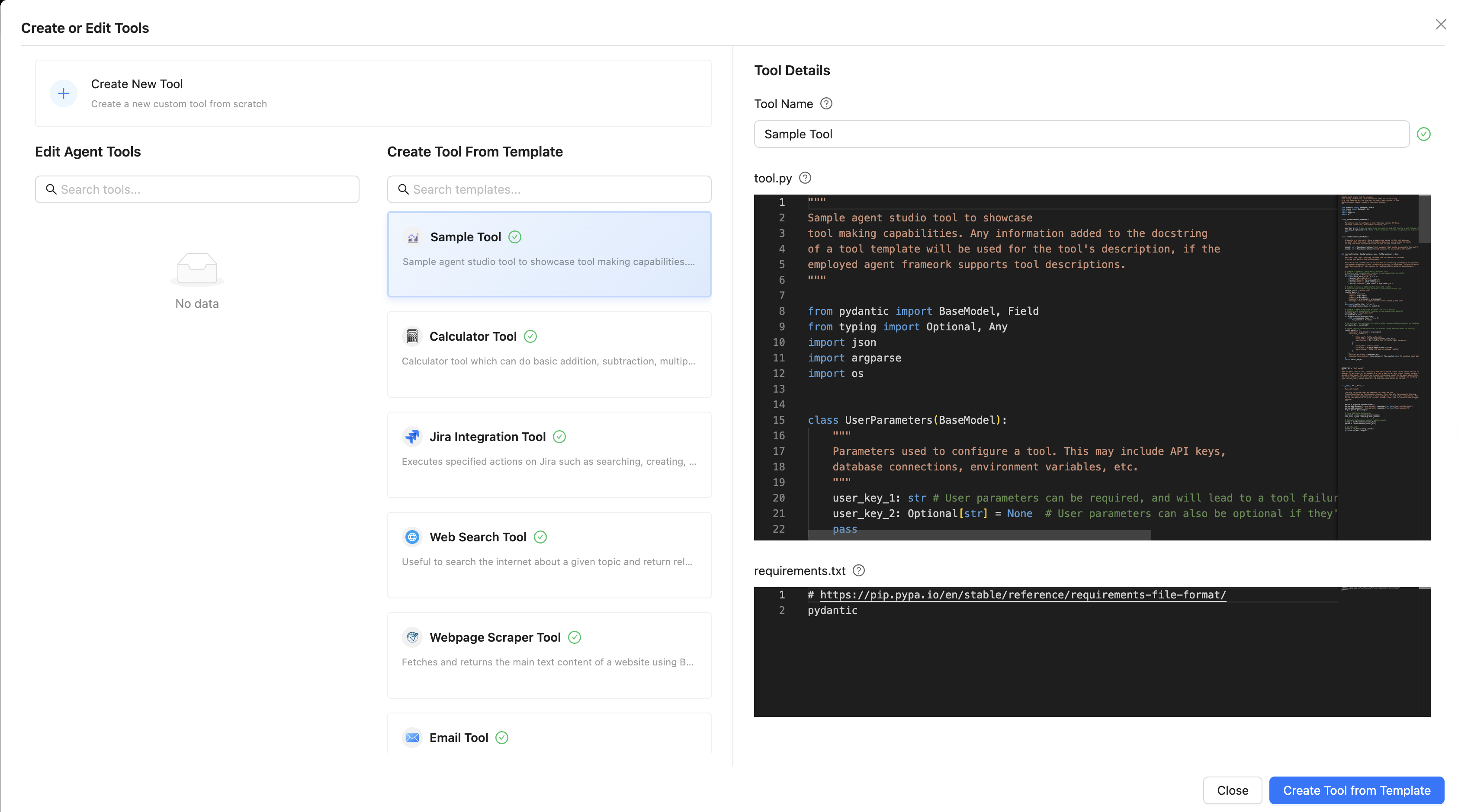
  9. Click on Create or Edit Tools. The Create or Edit Tools window displays.
  10. In the Create or Edit Tools window, you can perform one of the following:
    1. Create new tool: Enter the Tool Name and click the Create New Tool button.
    2. Create tool from template: Select a tool from the list of existing tools and click the Create Tool from Template button.
    3. Edit Agent tools: Search for an existing tool and make changes to the tool's properties. Click the Save button.
  11. Click the Create Agent button.