Configuring Cloudera AI Inference service I/O logging

Configure input/output (I/O) logging for a Cloudera AI Inference service to store transaction payloads in your associated Cloudera Data Lake.

  • A configured and accessible Cloudera Datalake must be associated with the workspace. Otherwise, the logging toggle is greyed out, and a blue information alert explains that a data lake is required to proceed.
  1. In the Cloudera console, click the Cloudera AI tile.

    The Cloudera AI Workbenches page is displayed.

  2. Click AI Inference Services in ADMINISTRATION on the left navigation menu.
    The AI Inference Services page is displayed.
  3. Select a Cloudera AI Inference service instance and go to the Service Details page.
  4. Locate the Inference Logging toggle and click it.
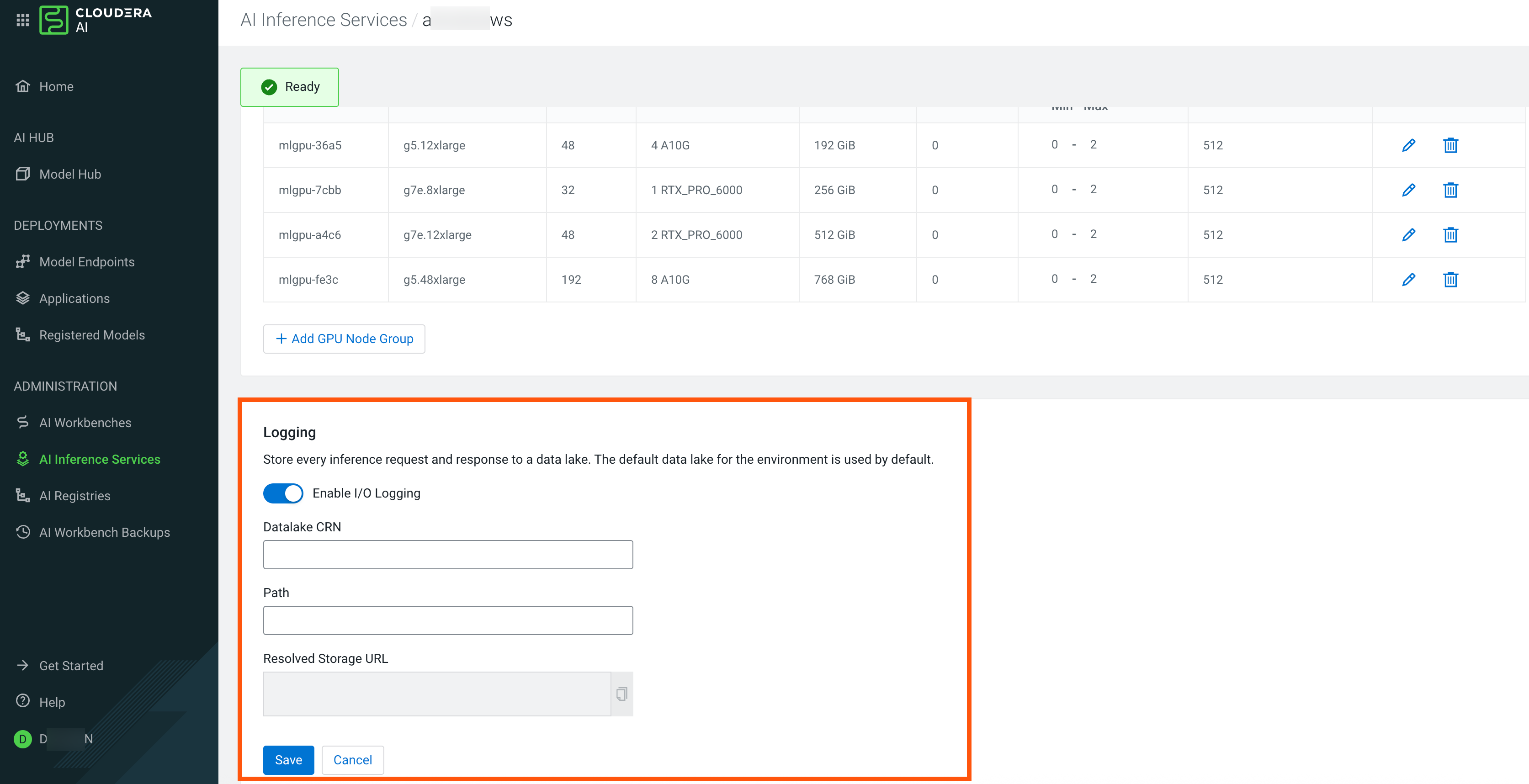
  5. In the configuration fields, enter the Datalake CRN and your designated Storage Path.
  6. Click Save to apply the configuration.
    Review the automatically generated Resolved Storage URL. You can click the copy icon next to the URL to save it to your clipboard for external data pipeline referencing.

    To stop capturing payload data, click the Inference Logging toggle to Off.
