Accessing the Evaluations dashboard
Learn about accessing the evaluations dashboard in Agent Studios.
Ensure you complete the instructions in Deploying Agent Studio using the ML Runtime Image .
Testing during a workflow creation
When a workflow run is still executing, it appears in the Evaluations table with an In Progress status. The UI automatically refreshes once the run completes, making the results available without requiring a manual page reload.
- In the Cloudera
console, click the Cloudera AI tile.
The Cloudera AI Workbenches page displays.
- Click on the name of the workbench.
The workbench Home page displays.
- Click Projects, and then click New
Project to create a new project.
In the left navigation pane, the new AI Studios option is displayed.
-
Click AI Studios.
- Navigate to the Actions menu.
- Select Test Workflow.
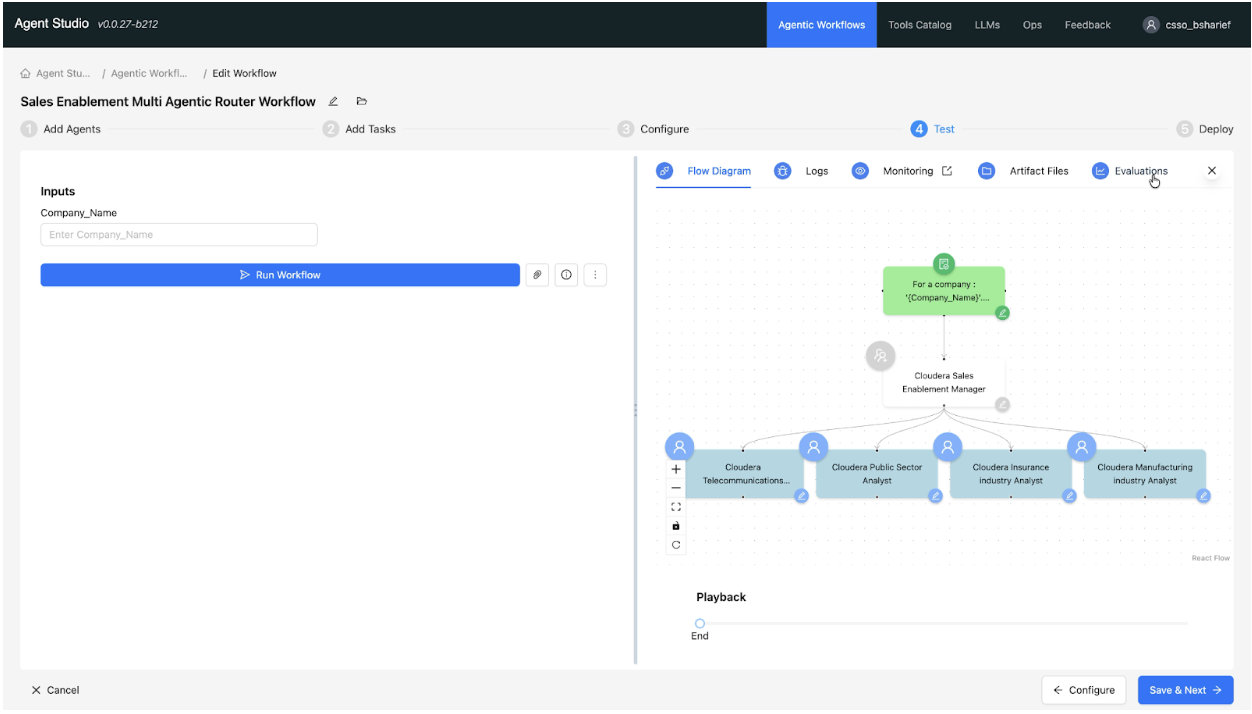
The testing interface is displayed.
- In the testing interface, locate the tab menu above the canvas and select
Evaluations tab to view the historical and
current run data.
Auditing a deployed workflow
- In the Cloudera
console, click the Cloudera AI tile.
The Cloudera AI Workbenches page displays.
- Click on the name of the workbench.
The workbench Home page displays.
- Click Projects, and then click New
Project to create a new project.
In the left navigation pane, the new AI Studios option is displayed.
-
Click AI Studios.
- Open a deployed workflow.
- Enter your parameters (for example, Company Name) and click Run Workflow.
- Once the run completes, click the Evaluations tab to view the historical and current run data.
Navigating the dashboard
- Runs Table: View all historical and current runs in a centralized table for fast scanning and comparison.
- Metrics View: Selecting a run opens a summary view organized by Automatic Evaluators and LLM-based Evaluators. Results use standardized PASS/FAIL labels and user-friendly number formatting to reduce ambiguity.
- Drill-Down Detail: Click any metric row to navigate into detailed results. This allows you to trace exactly what failed and identify the specific span or step responsible. You can use the Back button to navigate between drill-down levels.
