Configure the Agent Studio ML runtime image for a new blank project within the
Project Settings page.
-
In the Cloudera
console, click the Cloudera AI tile.
The Cloudera AI Workbenches page is displayed.
-
Click on the name of the workbench.
The workbench Home page is displayed.
-
In the left navigation pane, click on Projects.
The Projects window is displayed.
-
Click on the newly created blank project tile.
-
In the left navigation pane, click on Project
Settings.
The Project Settings page is displayed.
-
Click the Runtimes tab.
The Available Runtimes window is displayed.
-
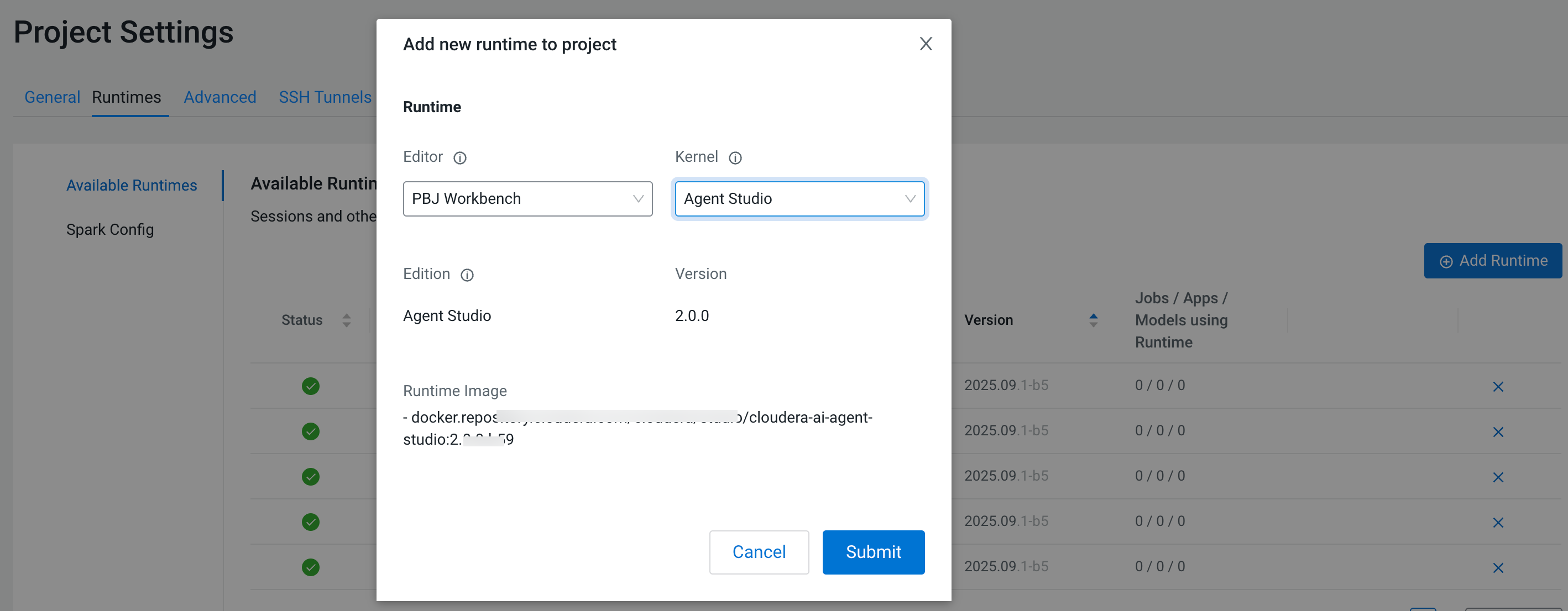
Click on Add Runtime.
The Add new runtime to project dialog box opens.
-
In the Add new runtime to project, select the
following:
-
PBJ Workbench as the
Editor.
-
Agent Studio as the
Kernel.
Figure 1. Add new runtime to project dialog box
-
Click on Submit.
The newly added runtime is displayed in the
Available
Runtimes window of the
Project Settings
page.
