Create custom AI agents manually in Agent Studio within Cloudera AI to define specific roles, goals, and LLM models for your
workflows.
In the Cloudera
console, click the Cloudera AI tile.
The Cloudera AI Home page is
displayed.
Click on the name of the workbench.
The Cloudera AI Workbench Home page
is displayed.
In the left navigation pane, click AI Studios.
The AI Studios page is displayed.
On the Agent Studio tile, click
Open.
The Agent Studio page is displayed.
Click on Create.
The Create New Workflow window is displayed.
Enter a Workflow Name.
Click on Create Workflow.
A draft workflow is created and a Edit Workflow window is
displayed.
Click on Create or Edit Agents.
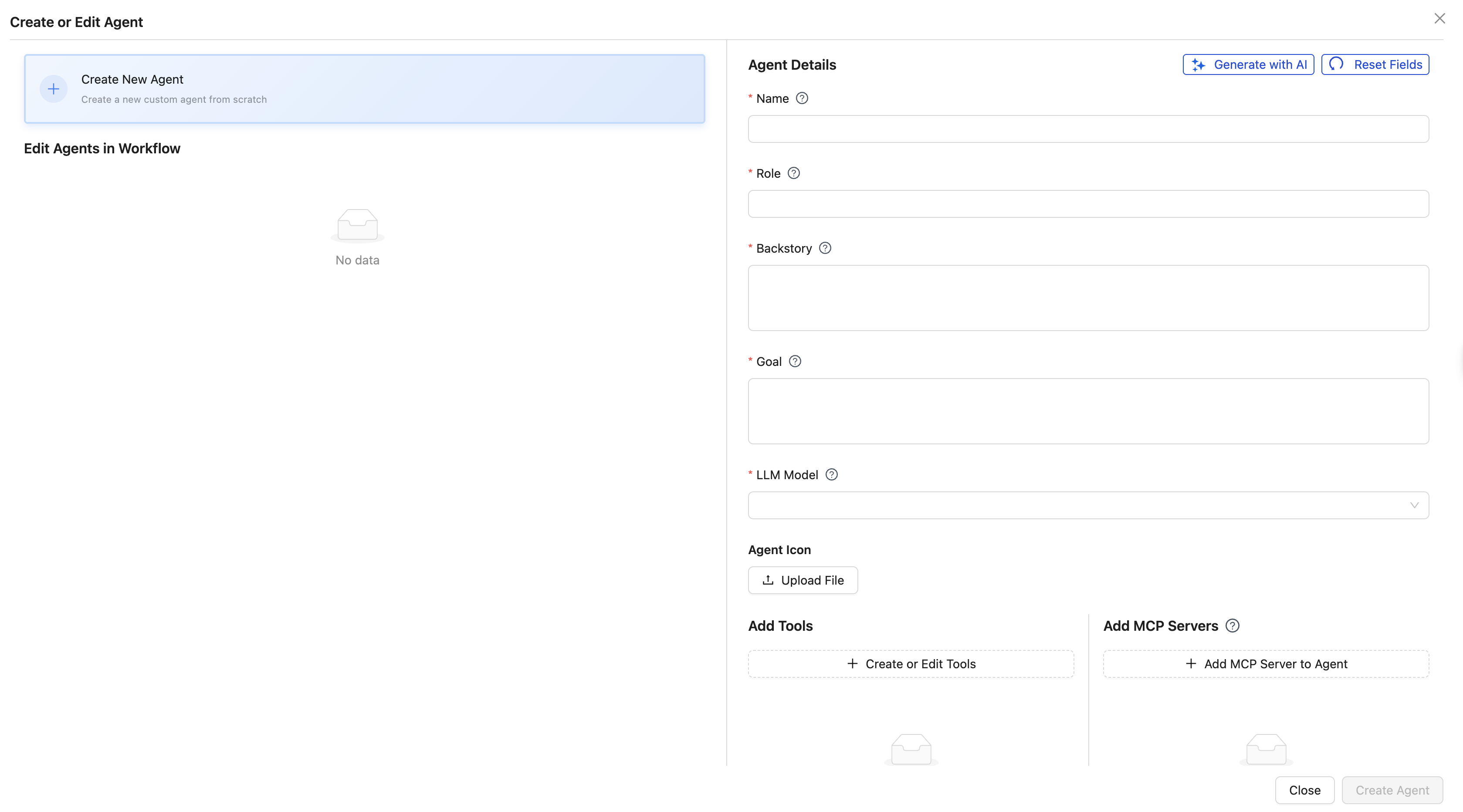
The Create or Edit Agent window is displayed.Figure 1. Create or Edit Agent window
Specify the following details:
Name – Name of the agent.
Role – Description of the role this agent plays
in the workflow.
Backstory – Context of history of the
agent.
Goal – The primary objective or purpose of the
agent.
LLM Model – LLM model that the agent will use in
the workflow.
Agent Icon – Upload a file for the agent
icon.
Add Tools – Create custom tools for an agentic
workflow during the workflow creation process to extend platform
functionality. For more information, see
Creating
custom tools.
To design an effective Agent, you must enable interaction and the
creation of concrete, shareable results that are artifacts. Cloudera recommends integrating
specific tools that allow the agent to create Artifact Files.
Use the
following recommended tools:
Table 1. Recommended tools and its function
Tool name
Primary function
Artifact Files Read/Write Tool
Enables the Agent to ingest, process, and
persist various file types as workflow
output.
Code Execution Tool
Allows the Agent to run embedded or generated
code snippets, to produce data transformations,
statistical analysis, or complex computational
results.
Add MCP Servers – MCP servers can be
incorporated during the workflow creation or modification process, to
enhance the functionality of agents within a workflow. For more
information, see
Adding MCP
servers to agents.
Click on Create Agent.
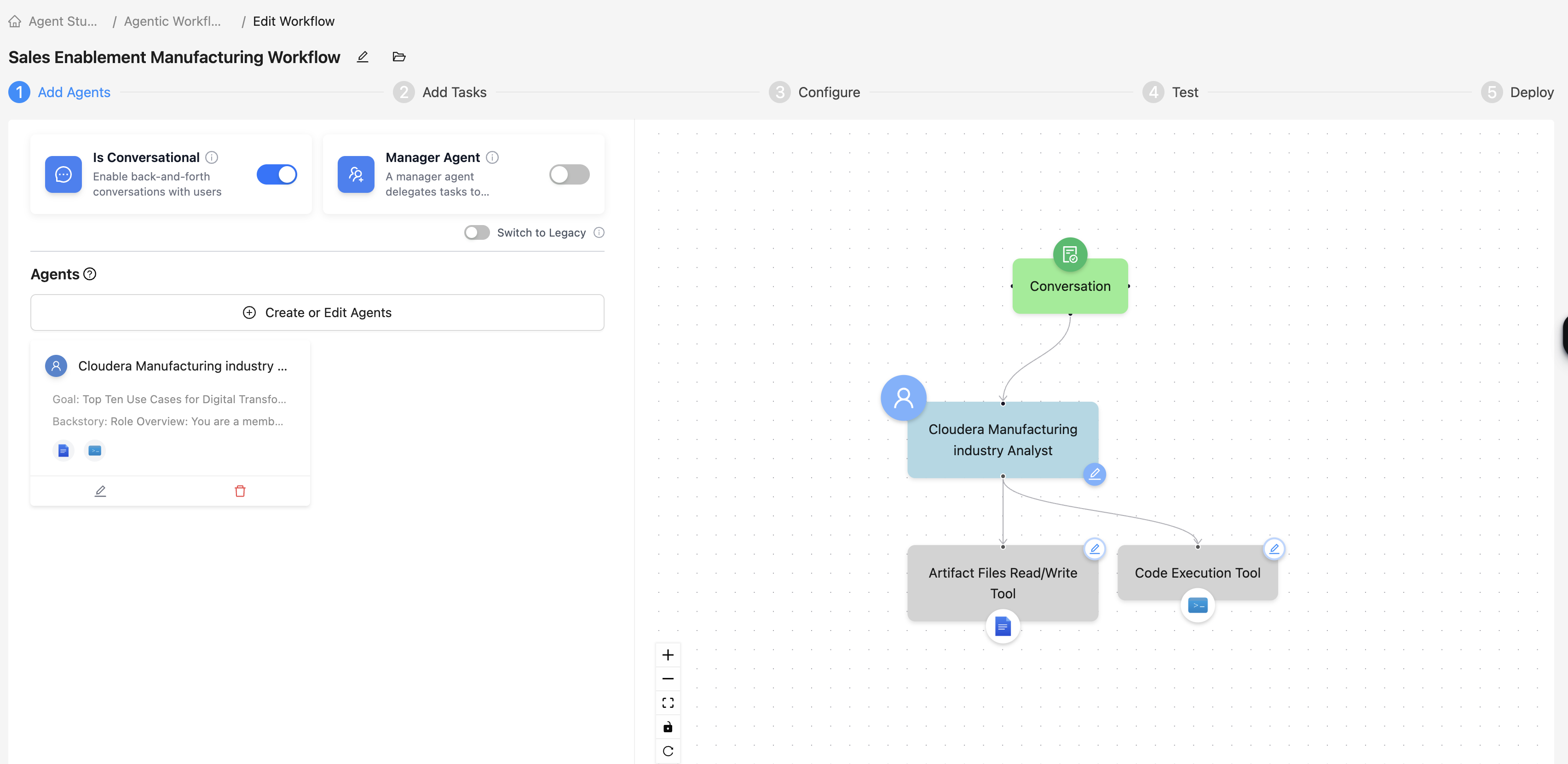
The newly constructed agent is displayed and the following workflow displays:
A conversational task.
The conversational task is assigned to the Cloudera
Manufacturing industry Analyst agent.