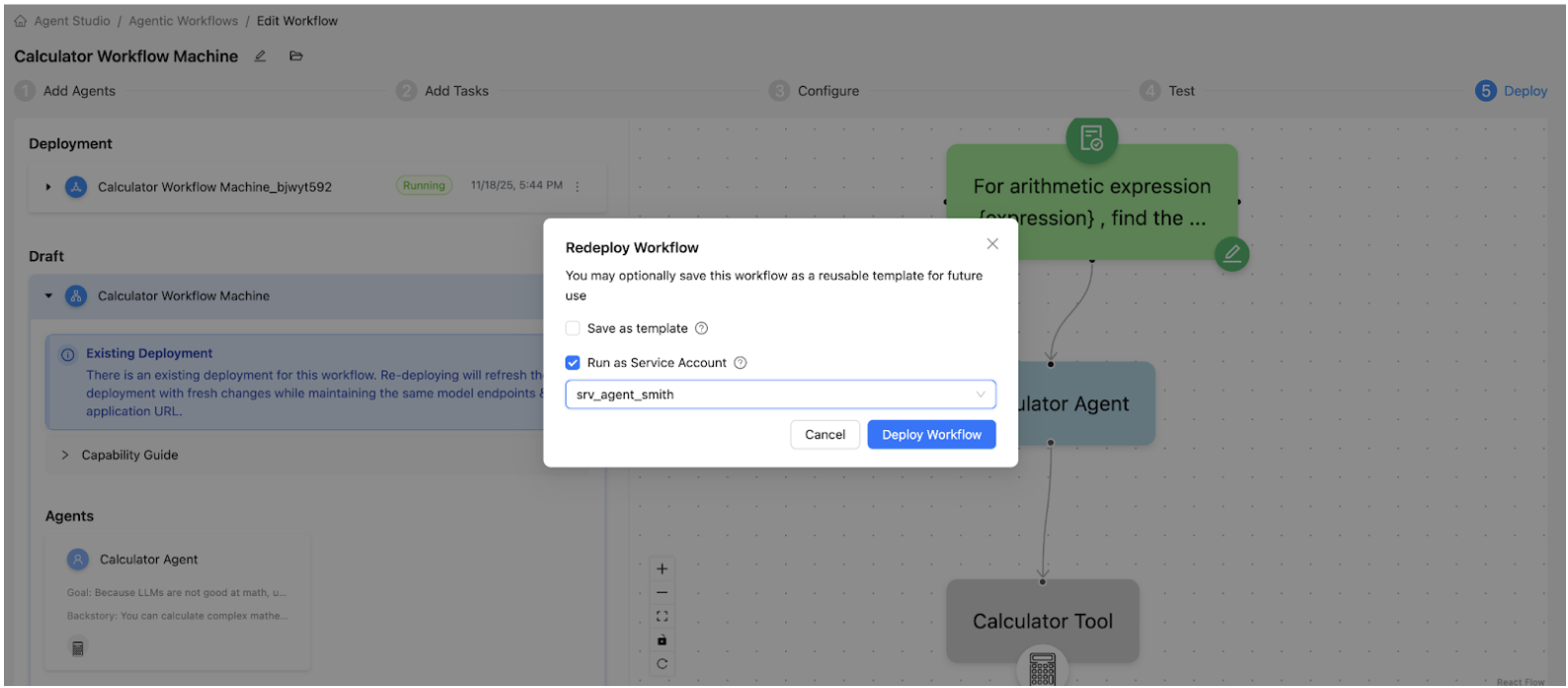
Learn about deploying Agent Studio within a service account.
The Agent Studio application can be deployed within the service account, if
necessary. If the Agent Studio application is deployed using a service account, the
associated workflow is automatically deployed under the same service account.
-
In the Cloudera
console, click the Cloudera AI tile. The Cloudera AI Workbenches page
displays.
-
Click on the name of the workbench. The workbench Home
page displays.
-
Click the Launch button in the Agent
Studio box to initiate installation in runtime mode. The
Configure Studio: Agent Studio page is
displayed.
-
Set the environment variables for the Agent
Studio.
-
Select the Editor as PBJ
Workbench.
-
Under Runtime, select Agent
Studio as the Kernel
-
Click Launch AI Studio. The AI Studio Setup
Steps page is displayed. After launching, you can view the list
of tasks being executed as part of the AI studio deployment.
-
After configuration, Agent Studio is displayed in the
left navigation page under AI Studios.
-
Navigate to the Application settings page.
-
Under the Run Application as option, select
Service Account and choose the desired service
account from the drop-down menu.
-
Click the Update Application button to apply the new
setting. The Agent Studio application then restarts, running under the specified
service account.