Launching RAG Studio when AI Studios mode is disabled
This section outlines the process for manually creating the RAG Studio application when the AI Studio entitlement cannot be enabled.
- Create a new blank Project and configure Runtime.
- Create a new blank project. Do not reuse an existing project where RAG Studio was previously deployed using the legacy AMP mode.
- Set up the RAG Studio ML Runtime image on the page.
- Click Add Runtime.
- In the Add new runtime to project dialog box, select the Editor as PBJ Workbench.
- Select RAG Studio as the Kernel.
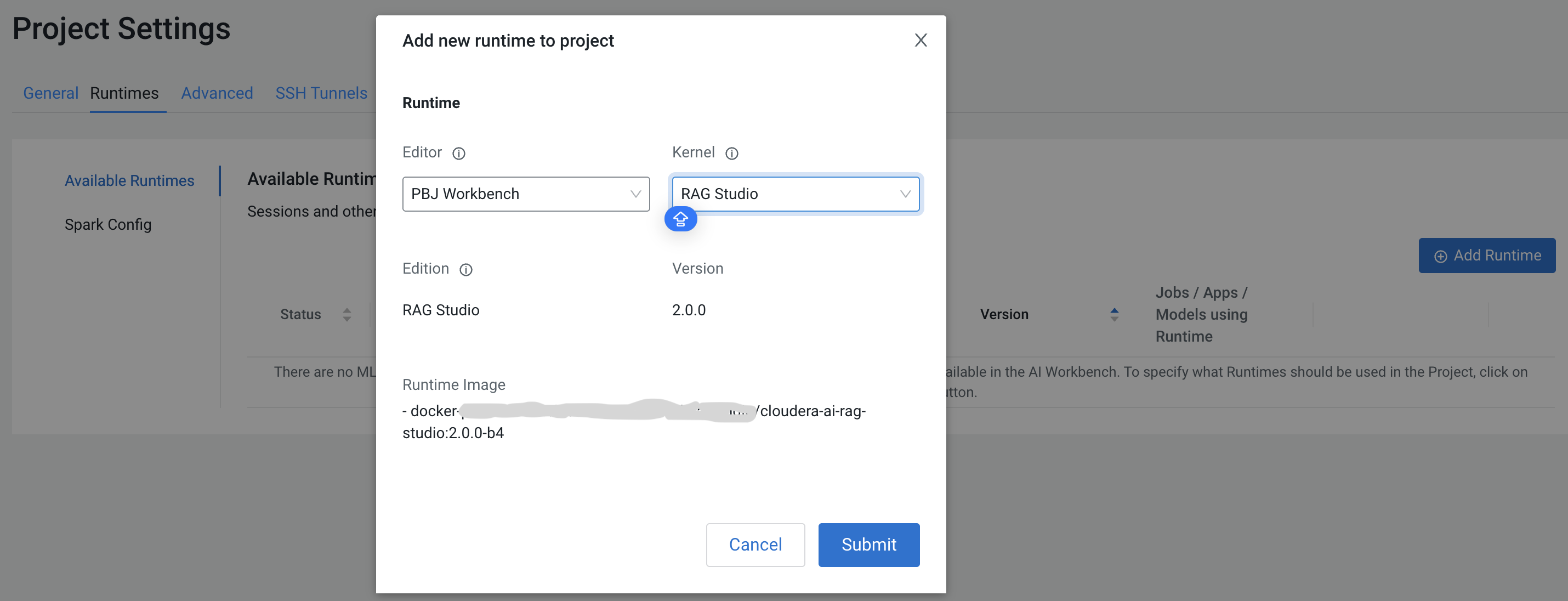
- Click Submit.
The newly added runtime is displayed in the Project Settings page.
- Create the RAG Studio application.
- In the left navigation pane, click the Applications tab.
- Click New Application.
- Enter the name of the application as RagStudio.
- Enter the script file path as
/rag-studio/scripts/startup_app.py. This script is auto-created during the installation process. - Select RAG Studio as the kernel under the Runtime settings.
- Launch the application.
- Once the application is created, it will launch a runtime container based on the configured RAG Studio ML Runtime Image within the project. This application will serve as the new RAG Studio interface.
This will create a runtime container-based RAG Studio application inside the project.
