Stopping a workflow
You can stop a running workflow to safely terminate AI agents and halt active processes. This provides essential control over your environment, allowing you to interrupt long-running tasks, adjust inputs, or conserve resources.
Stopping a workflow is useful in the following scenarios:
- Unexpected duration: The workflow is taking significantly longer than anticipated.
- Input adjustments: When changes are required for the input data before the process completes.
- Unsatisfactory results: The current output is not meeting your requirements or expectations.
- Process redundancy: The workflow is no longer needed to complete its task.
- Fresh start: To restart the process with entirely different settings.
The Stop Workflow feature ensures that the workflow terminates cleanly. All progress is saved, and compute resources are properly released.
Stopping a workflow
- In the Cloudera
console, click the Cloudera AI tile.
The Cloudera AI Workbenches page displays.
- Click on the name of the workbench.
The workbench Home page displays.
- In the left navigation pane, click the AI Studios option.
- Click the Launch button in the Agent Studio box to initiate installation in runtime mode. The Configure Studio: Agent Studio page is displayed.
- Set the environment variables for the Agent Studio.
- Select the Editor as PBJ Workbench.
- Under Runtime, select Agent Studio as the Kernel
- Click Launch AI Studio.
The AI Studio Setup Steps page is displayed.
After launching, you can view the list of tasks being executed as part of the AI studio deployment.
- After configuration, Agent Studio is displayed in the left navigation page under AI Studios.
- Click Agent Studio and click Get Started to orchestrate AI agents to collaborate on complex tasks, powered by custom tools and seamless workflow automation.
- Create your workflow. You can either stop the workflow during Testing, in the
Tools Playground or stop the workflow after Deploying it.
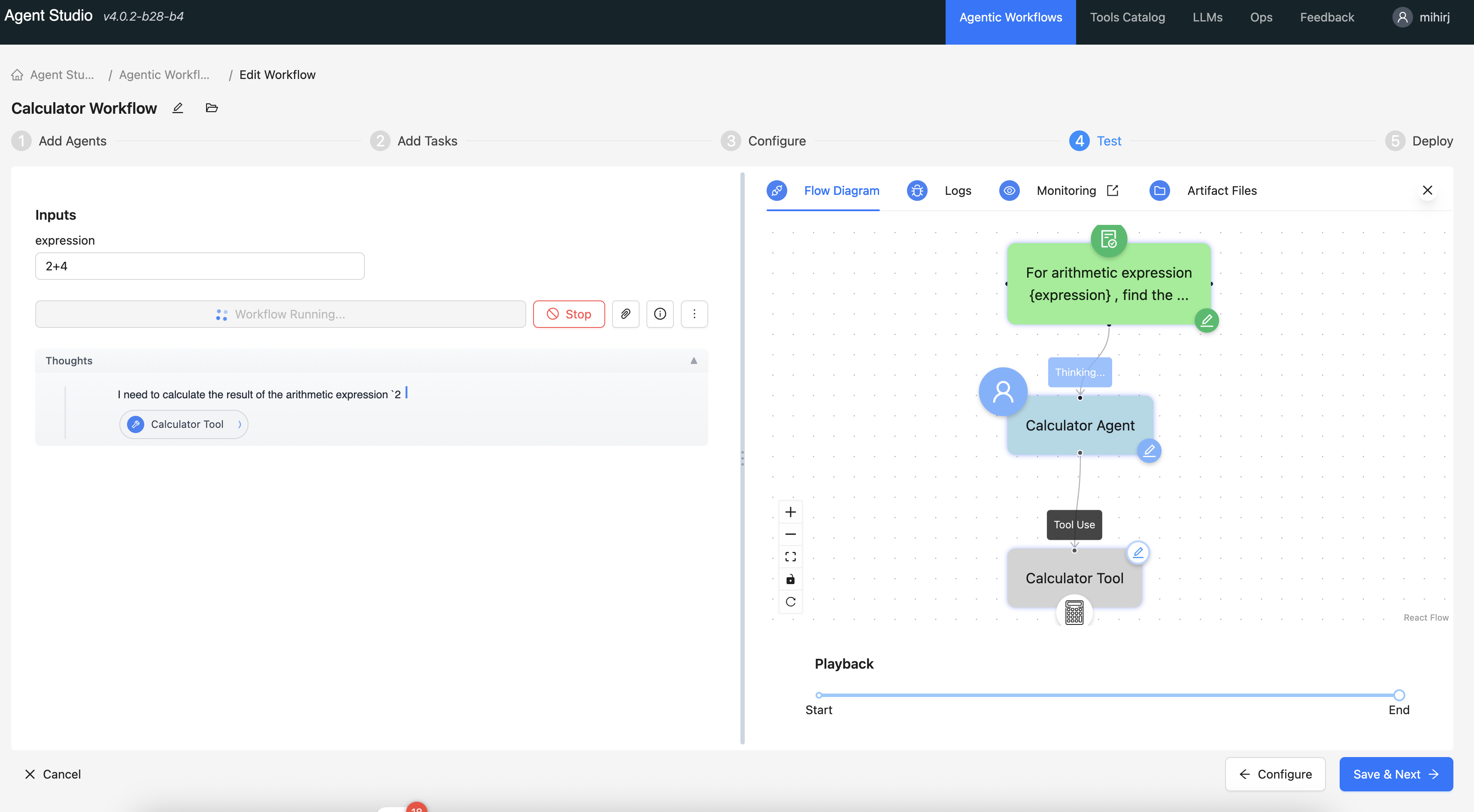
- To terminate the workflow, click the red Stop button.
- The button changes to display Stopping while the request processes. The workflow ends, and the button disappears once the process is complete.
The workflow typically terminates within seconds. Once stopped:
- Resource cleanup is handled automatically.
- You can immediately initiate a new workflow or modify existing settings.
