Creating a backup

You can backup your existing data on the primary cluster to the S3 storage.
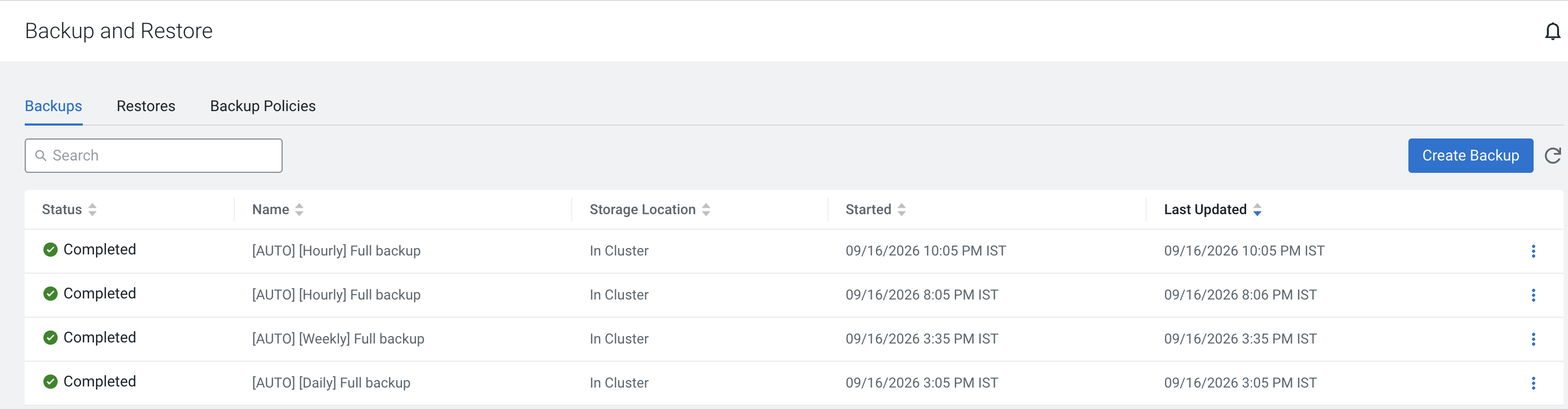
Procedure to perform the backup operation to secure the data.
As a prerequisite, you must have linked the S3 storage to the primary cluster. The cluster configurations for both the primary and secondary clusters must be the same.
As a prerequisite, you must link the S3 storage to the primary cluster. The cluster configurations for both the primary and secondary clusters must be the same.
  1. Navigate to Cloudera Management Console→ Backup and Restore → Select the Backups tab.
  1. Click Create Backup.
  2. Under the Create Backup pane, enter the following information:
    • Provide a name for the backup.
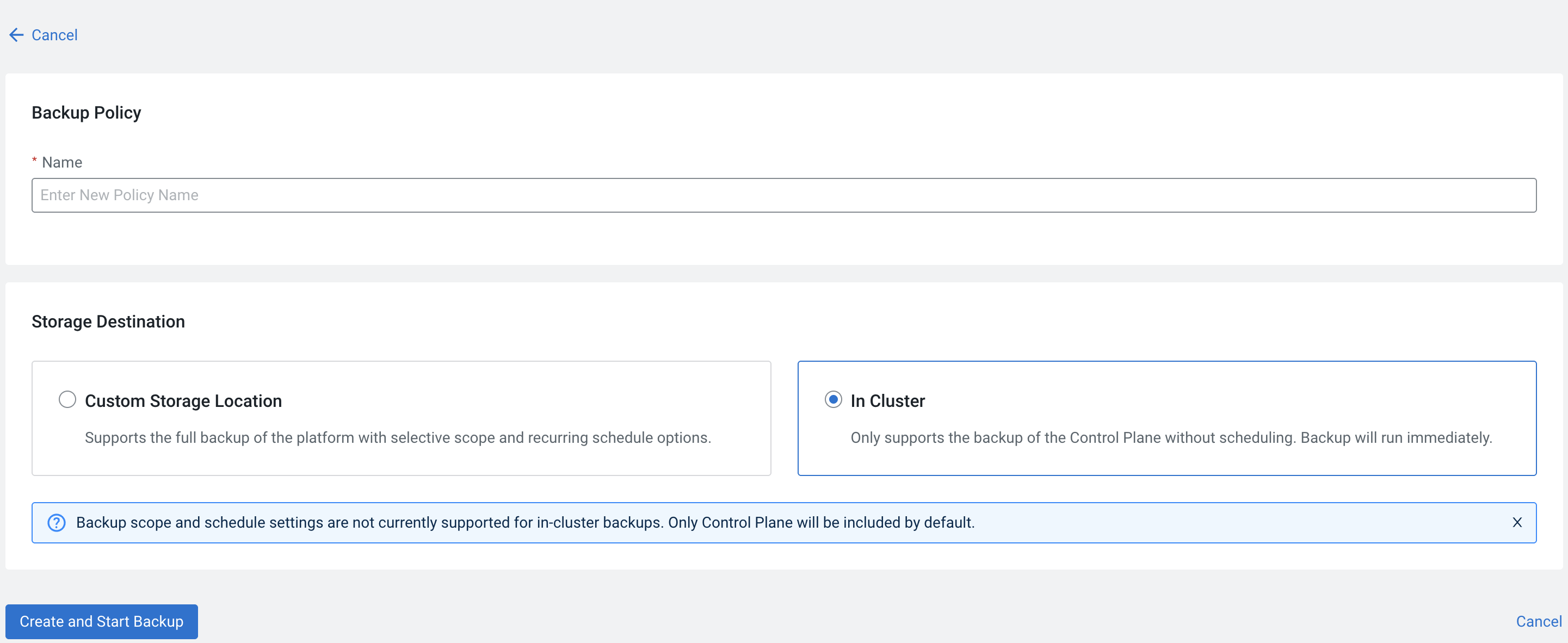
    • Under the Storage Destination pane, select the Custom Storage Location or In Cluster.
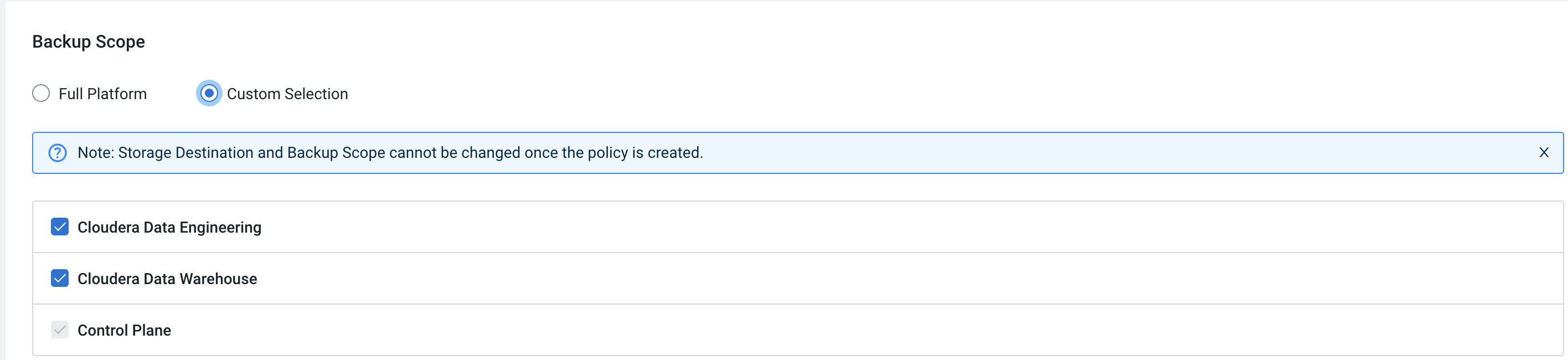
    Selecting Custom Storage Location enables additional flowpath where a Backup Scope option is displayed. The Backup Scope pane defines the boundaries for the data that is being backed up.
  3. Select Full Platform or Custom Selection option.
    • Full Platform backup picks up the data from the entire cluster.
    • Custom selection specifically backs up from one or more entities from the following:
        • Control Plane (default)
        • Control Plane + Supported Data Services
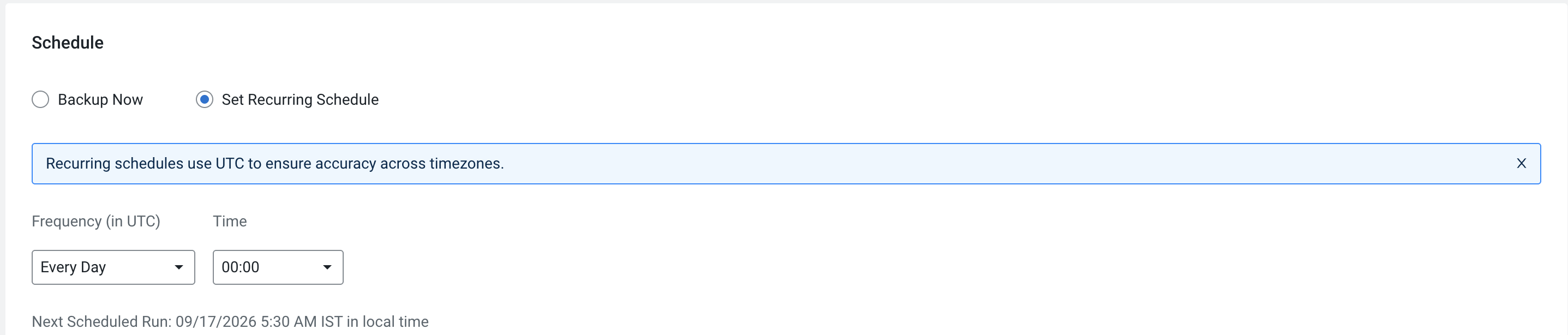
  4. Under the Schedule pane, select the Frequency (in UTC) for the backup and enter the valid values. The next scheduled backup schedule is displayed alongside.
    You can select the frequency based on a daily, weekly, and monthly basis.
  5. Under the Storage Destination pane, select In Cluster to only backup the Cloudera Control Plane data. Backup process starts immediately.
    Backup scope and schedule settings are not currently supported for in-cluster backups. Only Cloudera Control Plane will be included by default.
  6. Click Create Backup Policy.
    This clickable button appears when you select Custom Storage Location to fully backup the platform with selective scope and recurring schedule options.
  7. Click Create and Start Backup.
    This clickable button appears when you select In Cluster to only backup the Cloudera Control Plane data.
    The newly created backup policy is displayed under the Backup Policies tab in the Backup and Restore homepage. The Backup Policies page displays all the backups that are either in progress or scheduled for the next run. You can view the backup details, understand the scope of the backup, edit backup schedule or delete the backup policy.
