Updating Cluster Connectivity Manager v2 server certificates
The server certificate of Cluster Connectivity Manager v2 must be updated for
all registered Classic Clusters to ensure uninterrupted communication between the Cloudera Control Plane components.
To update the server certificate, you need to modify the config.toml
file for the jumpgate agent with the new Cluster Connectivity Manager v2
server certificate on the Cloudera Manager nodes. In case the certificate is not
updated, all communications between the workloads and the Cloudera Control Plane through the Cluster Connectivity Manager
v2 channel fails. This blocks all operations until the Jumpgate agent certificate is
successfully updated.
You need to have CLASSIC_CLUSTERS entitlement to use this
feature. For more information about how to obtain the entitlement, contact
Cloudera Customer Support.
Required roles
ClassicClusterAdmin or ClassicClusterUser
root access on the on-premises cluster to run the
script
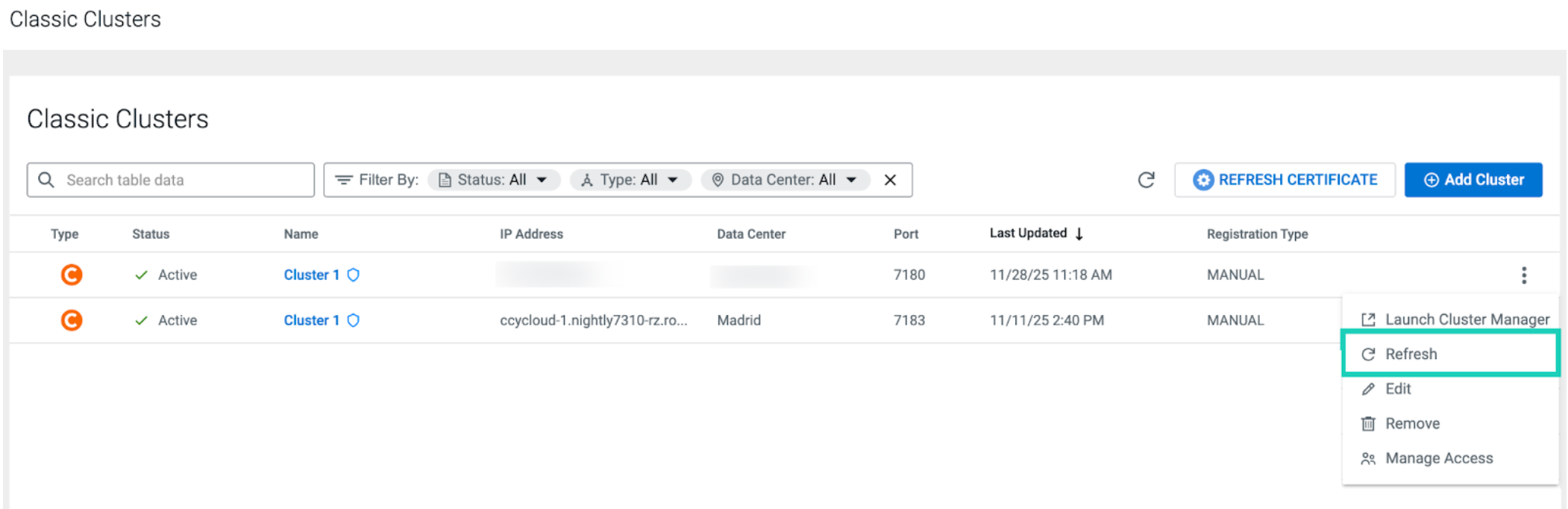
Navigate to the Classic Clusters page in Cloudera Management Console.
Copy the URL of the Cloudera Control Plane from the browser. The
URL will be required for the update script.
The certificate_refresh_package.zip file is downloaded
automatically to your local machine. In case the download does not start on
its own, click the provided link in the window:
Extract the downloaded file.
The following files should be present after extraction:
cert_refresh.sh - This is the main script
file.
certificate.pem - This is the certificate
file.
cert_refresh_guide.md - This is the
certificate refresh guide file.
You need to follow the instructions in the
cert_refresh_guide.md file.
Ensure you meet the following requirements before completing the next
steps:
You have root access to the Classic Cluster
nodes.
Jumpgate-agent is running in the nodes. You can review the
status of the jumpgate-agent.
The following utilities are present in the nodes:
openssl
awk
systemctl/service
Copy the downloaded zip file to the cluster node:
scp certificate_refresh_package.zip root@[***NODE IP***]:/tmp/
# OR
scp -i [***PATH TO CLUSTER KEY FILE***] certificate_refresh_package.zip root@[***NODE IP***]:/tmp/
Access the cluster node using SSH:
ssh root@[***NODE IP***]
# OR
ssh -i [***PATH TO CLUSTER KEY FILE***] root@[***NODE IP***]
Go to the directory where you have copied the zip file previously:
cd /tmp
Extract the file and set up the cert_refresh.sh script:
unzip certificate_refresh_package.zip
Modify the access right on the script to ensure that its executable:
chmod +x cert_refresh.sh
Run the cert_refresh.sh script:
./cert_refresh.sh update
The following example shows a successful run of the
script:
Starting CCMv2 certificate refresh
Reading certificate from: ./certificate.pem
Checking if jumpgate-agent service is running...
jumpgate-agent service is running
Found config file: /etc/jumpgate/config.toml
Reading certificate from: ./certificate.pem
Certificate read successfully from file
Certificate format validation passed
Backup created: /etc/jumpgate/backup/config.toml.backup.20251127_045155
Updating config.toml with new certificate...
Config.toml updated successfully
Restarting jumpgate-agent service to use refreshed certificate...
jumpgate-agent service restarted successfully
Service status after restart:
 jumpgate-agent.service - Jumpgate Agent daemon - Connects to CDP Control Plane
   Loaded: loaded (/usr/lib/systemd/system/jumpgate-agent.service; enabled; vendor preset: disabled)
   Active: active (running) since Thu 2025-11-27 04:51:55 UTC; 3s ago
 Main PID: 1929985 (jumpgate-agent)
    Tasks: 13
   Memory: 8.7M
   CGroup: /hadoop-yarn/container_e98_1747717134252_305443_01_000003/1775cc9f6c52c0af116205ab3bc28772920d87a92dfb01c1062507176c6d0f8f/system.slice/jumpgate-agent.service
           └─1929985 /usr/bin/jumpgate-agent --config=/etc/jumpgate/config.toml
Validating jumpgate-agent service status...
jumpgate-agent service validation passed
==================================================================
CCMv2 certificate refresh completed successfully!
Cluster:
jumpgate-agent service is running with new certificate
Backup file: /etc/jumpgate/backup/config.toml.backup.20251127_045155
==================================================================
After successfully running the script, you can check connectivity from Clouderaon cloud using one of the following options:
Navigate to the Classic Clusters page in Cloudera Management Console,
and select Refresh using button.
Clean up the files and packages related to the certificate
refresh:
# rm -f [***LOCATION OF CERTIFICATE REFRESH PACKAGE***]
rm -f /tmp/certificate_refresh_package.zip
# rm -f [***LOCATION OF CERTIFICATE AND SCRIPT***]
rm -f /tmp/certificate.pem /tmp/cert_refresh.sh
# NOTE: Do clean up after successful execution (for manual execution as well).
 The
The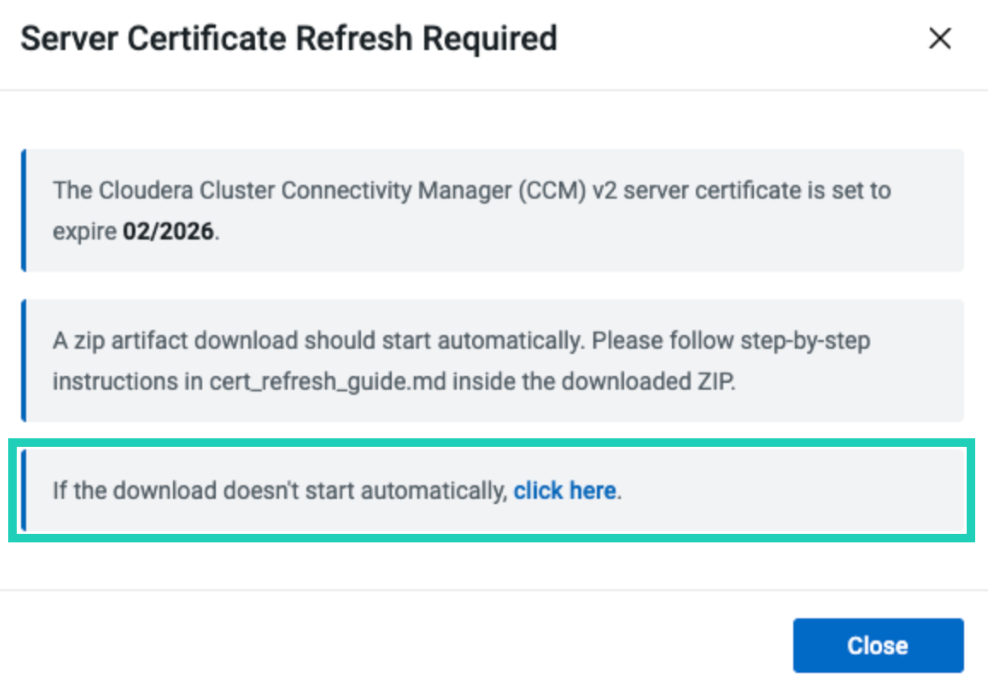
 button.