Cloudera Data Lineage User Guide
Tour the Cloudera Data Lineage (formerly Octopai) web platform interface, navigation areas, and key tools available to administrators and analysts.
Cloudera Data Lineage web platform
The Cloudera Data Lineage web platform provides central access to lineage, discovery, and knowledge features for data teams.
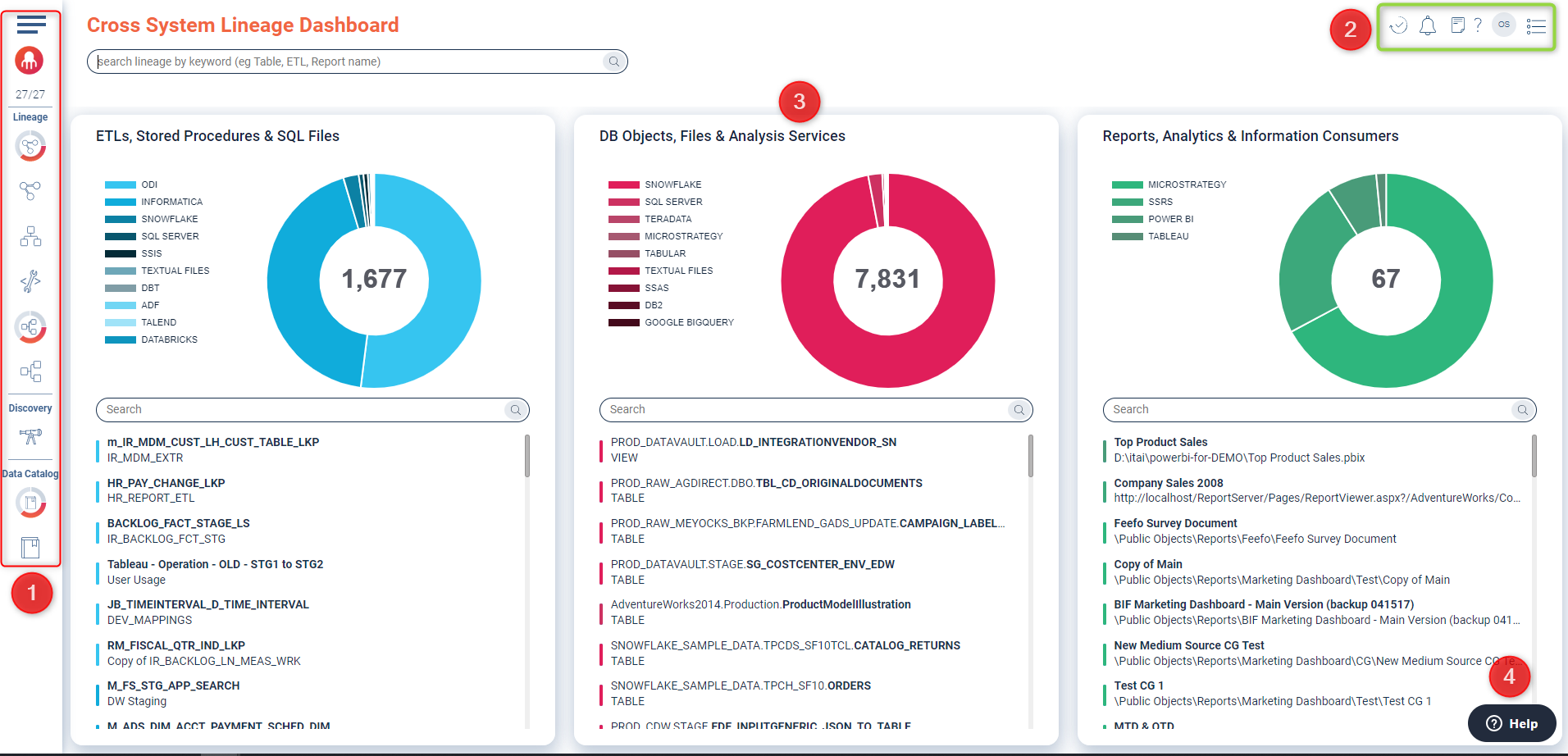
Section 1 - Spaces menu
Select the  menu icon to expand the Spaces menu and view
detailed navigation options.
menu icon to expand the Spaces menu and view
detailed navigation options.
The left menu is divided into the following spaces:
-
Lineage Space
-
Discovery Space
-
Knowledge Hub Space
Section 2 - General options
The toolbar across the top of the interface provides quick access to monitoring, notifications, and account tools.
- System monitor

The System Monitor pop-up window lists connectors by number, name, system, status, and last refreshed date.
Figure 2. Connector status summary 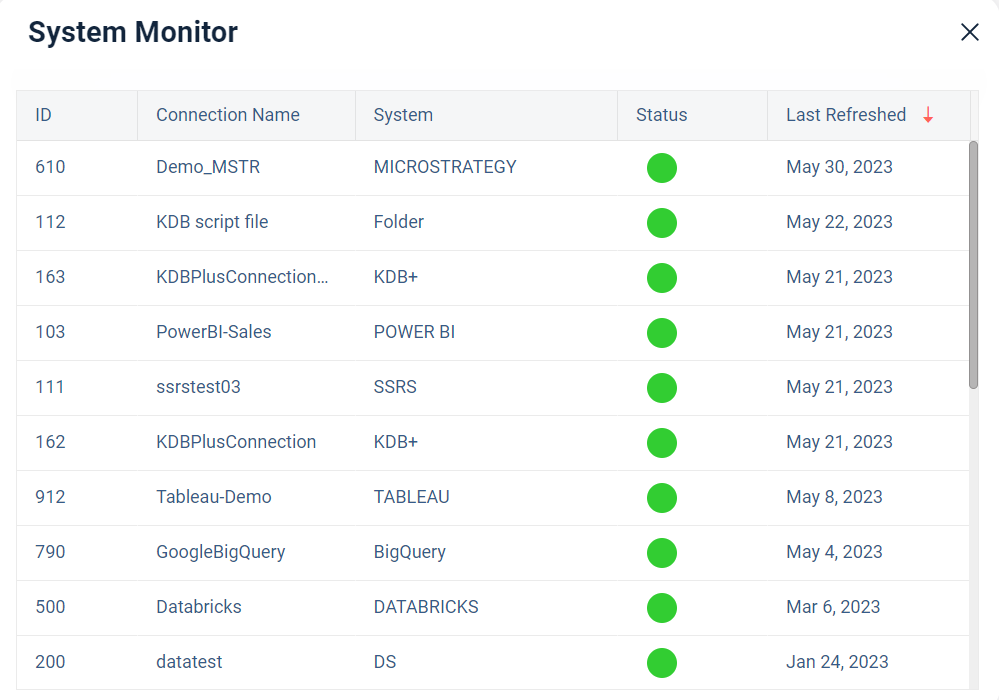
Review connector status details to confirm ingestion health before refreshing metadata.
- User notifications

User notifications display license information and other account-wide alerts.
- Recent activities

The Recent Activities list identifies the most recent searches performed in the environment. Use the red funnel icon to refine the list by submodule, activity, tool name, or tool type.
Figure 3. Recent activity filter options 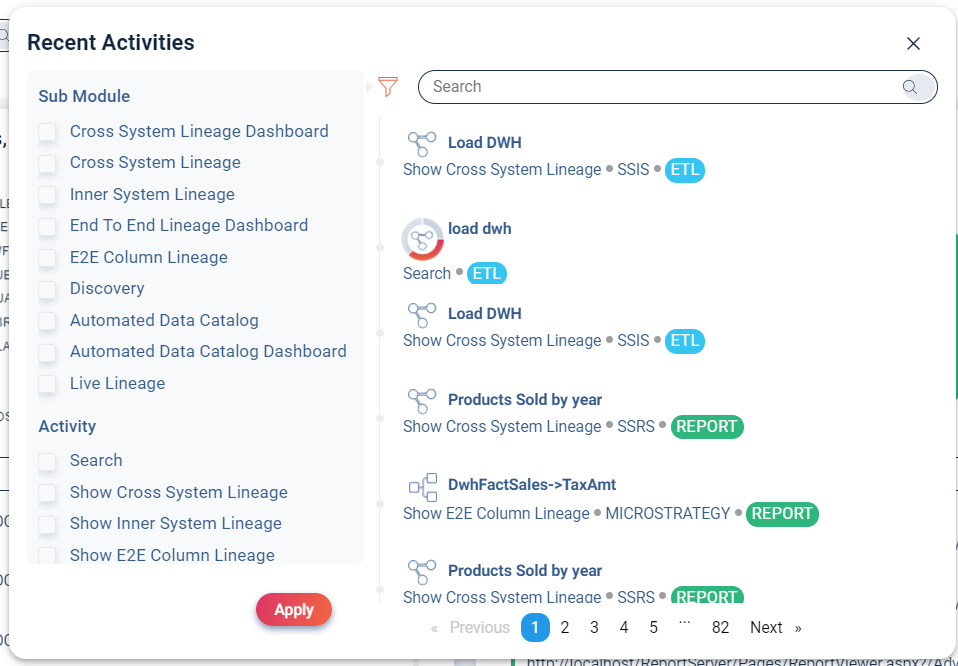
- Knowledge Center access

Select Need Help? to open the Cloudera Data Lineage Knowledge Center.
- User avatar options
Figure 4. User avatar menu 
The user avatar menu provides shortcuts to profile settings. Administrators can open the Admin Console, and all users can sign out from the logout option.
- Metadata connections
Figure 5. Metadata connections panel  The Metadata Connections panel lists every metadata source extracted by tool type.
Figure 6. Metadata source controls 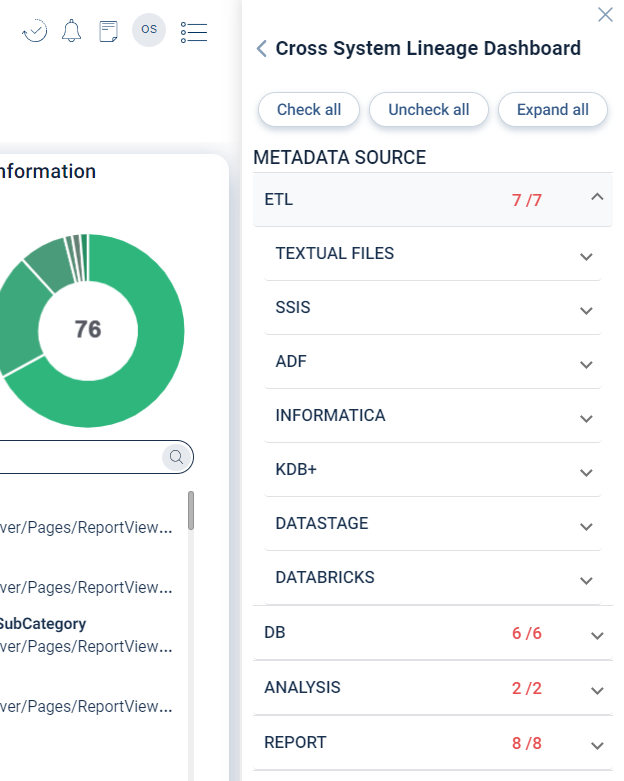 Toggle each metadata source on or off to control which systems appear in lineage views.
Figure 7. Cross System Lineage toggle 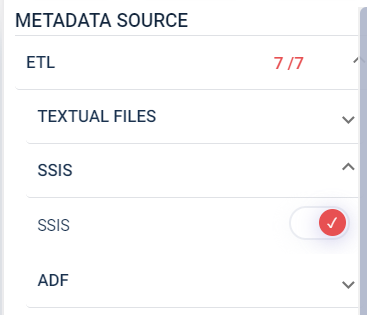
Section 3 - Main pane
- Search boxThe Search box supports fuzzy searches across report and process names (columns are not included).
Figure 8. Search box controls 
- Data objects list by typeThe Data Objects List by Type & Color option groups assets by the area they belong to.
Figure 9. Data object legend 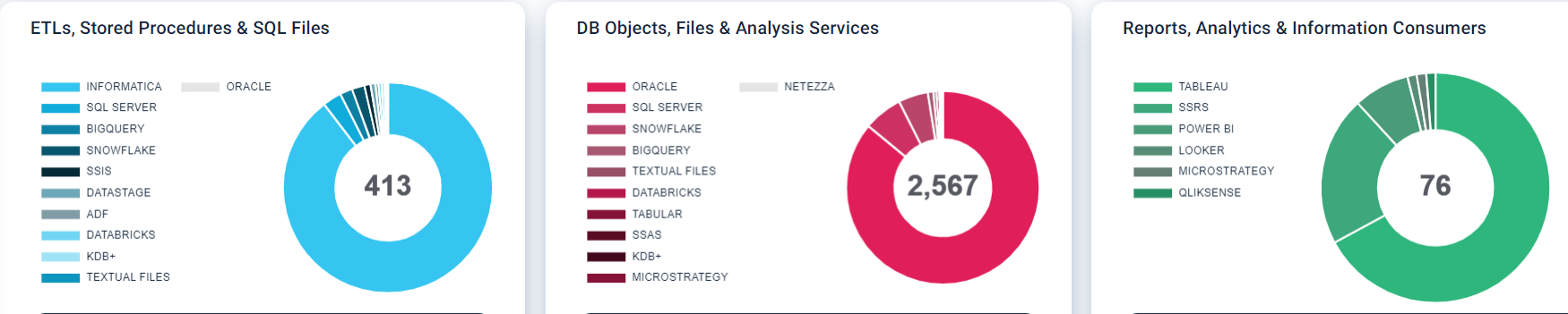 The color legend refers to the following elements:
- Blue area: ETL, stored procedures, and SQL files.
- Red area: Database objects, Analysis Services items, and physical objects.
- Green area: Reports.
Section 4 - Help button
Select the help icon to contact Cloudera Support.
The help resources open in a separate browser tab so you can continue working in the platform.
