Azure Data Factory (ADF)
Overview of the Cloudera Data Lineage (formerly Octopai) Azure Data Factory extraction workflow.
Tool Permissions Prerequisites
Before proceeding, verify that you meet the prerequisites for tool permissions in Azure Data Factory.
Warning: Missing permissions could end up in broken lineages.
- A dedicated application registered with the 'Reader' role assigned to the relevant Data Factories.
- Valid 'Client Secret' for authentication credentials.
How to set up the permissions
Ensure you have the necessary permissions to set up and manage Azure Data Factory.
Step 1:
Application Setup: Quickstart: Register an app in the Microsoft identity platform
Guidelines for application setup:
- Select ‘Accounts in this organizational directory only’ when creating a new application (registration), under ‘Who can use this application or access this API?’.
- On the same page, leave 'Redirect URI empty'.
- Credentials - On the Application page, under Manage > Certificates & Secrets, use the Client Secret option for Credentials. Copy it immediately, as it won't be fully visible afterward.
Step 2:
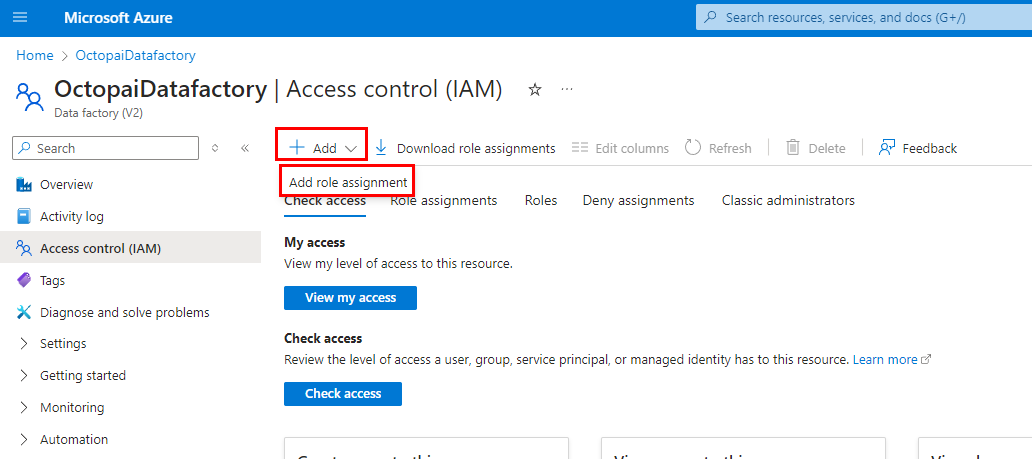
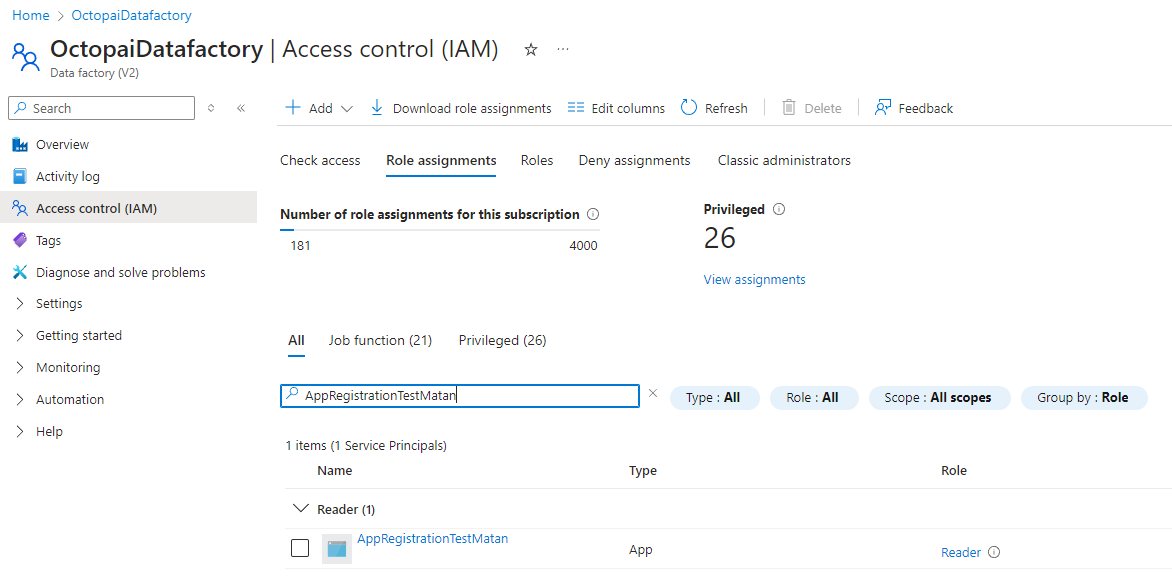
Assign the dedicated application a 'Reader' role to the relevant Factory/ies by following the below steps:
- Under your DataFactory, go to the 'Access control (IAM)' tab and click on 'ADD > Add
role assignment'.
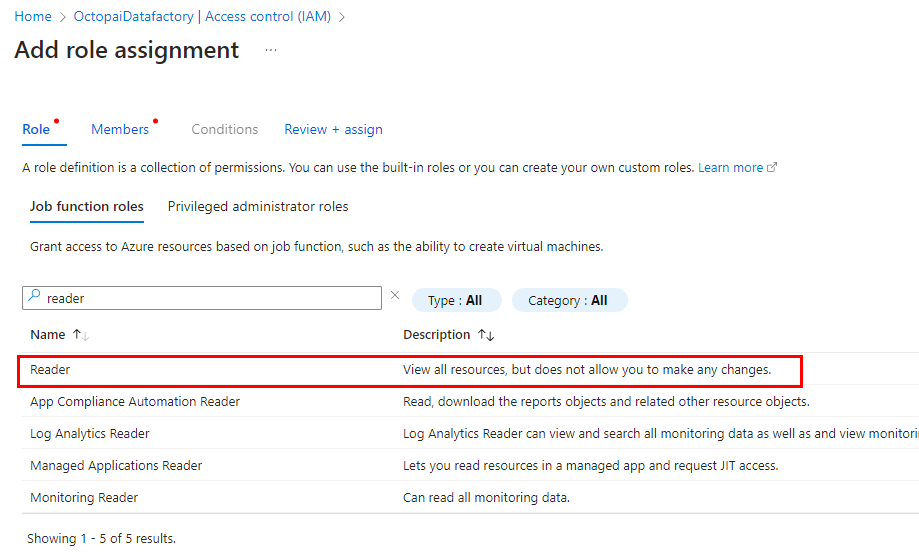
- Look for the 'Reader' role and click it.
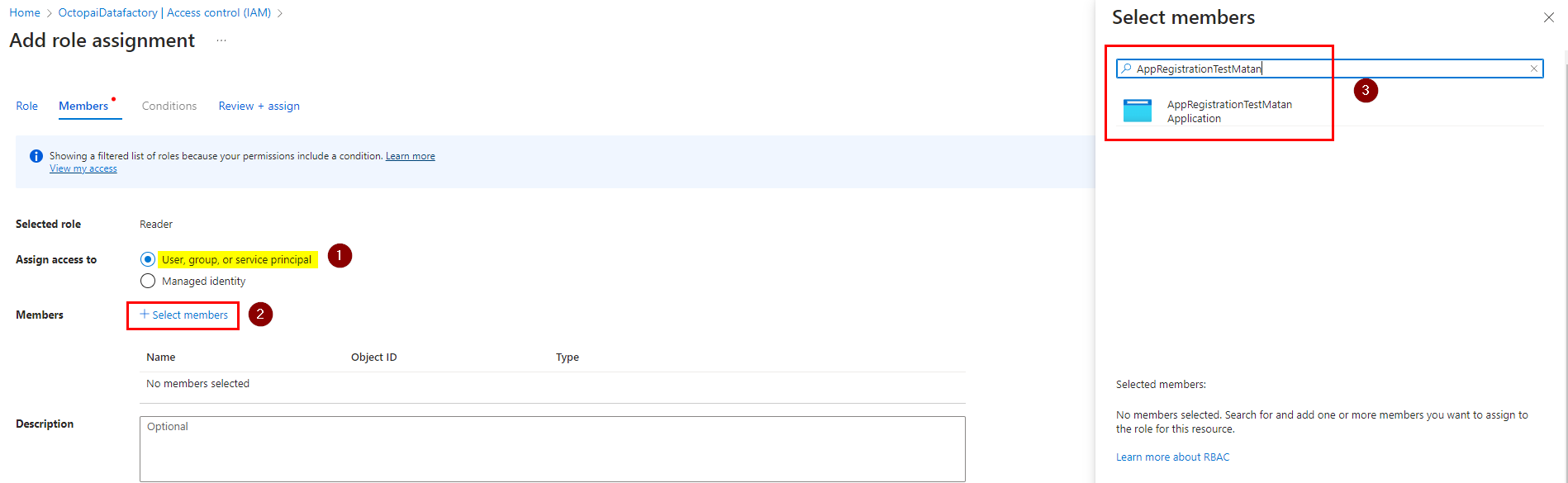
- Under the 'Members' tab, choose 'User, group, or service principal' and click on '+
Select members', then search for your application.
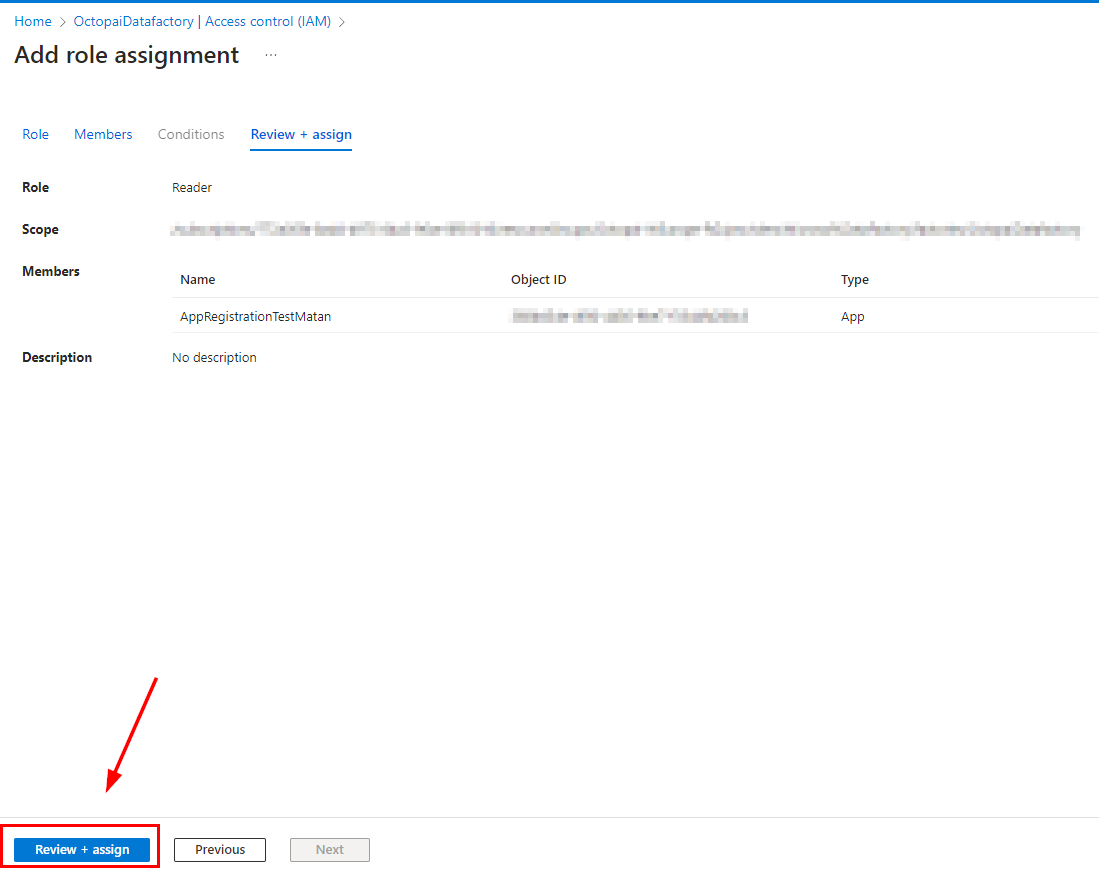
- The last step will be to review your configuration and assign the role by clicking on
'Review + assign'.
- After completing the previous steps, go back to your DataFactory's 'Access control
(IAM)' tab > 'Role assignments'. Your application should be there.
Setting up ADF Metadata Source
Follow these instructions to configure the metadata source in Azure Data Factory.
Metadata Sources are set on the Octopai Client:
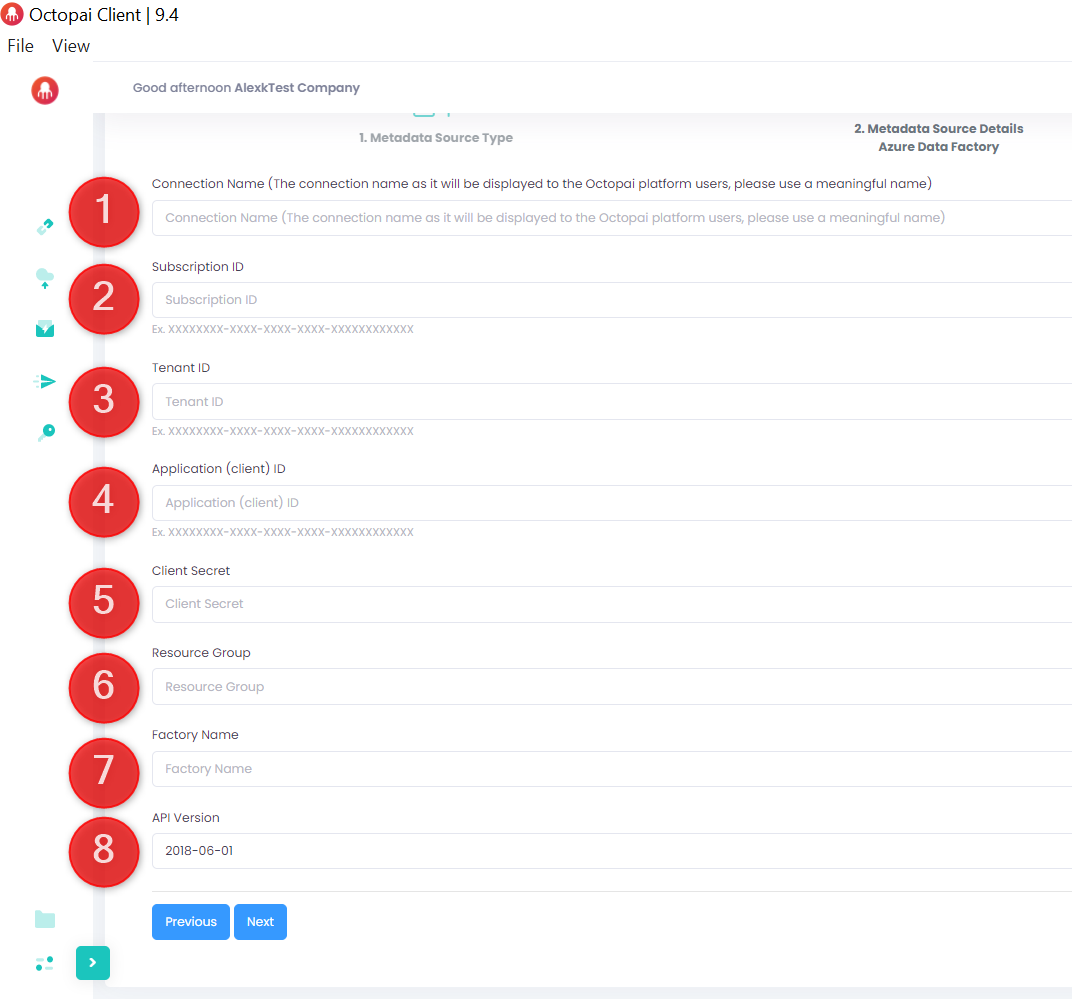
Legend:
- Connection Name: Give a meaningful name, as it will be displayed to the Cloudera Data Lineage platform users.
- Subscription ID: Found in the 'Subscriptions' section of the Azure portal.
- Tenant ID: Available in the 'App registrations' section under the application you created.
- Application (Client) ID: Available in the 'App registrations' section under the application you created.
- Client Secret: Generated in 'App registrations > Certificates & secrets'.
- Resource Group: Found in the 'Resource groups' section where you created or assigned resources for your Data Factory.
- Factory Name: Listed in the 'Data Factory' section under your specific factory instance.
- API Version: Usually specified in the Azure documentation or the REST API version section related to Data Factory.
After completing all the mandatory fields, click on 'Next' > 'Finish' > and 'Run' to extract the metadata from your source.
