Cognos Operational Metadata Intelligence Harvester
Learn how to integrate Cognos metadata into Cloudera Octopai by configuring permissions, setting up the metadata source, and verifying the extracted files for enhanced analysis.
Tool Permissions Prerequisites
Ensure the following prerequisites are met before proceeding with the configuration:
-
API Enablement:
- Confirm that the Cognos Operational Metadata API is enabled through your Cognos license.
-
Database Login Permissions:
- Secure login credentials with SELECT permissions to the relevant Cognos databases and tables.
From the Audit Database:
-
COGIPF_RUNREPORT -
COGIPF_USERLOGON
From the Content Share Database:
-
CMOBJECTS -
CMCLASSES -
CMOBJNAMES -
CMREFNOORD1 -
CMREFNOORD2 -
CMOBJPROPS33
-
Database Details:
- Relevant SQL Server instance details.
- Username and password with appropriate permissions.
Setting Up Cognos Metadata Source in Cloudera Octopai
Open Cloudera Octopai Client:
- Access the Octopai Client installed on your server.
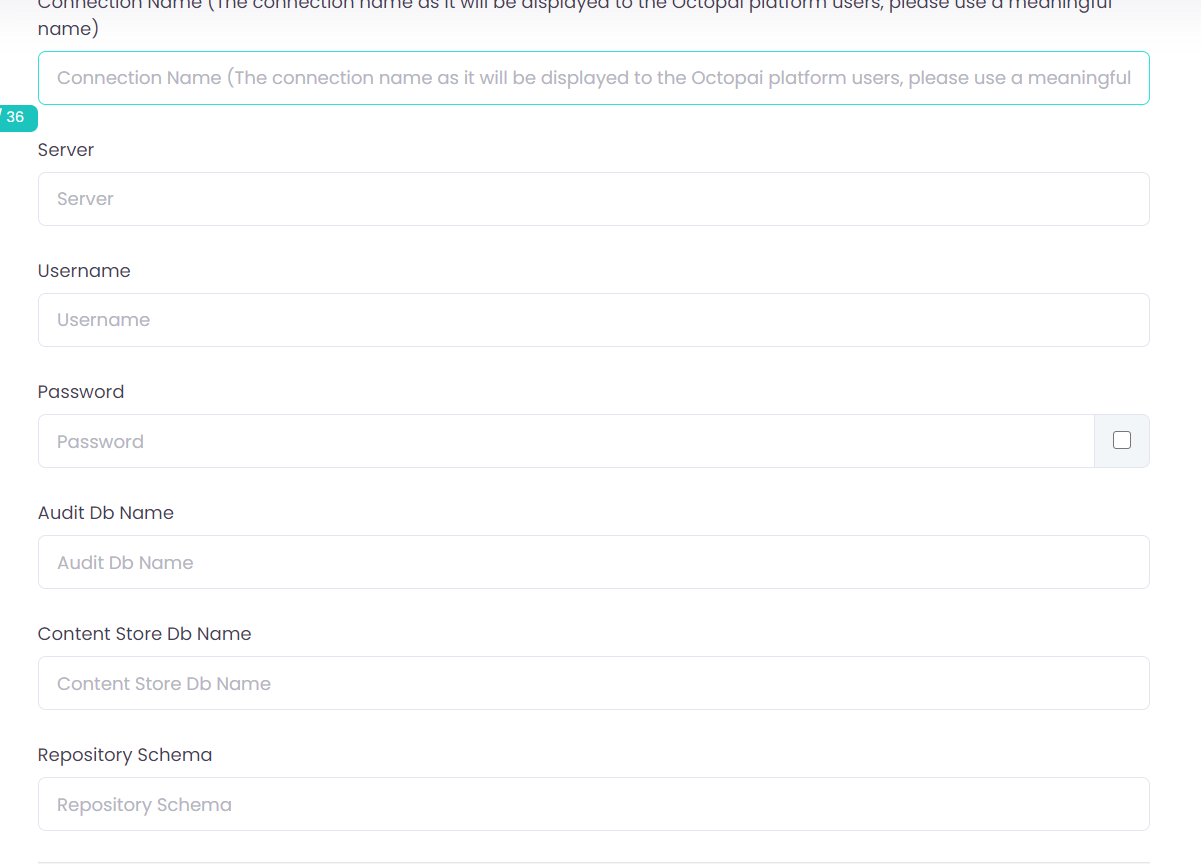
Metadata Source Configuration:
- Set the Cognos Metadata Source within the client interface.
The Repository Schema field is optional. If not specified, it defaults to
dbo.
Verifying the Extracted Metadata File
Once the metadata extraction process is complete, verify the extracted file as follows:
-
Locate the Target Folder:
- Navigate to the Octopai Target Folder (TGT) on the
server where the Cloudera Octopai Client is installed. Default path:
C:\Program Files (x86)\Octopai\Service\TGT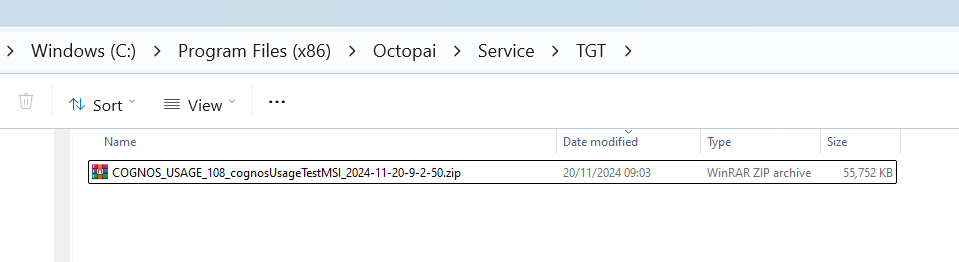
- Navigate to the Octopai Target Folder (TGT) on the
server where the Cloudera Octopai Client is installed. Default path:
-
Open the Extracted File:
-
Find the ZIP file corresponding to the connector name (e.g.,
Cognos_Metadata.zip).
-
Find the ZIP file corresponding to the connector name (e.g.,
-
Validate File Content:
- Check the quantity and quality of the inner files to ensure all expected metadata has been successfully extracted.
By completing the above steps, Cognos Operational Metadata will be integrated into Cloudera Octopai for enhanced metadata intelligence and analysis.
