Custom Lineage Connector
Instructions for configuring Cloudera Data Lineage (formerly Octopai) Custom Lineage Connector (formerly Universal Connector) metadata source and required permissions.
Tool Permissions Prerequisites
Enable read permission for Cloudera Data Lineage Windows NT User to the folder (which contains the filled template files).
Setting up Custom Lineage Connector Metadata Source
Metadata Sources are set on the Octopai Client.
- From the Octopai Client, click the Custom Lineage Connector.
- In the New Metadata Source wizard, choose the authentication method
between a Local File or a Github File, and
enter the appropriate information:
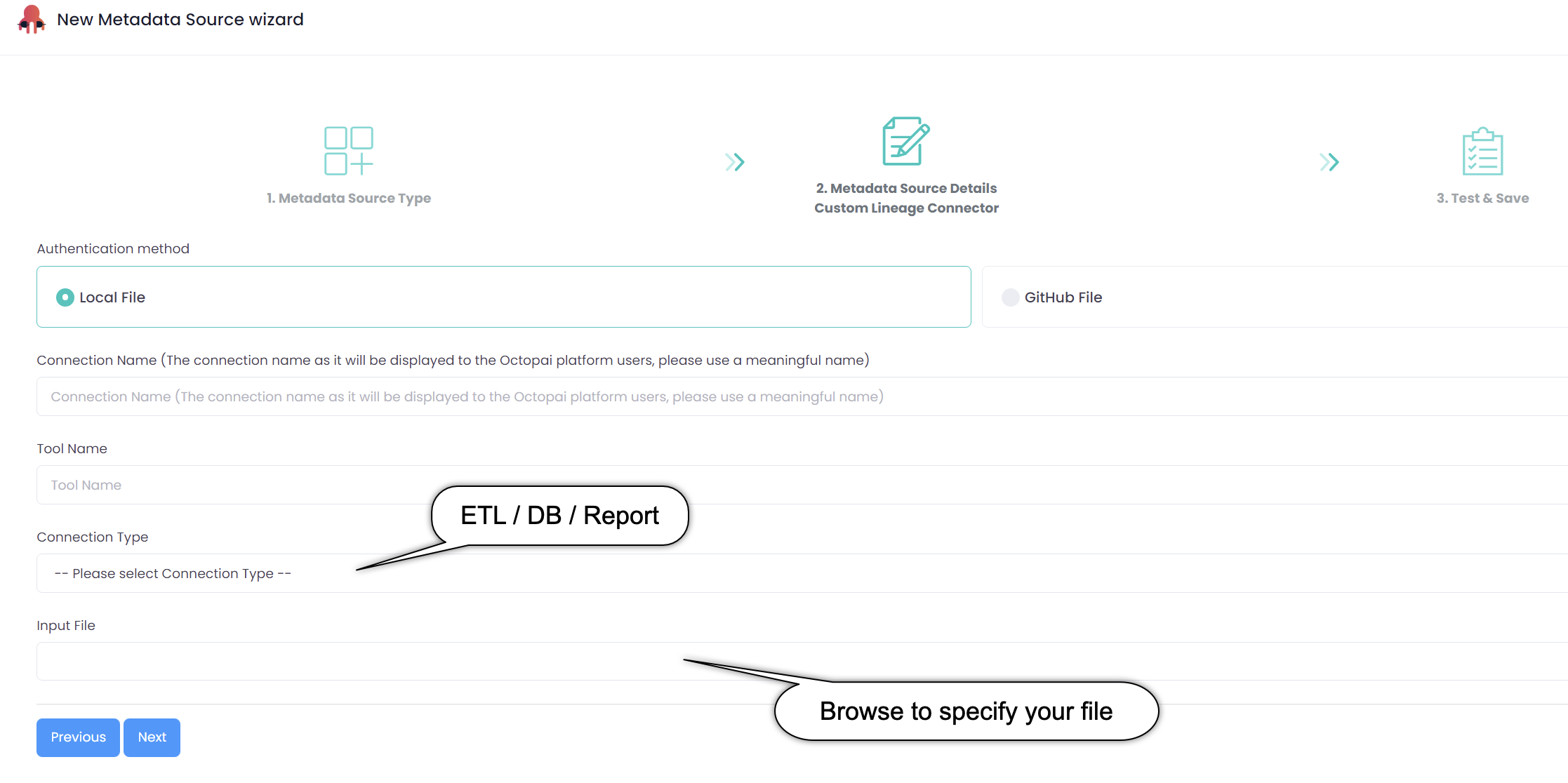
- Local File: Choose the Local File option if you want to upload files from a local directory for data lineage analysis.
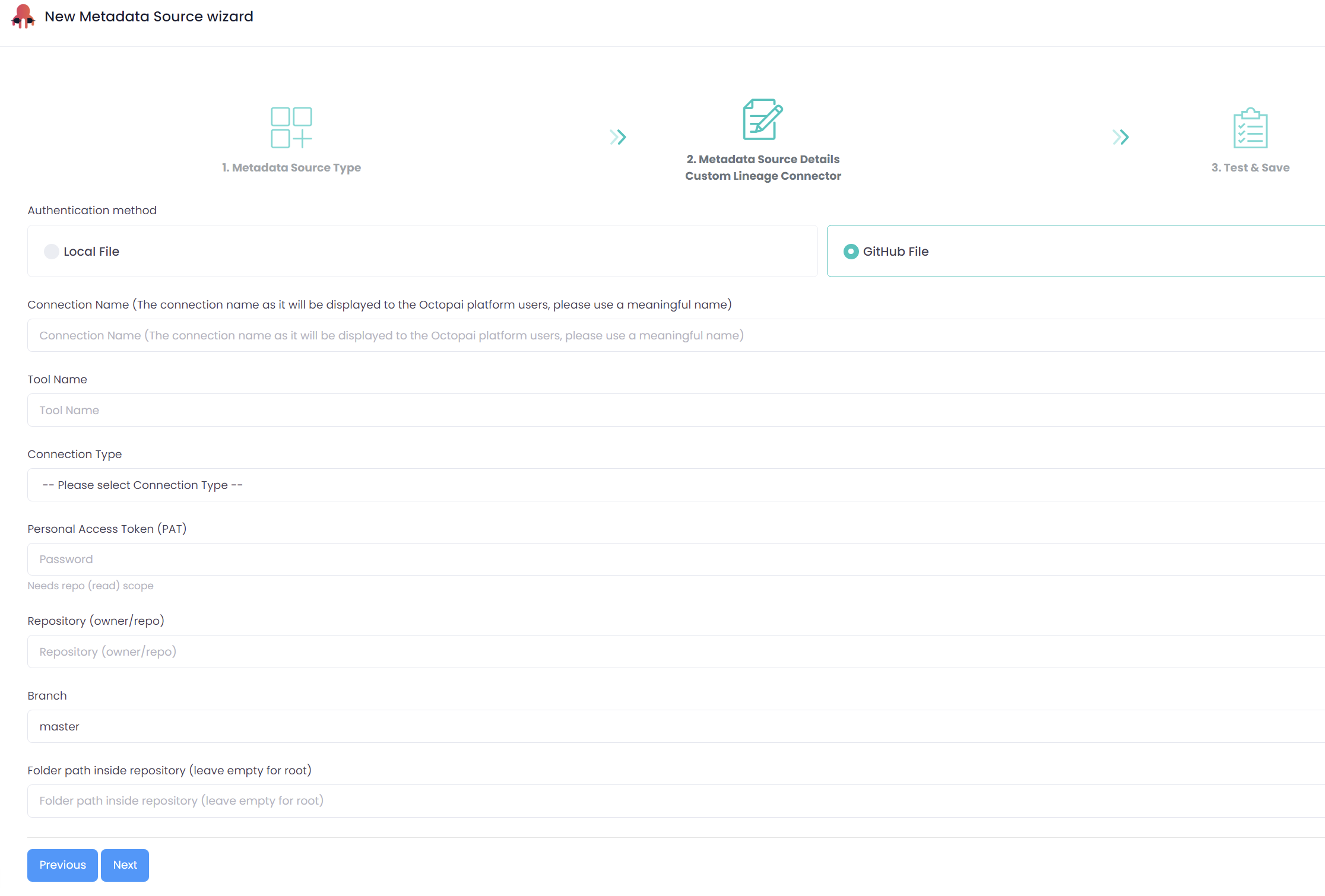
- Github File: Choose the Github File option if you want to connect to your Github repository to extract the required files for data lineage analysis.
- Connection Name: Provide a meaningful name for this connection to help you easily identify it later in the Cloudera Data Lineage application.
- Tool Name: Specify the tool or language environment you are using.
- Connection Type: Specify if the custom source is a database object, custom ETL process, or a report.
- Input File: Select the input CSV template file.
- Connection Name: Provide a meaningful name for this connection to help you easily identify it later in the Cloudera Data Lineage application.
- Tool Name: Specify the tool or language environment you are using.
- Connection Type: Specify if the custom source is a database object, custom ETL process, or a report.
- Personal Access Token (PAT): Enter your Github Personal Access Token to authenticate and authorize the connector to access your repository.
- Repository (owner/repo): Enter the repository name in the format 'owner/repository-name'.
- Branch: Specify the branch within the repository from which you want to extract files (for example, 'main').
- Folder path inside the repository: Provide the specific path to the directory within the repository that contains the files you want to include.
- Click .
