Configure Databricks Metadata Source in Cloudera Octopai
Learn how to configure the Databricks Metadata Source in Cloudera Octopai using either user authentication with Personal Access Tokens or machine-to-machine authentication with service principals.
Cloudera Octopai Data Lineage supports two authentication methods for connecting to Databricks:
- User authentication using a Personal Access Token
- Machine-to-machine (M2M) authentication using a service principal
Option 1: User authentication token (Personal Access Token)
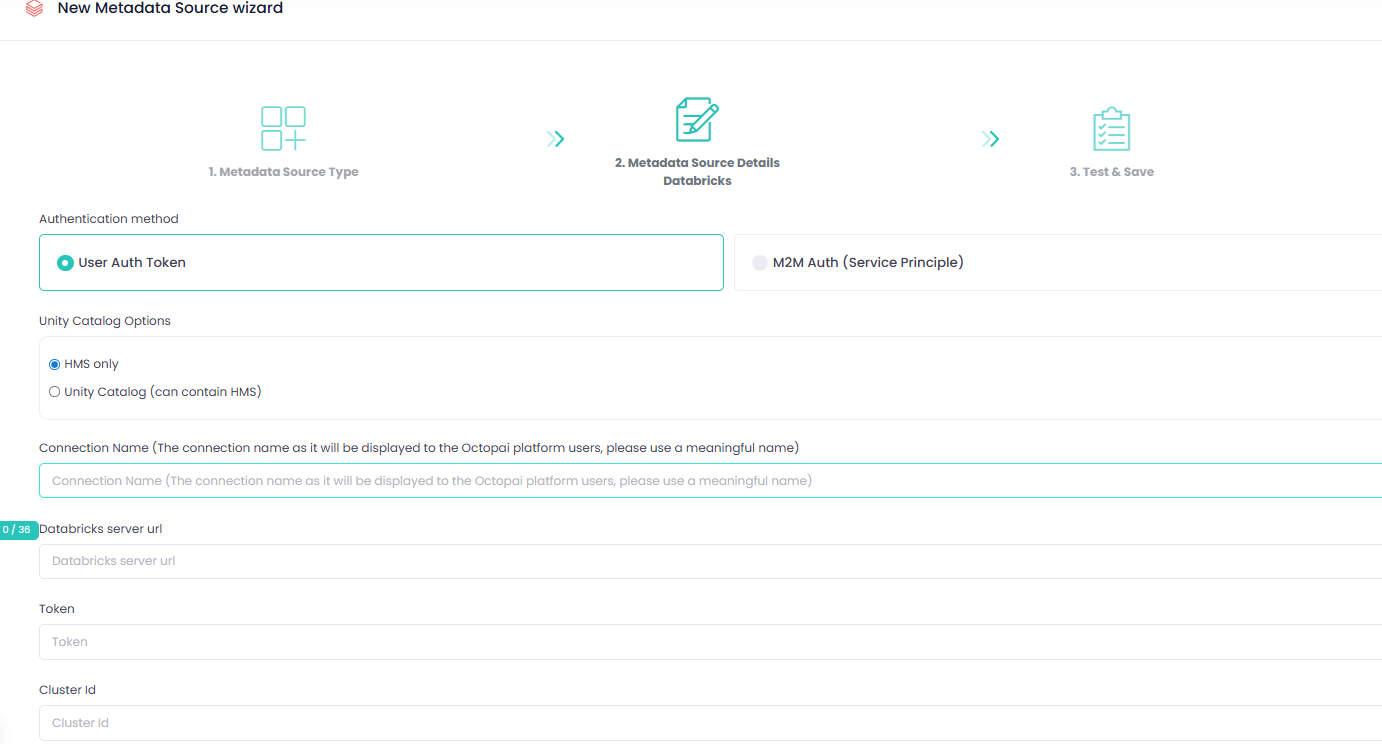
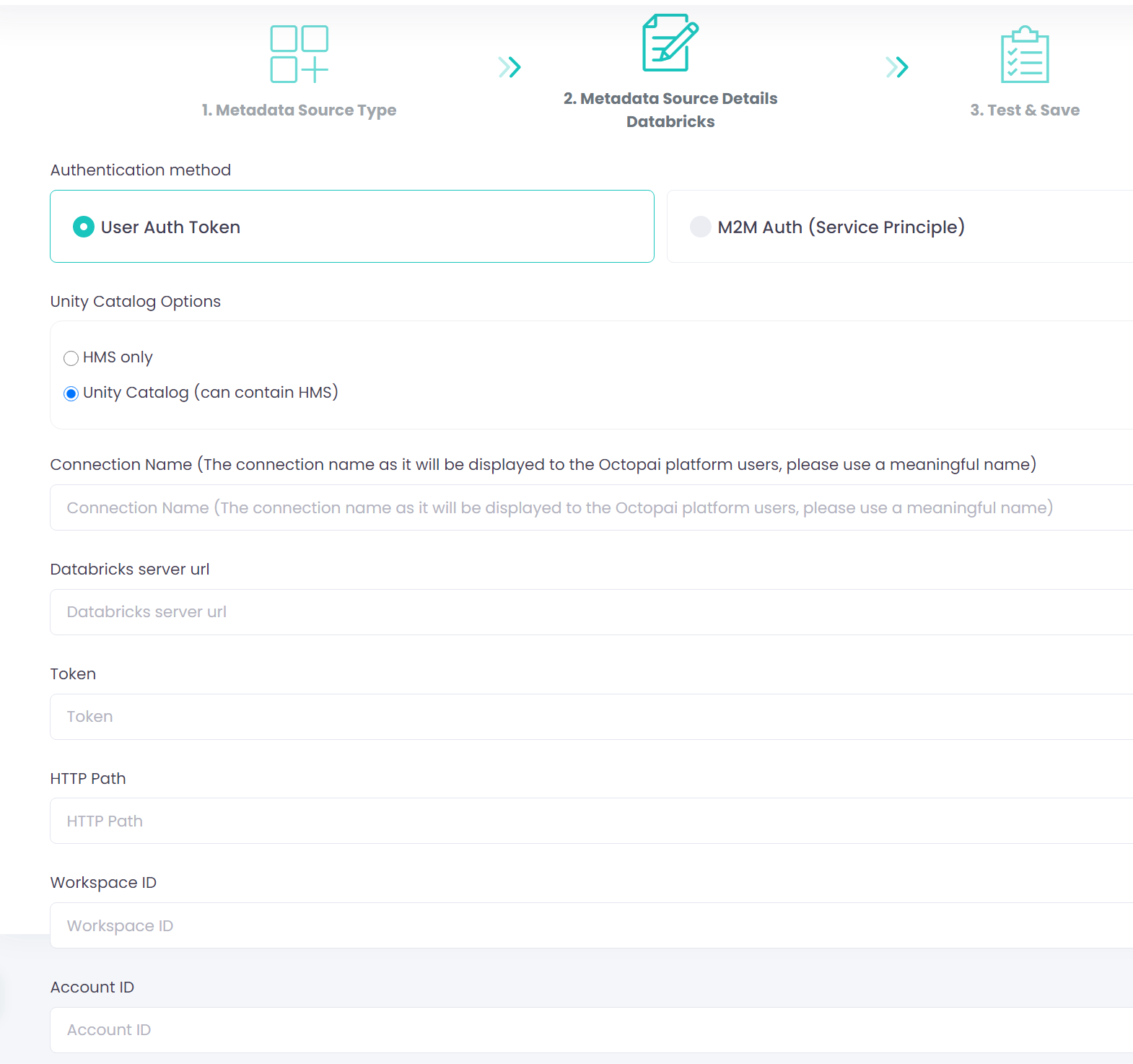
- Unity Catalog Options
- HMS only – when Databricks uses Hive Metastore without Unity Catalog.
- Unity Catalog (can contain HMS) – when Databricks uses Unity Catalog. Hive Metastore can also be used (not mandatory).
- Connection Name
Assign a clear and meaningful name for the connection. This name will appear to users within the Cloudera Octopai platform.
- Databricks Server URL
Enter the customer's Databricks workspace URL.
Example:
https://abc-1234.5.azuredatabricks.net - Token
Enter the Personal Access Token generated under (Manage) in Databricks.
- HTTP Path (for Unity Catalog only)
Paste the HTTP Path copied from the Databricks field.
Example:
/sql/1.0/warehouses/abc123xyz - Workspace ID (for Unity Catalog only)
- Account ID (for Unity Catalog only, optional)
- Cluster ID (for Hive Metastore only, optional)
The Cluster ID identifies the compute context where metadata queries run. Cloudera recommends that you provide a running cluster for full metadata extraction.
If you do not supply a running cluster (and Cluster ID), Cloudera Octopai can still generate lineage; however, it cannot retrieve table-level metadata stored in the Hive Metastore (such as table definitions and detailed schema information). As a result, Cloudera Octopai displays lineage with limited table metadata.
To retrieve the Cluster ID:
- Navigate to Compute.
- Select the relevant cluster.
- Copy the Cluster ID from the URL.
Example:
https://abc-1234.5.azuredatabricks.net/compute/clusters/123-11568975-2zabcde?o=71234567896The Cluster ID in this example is
123-11568975-2zabcde.
Option 2: Machine-to-machine authentication (service principal)
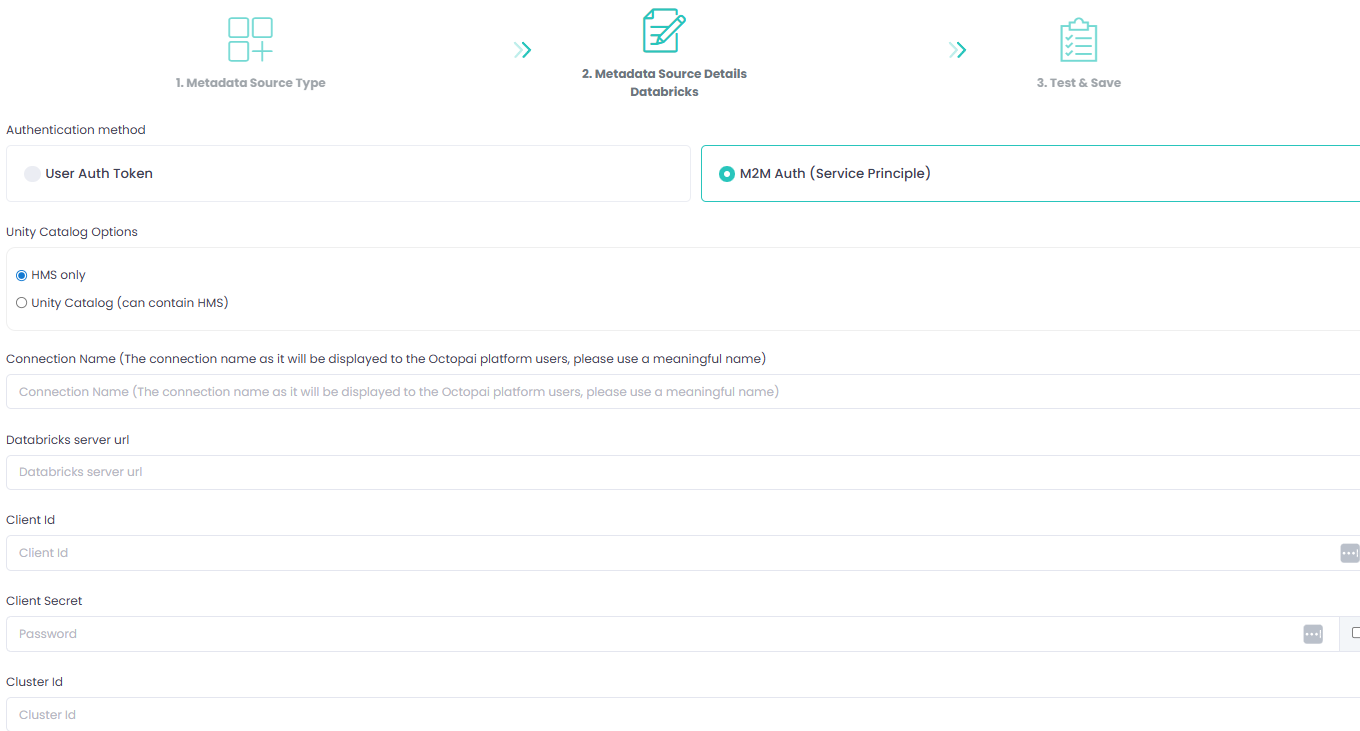
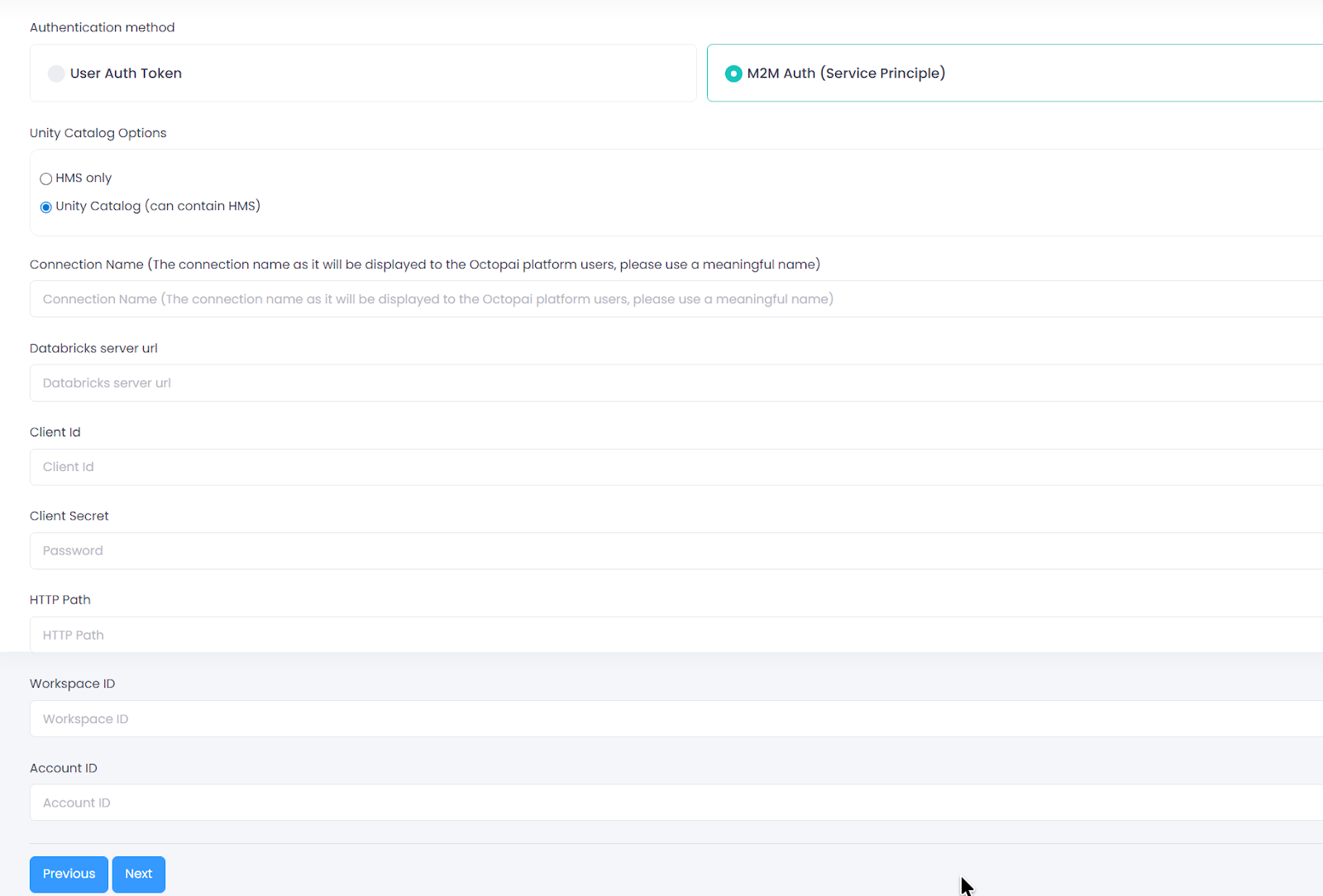
- Unity Catalog Options
- HMS only – when Databricks uses Hive Metastore without Unity Catalog.
- Unity Catalog (may include HMS) – when Databricks uses Unity Catalog. Hive Metastore can also be used but is not mandatory.
- Connection Name
Assign a clear and meaningful name for the connection. This name will appear to users within the platform.
- Databricks Server URL
Enter the customer's Databricks workspace URL.
Example:
https://abc-1234.5.azuredatabricks.net - Client ID
Enter the Client ID of the service principal created in Databricks.
- Client Secret
Enter the secret token generated for the service principal.
- HTTP Path (for Unity Catalog only)
Paste the HTTP Path copied from the Databricks field.
Example:
/sql/1.0/warehouses/abc123xyz - Workspace ID (for Unity Catalog only)
- Account ID (for Unity Catalog only, optional)
- Cluster ID (for Hive Metastore only, optional)
The Cluster ID identifies the compute context where metadata queries run. Cloudera recommends that you provide a running cluster for full metadata extraction.
If you do not supply a running cluster (and Cluster ID), Cloudera Octopai can still generate lineage; however, it cannot retrieve table-level metadata stored in the Hive Metastore (such as table definitions and detailed schema information). As a result, Cloudera Octopai displays lineage with limited table metadata.
To retrieve the Cluster ID:
- Navigate to Compute.
- Select the relevant cluster.
- Copy the Cluster ID from the URL.
Example:
https://abc-1234.5.azuredatabricks.net/compute/clusters/123-11568975-2zabcde?o=71234567896The Cluster ID in this example is
123-11568975-2zabcde.
