Configure dbt Cloud Connector for Cloudera Data Lineage
Learn how to configure dbt Cloud for Cloudera Data Lineage (formerly Octopai).
Before you connect dbt Cloud to Cloudera Data Lineage, verify that the dbt Cloud environment, permissions, and credentials are prepared. The connector uses the dbt Cloud API and a service token to retrieve execution metadata and compiled SQL for lineage extraction.
dbt Cloud plan requirements
The connector requires API access.
You must have one of the following:
- A paid dbt Cloud plan (Starter or Enterprise).
- An active trial of a paid plan.
Git repository requirement
dbt Cloud requires a connected Git repository (for example, GitHub or GitLab). The connector depends on project runs generated from a version-controlled dbt project.
-
Connect Git to dbt Cloud (if not already connected)
- Log in to dbt Cloud.
- Select the user icon (bottom left).
- Open Personal Profile.
- Connect your Git provider.
If Git is already connected, continue to the next step.
Figure 1. Connect a Git provider in dbt Cloud 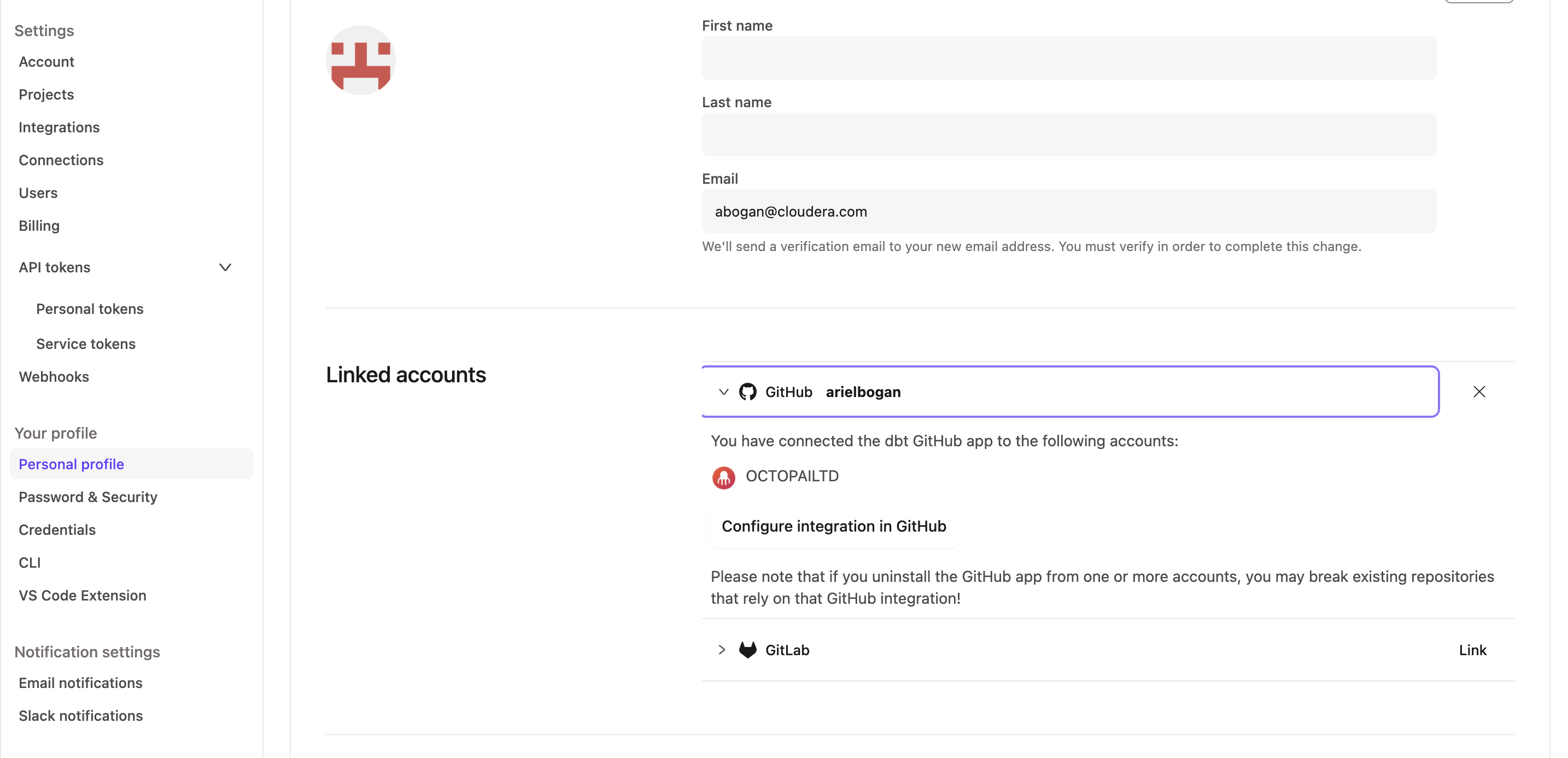
-
Create a service token
Cloudera Data Lineage authenticates to dbt Cloud using a service token.
Figure 2. Create a service token in dbt Cloud 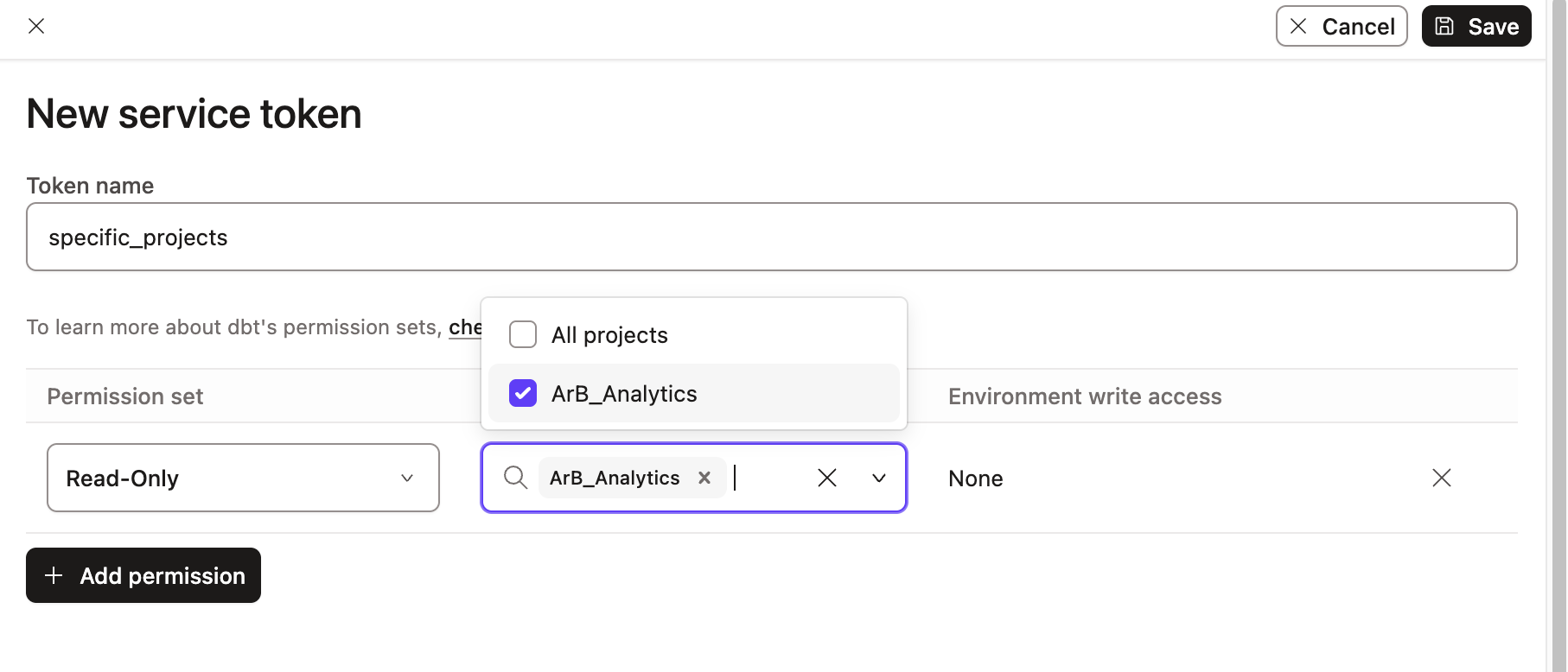
After creation:
- Copy the token immediately.
- Store it securely. You need this token to configure the dbt Cloud connection in Cloudera Data Lineage.
Figure 3. Copy the generated service token 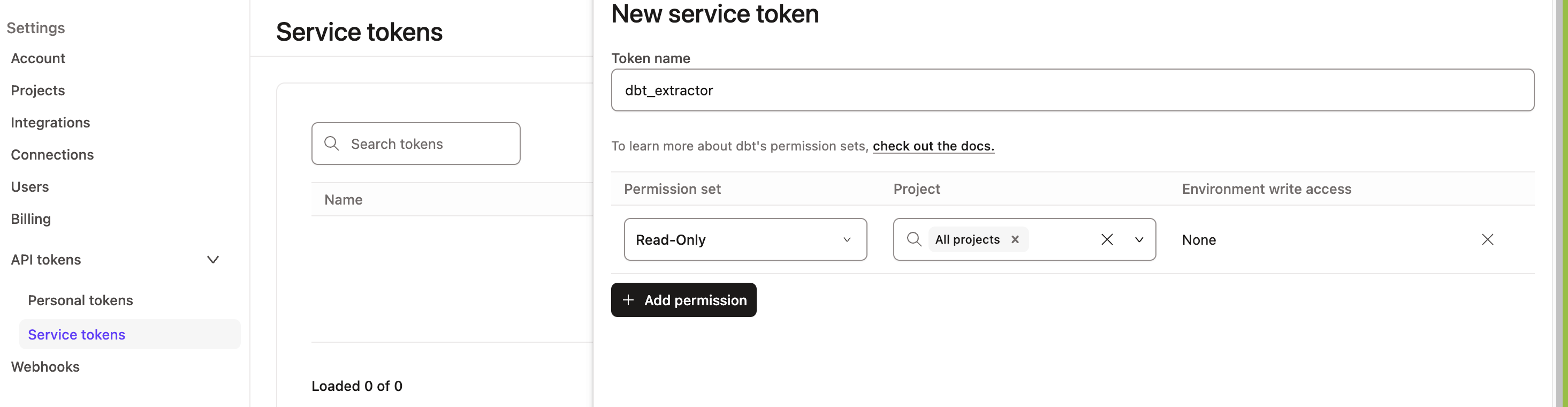
The integration must use a read-only service token scoped to the relevant project(s). By default, the connector discovers all dbt Cloud accounts accessible by the provided token.
-
Capture the dbt Cloud base URL
Copy the full base URL of your dbt Cloud environment from the browser address bar.
Example:
https://[***COMPANY
            NAME***].us1.dbt.com
You need this value when you configure the connection in Cloudera Data Lineage.
The following parameters are required for the setup:
Parameter Description Connection Name Logical name displayed in the platform dbt Cloud Base URL Full dbt Cloud environment URL Service Token (Read-Only) Token created in Step 2 Figure 4. Required setup information 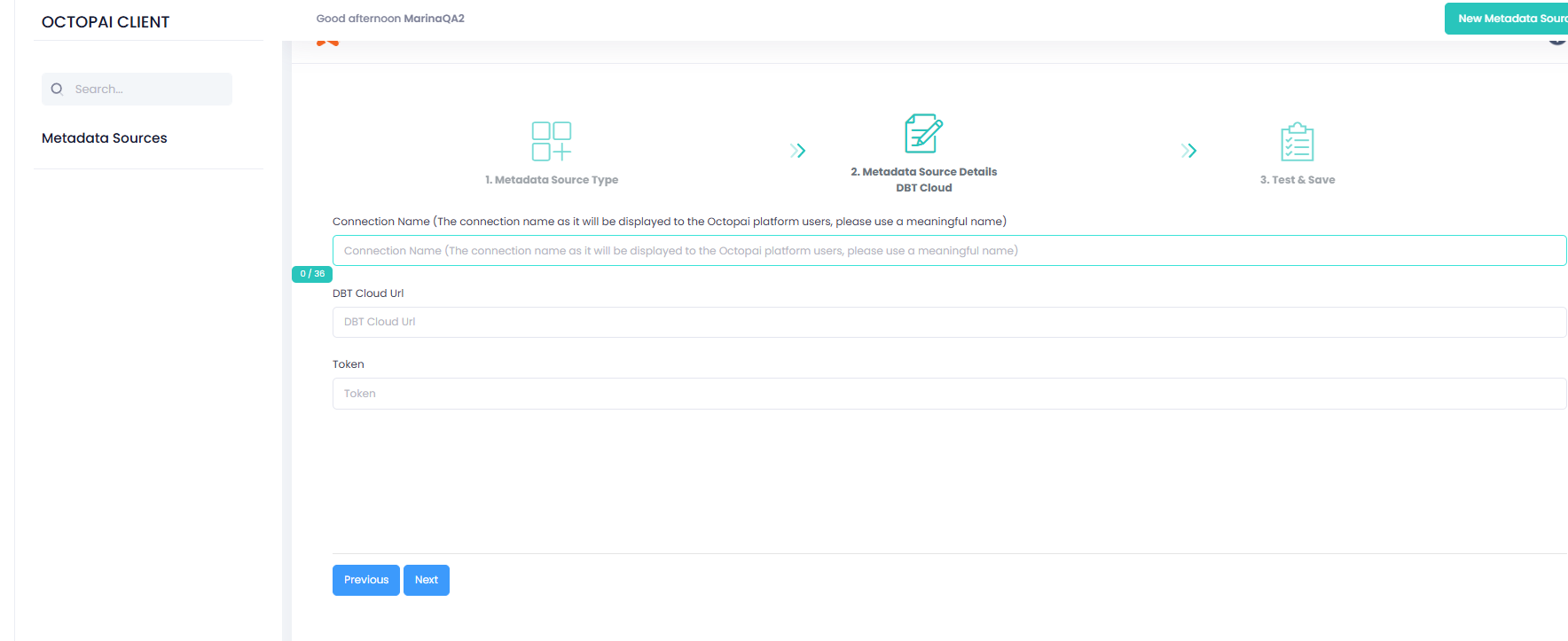
- Extraction scope
-
The connector extracts metadata related to dbt execution activity. The following objects are discovered:
- Jobs
- Environments
- Models
- Job-level SQL retrieval
-
For each job, Cloudera Data Lineage retrieves the SQL executed during the most recent successful run. Note the following behavior:
- The original model SQL source file is not used.
- Lineage is based on the compiled SQL generated by dbt.
- Lineage parsing scope
-
The connector parses SQL-based models only. Python-based dbt transformations do not generate lineage. Lineage parsing is limited to database engines supported by Cloudera Data Lineage.
- Expression representation
-
Expressions defined inside dbt models are not represented as expressions in the internal lineage visualization.
- Python models
- Python dbt models are not supported currently:
- Python models are not parsed.
- Column-level lineage is not generated for Python transformations.
- Supported platforms
-
The connector supports dbt lineage extraction when models run on the following databases:
- Snowflake
- PostgreSQL
- Google BigQuery
- Redshift
- Databricks (requires GSP license)
- Spark SQL
- Synapse (via dbvmssql)
- Teradata
- Unsupported platforms
-
Lineage parsing is limited to RDBMS platforms supported by Cloudera Data Lineage. The following platforms are not supported:
- Starburst
- Microsoft Fabric
- Athena
