IICS (Informatica Cloud)
Learn how to configure Informatica Cloud (IICS) permissions, set up metadata sources, verify files, access the Cloudera Octopai Data Lineage target folder, and troubleshoot issues.
- Add user role:
Log in as admin or any other role that can edit the roles of other users
-
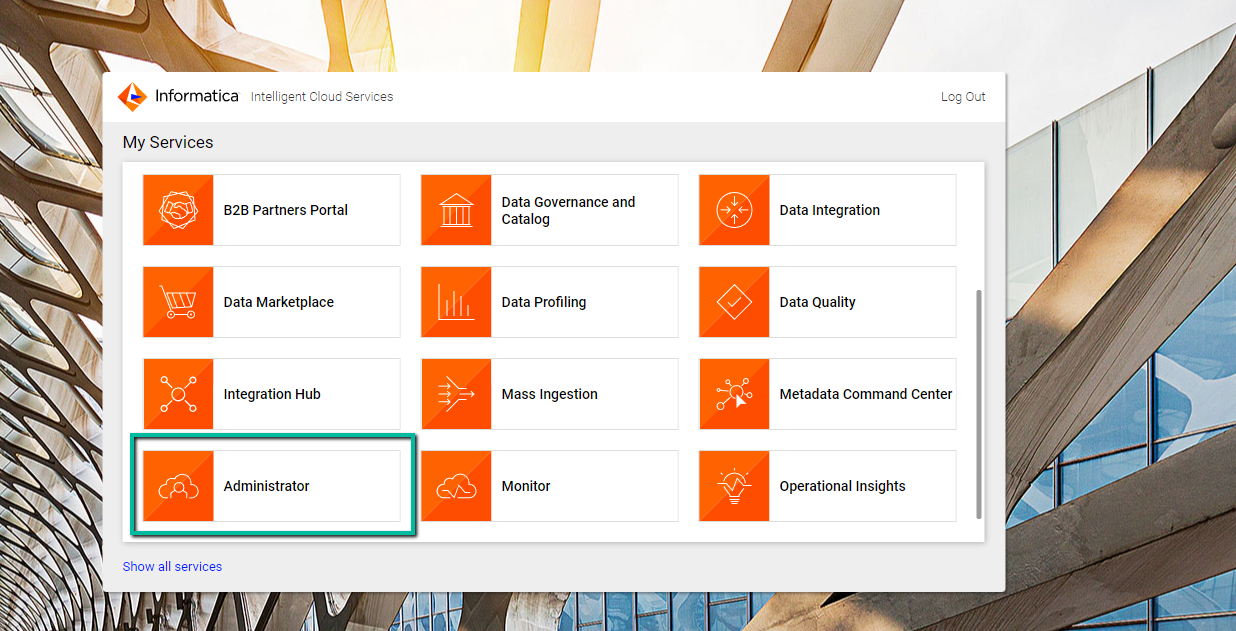
Select the Administrator service.
-
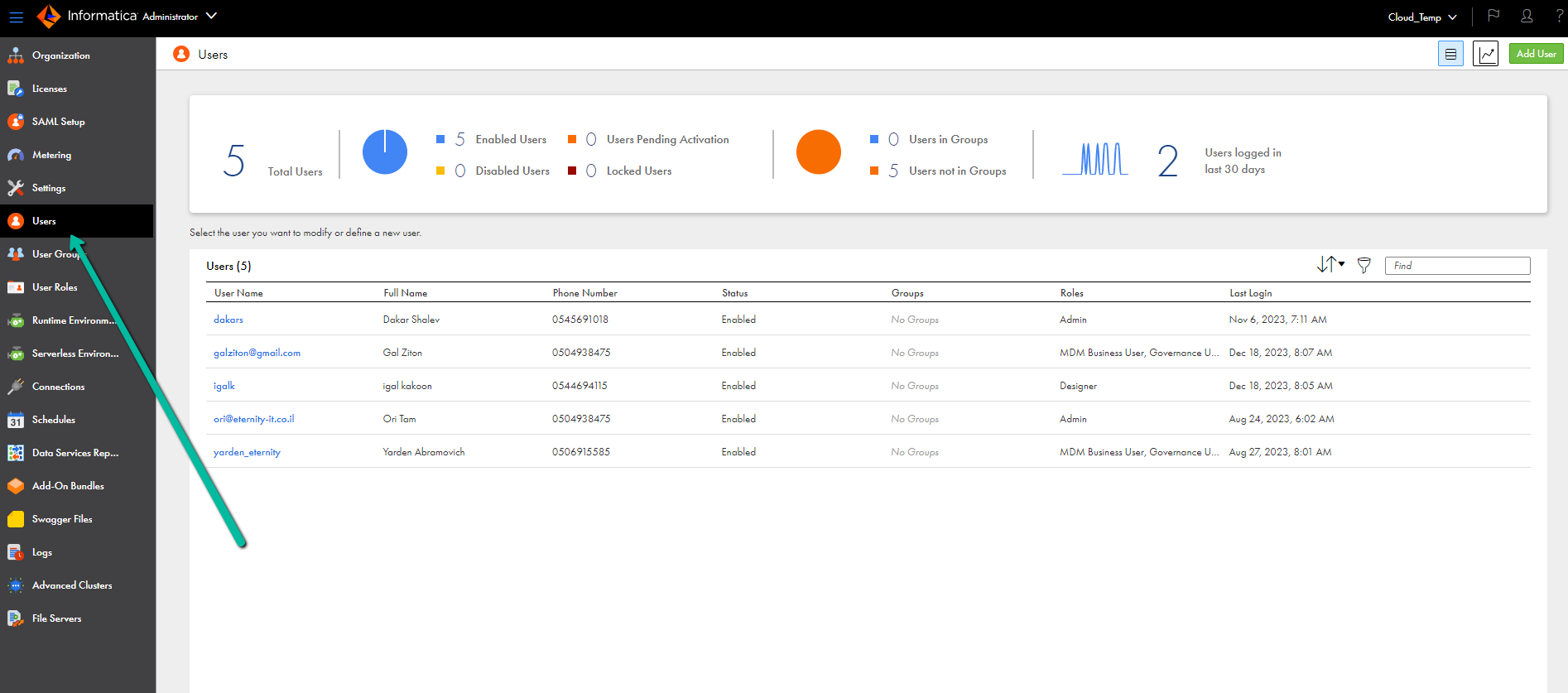
On the left panel, select Users.
-
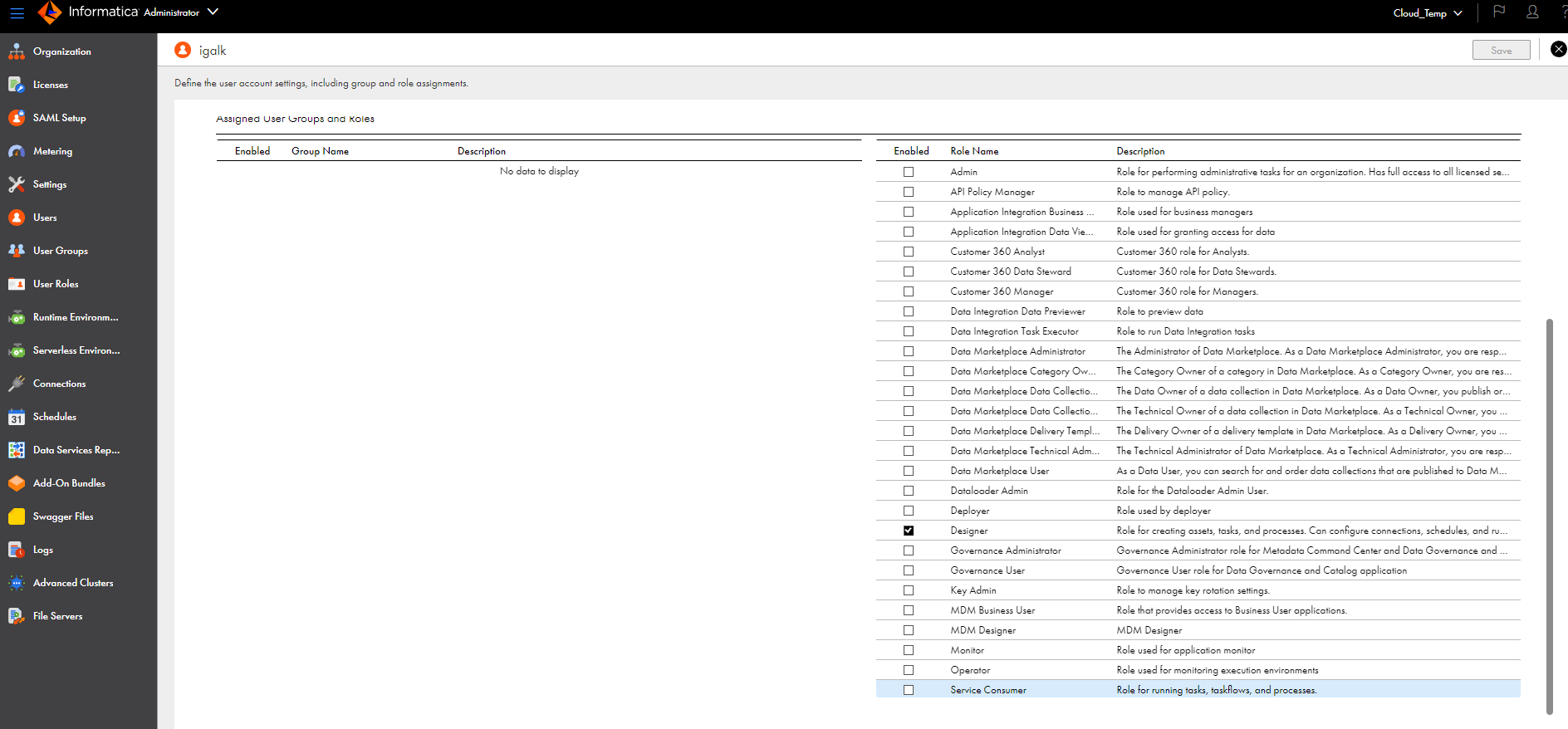
Scroll down to the role list, and select the "Designer" role.
Select the user to whom you want to assign a role.
Click the Save button in the upper right screen.
-
Set up Informatica Metadata Source.
Metadata Sources are set on the Cloudera Octopai Client.
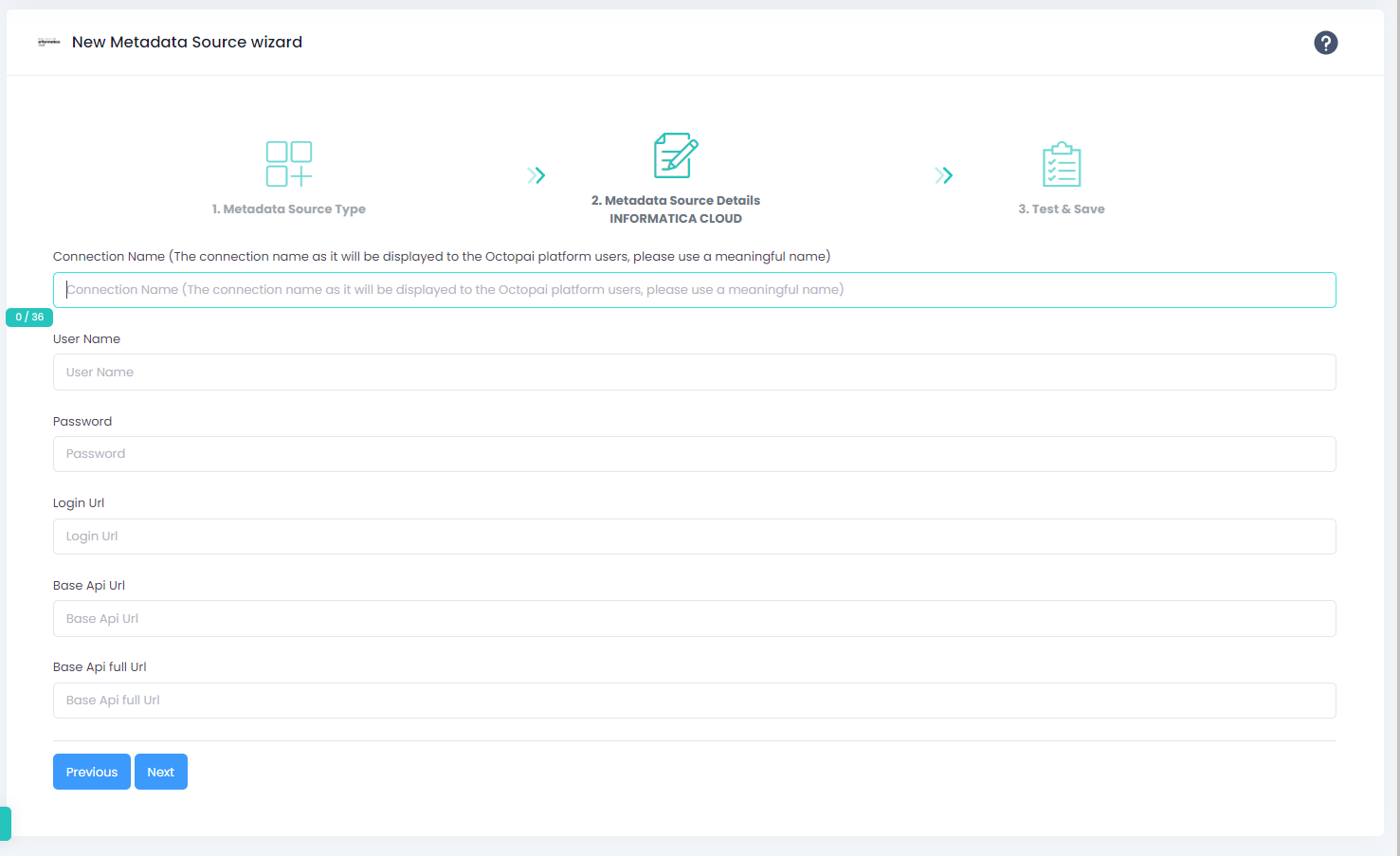
baseApiUrl: The URL of Informatica Cloud. To derive the correct URL, take the application's URL and remove the first segment before the dot. For example, https://emw1.dm-em.informaticacloud.com/saas converts to https://dm-em.informaticacloud.com/saas.
baseApiUrlFull: For example, https://emw1.dm-em.informaticacloud.com/saas is the full URL of the app.
Error during the extraction:
-
Check the permissions.
-
Send the log with the connector number and name to Cloudera Support:
C:\Program Files (x86)\Octopai\Service\log
