Live Lineage
Welcome to the comprehensive guide on Live Lineage, a robust tool designed to streamline data management tasks. This guide aims to provide a detailed walkthrough of Live Lineage's functionalities, highlighting practical use cases, and providing useful tips and tricks.
Introduction
Welcome to the comprehensive guide on Live Lineage, a robust tool designed to streamline data management tasks. This guide aims to provide a detailed walkthrough of Live Lineage's functionalities, highlighting practical use cases, and providing useful tips and tricks.
Live Lineage can be applied in various scenarios:
- Fixing Broken Data Lineage Due to Script Errors : Utilize Live Lineage to detect and correct errors causing disruptions to data flow.
- Simulating Script Changes : Test a script change that could affect a data lineage flow before deploying it to production.
- Script Migration : Live Lineage enables confident migration of scripts from one database system to another.
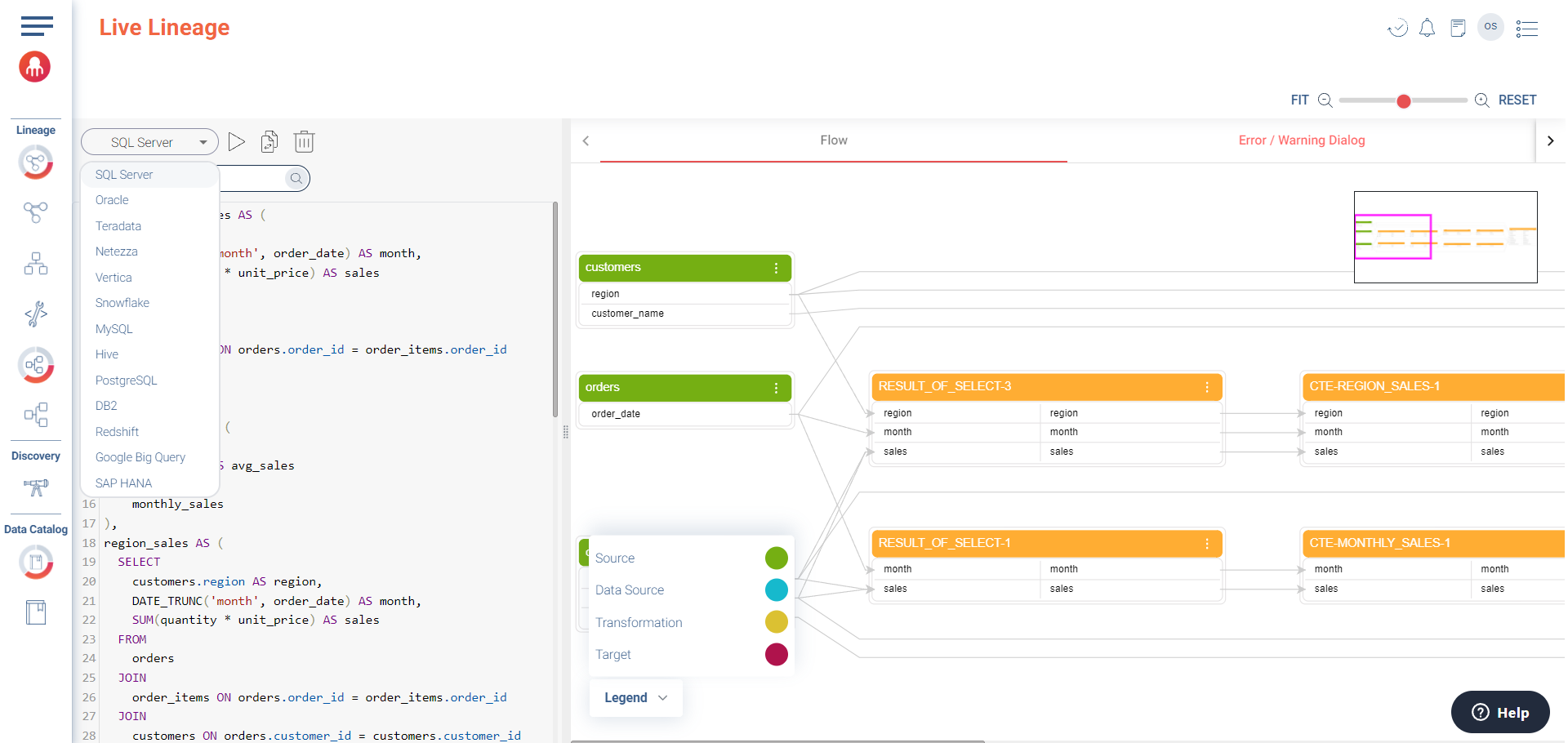
The Live Lineage Visualizer supports a wide range of technologies, including SQL Server, Oracle, Teradata, Netezza, Vertica, Snowflake, MySQL, Hive, PostgreSQL, DB2, Redshift, Google BigQuery, and SAP Hana.
Key Features of Live Lineage
- 1. Streamlined Migration Projects
What it does: Live Lineage enables you to conduct seamless transitions between different systems, such as Oracle and Snowflake. It allows you to identify potential issues and resolve them before initiating the migration process, ensuring a smooth transition.
How to use it: Access the Live Lineage module, select the script you want to migrate, and use the Visualizer tool to review potential migration issues and resolve them.
Pro tip: Start with a few scripts before migrating all your scripts to avoid a total system halt if issues arise.
- 2. Syntax Error Detection and Resolution
-
What it does: Leveraging real-time SQL script visualization, Live Lineage identifies and corrects syntax errors proactively, maintaining a smooth data pipeline.
How to use it: Input your script into the Live Lineage Visualizer. The module will scan and highlight syntax errors, offering potential solutions.
Pro tip: Regularly review the syntax error alerts and address errors promptly to avoid delays and complications.
- 3. Script Updates
-
What it does: Live Lineage empowers users to simulate changes before deploying them to production, guaranteeing accurate and reliable script modifications.
How to use it: Choose the script you want to update, make the necessary changes, then use the simulation feature to assess the impact of these changes.
Pro tip: Frequently test script changes using the simulation feature to preemptively identify potential issues and disruptions.
Working with Live Lineage
-
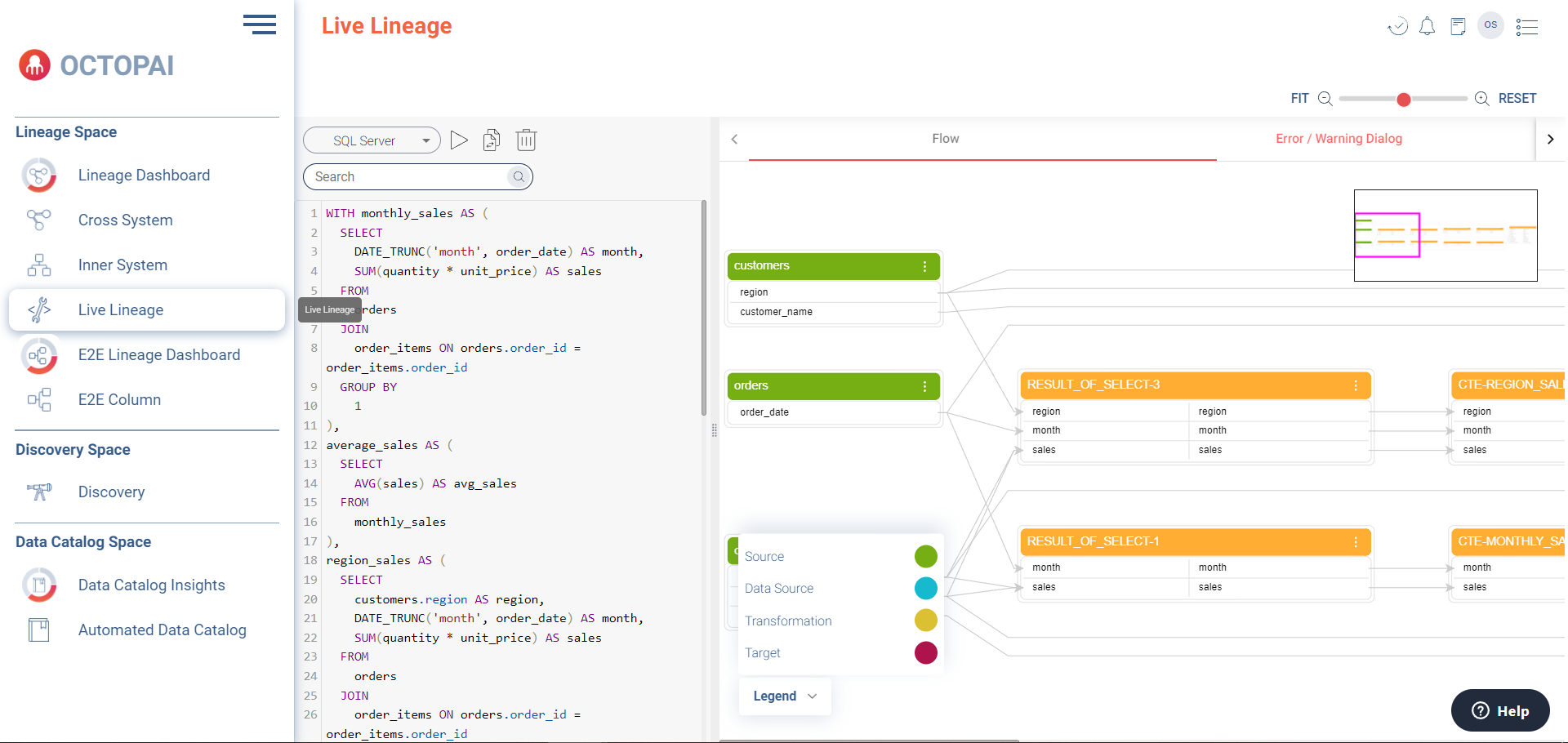
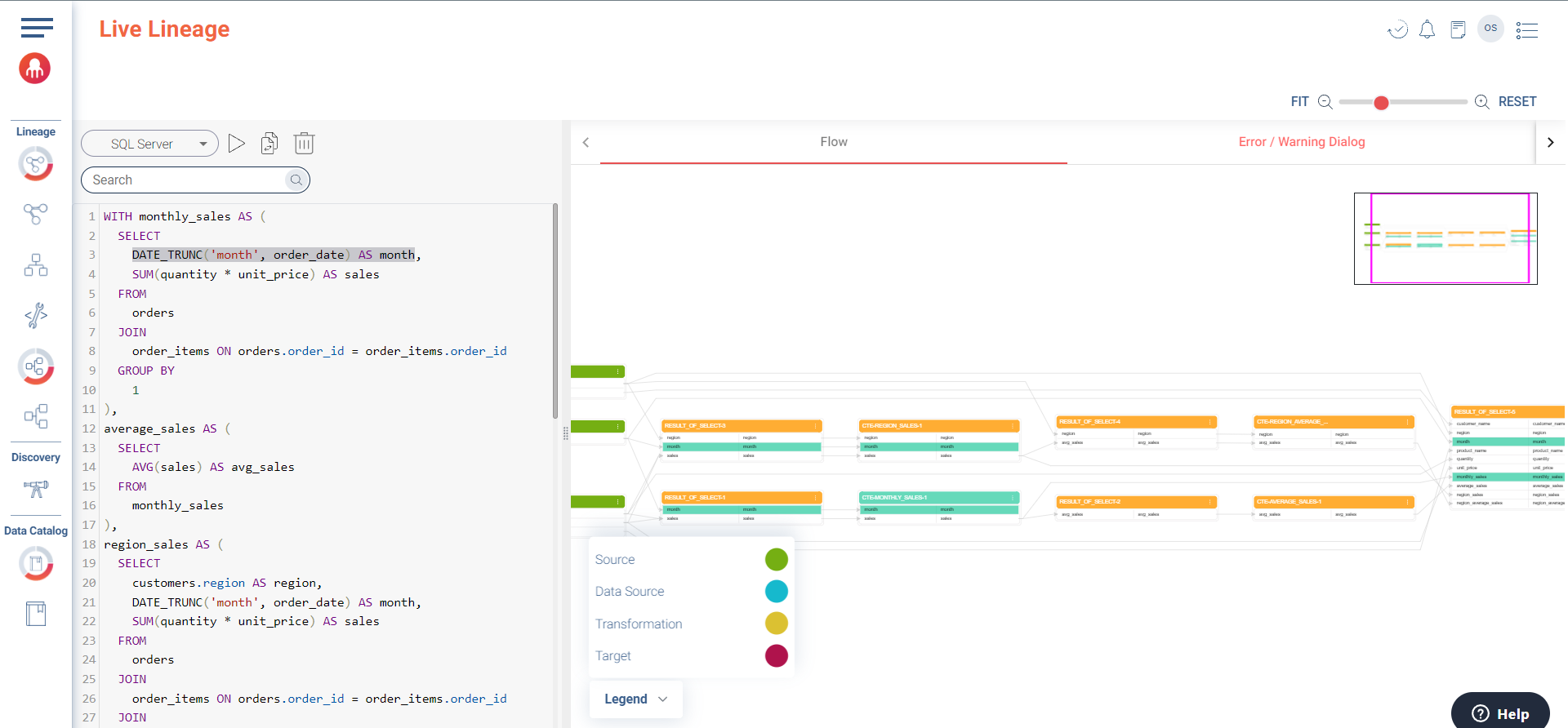
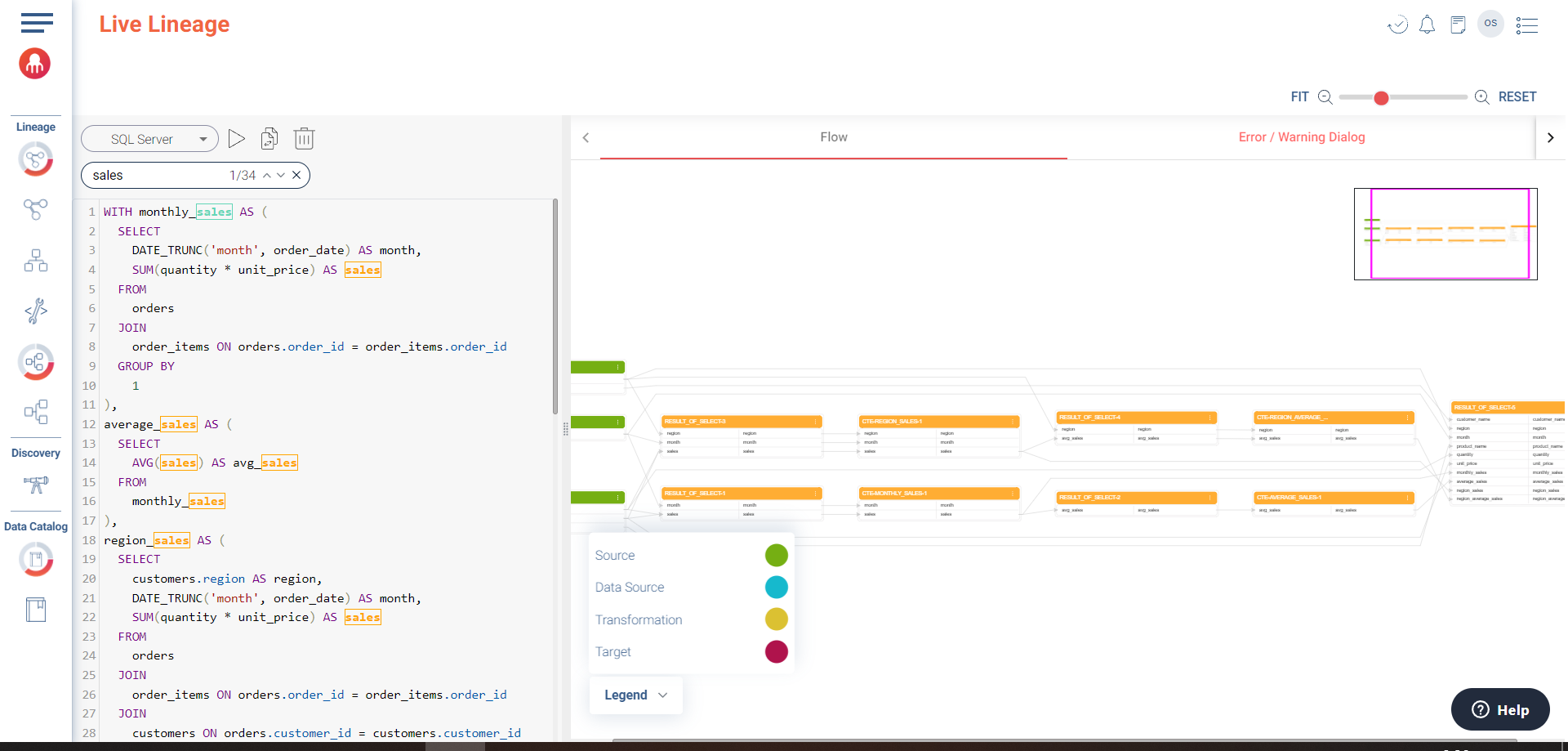
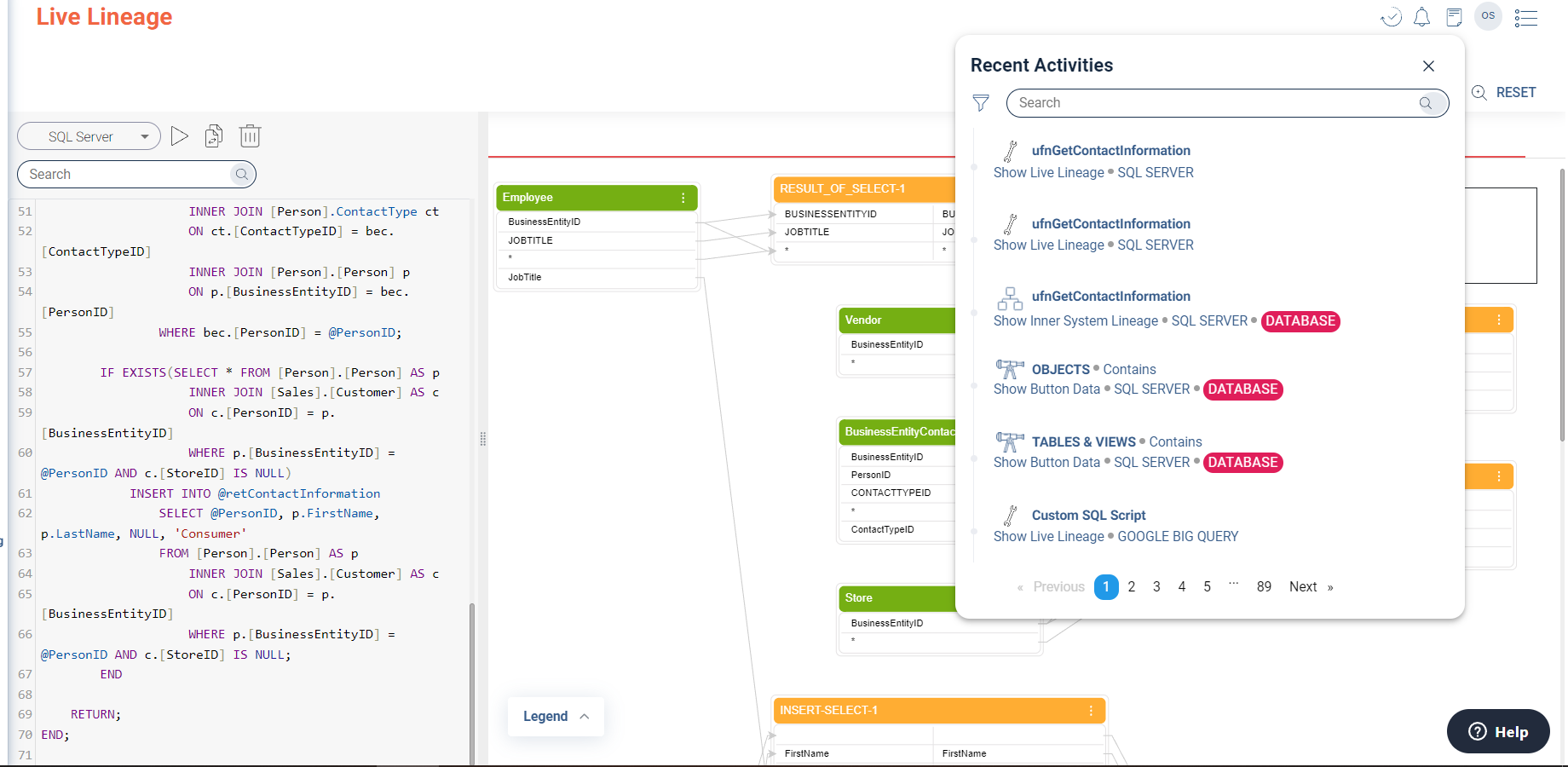
To use Live Lineage, enter your Cloudera Data Lineage (formerly Octopai) platform and navigate to the Live Lineage module. This module enables you to input or edit scripts and visualize their data lineage and potential impact of any changes. You can search for key words or expressions within the script or correlate specific data lineage tables with the script sections. Use actions like Play, Delete or Copy the script for ongoing activities.
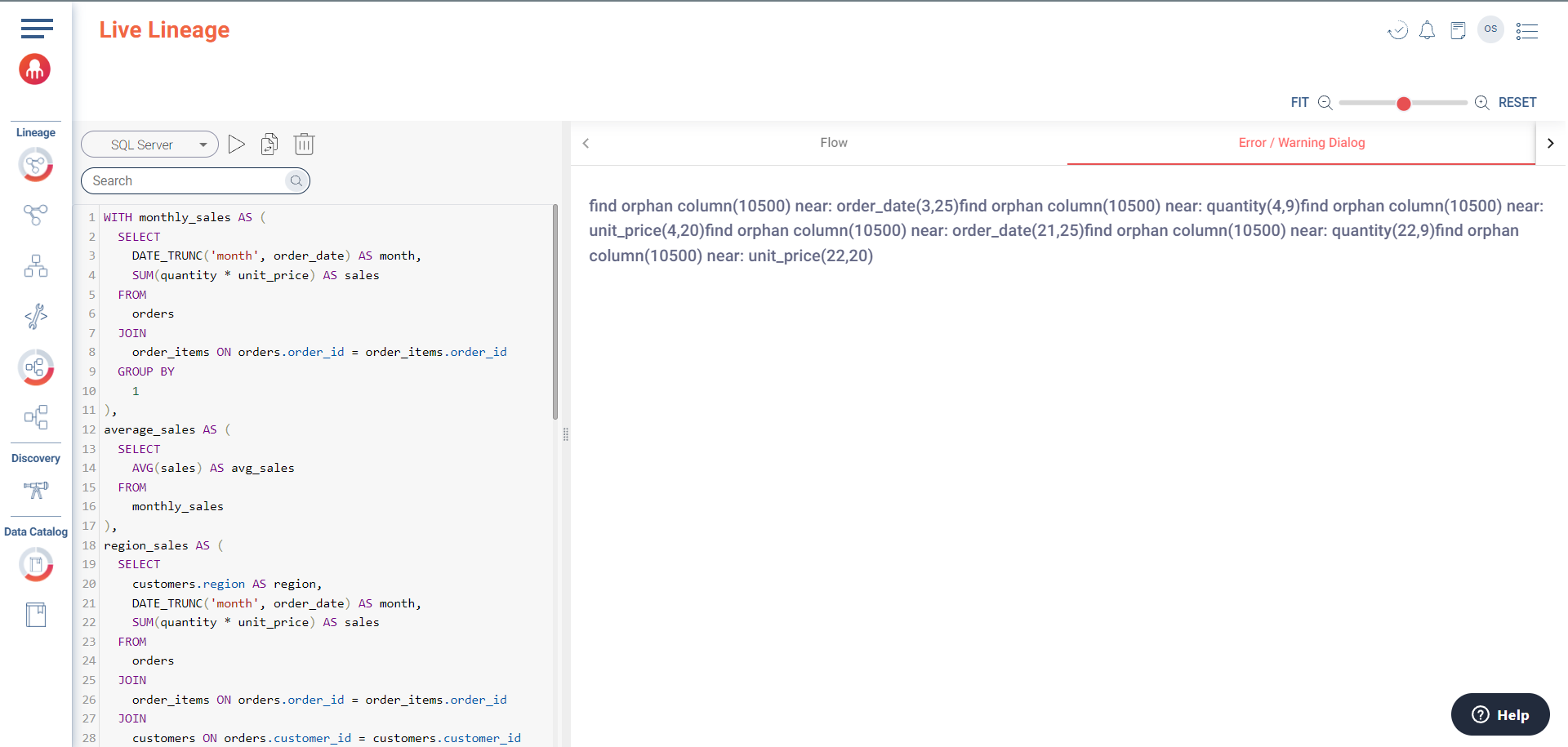
Whilst you edit a script or simulating the script behavior upon migration, utilize the Error space to understand the errors you need to fix.
- 2. Accessing Scripts via Inner System Lineage Path or Discovery
-
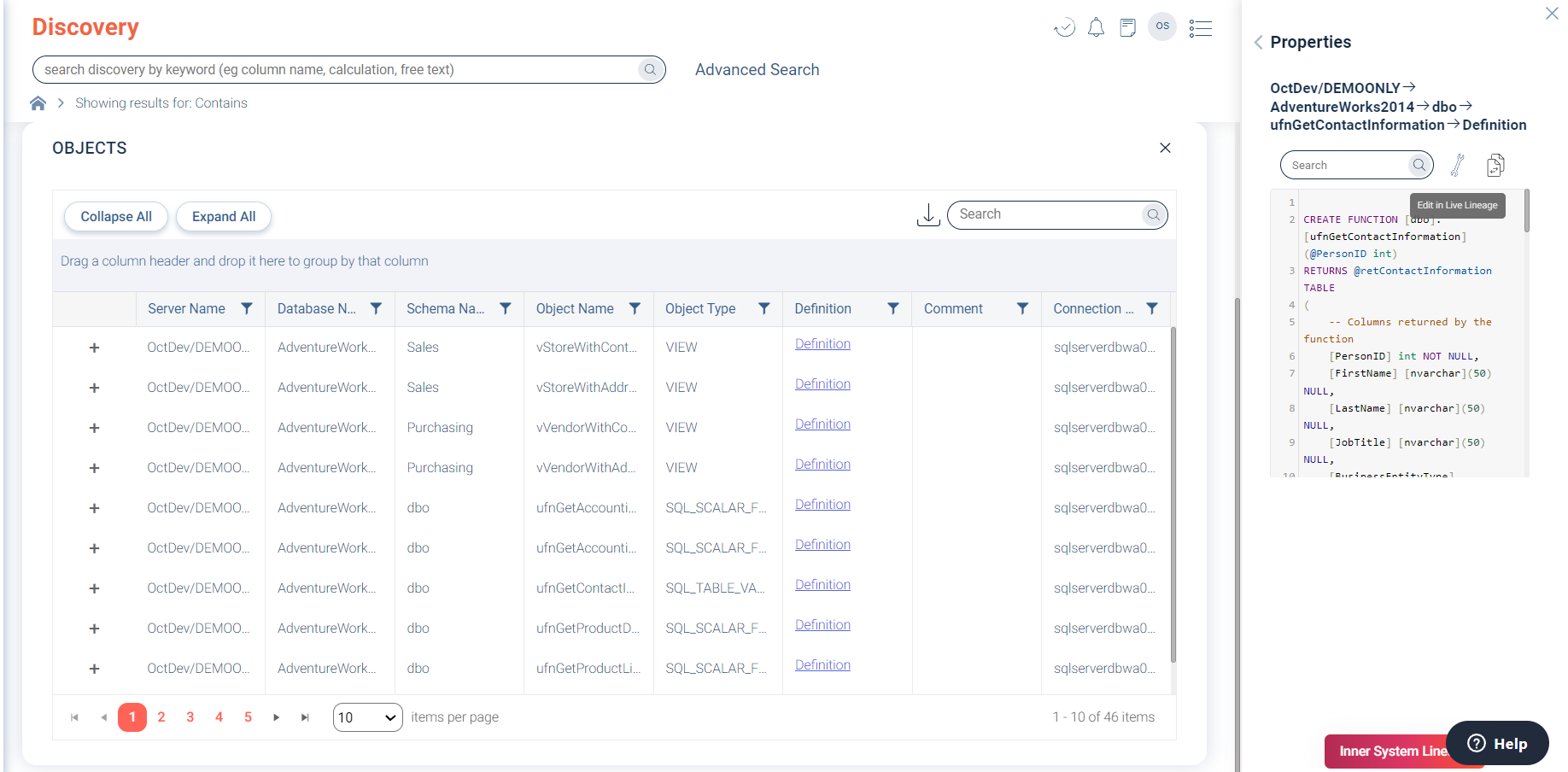
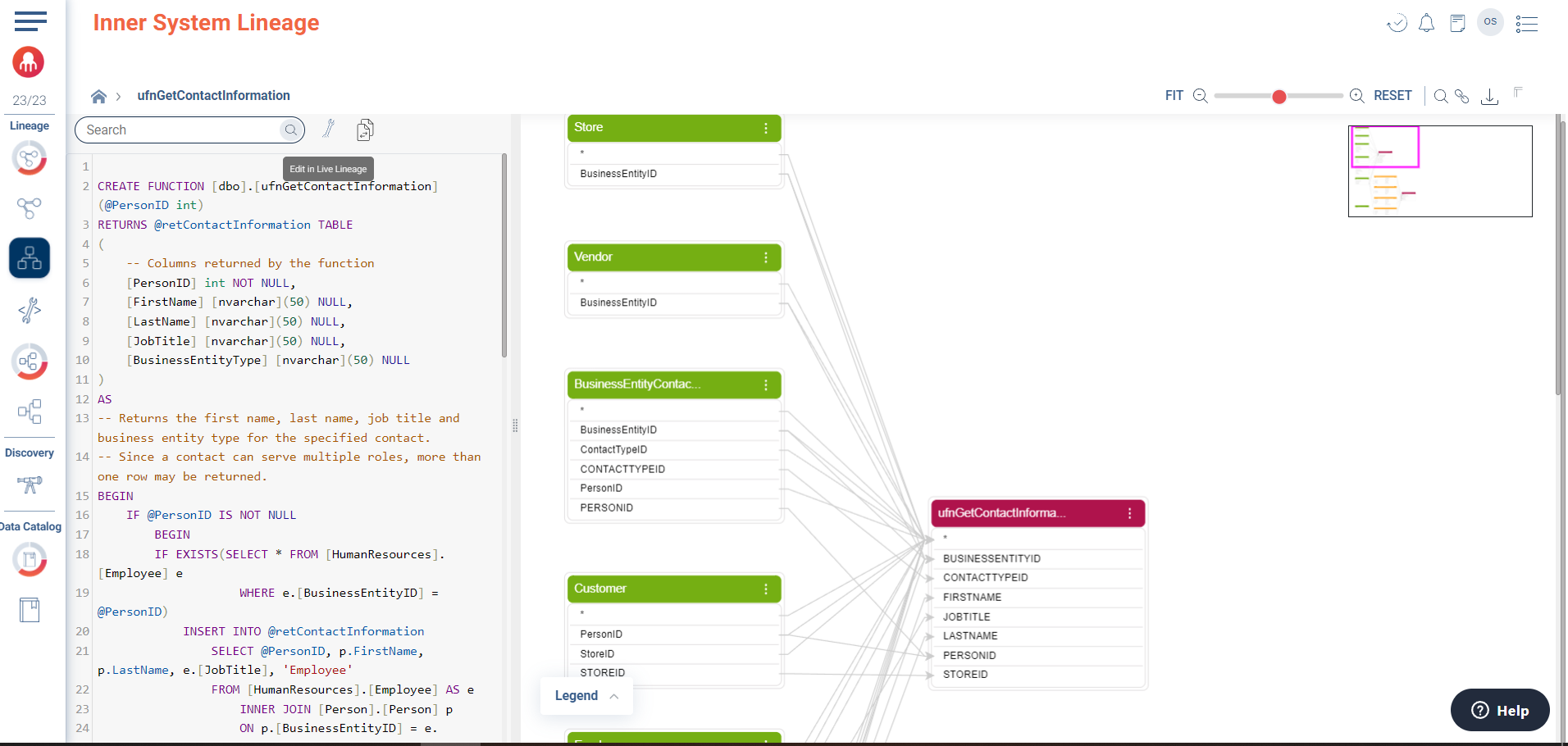
Live Lineage also allows users to access and edit existing scripts through the Inner System Lineage path or Discovery modules. To do this, double-click on components containing the script and press “Edit”. The changes and activities will be recorded in the Recent Activities.
Pro tip: Utilize the Inner System Lineage path to quickly access and modify existing scripts without having to navigate through your entire database especially in context of Change Impact Analysis and Migration.
- 3. Recent Activities
-
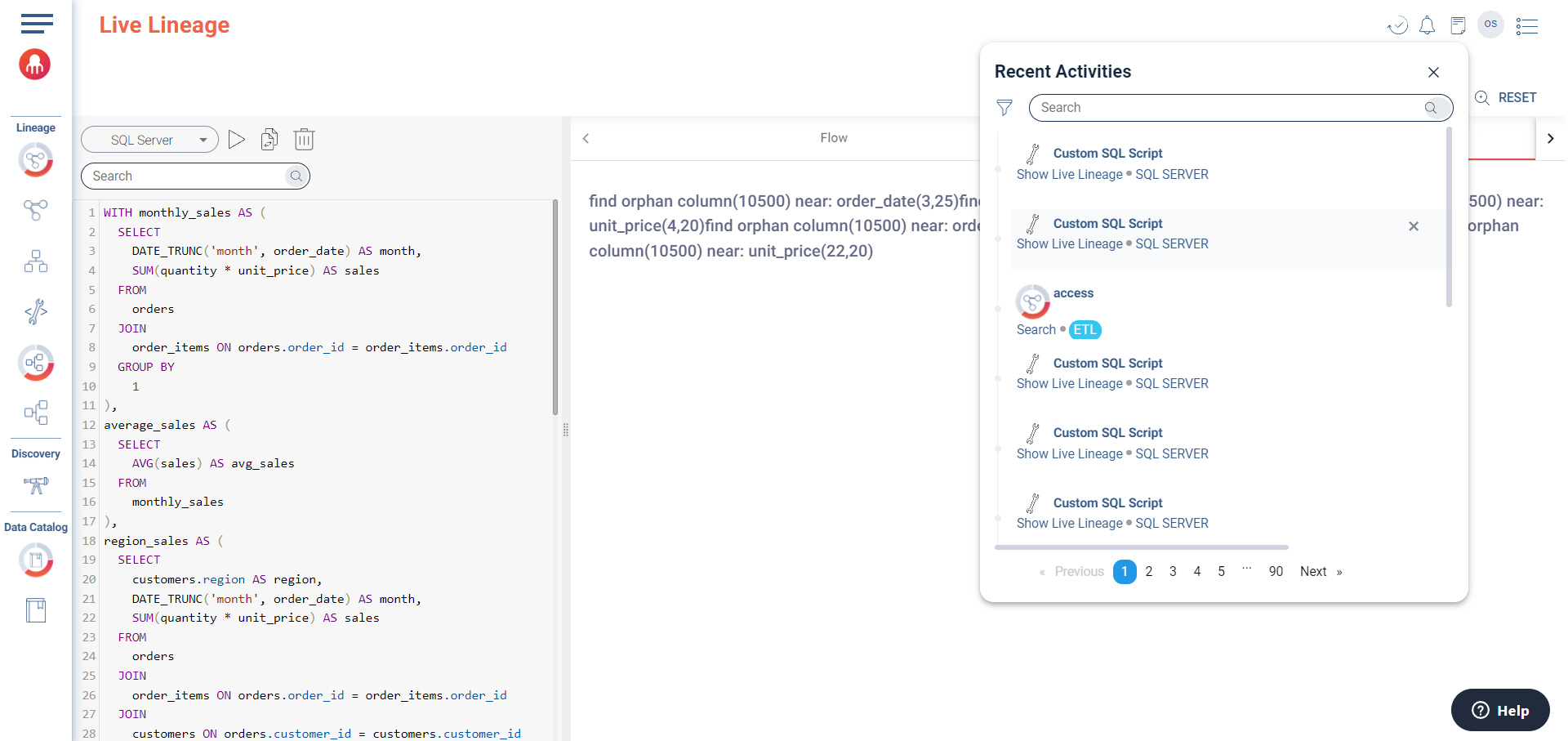
Whether you're editing an existing script via your Inner System Lineage path or creating a new one, all activities are recorded under Recent Activities. Navigate to your Recent Activities to access this data. Activities executed using Live Lineage will be labeled as "Show Live Lineage."
- 4. Working with Scripts
-
If the script you've worked on is derived from an existing script, the Recent Activities will display the original script's name. If you're editing the script or adding a new one, the activity will be marked as "Custom SQL Script."
Pro tip: Keeping track of your Recent Activities allows you to monitor your script changes and workflow, and can be a lifesaver when troubleshooting.