Looker
Learn how to configure Looker as a metadata source in Cloudera Octopai Data Lineage.
Tool Permissions Prerequisites
Dedicated API3 Credentials (Client ID and Client Secret)
Looker API authentication | Google Cloud with the following permissions:
- access_data
- see_looks
- explore
- see_sql
- see_lookml
- use_sql_runner
- see_lookml_dashboards
- see_looks
- see_queries
- see_datagroups
- develop
We recommended creating a dedicated Permission Set and Role to associate with the credentials.
Supported API version 4.0 & up
How to set up the permissions
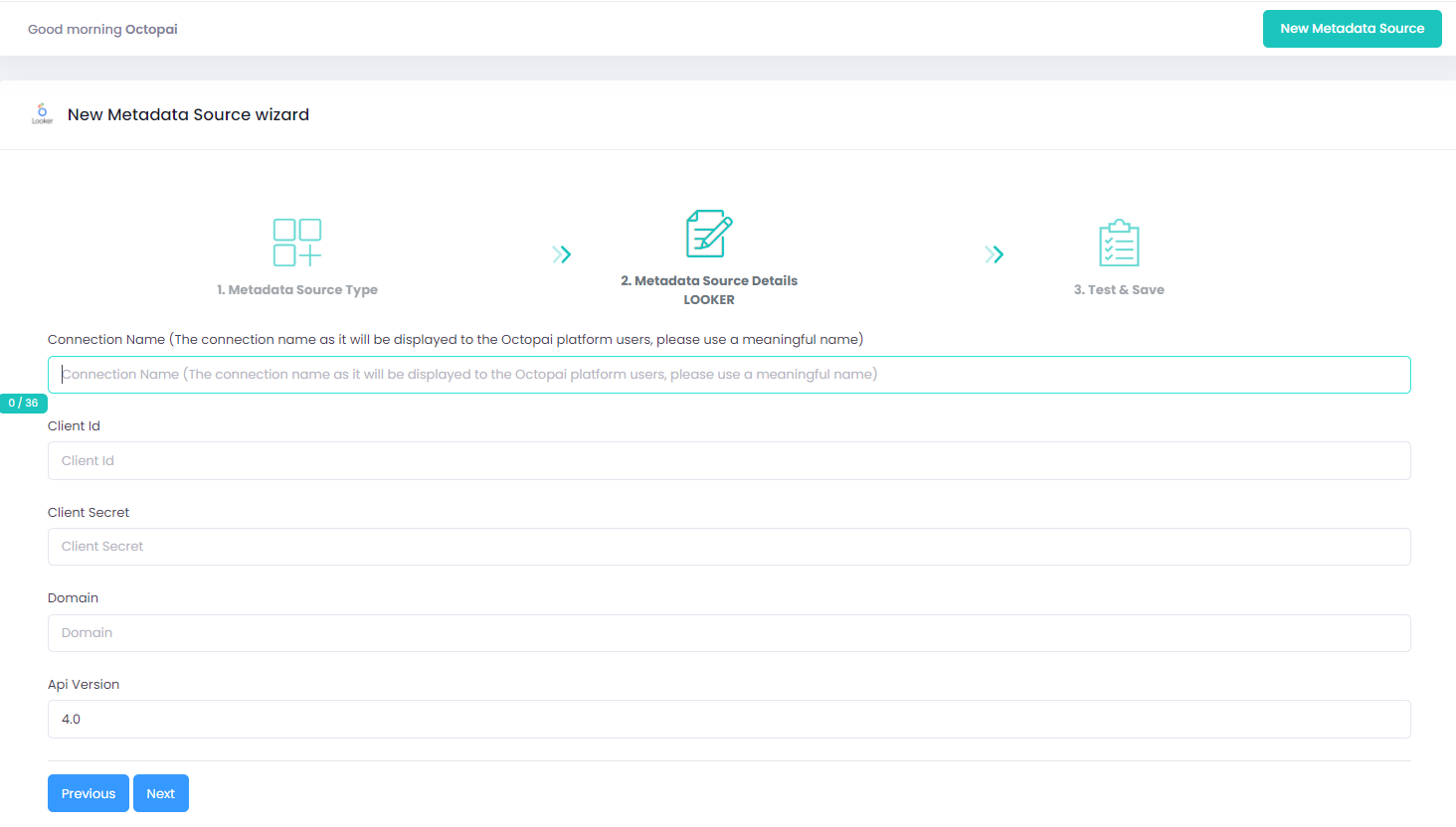
Setting up Looker Metadata Source
Metadata Sources are set on the Cloudera Octopai Client
How to verify the extracted Metadata File
Access the Cloudera Octopai Target Folder (TGT)
- Go to the TGT Folder located on the Server where the Cloudera Octopai Client is installed. By default: C:\Program Files (x86)\Octopai\Service\TGT
-
Open the zip file having the Connector Name. Example:

- Verify its content: Quantity & Quality of inner files
Troubleshoot
Error during the extraction:
- Check the permissions
- Send the log with the connector number and name to Cloudera Support - C:\Program Files (x86)\Octopai\Service\log

