Microsoft Fabric Warehouse [Technical Preview]
Learn how to set up Microsoft Fabric Warehouse as a metadata source for Cloudera Data Lineage (formerly Octopai), including Entra ID application registration, ODBC driver installation, tenant settings, and workspace permissions.
Overview
Before you set up the Microsoft Fabric Warehouse connector, ensure that you have the following:
-
Microsoft Entra application credentials: a registered service principal with a tenant ID, client ID, and client secret. See Application registration (service principal).
-
Microsoft ODBC Driver 18 for SQL Server: installed on the Windows machine that hosts the Cloudera Data Lineage platform for Warehouse SQL endpoint connectivity. See SQL access (ODBC).
-
Microsoft Fabric API permissions: item-level API permissions assigned to the service principal, including
Warehouse.Read.Alland related scopes. See Required application permissions. -
Fabric workspace permissions: the Contributor role assigned to the service principal on the target workspace. See Workspace permissions.
Application registration (service principal)
- In the Azure portal, open , and select New registration.
- Give the application a name, and select Accounts in this organizational directory only.
- Select Register.
- From the application overview, record the Directory (tenant) ID and Application (client) ID.
- Create a Client secret under .
The Cloudera Data Lineage Microsoft Fabric Warehouse connector authenticates using a Microsoft Entra service principal. The following values are required for configuration:
- Directory (tenant) ID
- Application (client) ID
- Client secret
SQL access (ODBC)
Microsoft Fabric Warehouse metadata extraction requires SQL connectivity through the Warehouse SQL endpoint. Install Microsoft ODBC Driver 18 for SQL Server on the Windows machine that hosts the Cloudera Data Lineage platform.
For Windows, see Download ODBC Driver for SQL Server.
Identity prerequisites
A Microsoft Entra application registration (service principal) is required and is used for:
- API authentication
- SQL connectivity through the Warehouse SQL endpoint
- Access to Fabric workspace items through Microsoft Fabric APIs
Tenant settings (Fabric admin portal)
Use the Fabric admin portal to enable the settings required by the connector:
- Open Microsoft Fabric.
- Select the gear icon, then select Admin portal.
- Open Tenant settings.
- Find and enable Service principals can call Fabric public APIs.
- Find and enable Allow apps to access Fabric items.
Workspace permissions
Assign the service principal to the target workspace with the Contributor role. Contributor access is required for complete extraction coverage, including:
- Stored procedures
- Functions
- Complete metadata visibility (such as definitions or system views)
Required application permissions
The application requires the following Microsoft Fabric API permissions:
Warehouse.Read.AllWorkspace.Read.AllSQLEndpoint.Read.AllItem.Read.All
Setting up Warehouse (Microsoft Fabric) metadata source
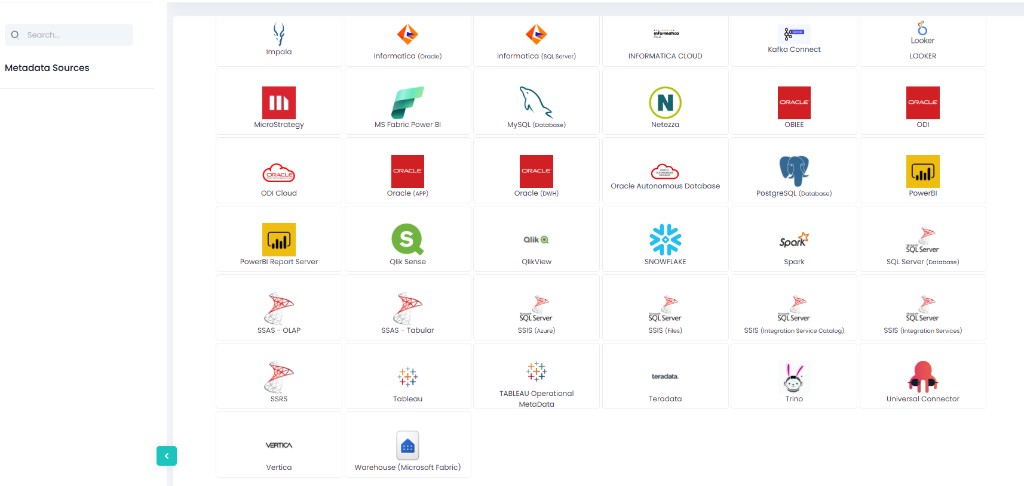
Configure the metadata source on the Octopai Client. In the New Metadata Source wizard, on Metadata Source Type, select Warehouse (Microsoft Fabric).
On Metadata Source Details, enter the following:
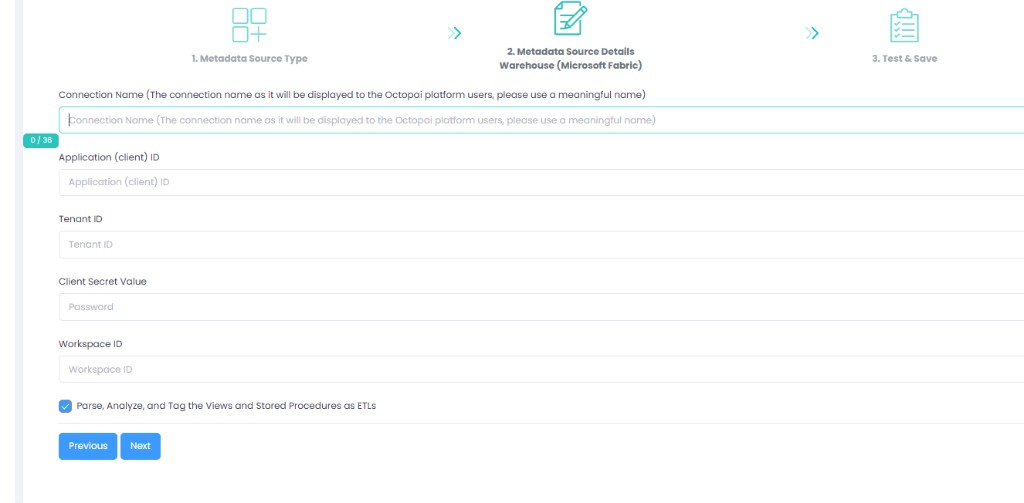
- Connection Name: enter a meaningful name (it is displayed to Cloudera Data Lineage platform users).
- Application (client) ID
- Directory (tenant) ID
- Client secret
- Workspace ID
