MicroStrategy
Executing the Project Merge executable, projectmerge.exe (Part of MicroStrategy Tools)
Tool Permissions Prerequisites
Ensure that the Cloudera Octopai Windows NT User has Read Permission to the MicroStrategy *.mmp or backup files folder.
How to Automate Extraction of MMP Files
The MMP files contain the necessary metadata for the analysis by Cloudera Octopai .
Follow these steps to create MMP files:
-
Open the MicroStrategy Object Manager
-
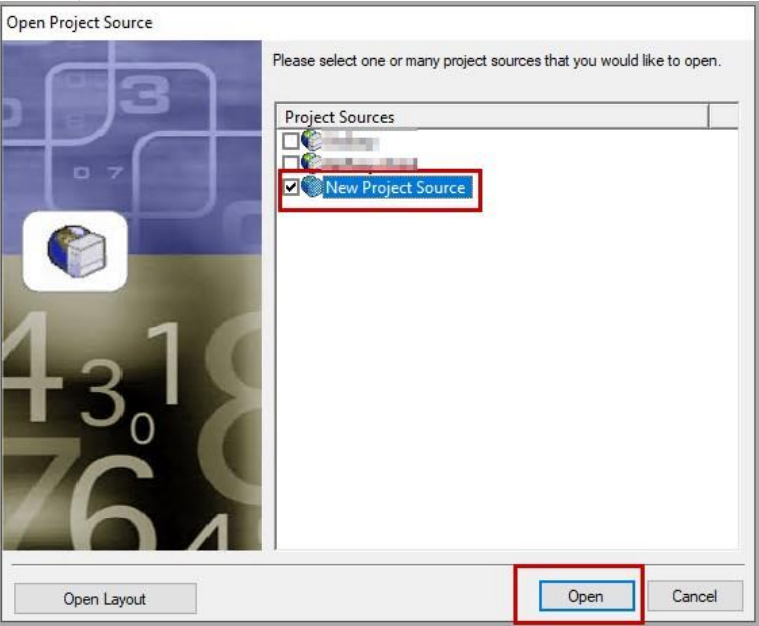
Select Project Source and click on Open
-
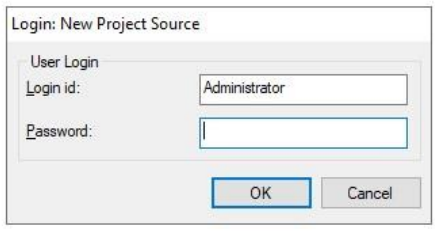
Enter login credentials (with admin user)
-
Select Project from the left side panel
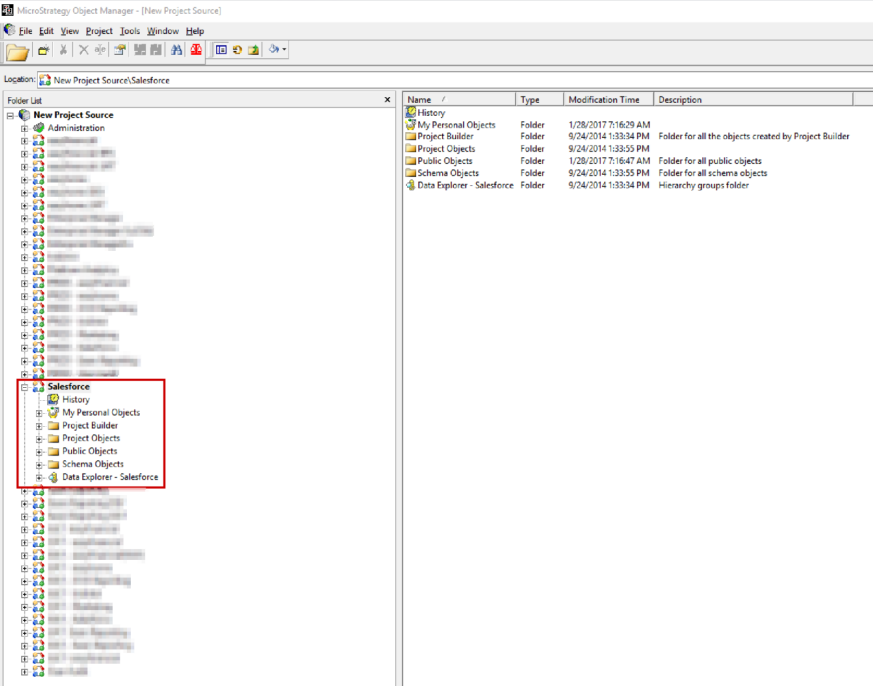
-
Click on Tools --> Create Package
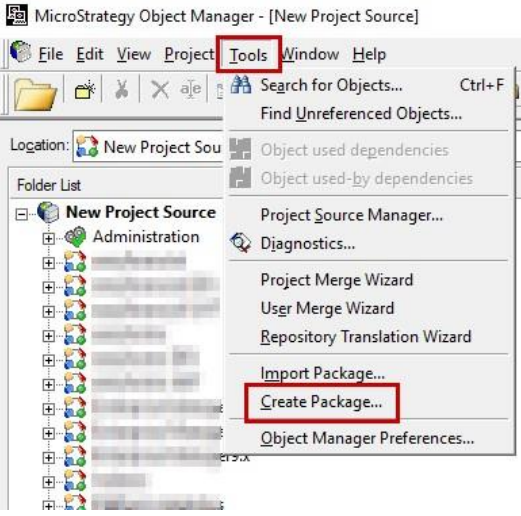
-
Click on Add
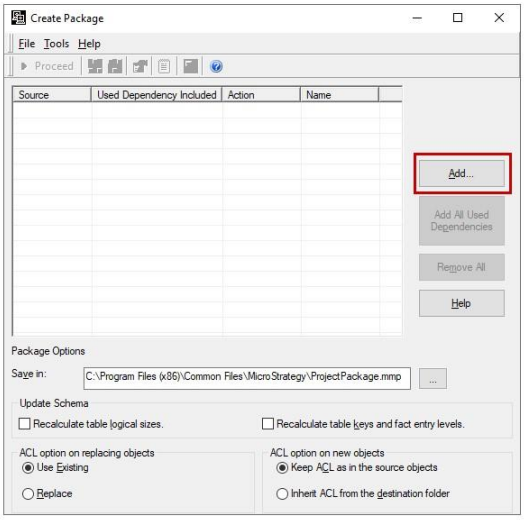
-
Check Import Folder and Children recursively
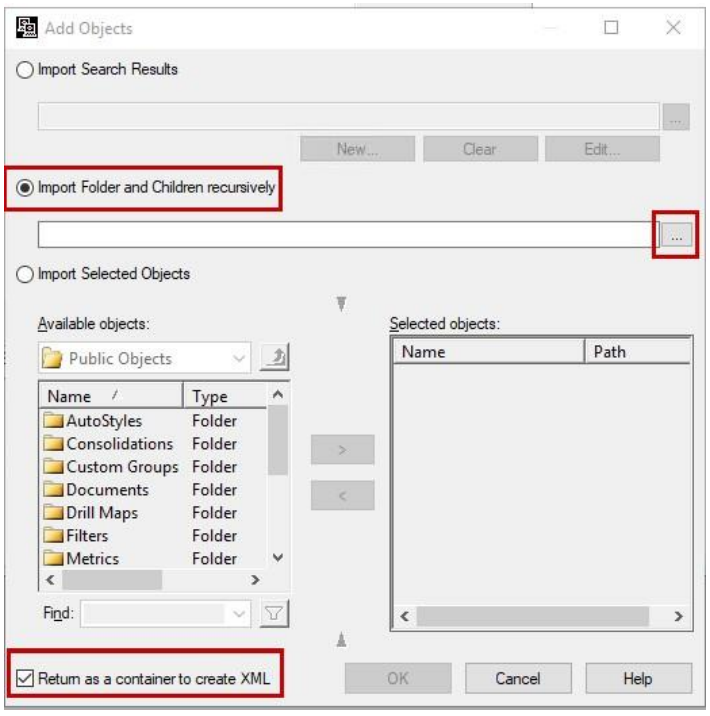
-
Select one folder and click OK
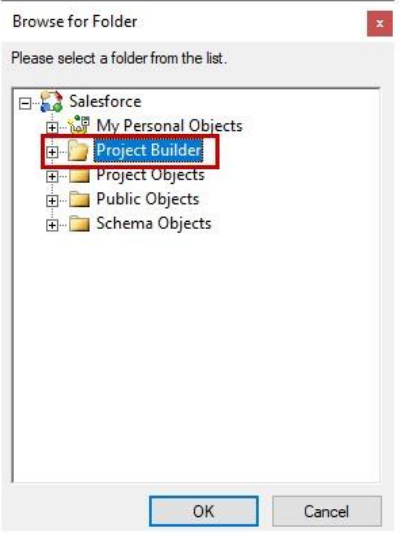
-
Check Return as a container to create XML and click OK
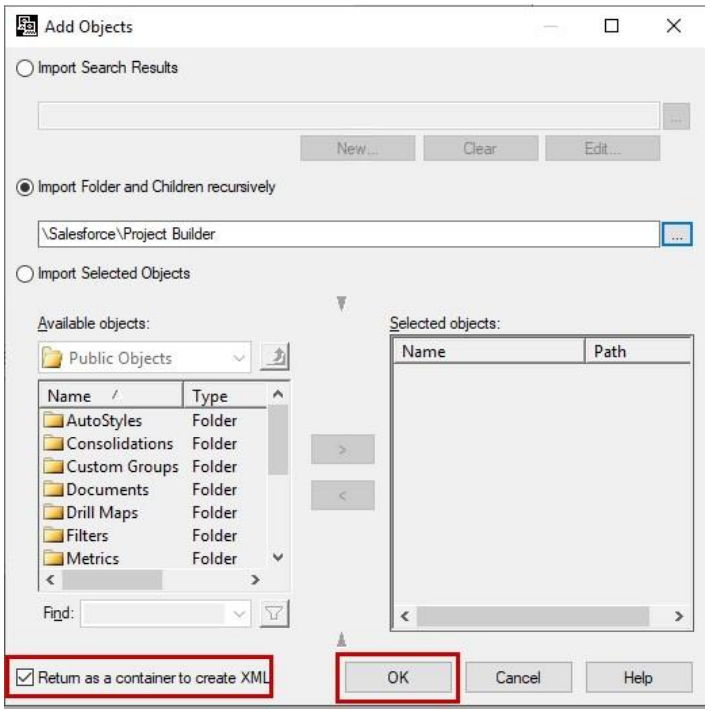
-
Check “Add All Used Dependencies,” change the Save in path, rename the target file as necessary, and click on Create XML
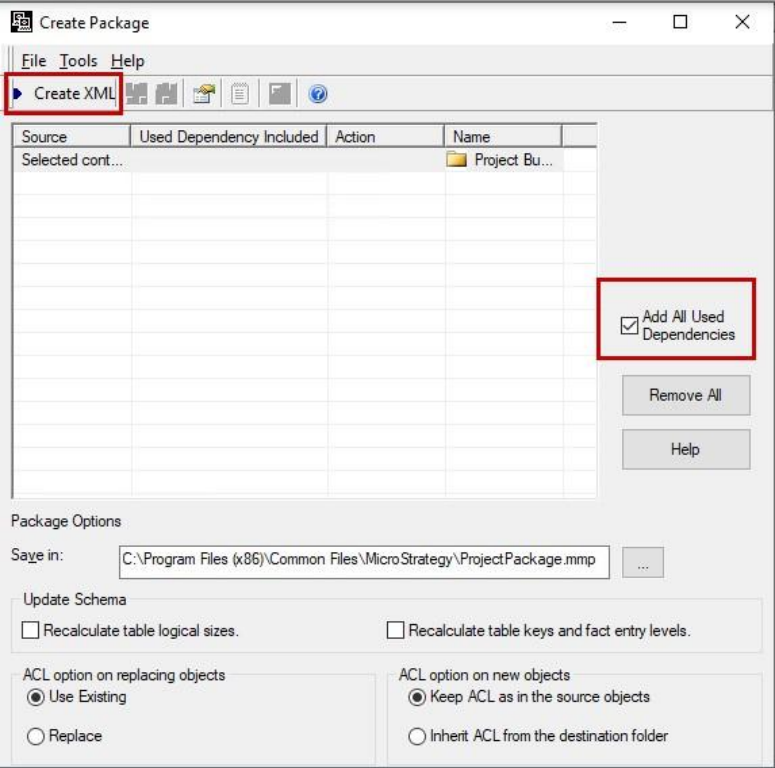
-
Repeat steps 8-10 for each folder within the project (Normally at least 4 folders per project).
-
Repeat steps 4-11 for each project.
Using the XML file to create an updated package:
Executing the Project Merge executable, projectmerge.exe (Part of MicroStrategy Tools)
Use the user and password that you use in order to log in to the Object Manager.
Enter the following command in a batch file: c:\Users\projectmerge -f\Filename.xml -sp -sup
C:\Users\octopai>projectmerge -fC:\temp\T.xml -sp******** -supSetting up MicroStrategy Metadata Source
Metadata Sources are set on the Cloudera Octopai Client :