Netezza
Learn how to set up Netezza metadata sources with the Cloudera Octopai Client.
Tool Permissions Prerequisites
Check/Install Netezza ODBC on the server of the Cloudera Octopai Client
Open Server Port for each Netezza Database Connection
Admin Netezza user for each connection with grant permission for the following dictionary tables:
- SYSTEM.ADMIN(ADMIN)=> select * from _v_sys_columns;
- SYSTEM.ADMIN(ADMIN)=> select * from _v_synonym;
- SYSTEM.ADMIN(ADMIN)=> select * from _v_objects;
- SYSTEM.ADMIN(ADMIN)=> select * from _v_database;
- SYSTEM.ADMIN(ADMIN)=> select * from _v_procedure;
- SYSTEM.ADMIN(ADMIN)=> select * from _v_table;
- SYSTEM.ADMIN(ADMIN)=> select * from _v_view;
Only if previous grants are not enough:
Netezza Grant Permission Steps:
- SYSTEM.ADMIN(ADMIN)=> CREATE USER <UserName> WITH PASSWORD '<UserPassword>';
- SYSTEM.ADMIN(ADMIN)=> GRANT SELECT ON ALL.ALL.TABLE TO <UserName>;
- SYSTEM.ADMIN(ADMIN)=> GRANT SELECT ON _T_DATABASE TO <UserName>;
- SYSTEM.ADMIN(ADMIN)=> SET CATALOG <Database Name>;
- <Database Name>.ADMIN(ADMIN)=> GRANT LIST ON DATABASE to <UserName>;
- <Database Name>.ADMIN(ADMIN)=> GRANT ALL ON TABLE, FUNCTION, AGGREGATE, MATERIALIZED VIEW, PROCEDURE, SEQUENCE, SYNONYM, VIEW, SYSTEM VIEW TO <UserName>;
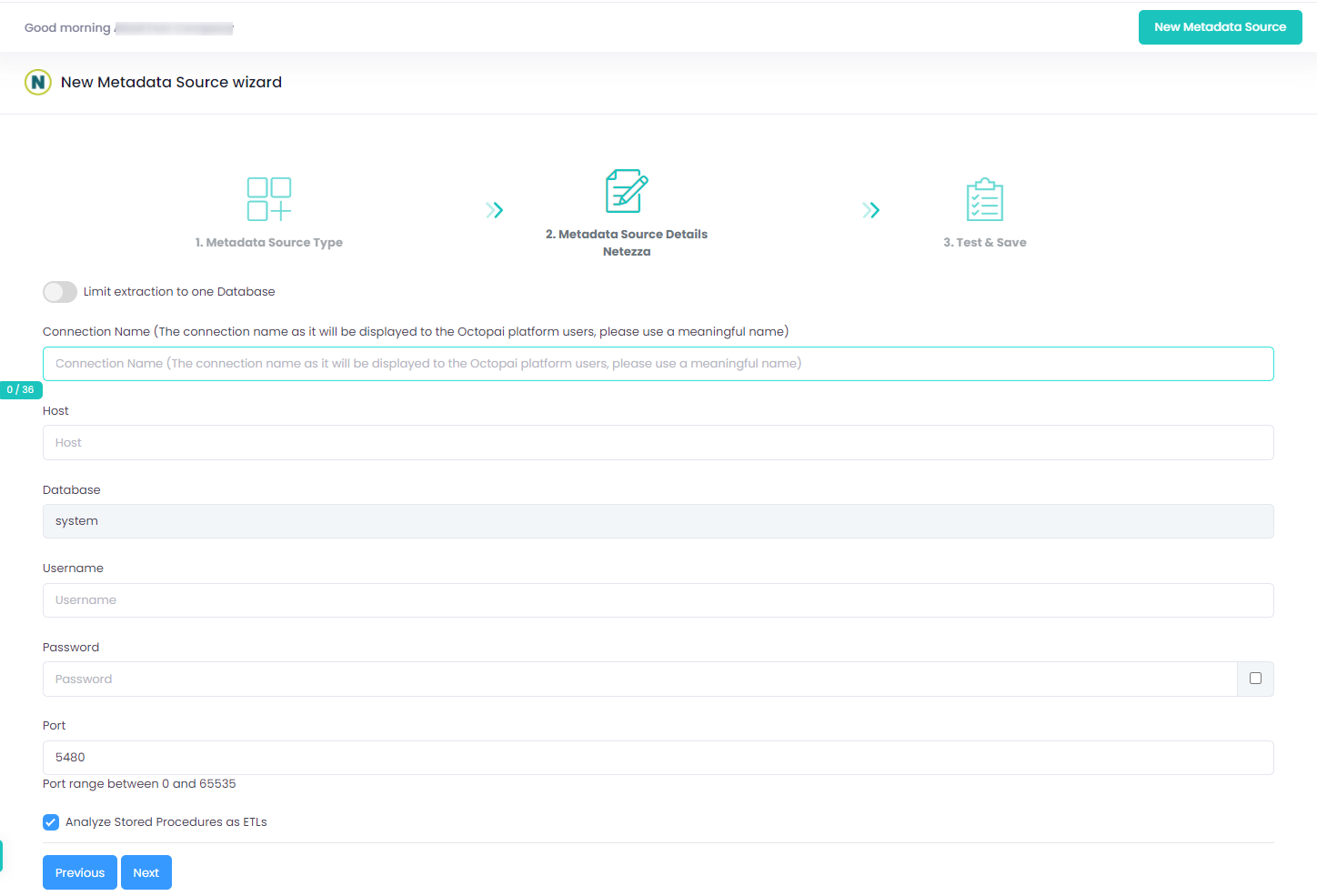
Setting up Netezza Metadata Source
Metadata Sources are set on the Cloudera Octopai Client
How to verify the extracted Metadata File
Access the Cloudera Octopai Target Folder (TGT)
- Go to the TGT Folder located on the Server where the Cloudera Octopai Client is installed. By default: C:\Program Files (x86)\Octopai\Service\TGT
-
Open the zip file having the Connector Name. Example:

- Verify its content: Quantity & Quality of inner files
Troubleshoot
Error during the extraction:
- Check the permissions
- Send the log with the connector number and name to Cloudera Support - C:\Program Files (x86)\Octopai\Service\log

