Oracle OBIEE / Oracle Analytics Server (OAS)
Learn how to extract and configure Oracle OBIEE metadata files for analysis by Cloudera Octopai Data Lineage.
- Supported version: up to 12c / 2023
-
Read the Permission for Cloudera Octopai Windows NT User to the OBIEE RDP and Catalog files folder.
-
Retrieve the repository rpd file
-
Log in to Oracle OBIEE enterprise manager (em) at http://obiee12c:9500/em/.
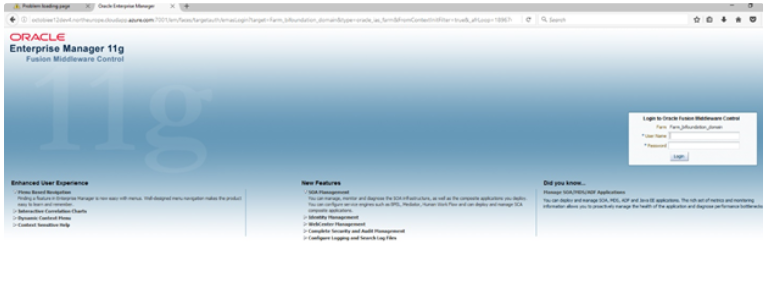
-
Go to .
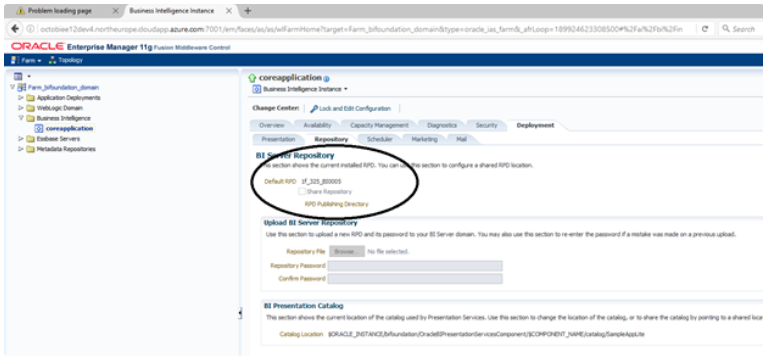 The rpd file can be found at D:\Oracle\Middleware\ user_projects\domains\bi\bidata\service_instances\ssi\metadata\datamodel\customizations.
 -
Extract the OBIEE reports that is the catalog file.
- Log in to OBIEE analytics at http://<Server Name>:9502/analytics/saw.dll?bieehome.
- Click on Catalog at the top right corner.
- Select the folder you want to archive, and then click on the Archive button.
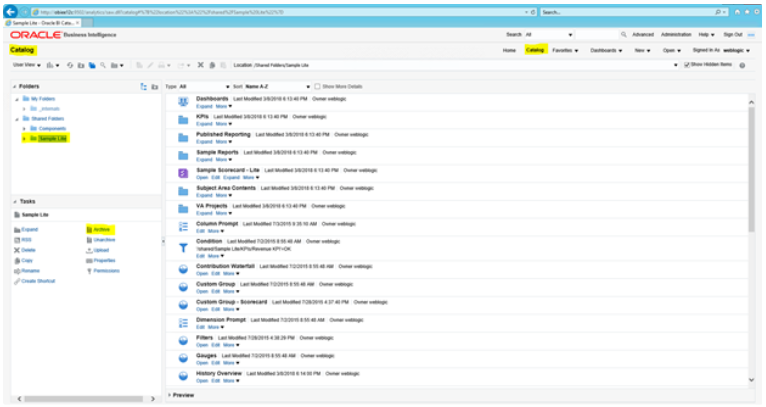
-
In the task box select archive to zip the files.
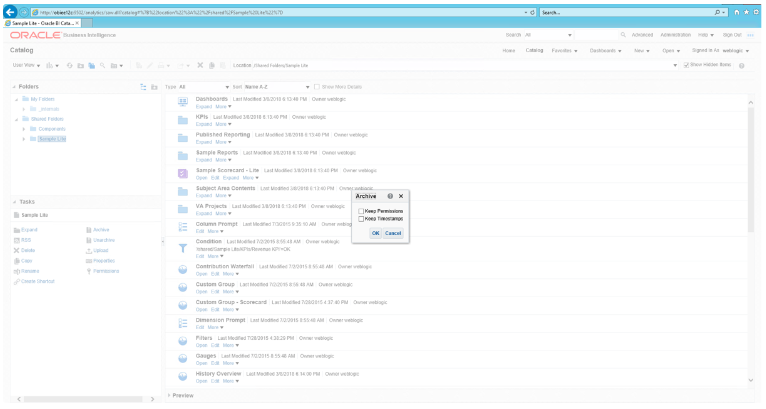
-
Log in to Oracle OBIEE enterprise manager (em) at http://obiee12c:9500/em/.
-
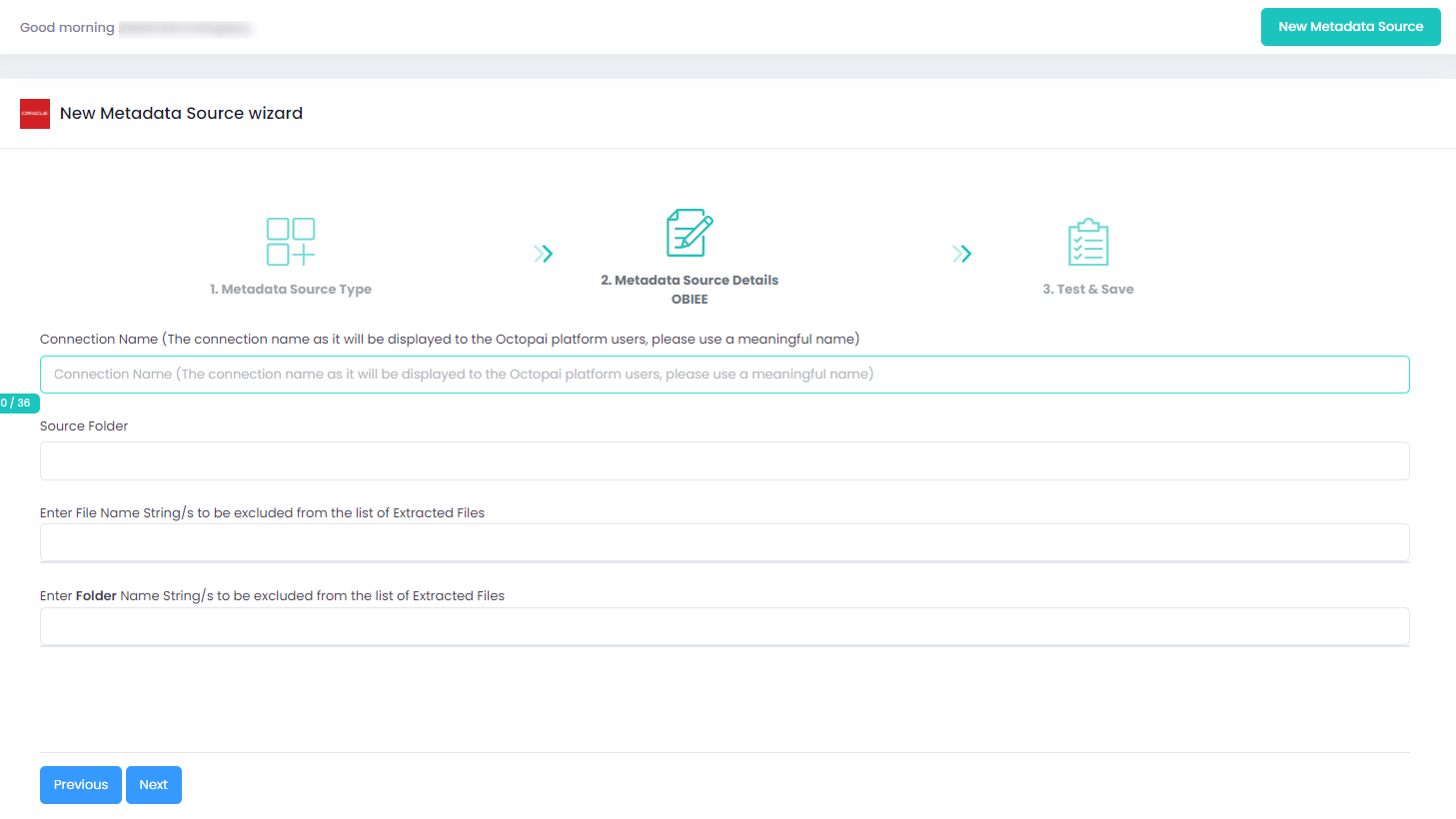
Set up the Oracle OBIEE metadata source on the Cloudera Octopai Client.
-
Verify the extracted metadata file by accessing the Cloudera Octopai Target Folder (TGT).
-
Open the zip file with the connector name.
Example

-
Open the zip file with the connector name.
If an error occurred during the extraction, perform the following troubleshooting steps:
- Check the permissions.
- Send the log with the connector number and name to Cloudera Support.You can find the log files at C:\Program Files (x86)\Octopai\Service\log.

