Configure Qlik Sense for Data Extraction
Learn how to configure Qlik Sense for data extraction with Cloudera Octopai Data Lineage.
-
Assign a license to the Qlik user used for the data extraction.
-
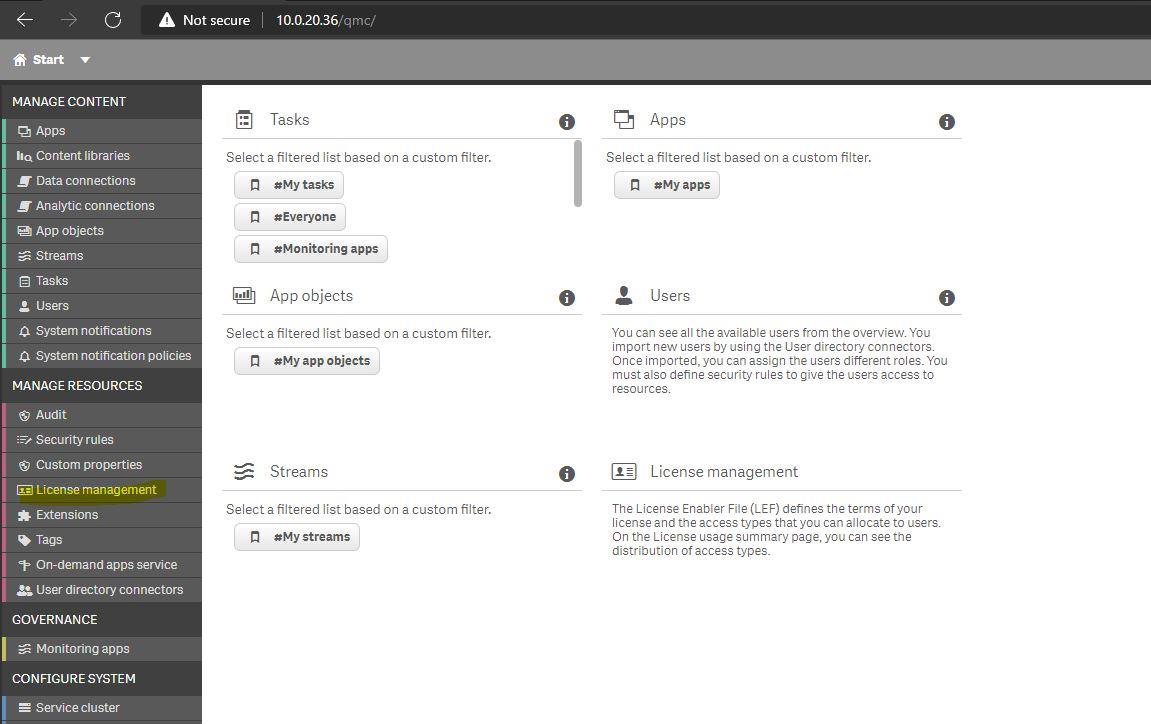
Navigate to the License management menu.
-
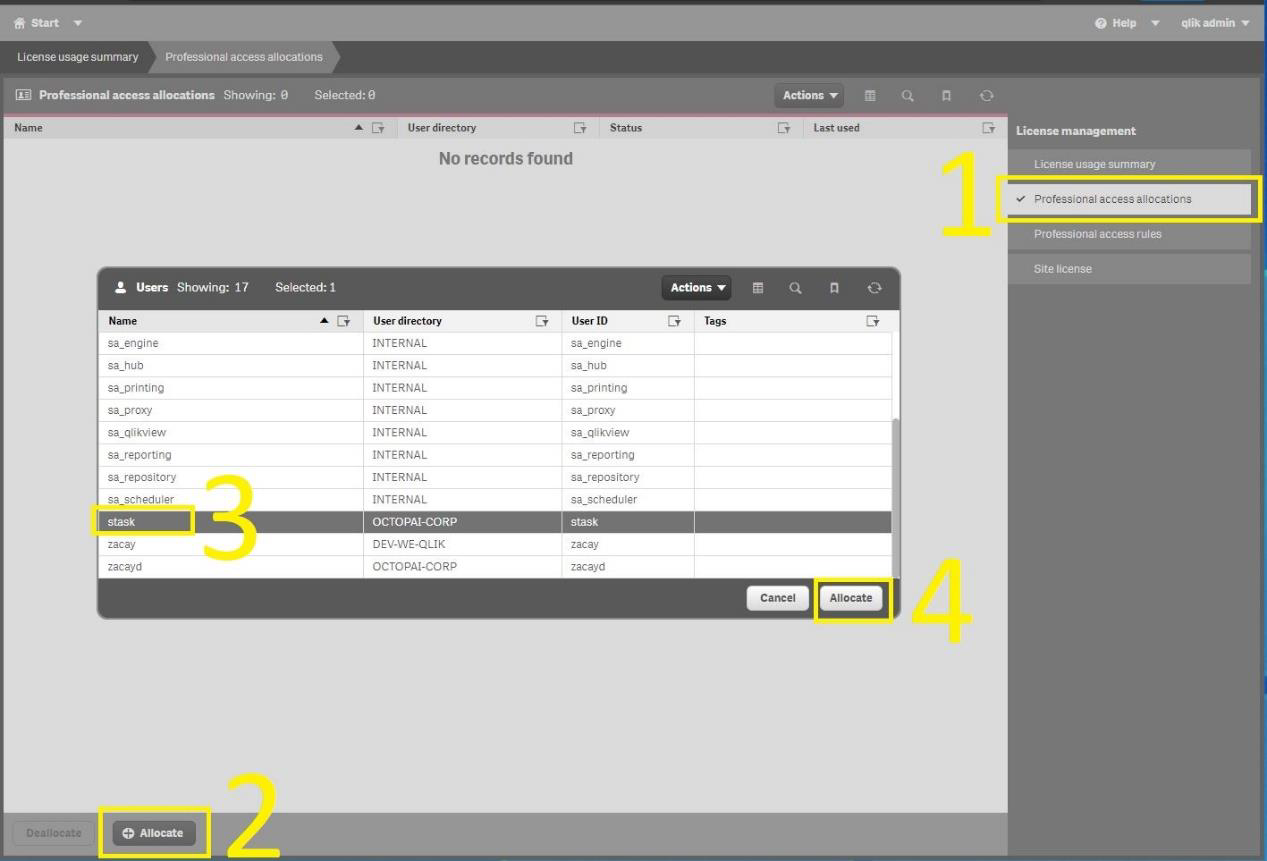
Click Professional license allocation, select the target user,
and click Allocate.
-
Navigate to the License management menu.
-
Create a custom property to tag specific users and streams.
-
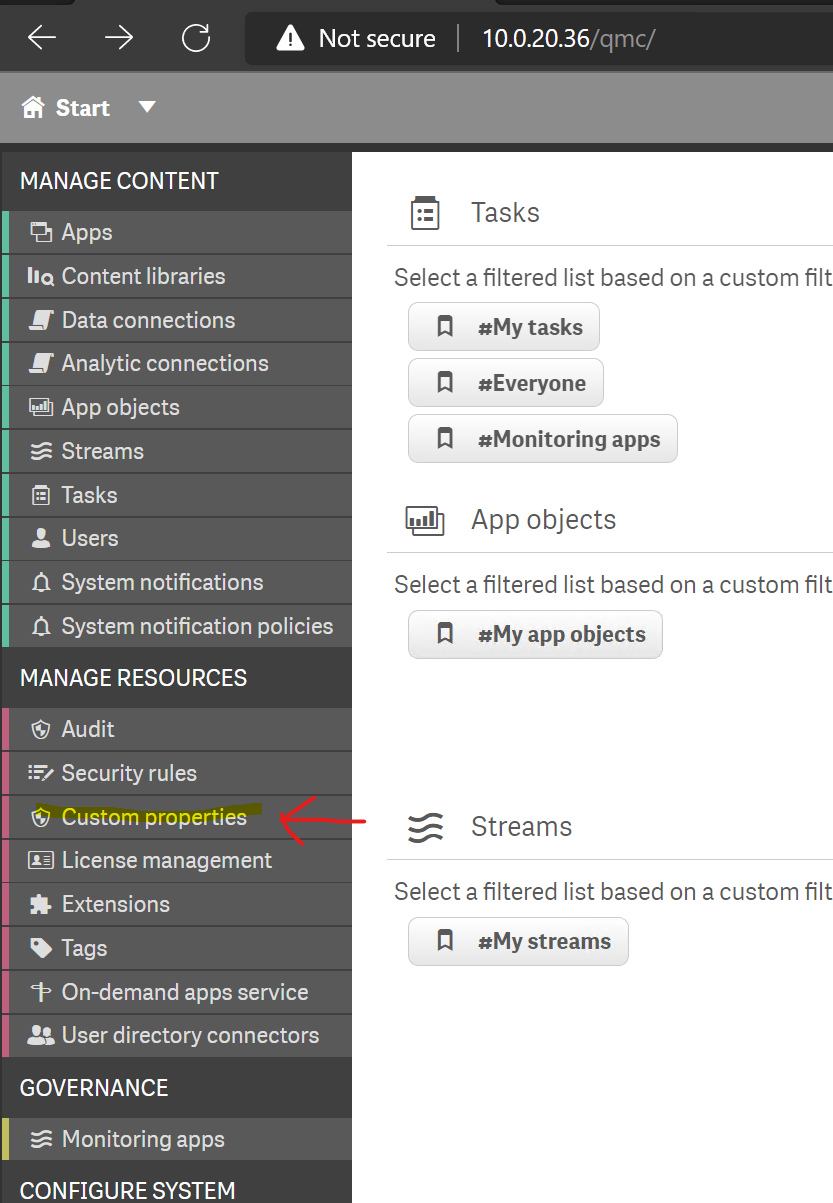
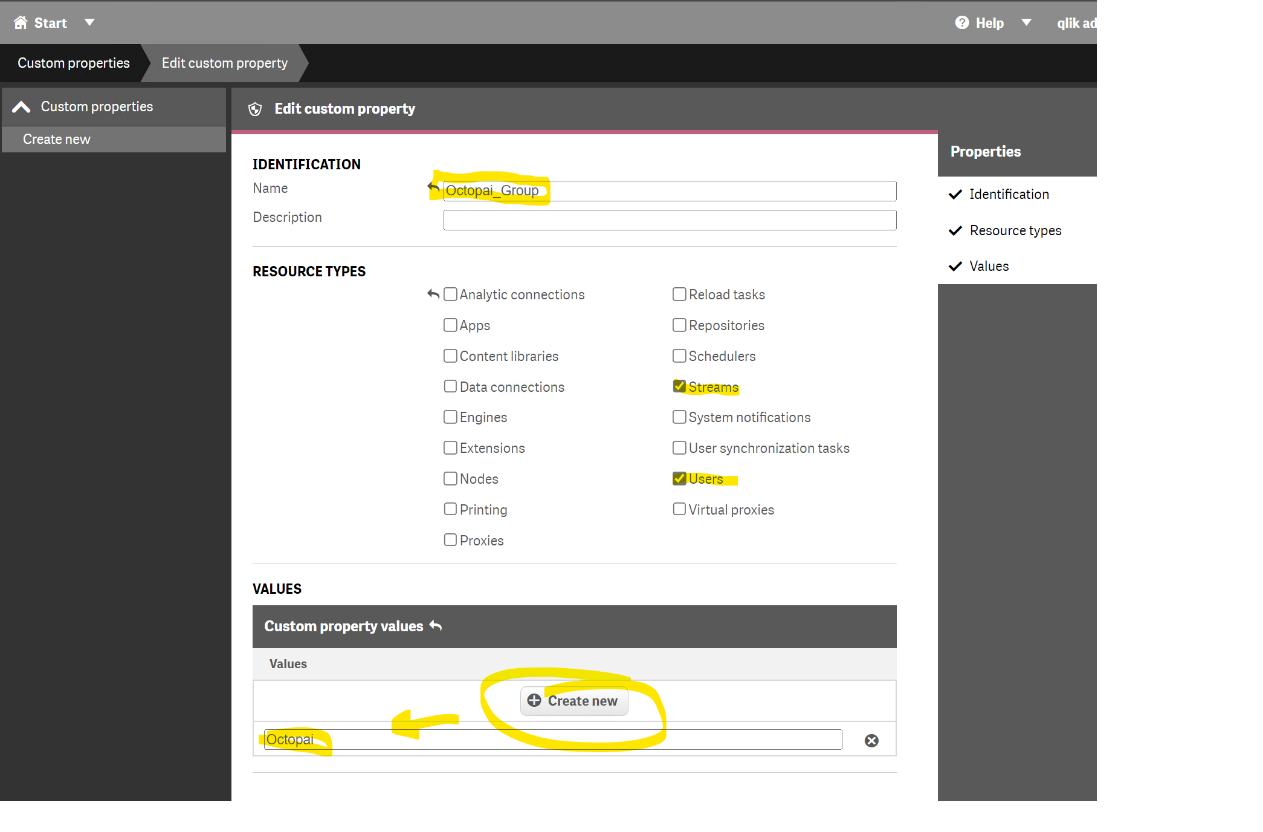
Go to the Custom properties menu.
-
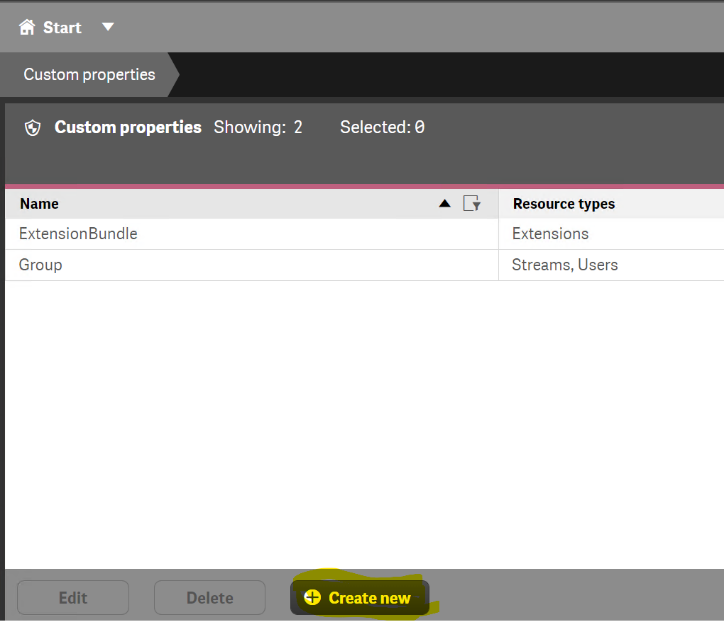
Click Create new and add the following
properties:
- Name
- Octopai_Group
- Resource types
- Streams, Users
- Value
- Octopai
-
Go to the Custom properties menu.
-
Assign the custom property to the targeted streams.
-
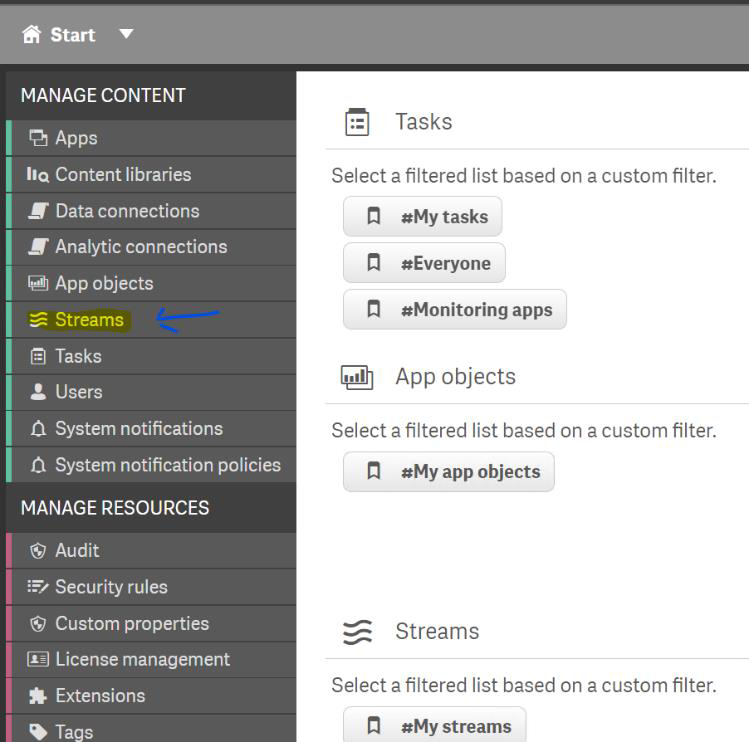
Go to the Streams menu.
-
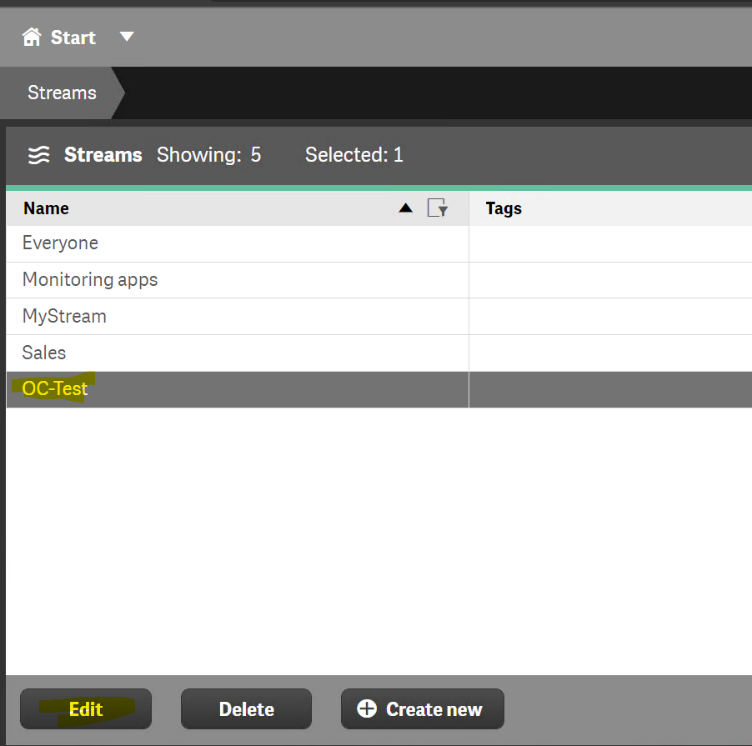
Select the desired stream and click Edit.
-
Under Custom properties, find
Octopai_Groupand select Octopai from the dropdown menu.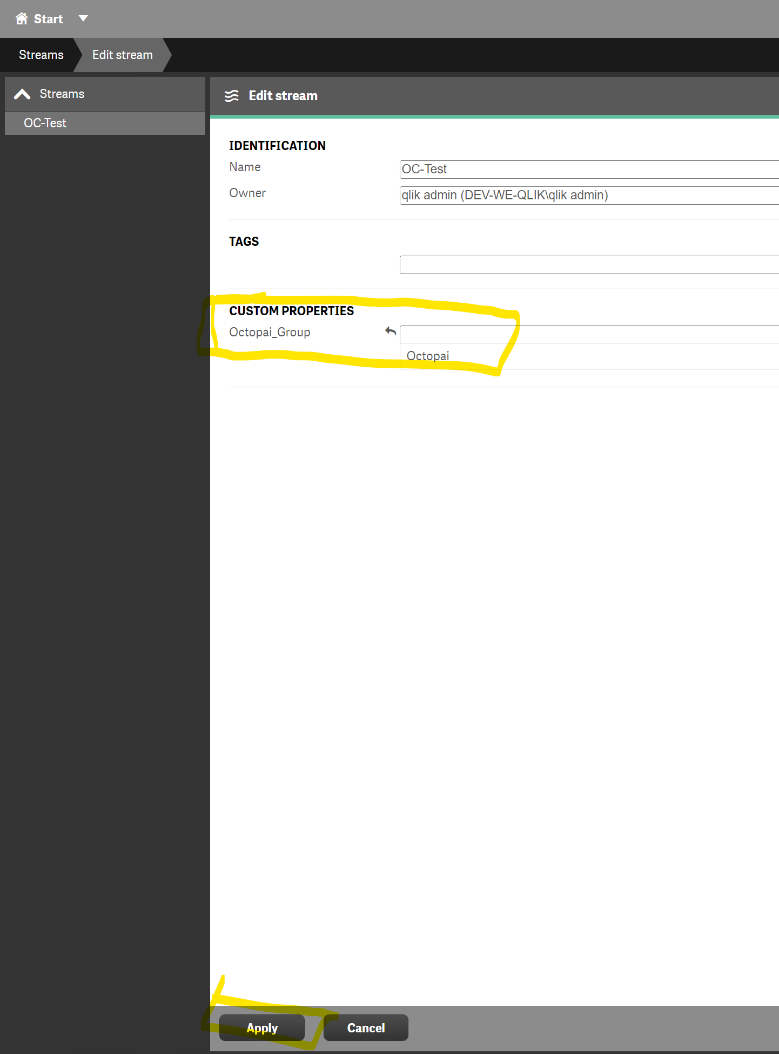
-
Go to the Streams menu.
-
Assign the custom property to the user used for extraction.
-
Go to the Users menu.
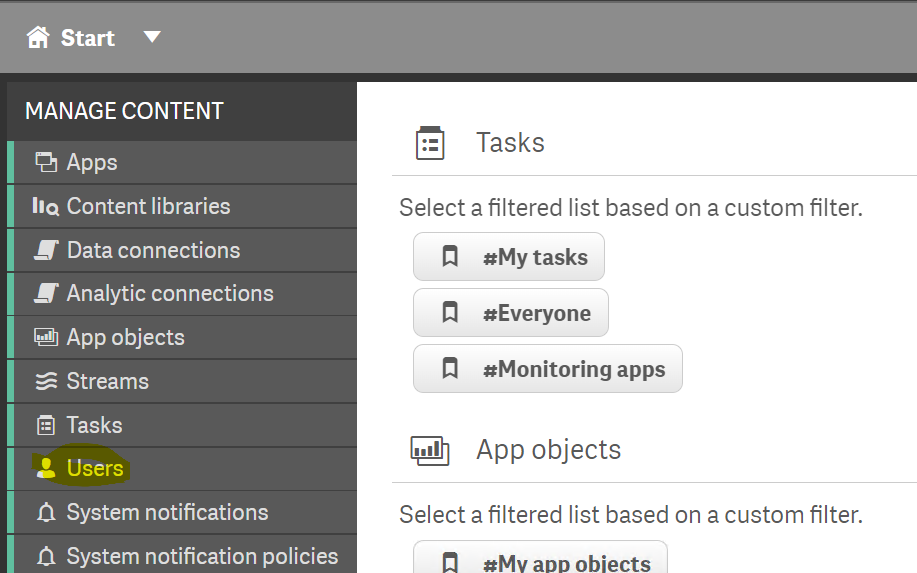
-
Select the intended user and click Edit.
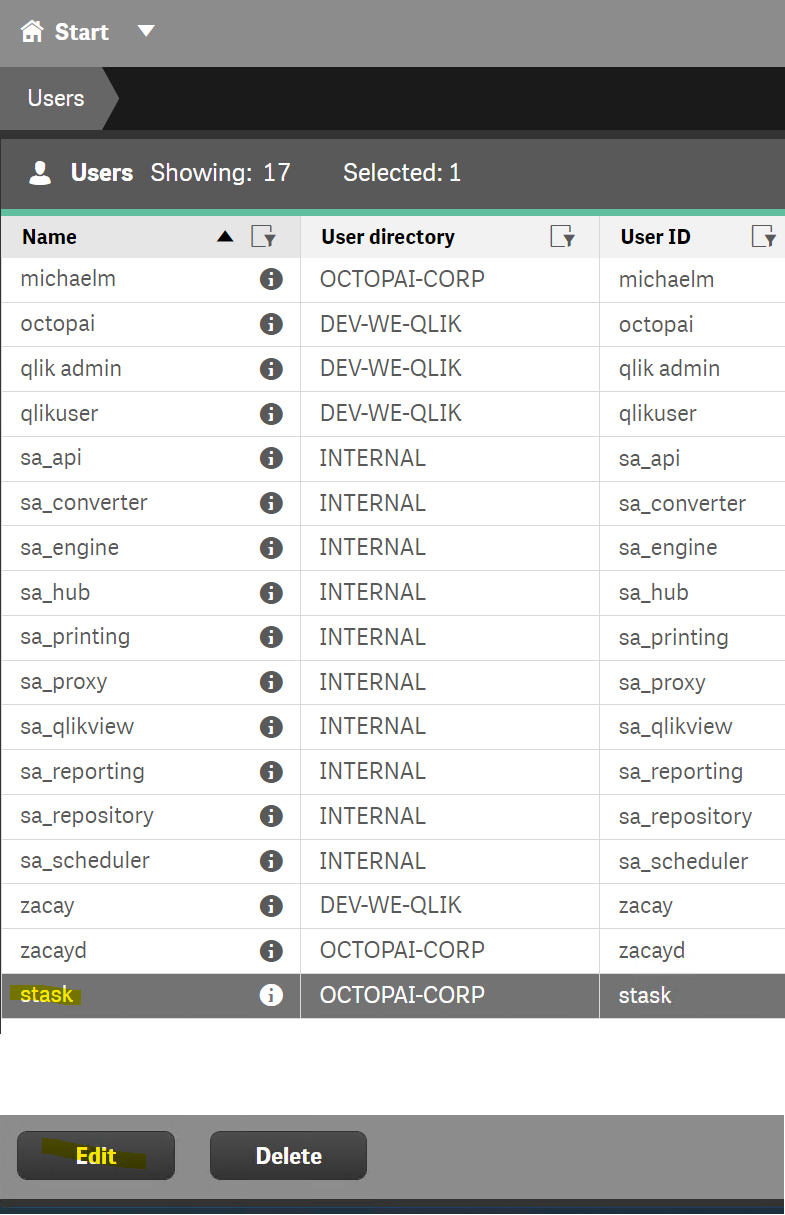
-
Go to the Users menu.
-
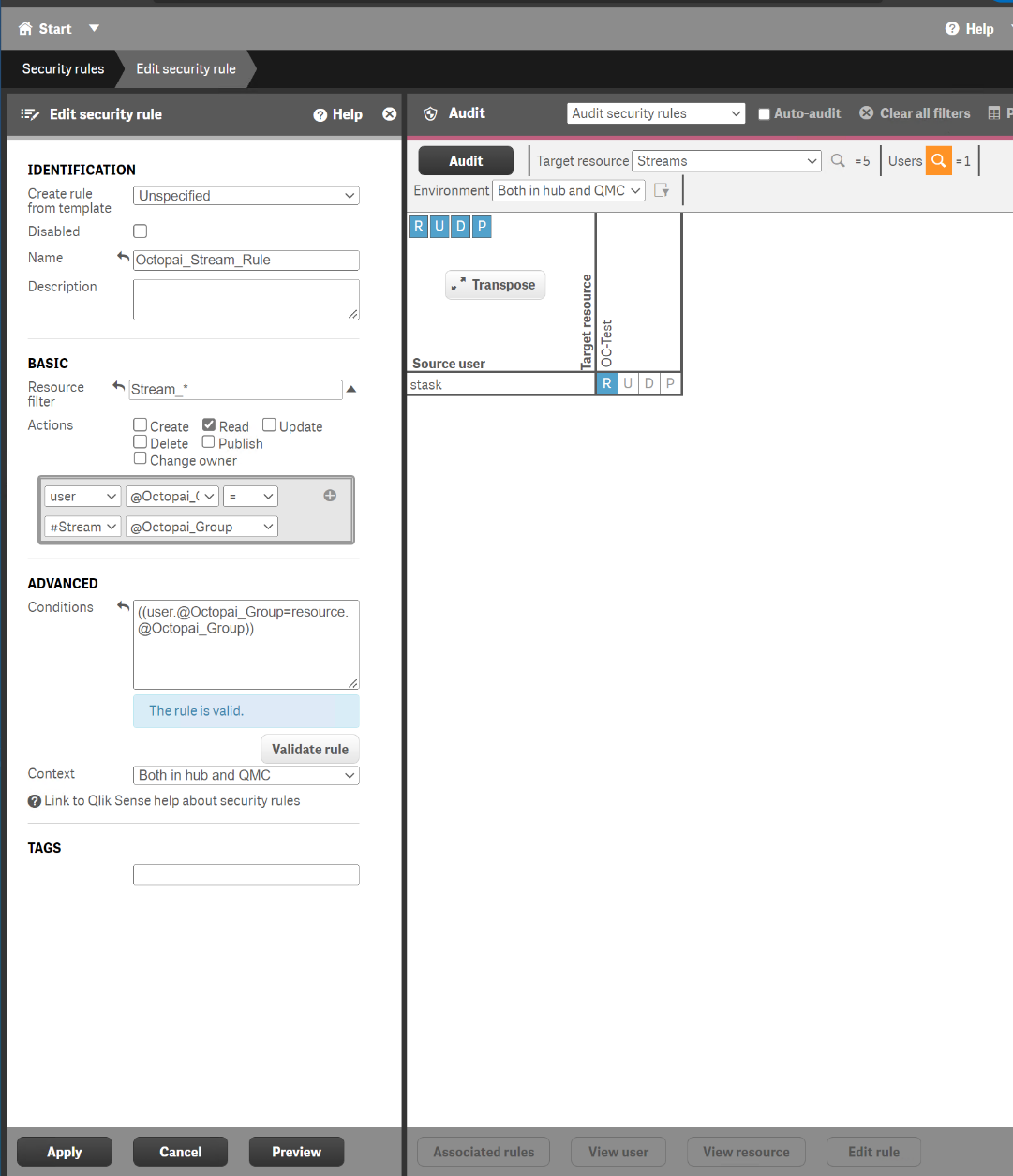
Create a security rule to connect the user and the streams.
-
Go to the Security rules menu.
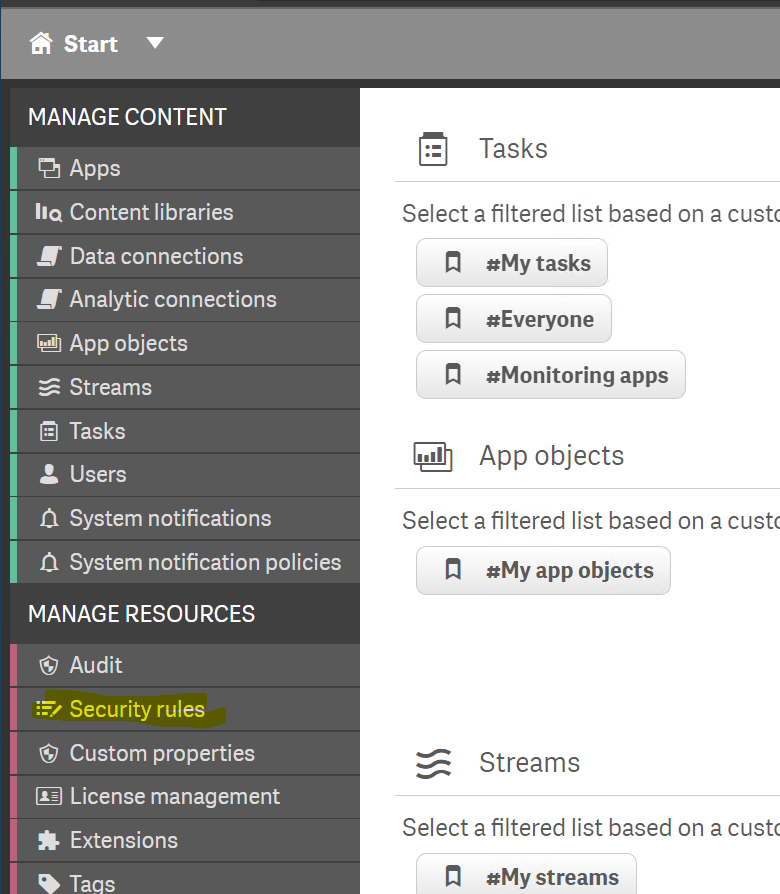
-
Click Create new and use the following values:
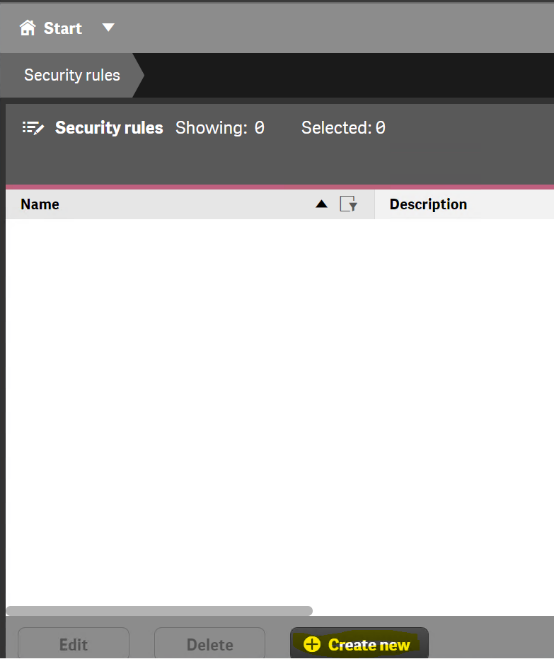
- Name
- Octopai_Stream_Rule
- Resource filter
- Stream_*
- Actions
- Read
- Conditions
- ((user.@Octopai_Group=resource.@Octopai_Group))
-
Go to the Security rules menu.
