SAP Business Objects (BO)
Extract LCMBIAR files from SAP Business Objects (BO) for Cloudera Octopai integration using the Central Management Console or Promotion Management Wizard.
Tool Permissions Prerequisites
Enable read permission for Cloudera Octopai Windows NT User to the Business Objects BIAR files folder.
How to extract LCMBIAR files
You can extract LCMBIAR files using one of the following methods:
Method 1: Export LCMBIAR with the Central Management Console
- Log in to CMC: http://bo-server-name.com:8080/BOE/CMC
-
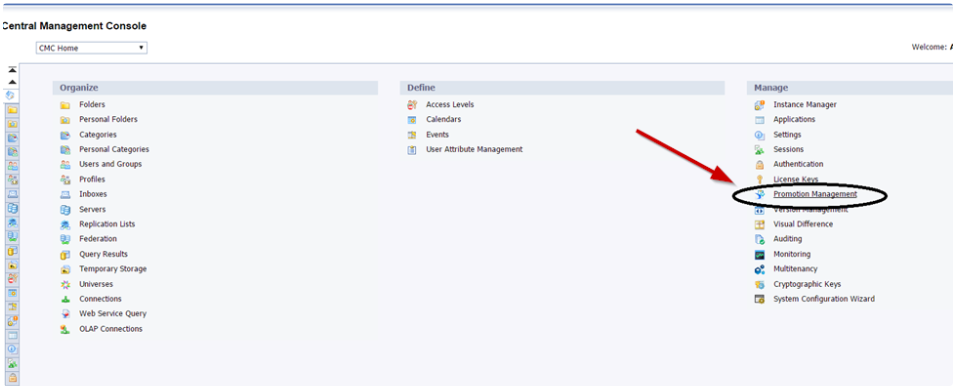
Click on promotion management:
-
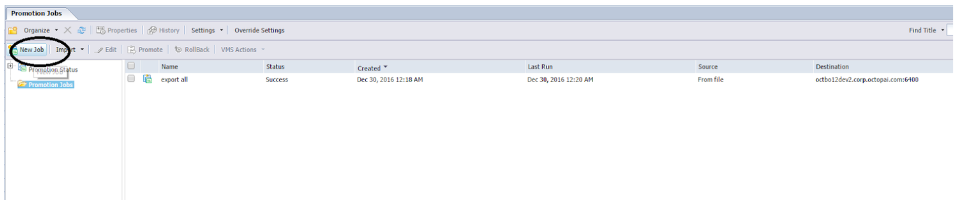
Create a new job:
-
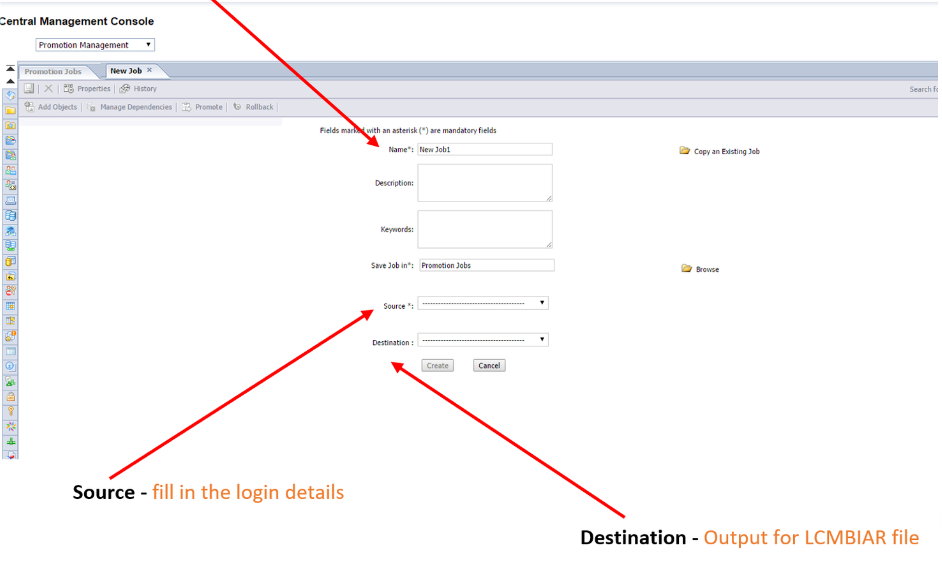
Fill in a job name and details:
-
Click on "Create":
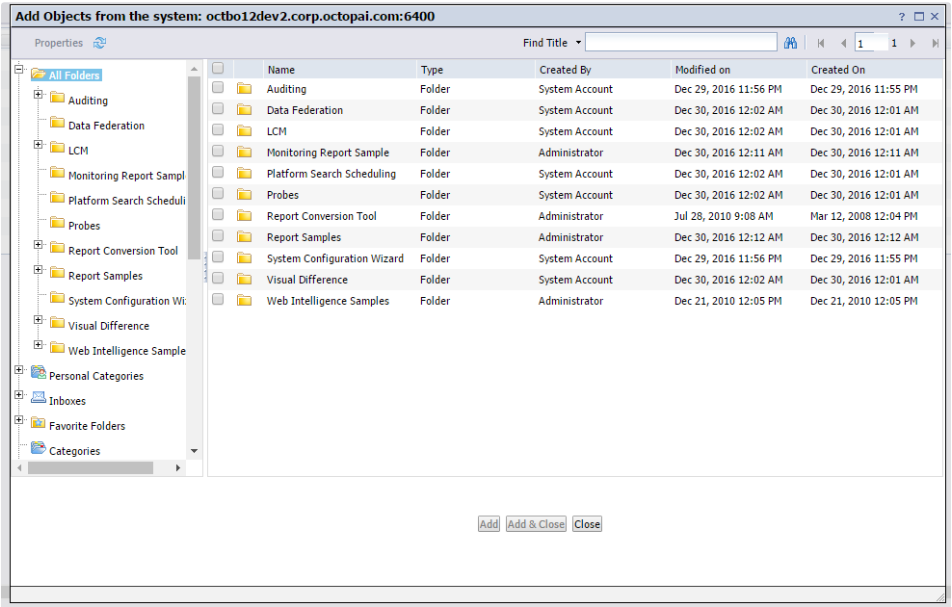
- On the left side panel choose Universes and then select all by clicking the upper checkbox
- Click add
- Repeat steps from #6 above for All Connections
- Repeat steps from #6 above for All folders (reports)
- Click on close.
-
Select all and click on the promote button, then choose -
export now
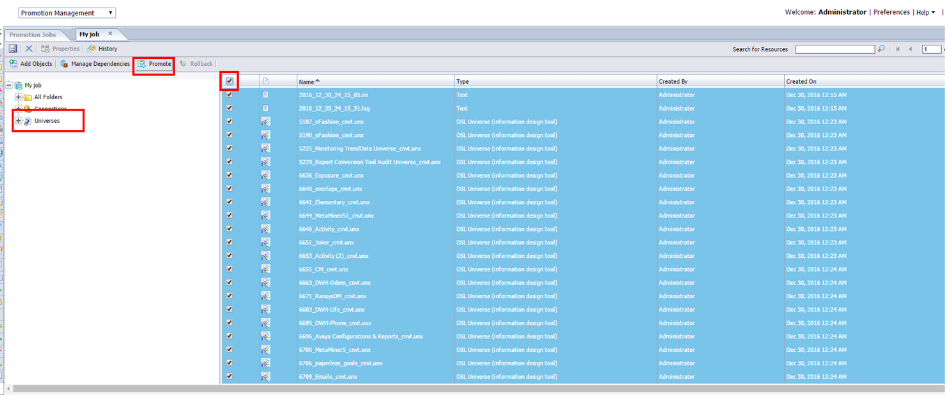
Method 2: Export LCMBIAR with the Promotion Management Wizard
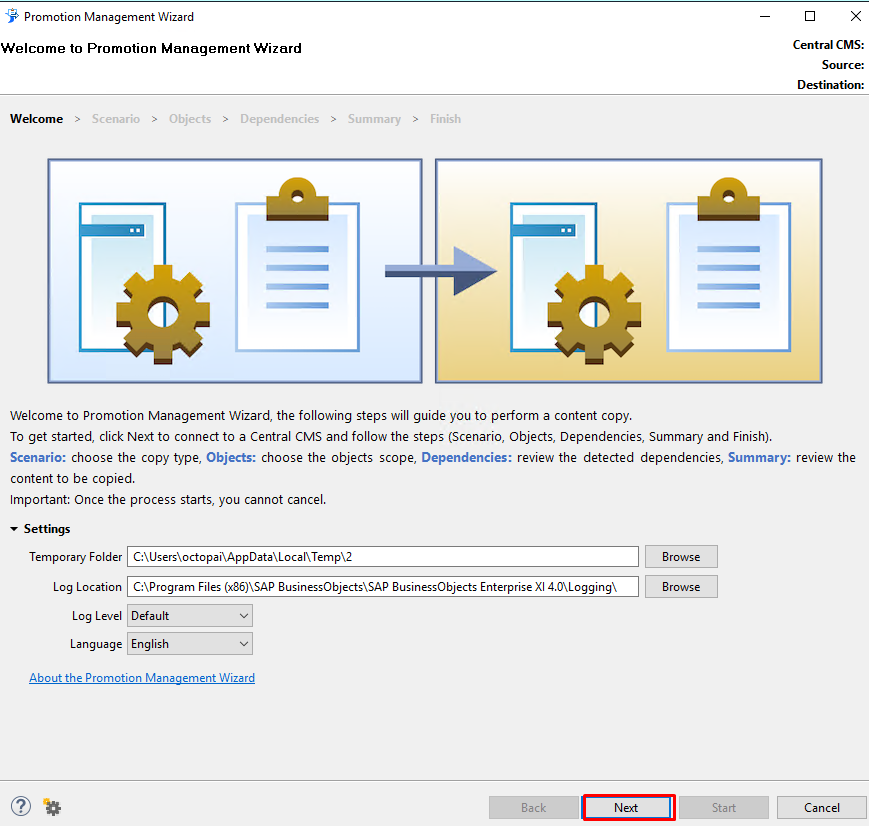
Go into the BO Server and open the program called " Promotion Management Wizard ".

When the following window opens, click Next
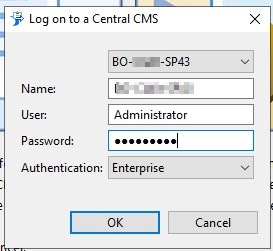
Login to the CMS ( BO Server ) that you want to extract from.
Click on “ Export (Live CMS to lcmbiar file) ”
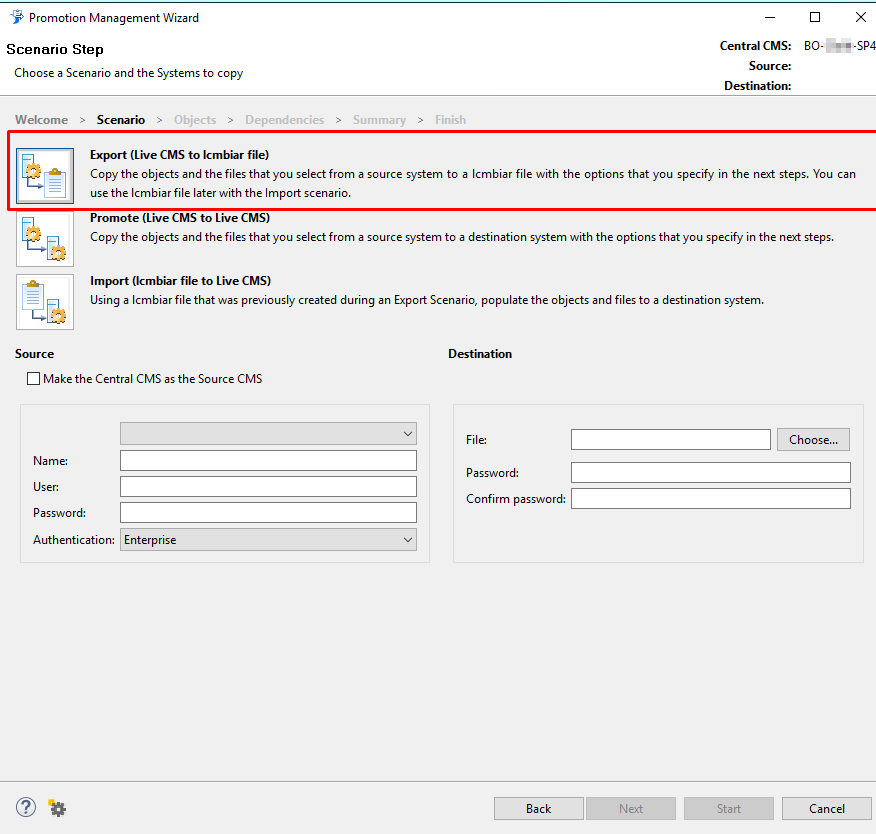
Fill up the information:
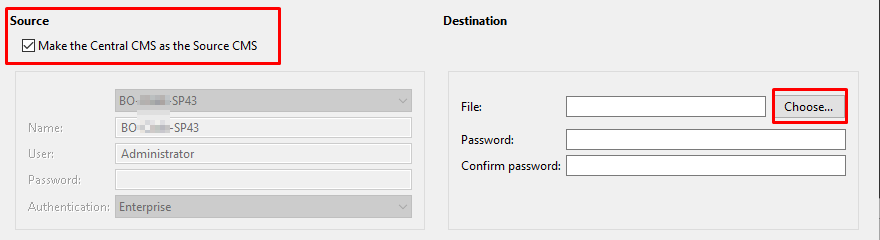
- Click on the Source tab to “Make the Central CMS as the Source CMS” which means to use the local CMS as our source.
- In the Destination tab choose where to save the file and give it a password. (Password is Mandatory).
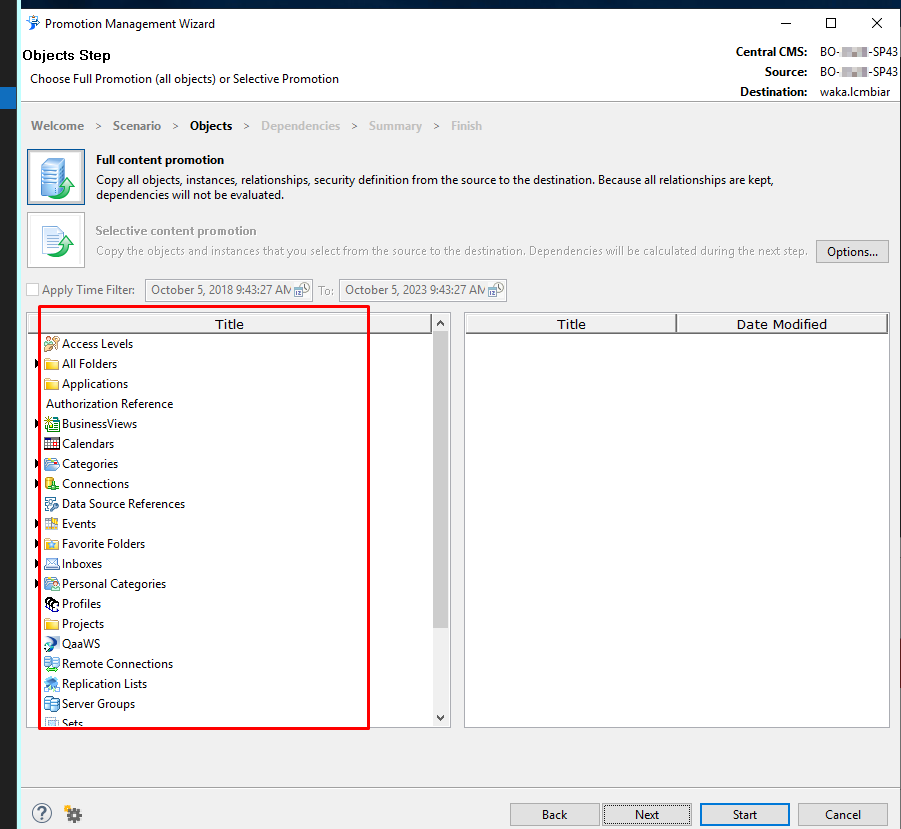
Choose the objects you want to export whether it’s Universes, Reports, Connections.
Then afterward select Start .
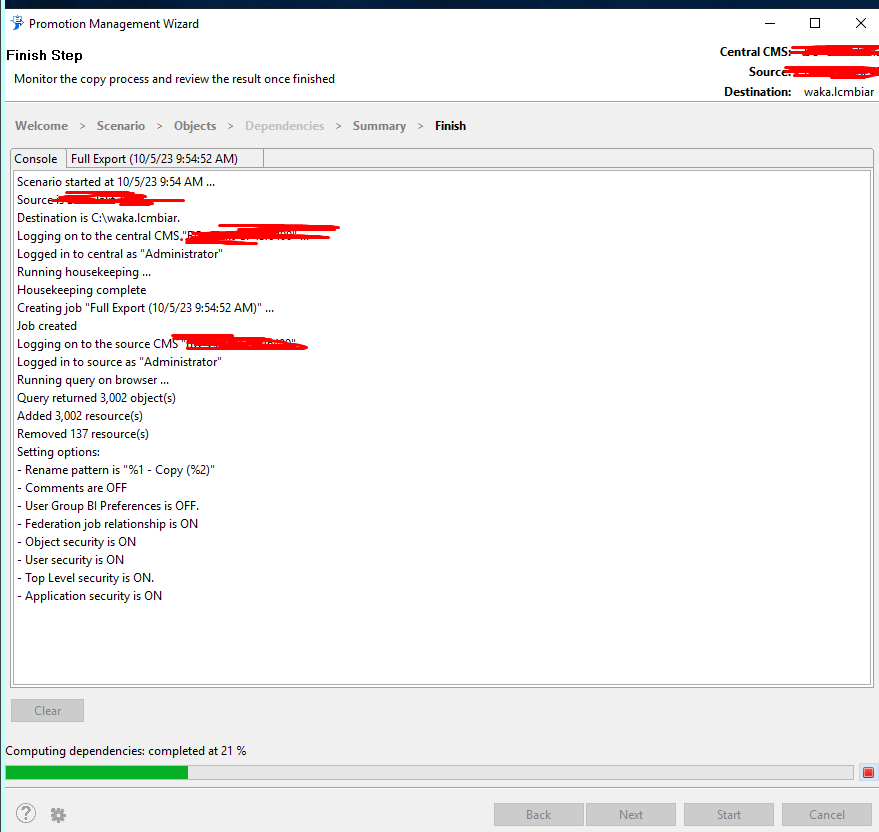
All done!Once the file has been created, upload the file to the Cloudera Octopai Portal.
Setting up SAP-BO Metadata Source
Metadata Sources are set on the Cloudera Octopai Client
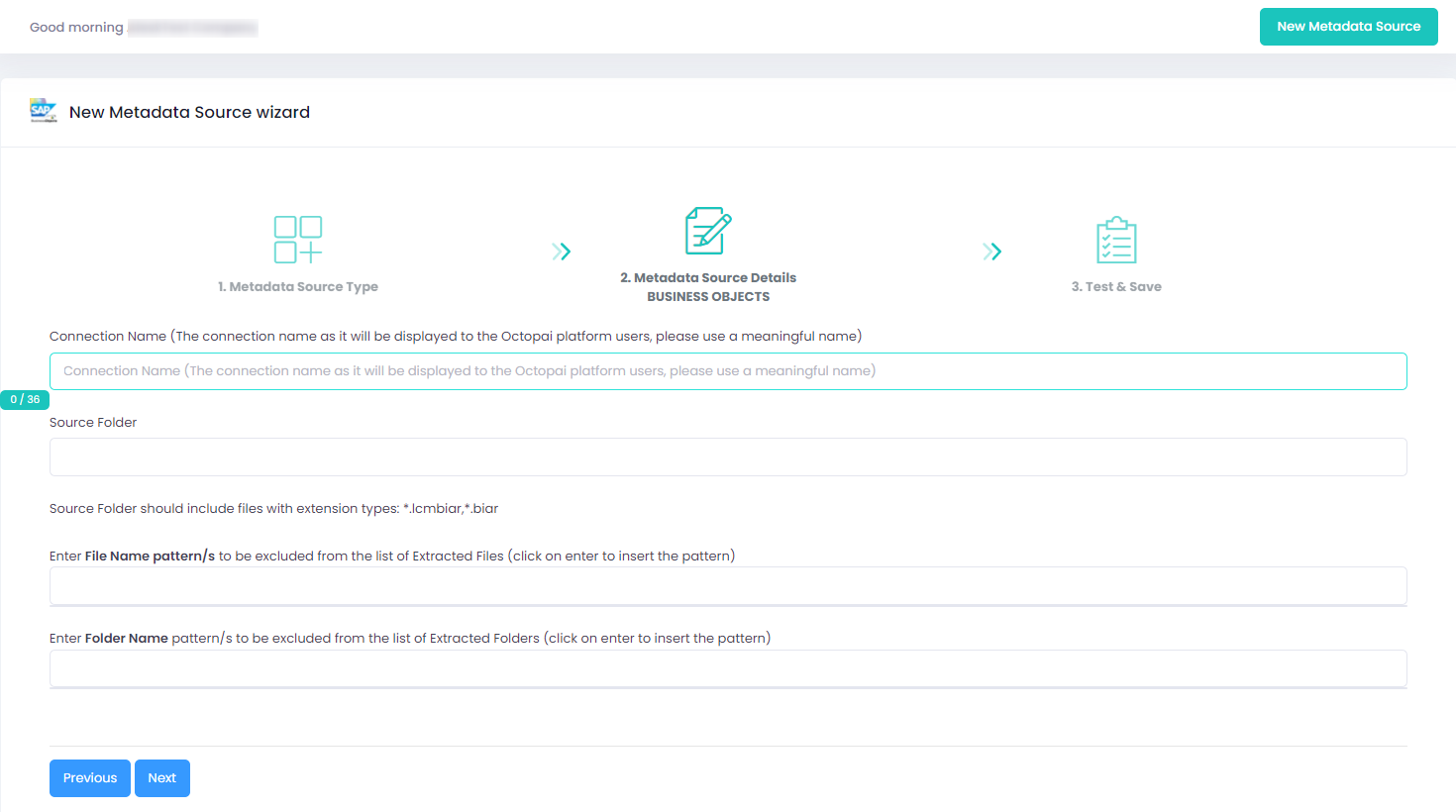
How to verify the extracted Metadata File
Access the Cloudera Octopai Target Folder (TGT)
- Go to the TGT Folder located on the Server where the Cloudera Octopai Client is installed.By default: C:\Program Files (x86)\Octopai\Service\TGT
-
Open the zip file having the Connector NameExample:

- Verify its contentQuantity & Quality of inner files
Troubleshoot
Error during the extraction:
- Check the permissions
- Send the log with the connector number and name to Cloudera Support - C:\Program Files (x86)\Octopai\Service\log

