SQL Server (SQLS)
Learn how to configure and manage SQL Server connectors, including tool permissions prerequisites, metadata source setup, and troubleshooting steps. This guide also provides instructions for verifying extracted metadata files and accessing the Cloudera Octopai Target Folder.
Tool Permissions Prerequisites
- Open Server Port for each SQL Database Connection
- Existing/New user (SQL Server or Windows Authentication) for each server/database - with ‘grant SELECT’ for the following dictionary tables:
- sys.objects
- sys.schemas
- sys.sql_modules
- sys.columns
- sys.types
- sys.identity_columns
- sys.computed_columns
- sys.check_constraints
- sys.synonyms
- sys.indexes
- sys.index_columns
- sys.tables
- sys.foreign_keys
- sys.foreign_key_columns
- sys.sysservers
- sys.syslogins
- msdb.sysjobs
- msdb.sysjobsteps
- Grant execute on sys.sp_linkedservers
- Only if previous grants are not enough:
- USE MASTER:
- grant connect any database to "DOMAIN_NAME\OCTOPAI_USER";
- grant view server state to "DOMAIN_NAME\OCTOPAI_USER";
- grant view any definition to "DOMAIN_NAME\OCTOPAI_USER";
- USE MSDB:
- grant select on msdb.dbo.sysjobsteps to "DOMAIN_NAME\OCTOPAI_USER";
- grant select on msdb.dbo.sysjobs to "DOMAIN_NAME\OCTOPAI_USER";
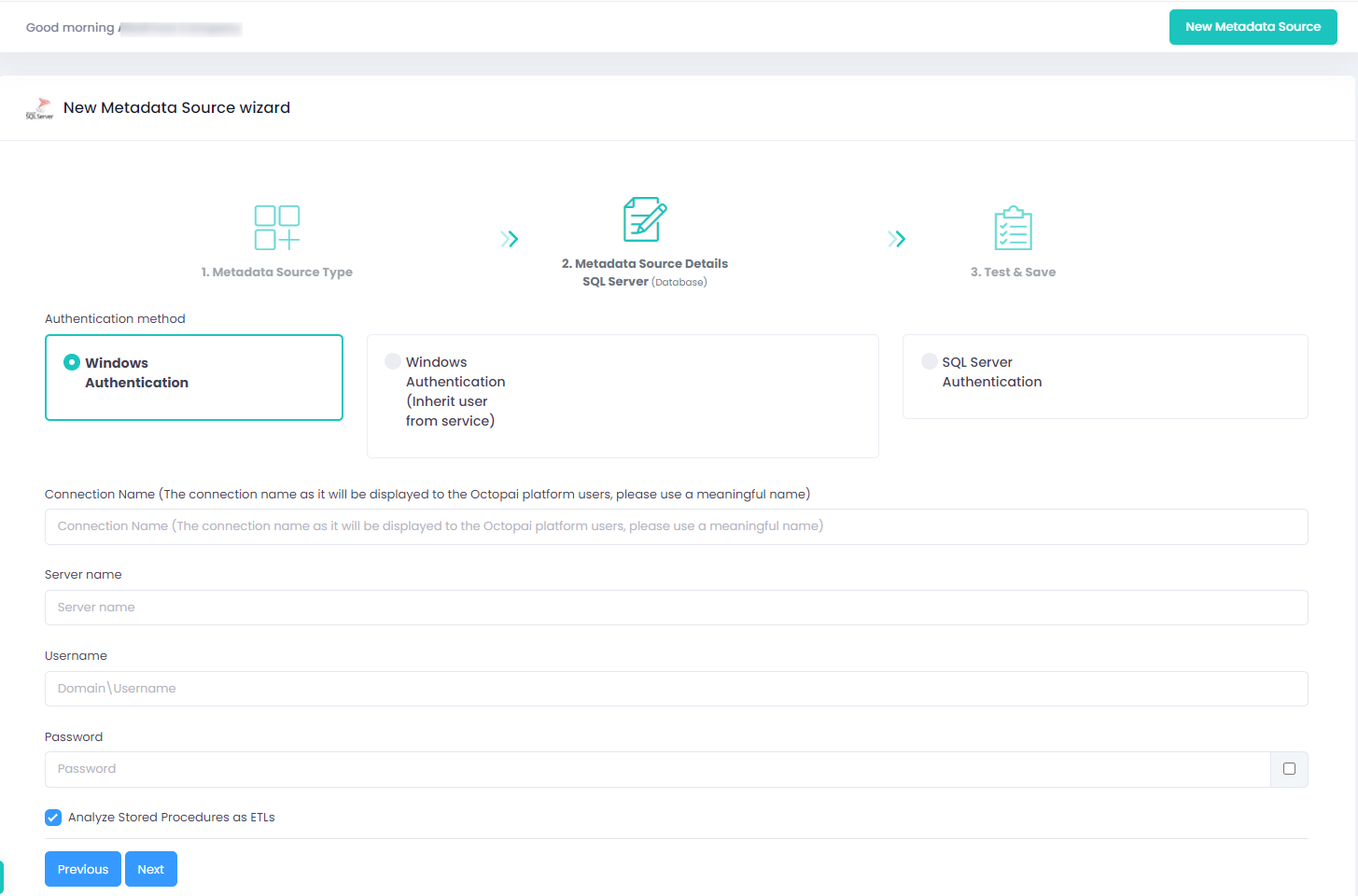
Setting up SQL Server Metadata Source
Windows Authentication: Use the server name, domain, username, and password that are recognized by the SQL Server.
Windows Authentication (inherit user from service): Run the service as another user. Important Clarification: If you choose to run the service as another user, please ensure that this user has the appropriate permissions for ALL tools used by the Cloudera Octopai Client. Otherwise, the other connectors will not be able to authenticate and perform the metadata extraction.
SQL Server Authentication: Log in with an SQL Server user.
How to verify the extracted Metadata File
Access the Cloudera Octopai Target Folder (TGT)
- Go to the TGT Folder located on the Server where the Cloudera Octopai Client is installed. By default: C:\Program Files (x86)\Octopai\Service\TGT
- Open the zip file having the Connector Name. Example:

- Verify its content: Quantity & Quality of inner files
Troubleshoot
Error during the extraction:
- Check the permissions
-
Send the log with the connector number and name to
Cloudera Support
- C:\Program Files (x86)\Octopai\Service\log

