SSIS (Files / Integration Services / Integration Services Catalog / Azure)
Learn how to configure SSIS (Files, Integration Services, Integration Services Catalog, Azure) as metadata sources for Cloudera Octopai.
SSIS method
In the Cloudera Octopai Client, select the SSIS method implemented in your organization.

SSIS Files
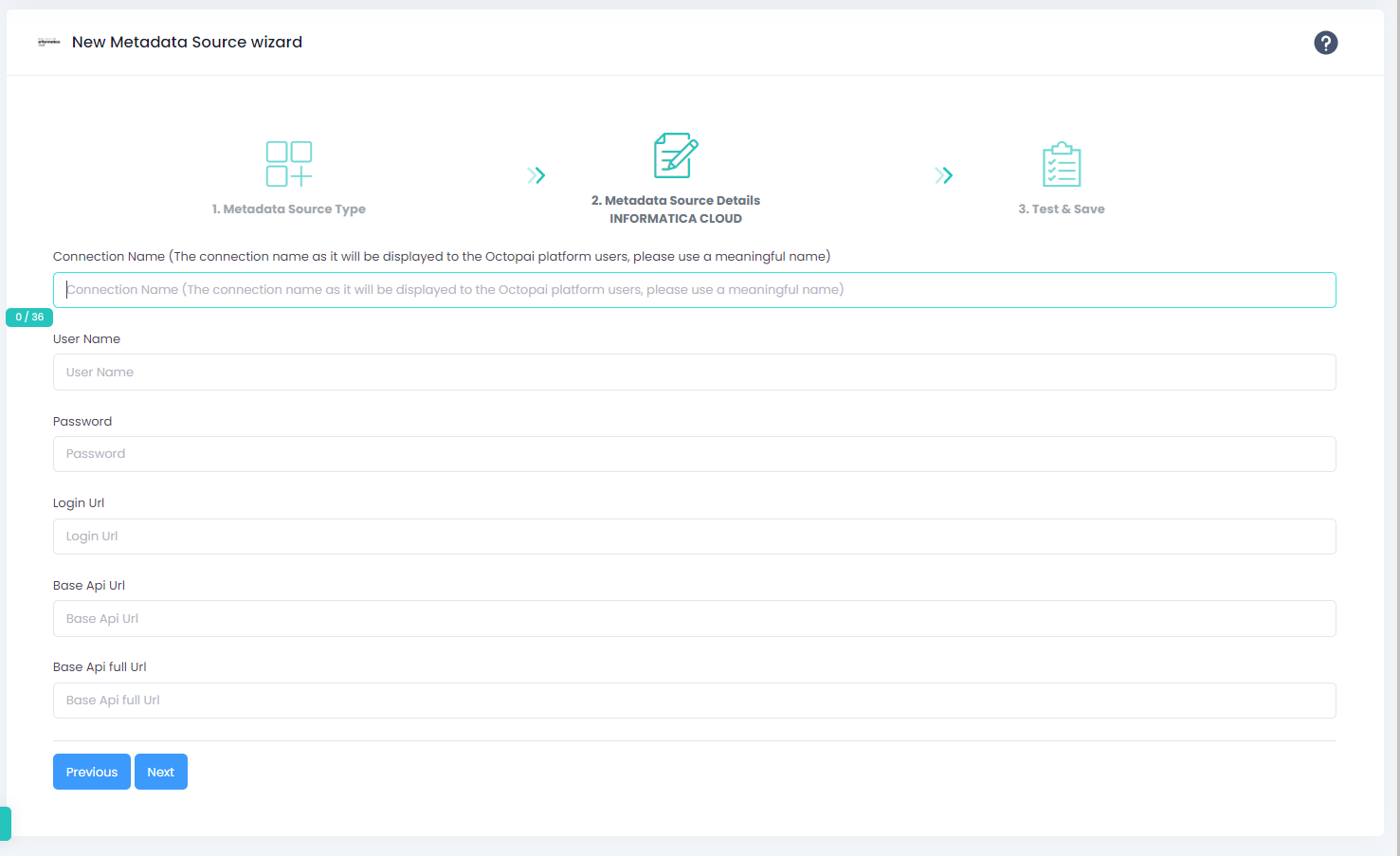
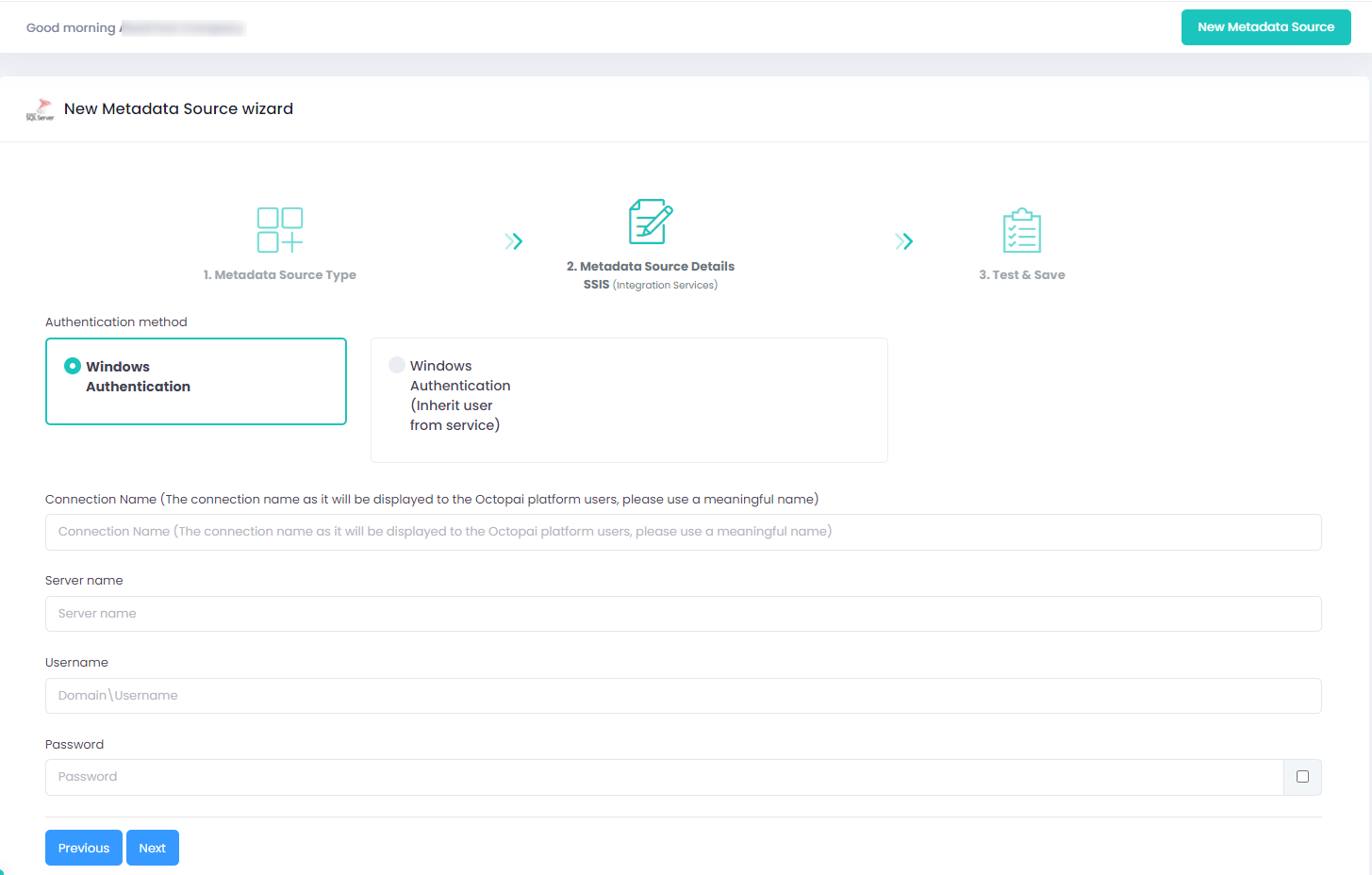
SSIS Integration Services
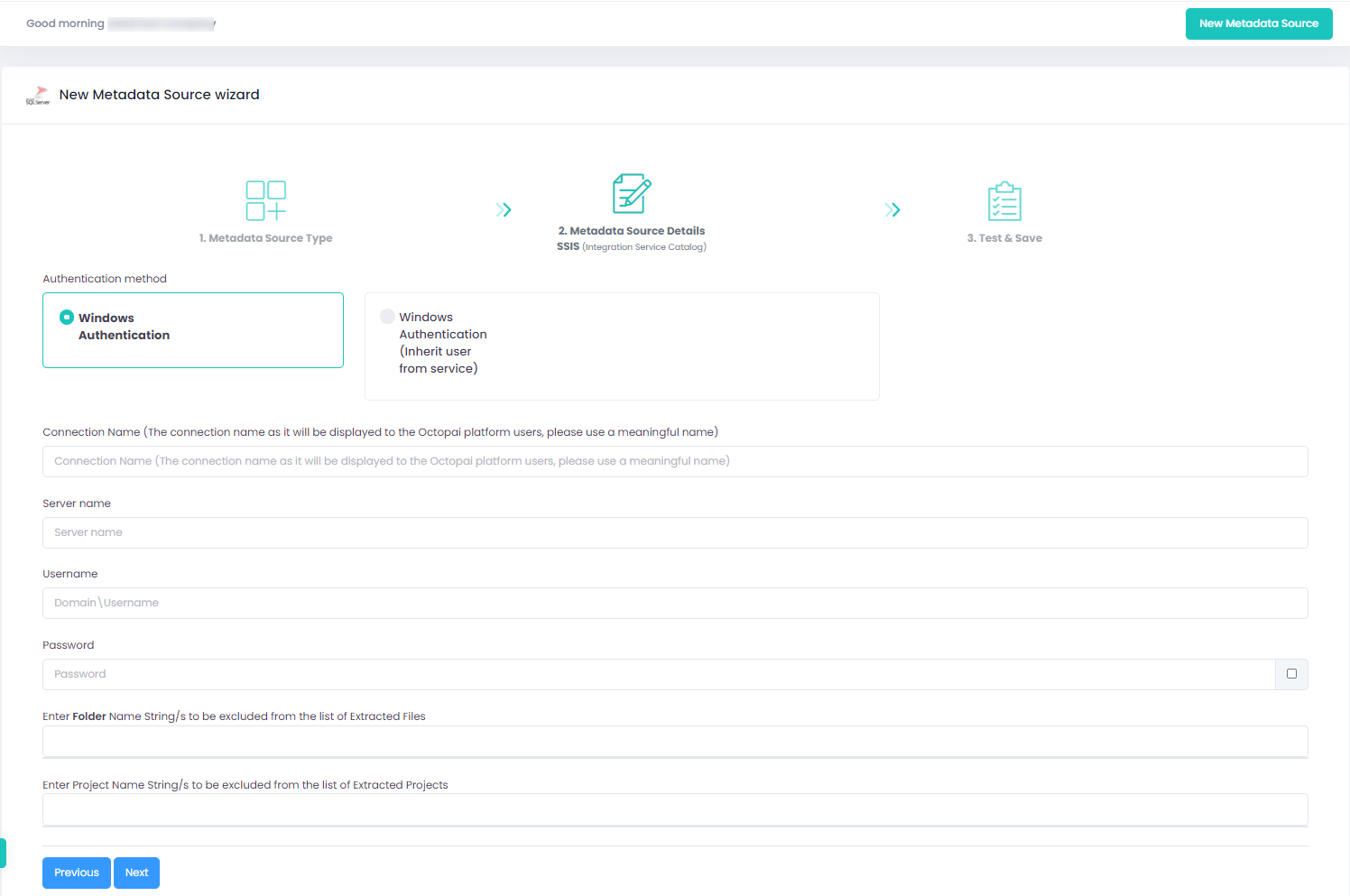
SSIS Integration Services Catalog
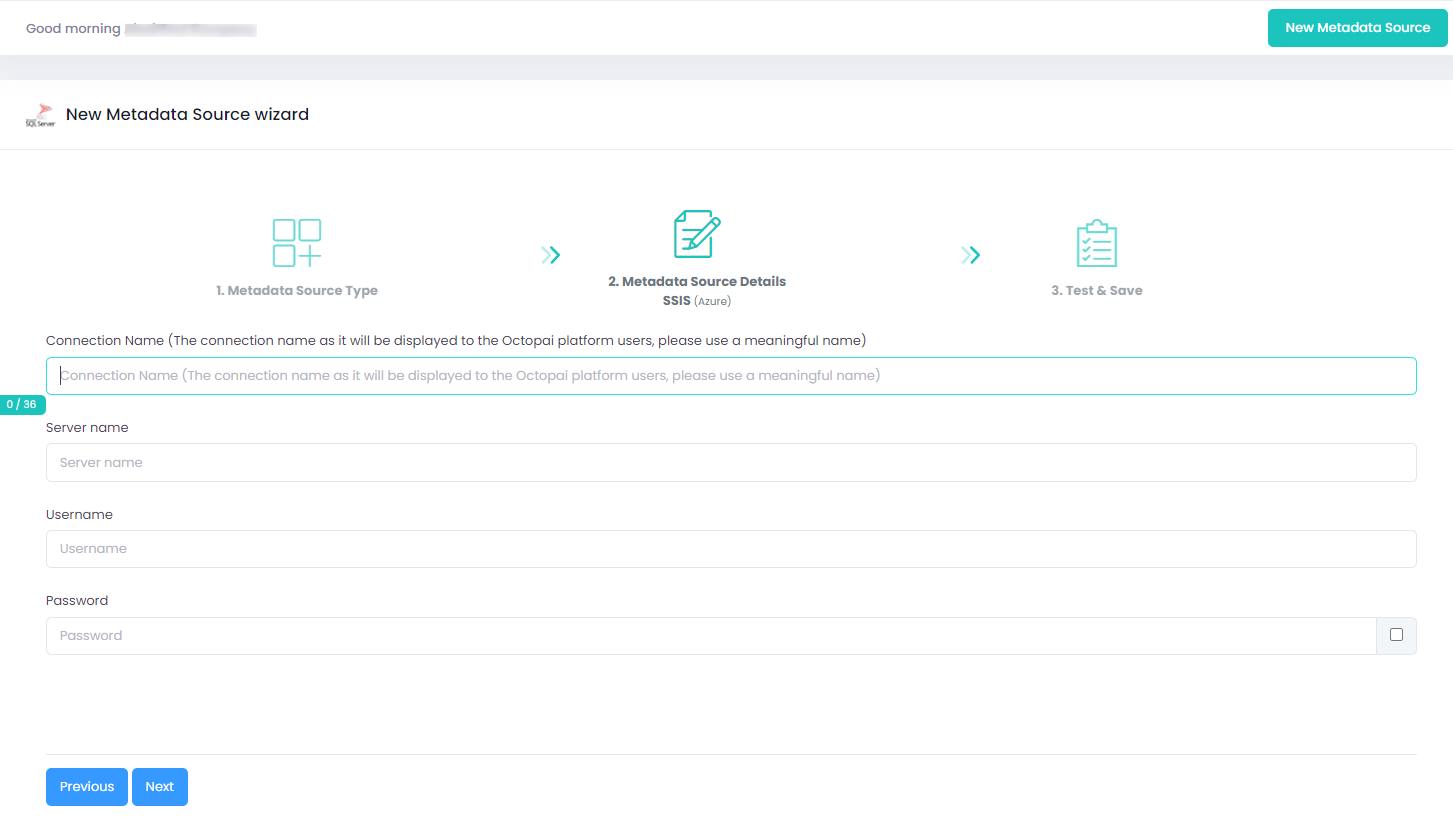
SSIS Azure
Permissions prerequisites
-
Define a user with the db_owner role on the SSISDB instance for the Integration Services Catalog.
Set up the metadata source
Verify the extracted metadata file
- Access the Cloudera Octopai Target Folder (TGT)
-
-
Go to the TGT folder located on the server where the Cloudera Octopai Client is installed.
The default path is C:\Program Files (x86)\Octopai\Service\TGT.
-
Open the ZIP file with the connector name.
Example:
Figure 6. Example connector archive 
-
Verify the quantity and quality of the inner files.
-
Troubleshoot
If an error occurs during the extraction, check the following:
-
Confirm that the required permissions are in place.
-
Send the log with the connector number and name to Cloudera Support. The default log path is C:\Program Files (x86)\Octopai\Service\log.

