Tableau Intelligent Graph Connector for operational metadata intelligence
Learn about setting up Tableau Intelligent Graph Connector to extract operational metadata for usage, performance and auditing data.
Permissions prerequisites
The following permissions and prerequisites are valid for setting up Tableau Intelligent Graph Connector:
-
API License – Ensure that the API of Tableau Usage is enabled through your Tableau license. Refer to your Tableau administrator or support if you need help enabling the API.
-
Login Permissions – Ensure you have login permissions to the Tableau Usage PostgreSQL server.
-
Database Access – You will need PostgreSQL server and port information, along with a username and password. Ensure that the
SELECTpermissions are granted for the following public data tables:-
_sites -
users -
views -
hist_comments -
hist_views -
_http_requests -
historical_events -
projects -
hist_users -
workbooks -
system_users -
_sessions
-
Setting up Tableau Metadata source
To configure Tableau Metadata in Cloudera Octopai:
- Open Cloudera Octopai Client.
Launch the Octopai Client on your system.
-
Navigate to the metadata source setup.
- In the Cloudera Octopai Client interface, go to the Metadata Sources section.
- Locate and select Tableau as the metadata source.
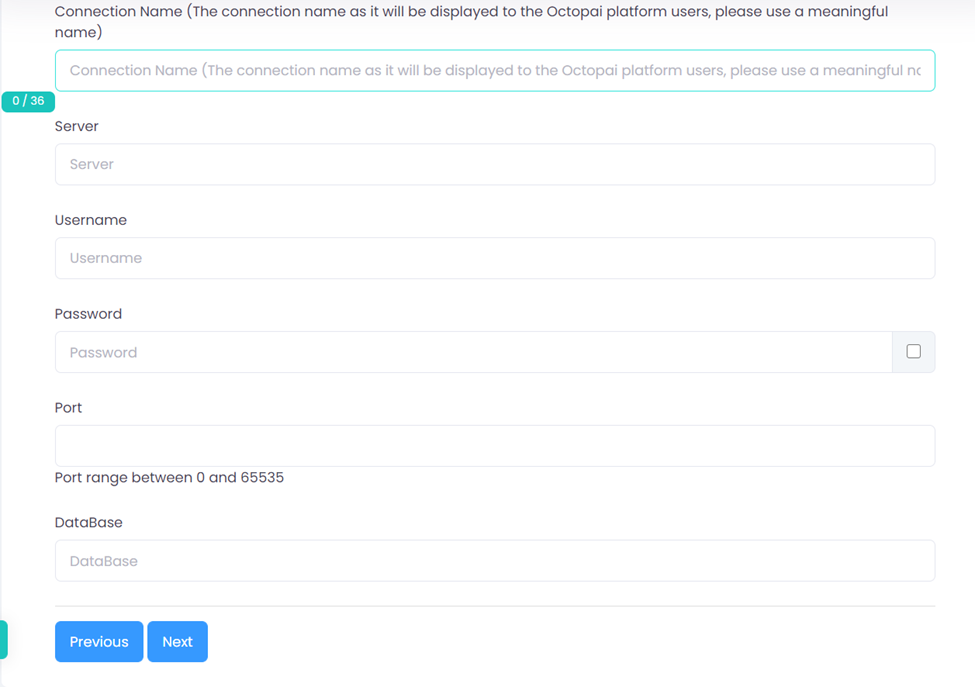
- Input the server credentials.
- Enter the relevant PostgreSQL server details, including Server , Port , User , and Password . This information must correspond to the Tableau PostgreSQL database.
- Ensure you provide the correct login credentials and that the required permissions are in place (as listed in the prerequisites).
- Select data tables.
- Select the relevant tables for which you have permissions, such as those mentioned in the prerequisites.
-
Save the configuration.
- Once you have input the necessary details, save your configuration. The Cloudera Octopai Client will now have access to Tableau’s Operational Metadata.
Verifying the extracted metadata file
Once the metadata extraction is complete, follow these steps to verify the extracted files:
-
Access the target folder.
- On the server where the Octopai Client is installed, navigate to the Target (TGT) Folder .
-
Default Path :
C:\Program Files
                (x86)\Octopai\Service\TGT
-
Locate the connector file.
- Inside the TGT folder, you will find a .zip file named after the Tableau Connector .
- Example:
Tableau_Metadata.zip
-
Open the zip file.
- Extract the contents of the .zip file.
Figure 2. Open the ZIP file 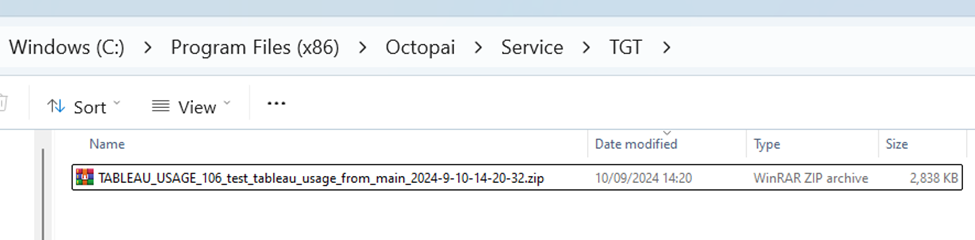
- Extract the contents of the .zip file.
-
Verify file contents.
- Ensure the quantity of inner files matches what you expect based on your metadata extraction process.
- Review the quality of the files by checking the format and ensuring that the data is consistent with what was pulled from the Tableau server.
Expected files and quality check
- The extracted .zip must contain several files representing different metadata components, for example views, projects, and historical events.
- Ensure that all necessary metadata files are present. Any missing or corrupted files could indicate an issue with the extraction process.
