Tableau Server
Learn how to configure Tableau Server for metadata extraction.
Tool Permissions Prerequisites
Tableau Server/Online – Supported (Tableau Desktop - Not Supported by automation)
- Tableau server from version 10.3 and up
- API of Tableau Server is Enabled (by Default)
-
Login permissions to the Tableau server using one of the following options:
- Tableau Personal Access Token (PAT) associated with a user that has Server/Site Admin permissions to the Tableau API & the relevant Sites (Recommended). More about PAT can be found here: Personal Access Tokens
- Tableau User and password with Server/Site Admin permissions to the Tableau API & the Relevant Sites.
The error message displayed when API is disabled:
System.Net.Http.HttpRequestException: Method: POST, RequestUri: 'http://<Server>/api/<api_version>/auth/signin', Version: 1.1, Content…Check and run Tableau API:
Tableau server version 10.3 or lower:
- Check if the default Rest API of Tableau is enabled -->
tabadmin get api.server.enabled - If it isn’t enabled (false):
tabadmin set api.server.enabled - For this, one of the following pre-requisites is required:
tabadmin stoptabadmin starttabadmin config
Tableau server versions later than 10.3:
- Check if the default Rest API of Tableau is enabled:
tsm configuration get --key api.server.enabled - If it isn’t enabled (false):
tsm configuration set --key api.server.enabled true - For this, one of the following pre-requisites is required:
tsm stoptsm start
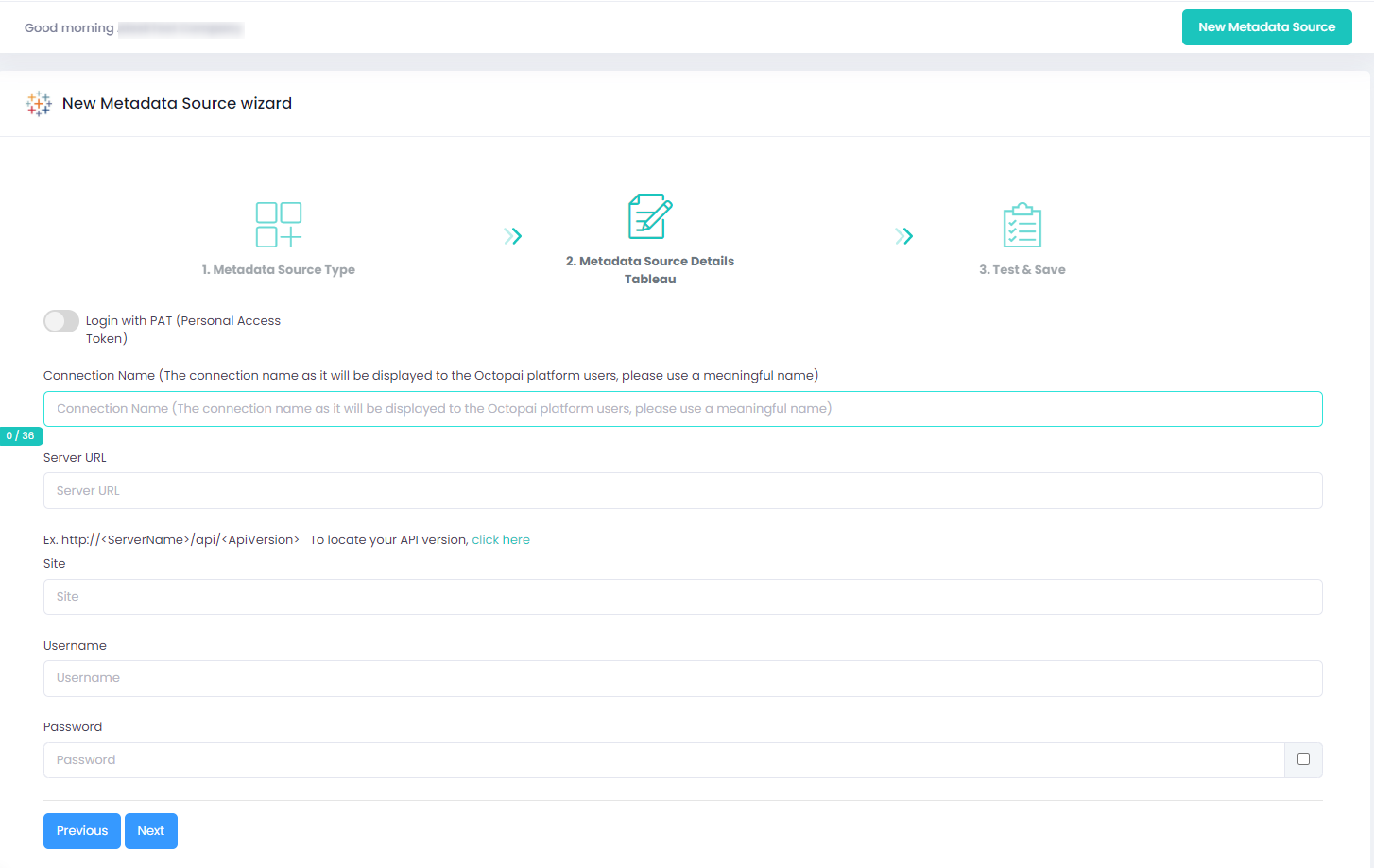
Setting up Tableau Metadata Source
Metadata Sources are set on the Cloudera Octopai Client
How to verify the extracted Metadata File
Access the Cloudera Octopai Target Folder (TGT)
- Go to the TGT Folder located on the Server where the Cloudera Octopai Client is installed. By default: C:\Program Files (x86)\Octopai\Service\TGT
-
Open the zip file having the Connector Name. Example:

- Verify its content: Quantity & Quality of inner files
Troubleshoot
Error during the extraction:
- Check the permissions
- Send the log with the connector number and name to Cloudera Support - C:\Program Files (x86)\Octopai\Service\log

