Teradata
Learn how to set up and verify Teradata metadata sources using Cloudera Octopai.
Tool Permissions Prerequisites
Open Server Port for each Teradata Database Connection
Exiting/New Teradata user (OCTOPAI_USER*) for each connection with grant read permission for the following dictionary tables:
- dbc.tablesv
- dbc.indicesV
- dbc.tvm
- DBC.TVFields
- DBC.triggersTbl
- dbc.ColumnsV
- dbc.dbase
- dbc.texttbl
- dbc.tablesv
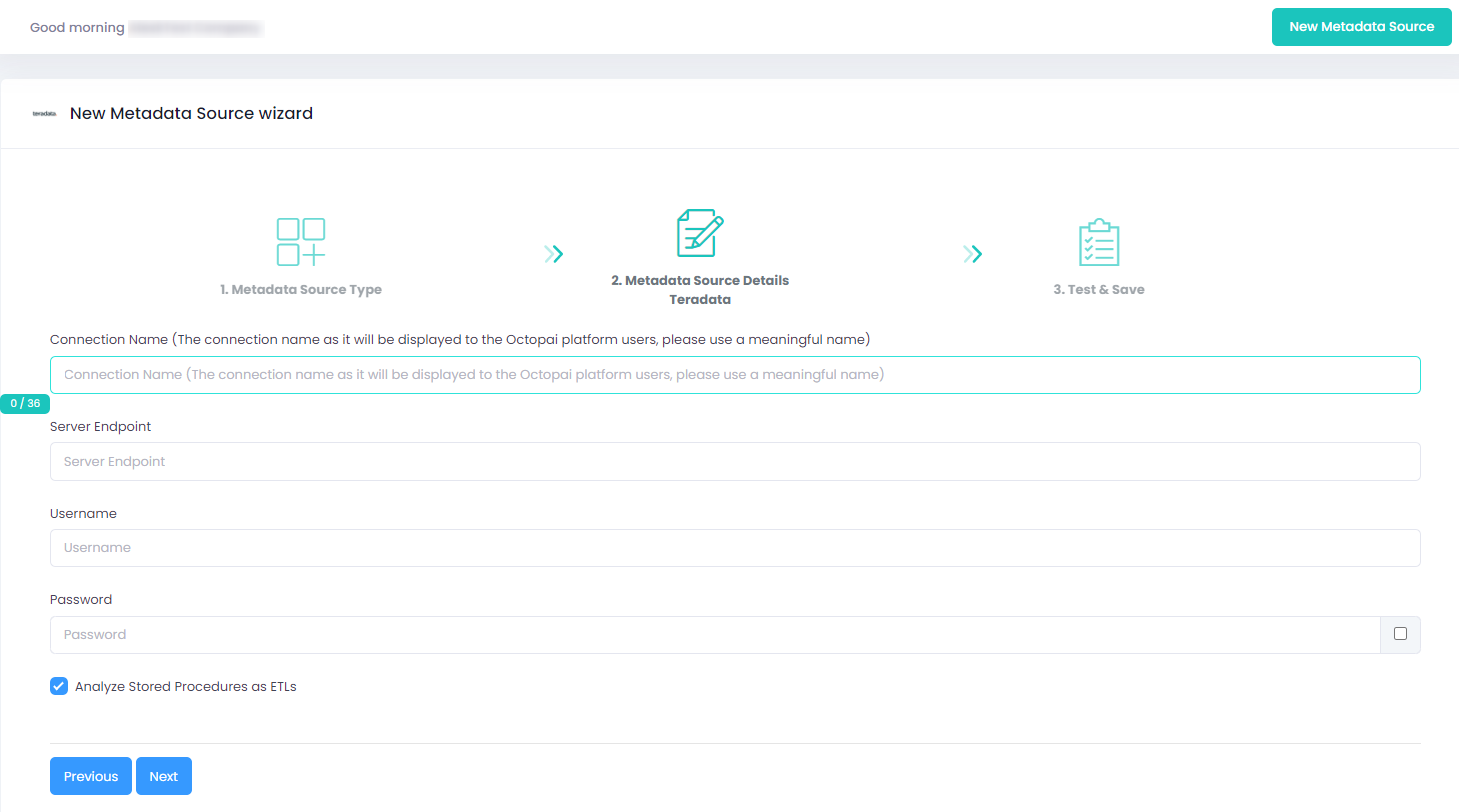
Setting up Teradata Metadata Source
Metadata Sources are set on the Cloudera Octopai Client
How to verify the extracted Metadata File
Access the Cloudera Octopai Target Folder (TGT)
- Go to the TGT Folder located on the Server where the Cloudera Octopai Client is installed. By default: C:\Program Files (x86)\Octopai\Service\TGT
-
Open the zip file having the Connector Name. Example:

- Verify its content: Quantity & Quality of inner files
Troubleshoot
Error during the extraction:
- Check the permissions
- Send the log with the connector number and name to Cloudera Support - C:\Program Files (x86)\Octopai\Service\log

How to verify the extracted Metadata File
Access the Cloudera Octopai Target Folder (TGT)
- Go to the TGT Folder located on the Server where the Cloudera Octopai Client is installed. By default: C:\Program Files (x86)\Octopai\Service\TGT
- Open the zip file having the Connector Name. Example:
- Verify its content: Quantity & Quality of inner files
Troubleshoot
Error during the extraction:
- Check the permissions
- Send the log with the connector number and name to Cloudera Support - C:\Program Files (x86)\Octopai\Service\log
