How to Install Curl
Learn about properly installing and configuring Curl for use with the Octopai Client, enabling seamless extraction of metadata.
Option 1: Install Curl with a package manager
- For Chocolatey, run the choco install curl command.
- For MSYS2, run the pacman -S curl command.
- For Scoop, run the scoop install curl command.
Option 2: Install Curl manually
- Download curl from https://curl.se/windows/ and choose the Windows 64-bit version.

- Locate the curl.exe file in the \bin folder
of the downloaded zip file.
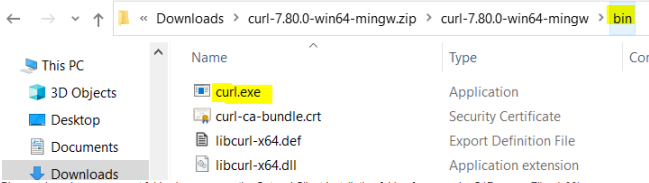
- Place the curl.exe file in a permanent folder, for example to the Octopai Client installation folder, such as C:\Program Files (x86)\Octopai\Service\Data.
- Make curl accessible from anywhere on the command line by adding the folder PATH as a
new system environment variable.
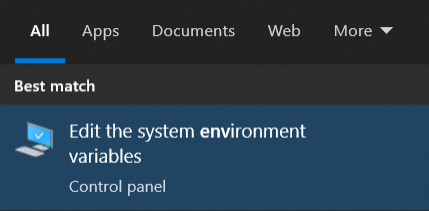
- Open the Start Search, type env, and choose the Edit the system environment variables action.
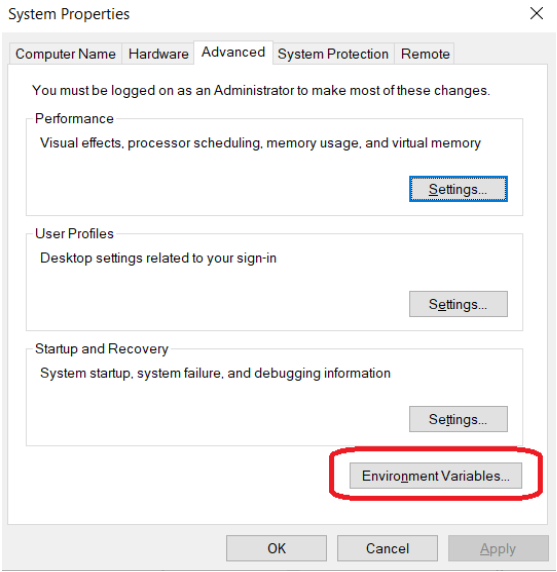
- Click Environment Variables.
- In the System Variables section, select the
Path variable and click Edit.
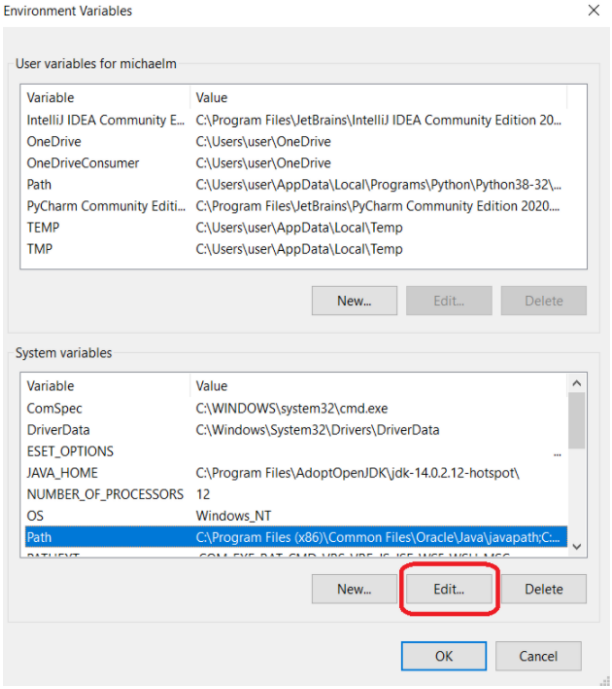
- Click New and add the location of the folder that contains the
curl.exe file.
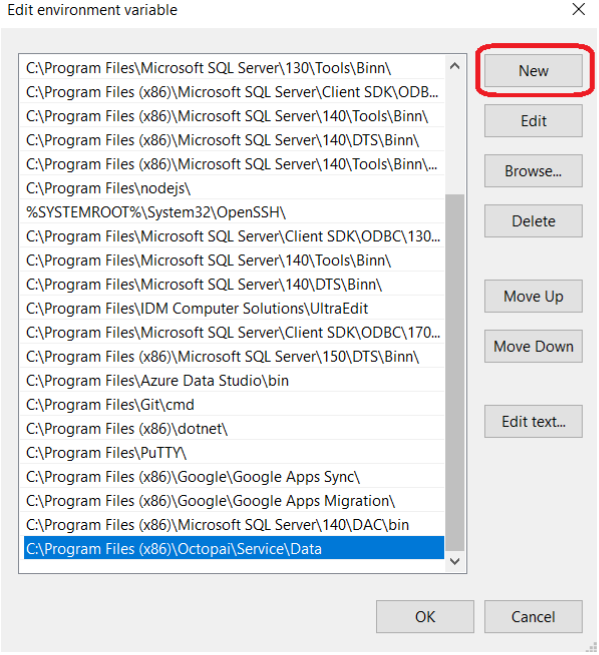
- Click Ok.
- If applicable, reopen any relevant applications to register the changes.
