Configure Databricks Metadata Source in Cloudera Data Lineage
Learn how to configure the Databricks Metadata Source in Cloudera Data Lineage (formerly Octopai) using either user authentication with Personal Access Tokens or machine-to-machine authentication with service principals.
Cloudera Data Lineage supports two authentication methods for connecting to Databricks:
- User authentication using a Personal Access Token
- Machine-to-machine (M2M) authentication using a service principal
Option 1: User authentication token (Personal Access Token)
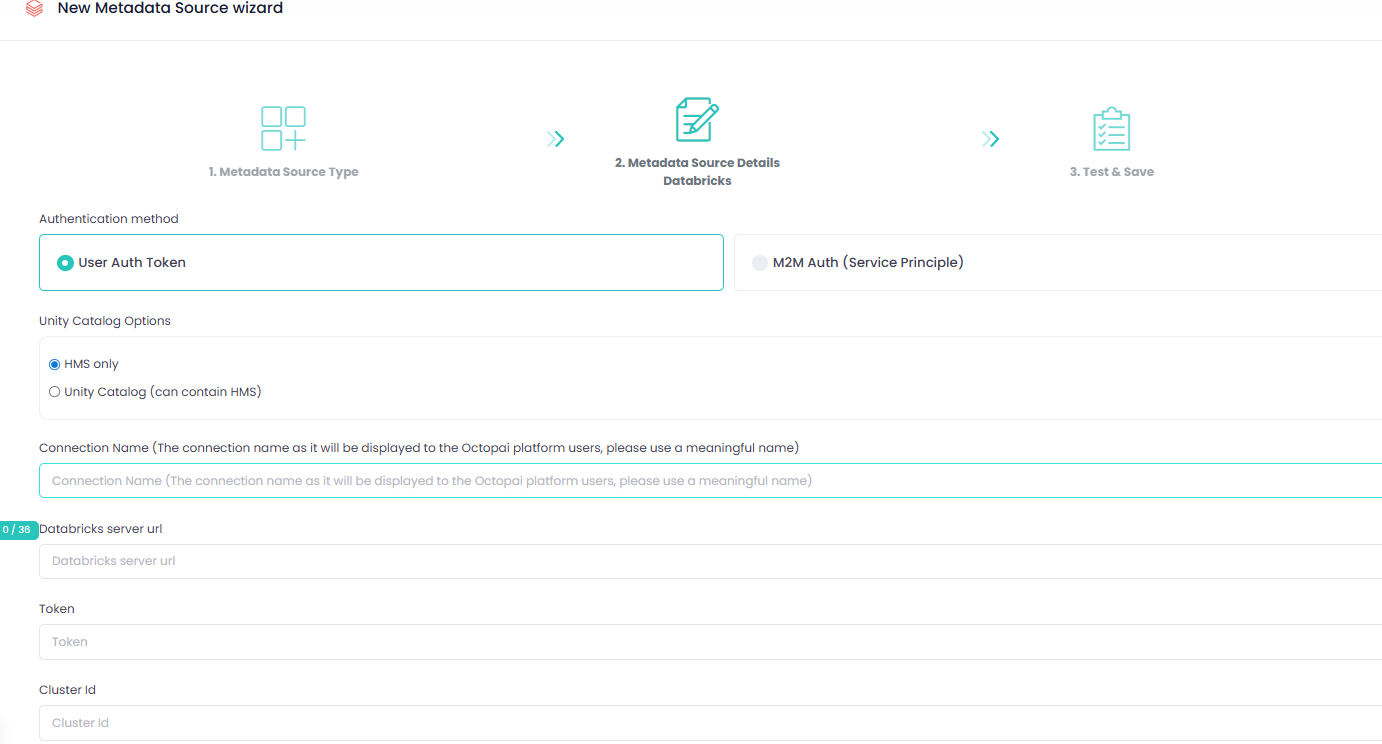
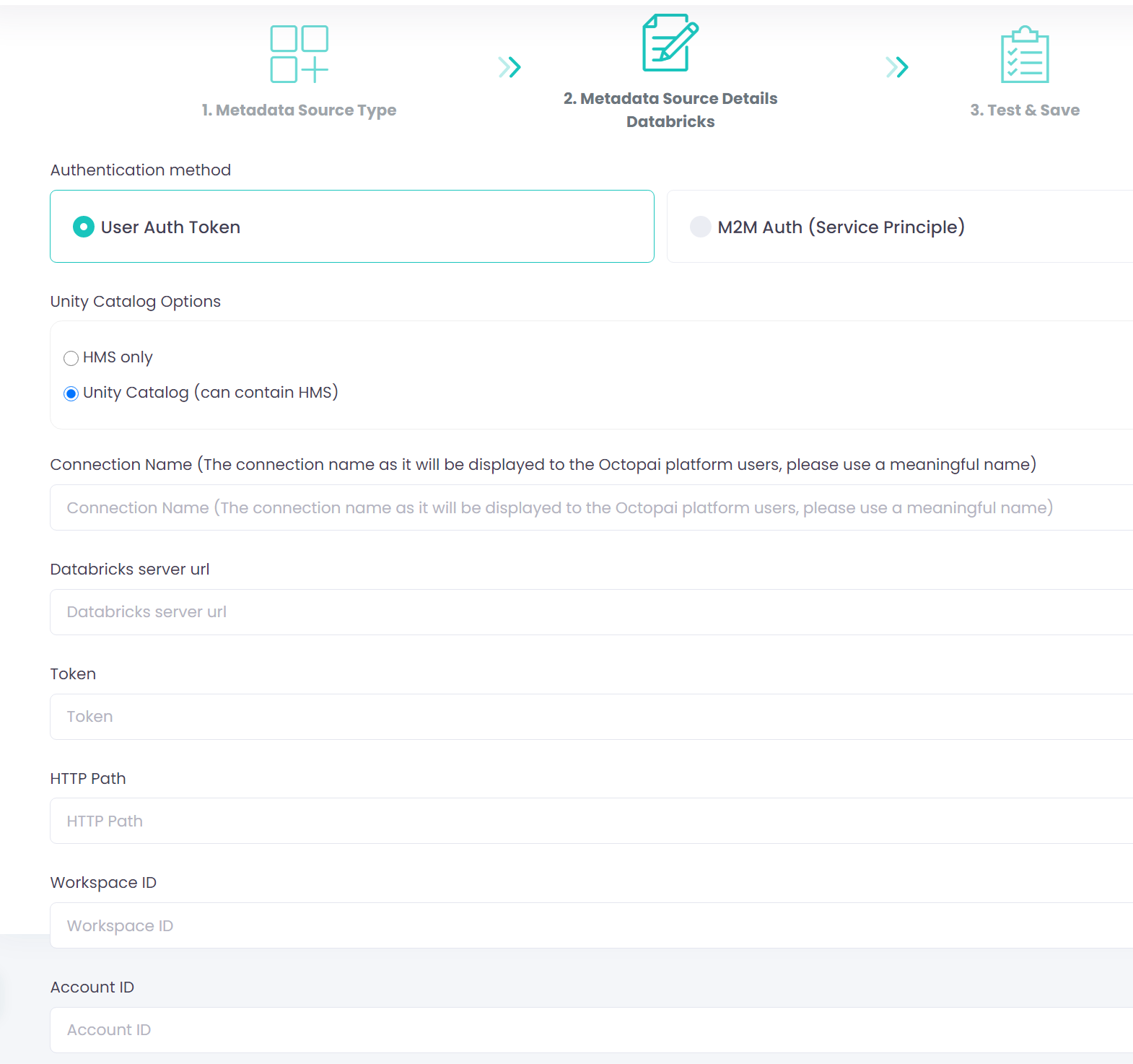
- Unity Catalog Options
- HMS only – when Databricks uses Hive Metastore without Unity Catalog.
- Unity Catalog (can contain HMS) – when Databricks uses Unity Catalog. Hive Metastore can also be used (not mandatory).
- Connection Name
Assign a clear and meaningful name for the connection. This name will appear to users within the Cloudera Data Lineage platform.
- Databricks Server URL
Enter the customer's Databricks workspace URL.
Example:
https://abc-1234.5.azuredatabricks.net - Token
Enter the Personal Access Token generated under (Manage) in Databricks.
- HTTP Path (for Unity Catalog only)
Paste the HTTP Path copied from the Databricks field.
Example:
/sql/1.0/warehouses/abc123xyz - Workspace ID (for Unity Catalog only)
- Account ID (for Unity Catalog only, optional)
- Cluster ID (for Hive Metastore only, optional)
The Cluster ID identifies the compute context where metadata queries run. Cloudera recommends that you provide a running cluster for full metadata extraction.
If you do not supply a running cluster (and Cluster ID), Cloudera Data Lineage can still generate lineage; however, it cannot retrieve table-level metadata stored in the Hive Metastore (such as table definitions and detailed schema information). As a result, Cloudera Data Lineage displays lineage with limited table metadata.
To retrieve the Cluster ID:
- Navigate to Compute.
- Select the relevant cluster.
- Copy the Cluster ID from the URL.
Example:
https://abc-1234.5.azuredatabricks.net/compute/clusters/123-11568975-2zabcde?o=71234567896The Cluster ID in this example is
123-11568975-2zabcde.
Option 2: Machine-to-machine authentication (service principal)
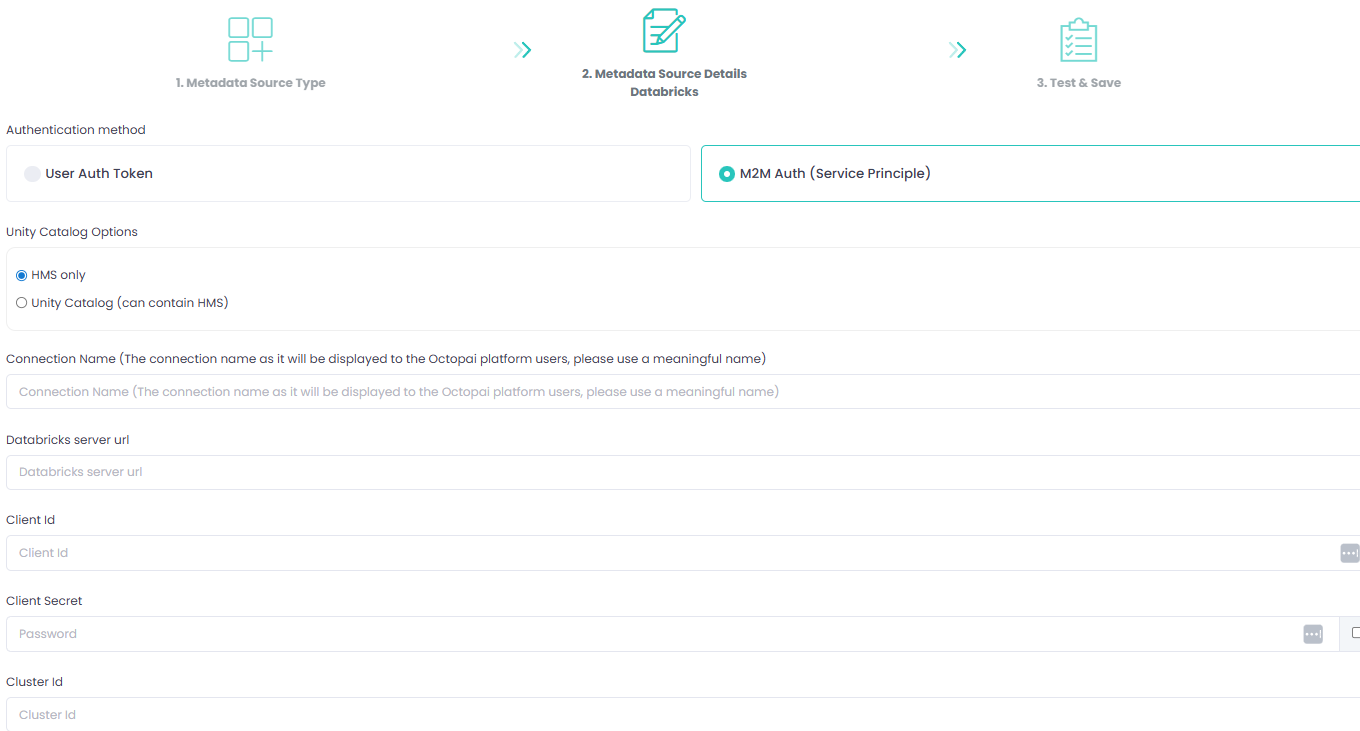
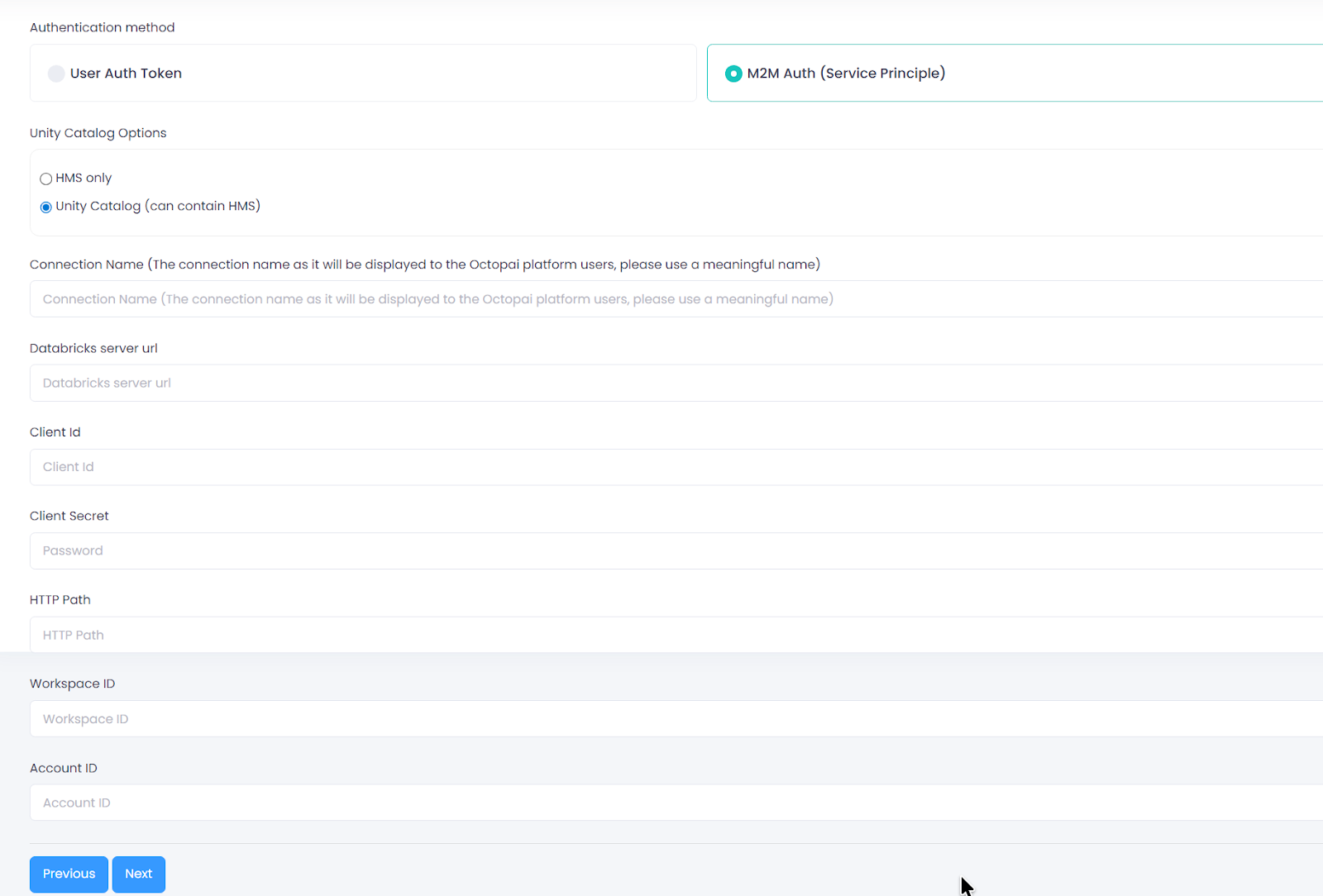
- Unity Catalog Options
- HMS only – when Databricks uses Hive Metastore without Unity Catalog.
- Unity Catalog (may include HMS) – when Databricks uses Unity Catalog. Hive Metastore can also be used but is not mandatory.
- Connection Name
Assign a clear and meaningful name for the connection. This name will appear to users within the platform.
- Databricks Server URL
Enter the customer's Databricks workspace URL.
Example:
https://abc-1234.5.azuredatabricks.net - Client ID
Enter the Client ID of the service principal created in Databricks.
- Client Secret
Enter the secret token generated for the service principal.
- HTTP Path (for Unity Catalog only)
Paste the HTTP Path copied from the Databricks field.
Example:
/sql/1.0/warehouses/abc123xyz - Workspace ID (for Unity Catalog only)
- Account ID (for Unity Catalog only, optional)
- Cluster ID (for Hive Metastore only, optional)
The Cluster ID identifies the compute context where metadata queries run. Cloudera recommends that you provide a running cluster for full metadata extraction.
If you do not supply a running cluster (and Cluster ID), Cloudera Data Lineage can still generate lineage; however, it cannot retrieve table-level metadata stored in the Hive Metastore (such as table definitions and detailed schema information). As a result, Cloudera Data Lineage displays lineage with limited table metadata.
To retrieve the Cluster ID:
- Navigate to Compute.
- Select the relevant cluster.
- Copy the Cluster ID from the URL.
Example:
https://abc-1234.5.azuredatabricks.net/compute/clusters/123-11568975-2zabcde?o=71234567896The Cluster ID in this example is
123-11568975-2zabcde.