Product Release Notes - Apr 3, 2023
Cloudera Octopai Data Lineage now supports cross-system lineage analysis for Power BI Datasets, enabling you to trace data flows, transformations, and dependencies across datasets and reports. This enhancement improves data governance, streamlines workflows, and provides deeper insights into data relationships for better decision-making
Uncovering the Hidden Pathways of Data Flow with a Map of Your Data Pipeline
Cloudera Octopai data lineage capabilities now support cross-system lineage analysis for Power BI Datasets.
By supporting datasets, Cloudera Octopai enables you to better understand the data flows and relationships between different datasets used in your Power BI reports and dashboards. This is particularly important for organizations that have a large number of Power BI reports and datasets, as it can be challenging to understand the dependencies and relationships between them.
With the new enhancement, you can now track the lineage of data across different datasets, as well as across datasets and reports. This allows you to see how data is being transformed and modeled, and how it is being used in different reports and dashboards. It also enables you to quickly identify any data quality issues or inconsistencies that might be impacting your analysis.
Why is it important to include Datasets traceability in Data Lineage?
A Power BI dataset is a collection of data that has been imported or connected to from various sources, such as Excel, SQL Server, or cloud-based sources like Azure, Dynamics 365, or Salesforce. Once the data is connected to Power BI, it can be transformed and cleaned using Power Query, and then modeled using Data Analysis Expressions (DAX) to create relationships between the tables.
One key advantage of Power BI datasets is that they can be shared with other users in a workspace and used to create multiple reports and dashboards. When creating a new report, the dataset can be used as a data source, and the report can be designed based on the existing data model. The report is created, but if you chooses to delete it, the dataset might be reused to create additional reports and dashboards.
Once the dataset is created, it can be shared with other users in a workspace, who can use it to create reports and dashboards that track production output, identify trends, and monitor performance.
Real-life example
A manufacturing company wants to analyze production data to identify trends and patterns in production output. The company tracks production data in multiple Excel files that are stored on a shared drive. The data includes information about production dates, product types, quantities produced, and defect rates.
To create a Power BI dataset for this business, Cloudera Octopai can use Power BI Desktop to import the Excel files from the shared drive. Once the data is imported, Cloudera Octopai can use Power Query to clean and transform the data as needed. For example, Cloudera Octopai can merge the data from multiple Excel files into a single table, remove unnecessary columns, and calculate new columns such as defect rates.
Next, Cloudera Octopai can use the modeling capabilities of Power BI to create relationships between the tables in the dataset. For example, by creating a relationship between the production table and the product table based on the product code. Cloudera Octopai can also define measures, such as total production and average defect rate.
Table: Production
Columns:
- Production ID (unique identifier)
- Production Date (date)
- Product Code (text)
- Quantity Produced (number)
- Defects (number)
Table: Product
Columns:
- Product Code (unique identifier)
- Product Name (text)
- Product Category (text)
In this example, the Production table contains data about production output, including the production date, product code, quantity produced, and defect rates. The Product table contains data about the products being produced, including the product code, product name, and product category.
By creating a relationship between the Production table and the Product table based on the product code, Cloudera Octopai can create a unified data model that enables analyzing production output by product category, identify trends over time, and monitor performance.
To use or not to use Power BI DataSets?
The Cloudera Octopai support for Power BI Datasets enables your organization to gain unprecedented visibility and control over their data, while streamlining their workflows and improving their overall data management practices. Without using datasets or models, you need to work with raw data, which can be time-consuming and error-prone. It can also limit the ability to generate insights and create meaningful reports and dashboards.
- Provides significant benefits over using raw data. By creating a dataset or model, the data can be transformed and cleaned, relationships can be established between tables, and calculations and measures can be defined. This enables you to create reports and dashboards that provide valuable insights into the data, which can help businesses make better decisions.
- Provides the possibility to create Power BI datasets automatically when creating a report. This feature is called AutoCreateLocalCopy and is enabled by default in Power BI Desktop. When this feature is turned on, a local copy of the data used in the report is automatically created and stored as a dataset in the Power BI service. To create a report using an existing dataset, you can simply connect to the dataset in the Power BI service or workspace. You can then start building visualizations and analysis on top of the existing dataset.
- Provides a new level of data lineage granularity for your organization.
-
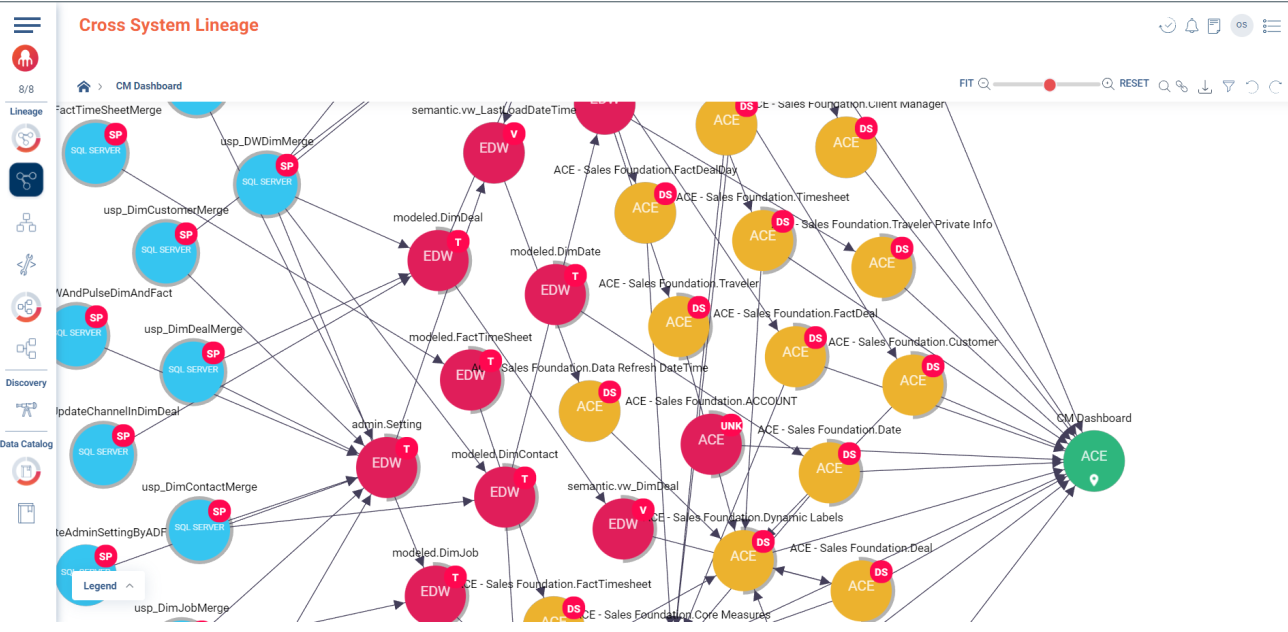
- The DataSets are now represented specifically as DataSets (with DS indication) as the
Analysis Service type.
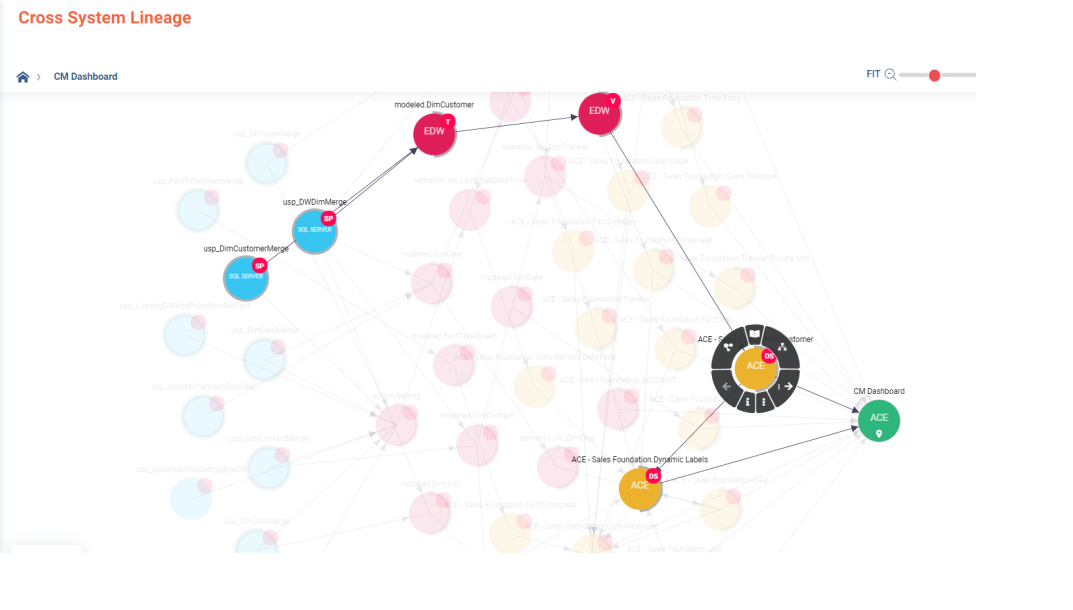
- Enables you to gain visibility into the entire lifecycle of your data, from its source to its final destination in reports and dashboards.
- Provides a level of granularity that is not available with traditional data lineage solutions, allowing you to drill down into the specific fields and transformations that were used to create a report or dashboard.
- Streamlines the process of creating and managing Power BI Datasets, saving your time and effort by using the Cloudera Octopai automation capabilities.
- Enables you to improve data governance and compliance, reduce risks, and make more informed decisions by providing a holistic view of data lineage.
