Product Release Notes: June 4, 2023
Learn about enhanced data lineage capabilities for Power BI and Azure Data Lake, comprehensive lineage for file-based interactions, and a new in-app Help widget for streamlined support. These updates empower data professionals with improved visibility, governance, and user assistance.
Incorporation of data lineage for Power BI with Azure Data Lake (ADLS)
This enhancement focuses on tracking the movement and transformation of data as it traverses from Azure Data Lake into Power BI. It does not extend to internal operations within Azure Data Lake itself but concentrates on the data flow into your Power BI environment, providing visibility into your data's journey and transformations. This enhancement is designed for data engineers, data architects, and data governance specialists. The connector provides deeper insights into the data movement from Azure Data Lake to Power BI, enabling improved auditing, impact analysis, and troubleshooting.
-
Monitor data flows – Capture metadata and transformation details as data moves from Azure Data Lake into Power BI.
-
Reveal transformations – Understand the specific transformations applied to data during the journey from Azure Data Lake to Power BI datasets.
-
Visualize dependencies – Map relationships between datasets, tables, and columns in Power BI to support impact analysis and change management.
Enhanced data lineage for file-based interactions
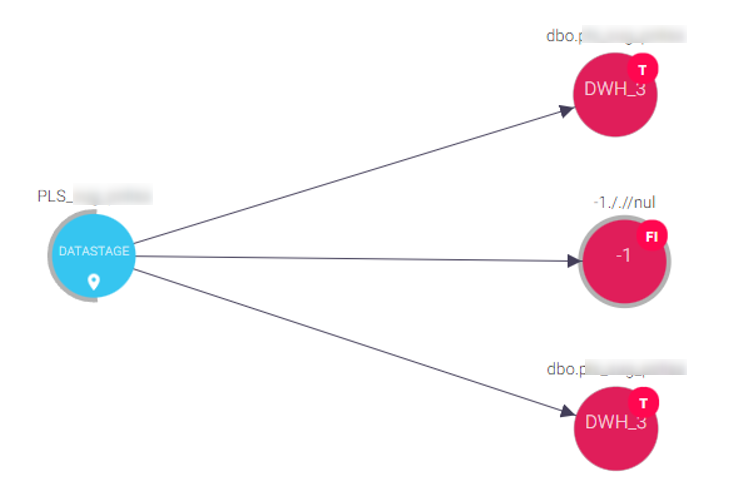
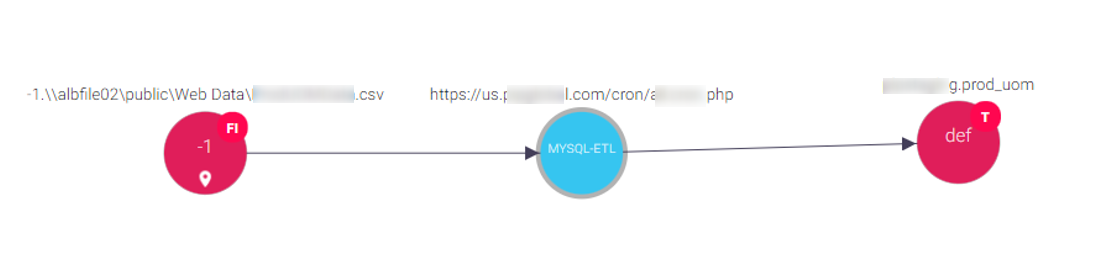
We extended lineage tracking across technologies that interact through file systems. Previously, when a tool such as SQL Server Integration Services (SSIS) wrote to a file that Power BI later read, lineage coverage stopped at the file boundary. This enhancement fills that gap, providing comprehensive lineage for cross-technology file exchanges and empowering teams to better govern their data.
Functionality
Introduction of the Help widget
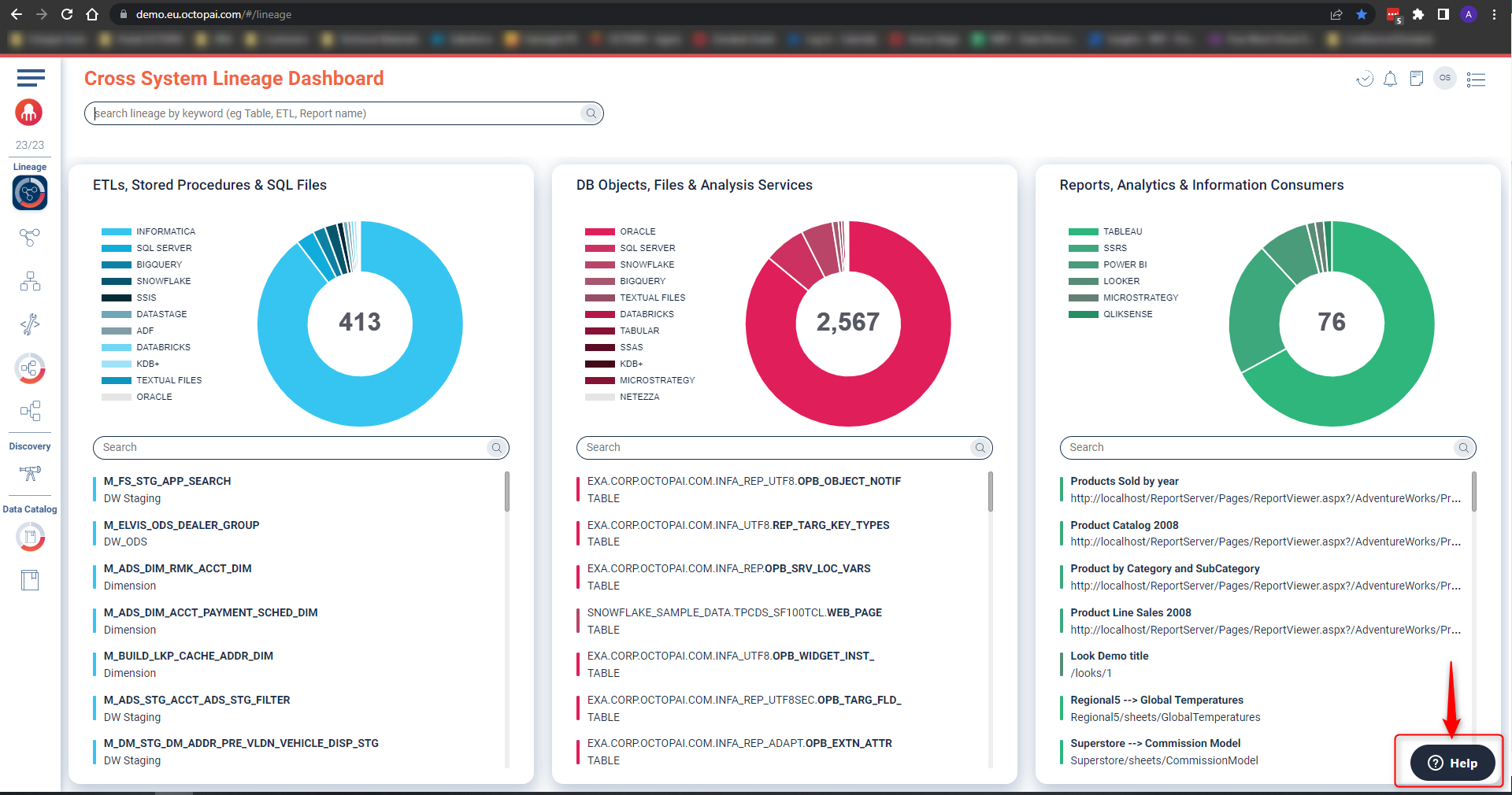
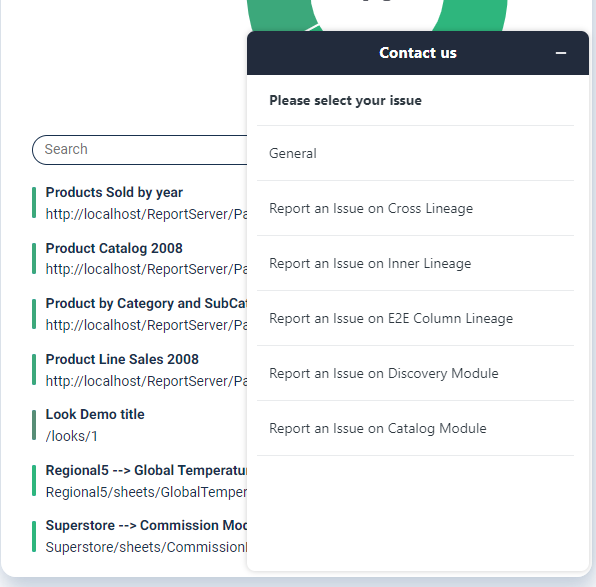
Introducing the in-app Help widget, a streamlined way to connect with the Cloudera Octopai support team without leaving the application. Use it to ask product questions, report issues, or request assistance directly from the interface.
The Help widget improves the support process by providing an easily accessible, user-friendly communication channel.
Who is it for?
The Help widget is designed for every user, from new adopters to experienced power users. Whether you need onboarding guidance, have advanced questions, or require urgent support, the widget provides quick access to assistance.
Functionality
-
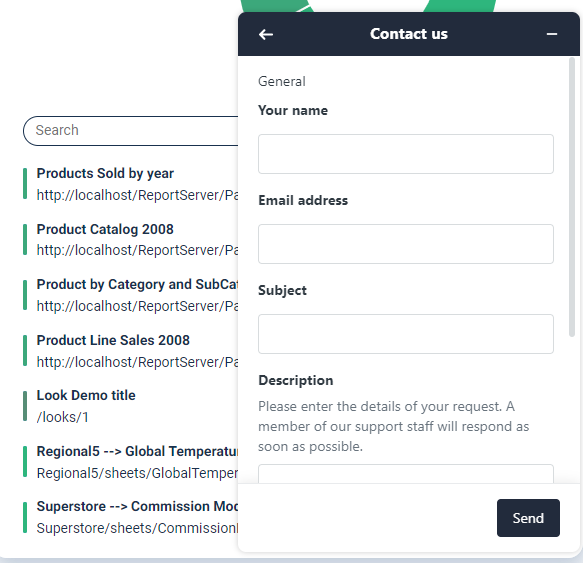
Direct support access – Submit questions or requests without leaving the application.
-
Issue reporting – Send detailed issue reports that reach the support team immediately for triage.
-
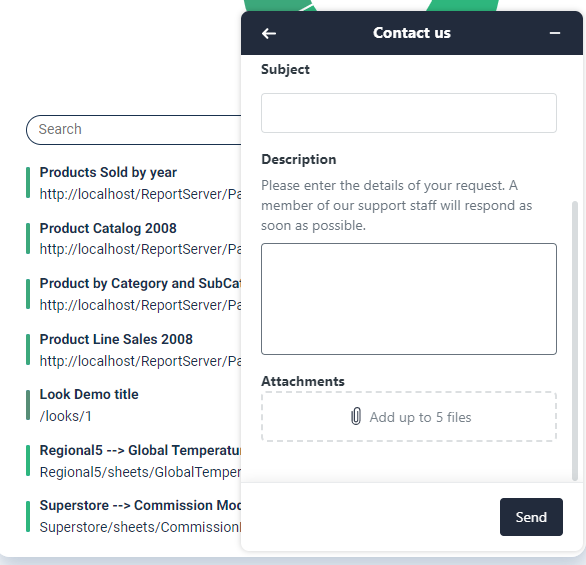
File attachments – Attach up to five supporting files—such as screenshots or logs—to accelerate resolution.