Product Release Notes - Sep 28th, 2023
Learn about filtering missing or present properties.
Key Benefits
- Filtering Missing or Present Properties
Users can now identify assets based on the presence or absence of specific properties, a feature that is instrumental for data completeness and quality assessments.
- Value-Specific Filter for Asset Data Type
This functionality allows for the isolation of assets containing Data Type specific, multiple values, facilitating detailed and focused data analysis.
- Audit Search Capabilities
Enhanced audit search enables the tracking of assets updated by specific individuals within set timeframes, a crucial feature for audit trails and compliance.
- Bulk Update for Missing Properties
Identify all assets for specific Missing Properties, export and update, in bulk, assets that are lacking essential properties, a critical enhancement for maintaining data integrity and consistency.
Feature Capabilities
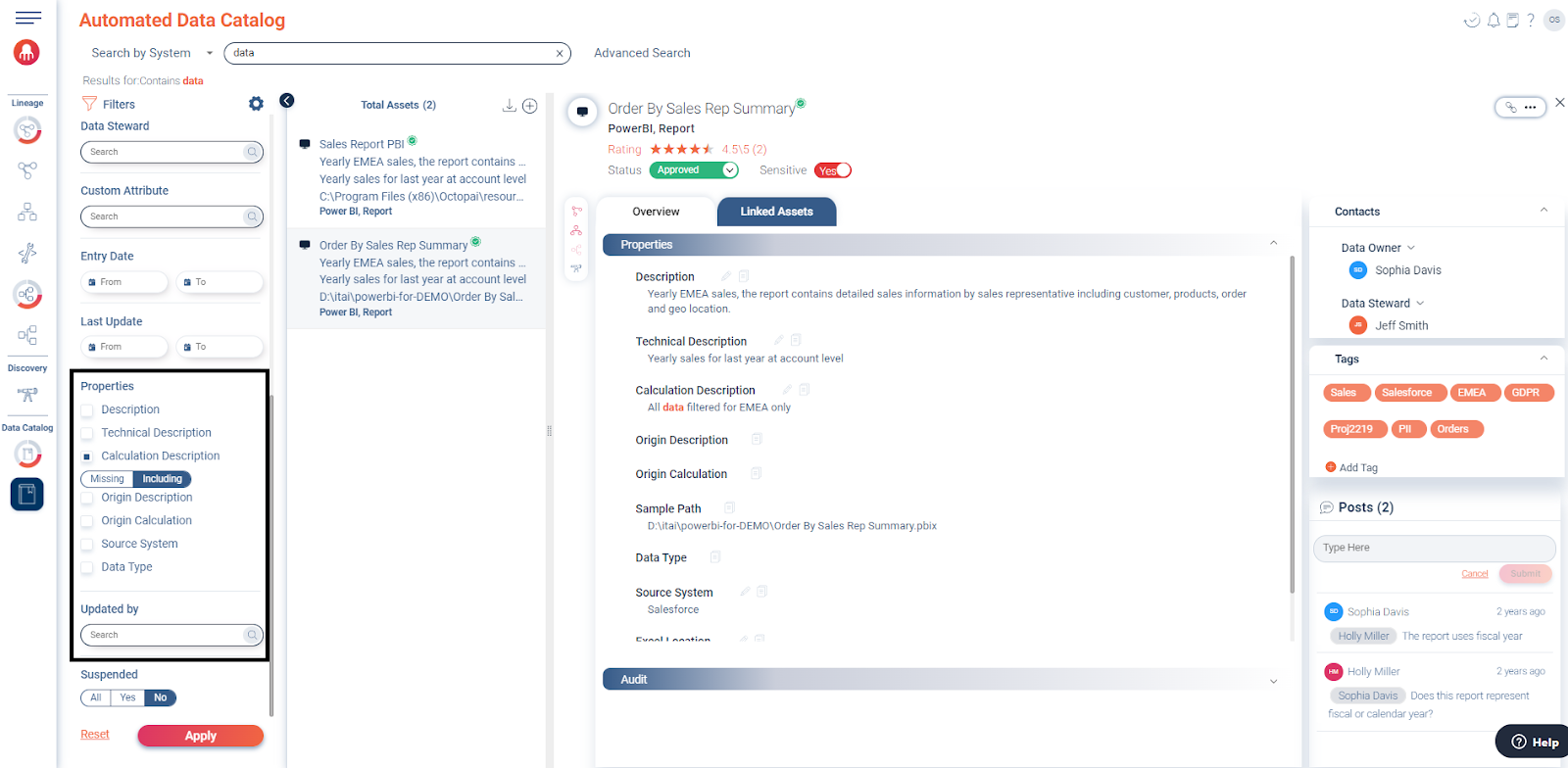
- New Properties and Audit FiltersUsers can now apply enhanced filters on the following properties:
- Description
- Technical Description
- Calculation Description
- Origin Description
- Origin Calculation
- Source System
- Data Type
- Updated By
Each property filter can be applied in the following general categories:- Missing – Identify assets where the specific property is absent.
- Including – Locate assets that include the specific property.
- Data Type Filter Enhancement
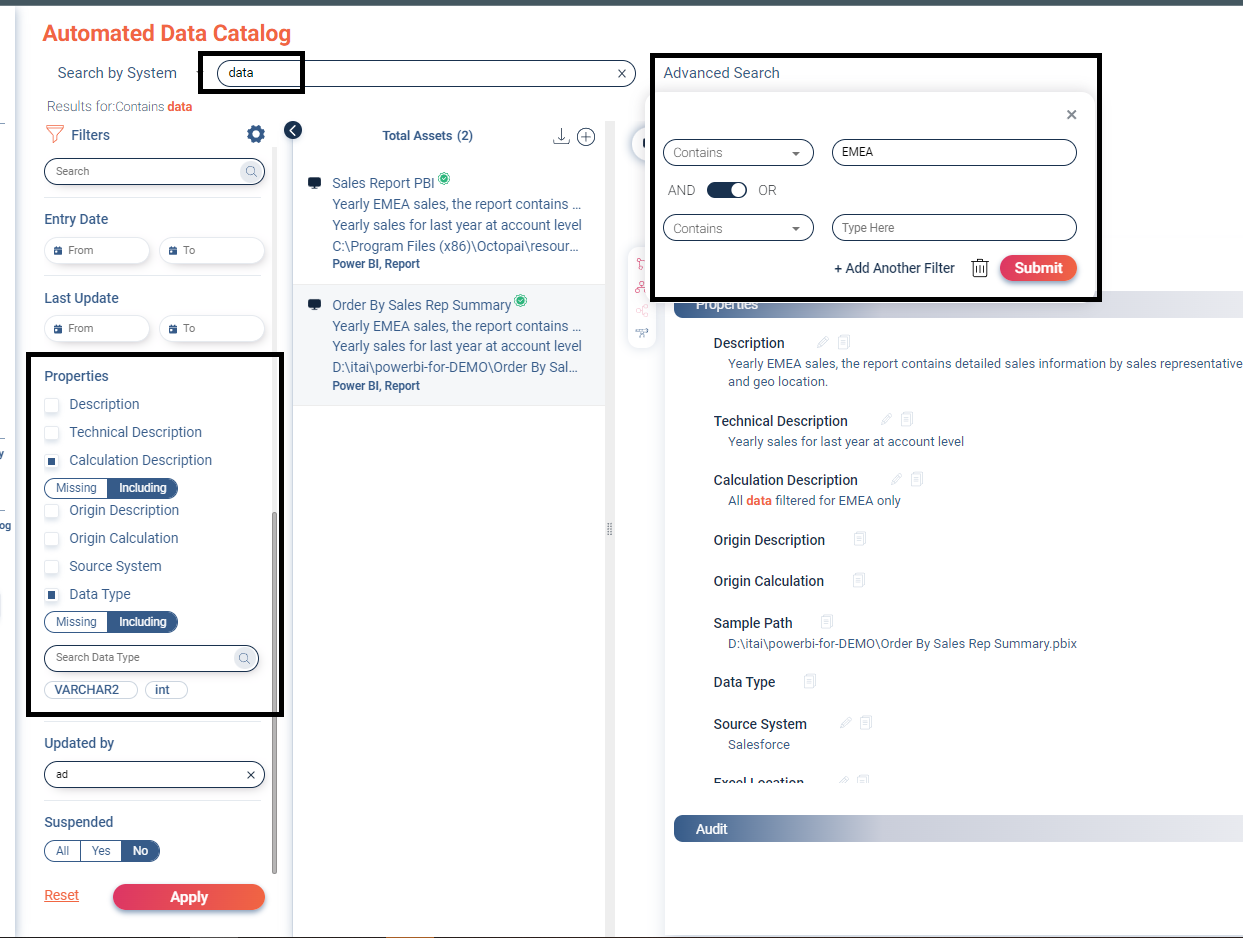
For the Data Type property, users have the added flexibility to apply multiple values. By starting to type, suggestions like ‘char’, ‘int’, etc., will appear, allowing for a more granular and targeted search.
- Specific User Asset Update Search
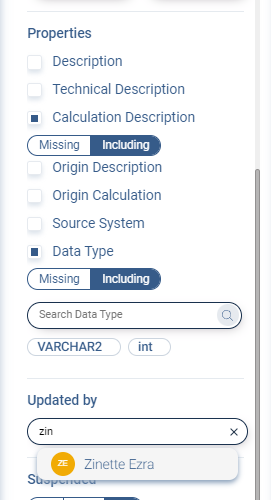
Users can now filter search results to identify assets that have been updated by a specific user. This feature enhances traceability and accountability in asset management.
- Combining Properties FiltersThe enhanced properties filters can be combined for a more refined search. Users have the following options:
- Include Specific Values – Apply the
Includingfilter with a specific value entered in the search box to narrow down the search results. - Advanced Search – Utilize the advanced search option to apply multiple search values within a specific property, offering a layered and detailed search outcome.
- Include Specific Values – Apply the
Typical Scenarios
- Searching Missing Properties
- Navigate to the properties filters section.
- Select the property, for example Technical Description.
- Apply the
Missingfilter to identify assets lacking a technical description
- Applying Multiple Data Types
- Go to the Data Type filter.
- Start typing the data type, for example char, and select from the suggestions.
- Add additional data types as needed to refine the search.
- Searching Assets Updated by Specific User
- Utilize the user filter option.
- Enter the specific user name to filter assets updated by them.
- Combining Filters for Detailed Search
- Apply the
Includingfilter on a property, for example Calculation Description. - Enter a specific value in the search box.
- For advanced search, enter multiple values to get detailed results.
- Apply the
- Simplified Steps for Identifying and Updating Missing Technical Descriptions with
Specific Custom Attributes
- Navigate to the properties filters, apply the
Missingfilter for Technical Description’ and add the specific custom attribute filter to refine the search. - Export the identified assets that are missing technical descriptions and have the specific custom attribute.
- Update the technical descriptions in the exported file and reimport, that is mass-update, it to the Technical Data Catalog to apply the changes in bulk.
- Navigate to the properties filters, apply the
These enhanced features are designed to offer data professionals a more intuitive, efficient, and detailed approach to managing and analysing asset properties and audit fields within the Technical Data Catalog.