How to manage Inferred Objects
An Inferred Object (INF) is an object that Cloudera Data Lineage detected by reference — for example, from an SSIS data flow or a Power BI report, but could not match to a specific item in your catalog. Either the object was not extracted, or key details such as the Database Name or Schema Name are missing from the reference. The object appears in the lineage graph flagged as "INF" until the reference can be resolved.
When viewing lineage in Cloudera Data Lineage, you might come across Data Objects that are displayed as Inferred Objects. This happens when Cloudera Data Lineage lacks sufficient information to resolve the reference — typically because the associated Database Name and Schema Name were not captured for that connection, or because the object itself was not extracted. Use the following diagnostic flow to identify the cause and apply the correct fix.
-
From the lineage graph, click the Information i icon on the
object's radial menu, copy the object name from the Properties panel,
and paste it into the Cloudera Data Lineage
Discovery space.
Figure 1. Inferred Object Properties 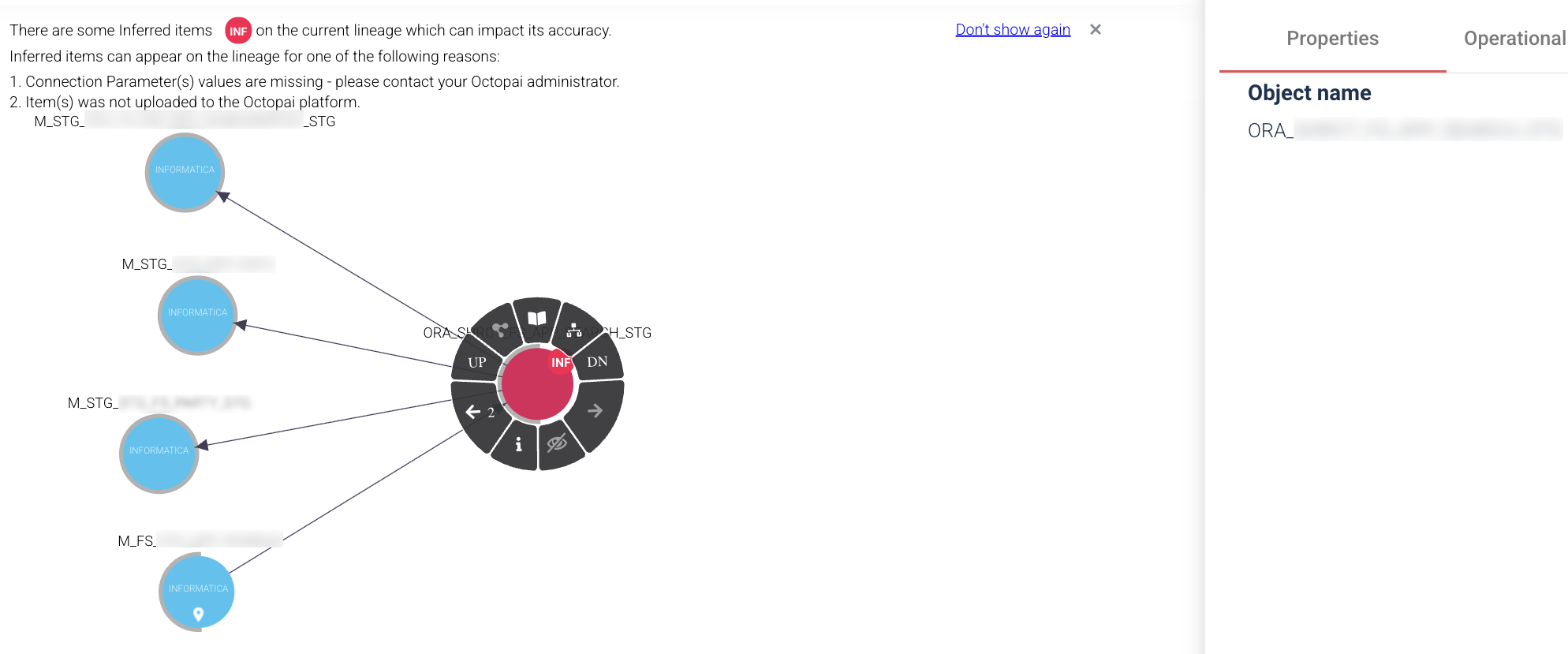
Figure 2. Discovery space 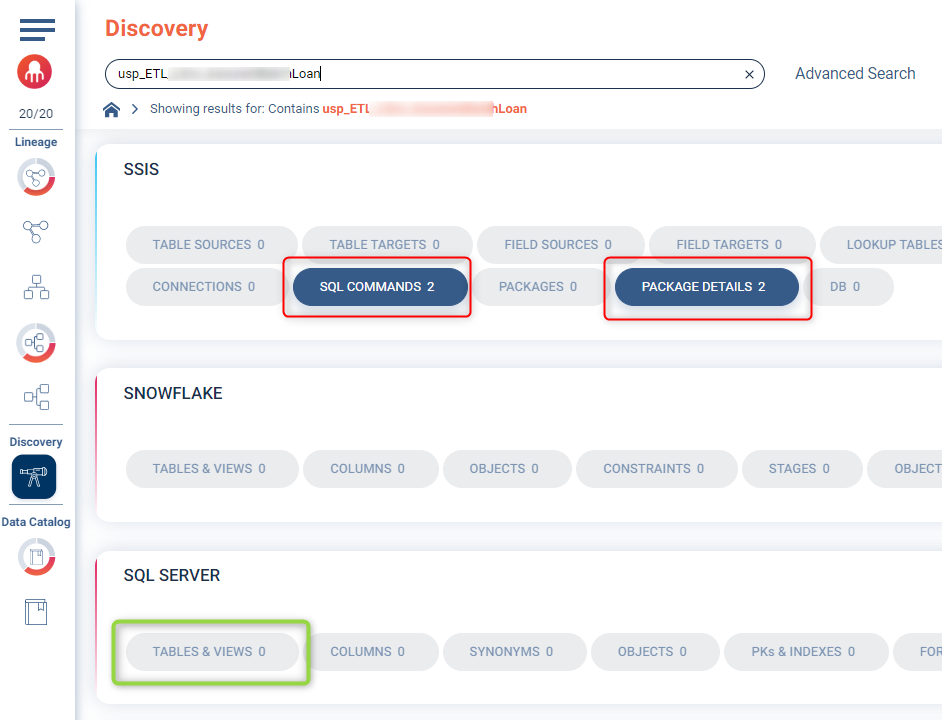
- Found, but still flagged as INF — the object was extracted, but Cloudera Data Lineage cannot resolve the reference back to it, typically because the Database Name or Schema Name were not captured for that connection. Proceed to the next step to add the missing connection parameters.
- Not found — the object either was not in scope for extraction, or the source was extracted but this specific object did not come through. Confirm with the source owner whether the object should have been in scope. If yes, check the permissions of the user or service account Cloudera Data Lineage uses to extract metadata from that source, and fix as needed. If the object is intentionally out of scope, this is an expected behavior and no action is required.
-
Fix the unresolved reference in by adding the missing Database Name and Schema Name.
Use the single-object procedure to fix one reference at a time, or the bulk procedure to fix many at once.
Single-object-
From the Properties panel of the Data Object, note the Report
or ETL path.
Figure 3. Path in the Properties panel 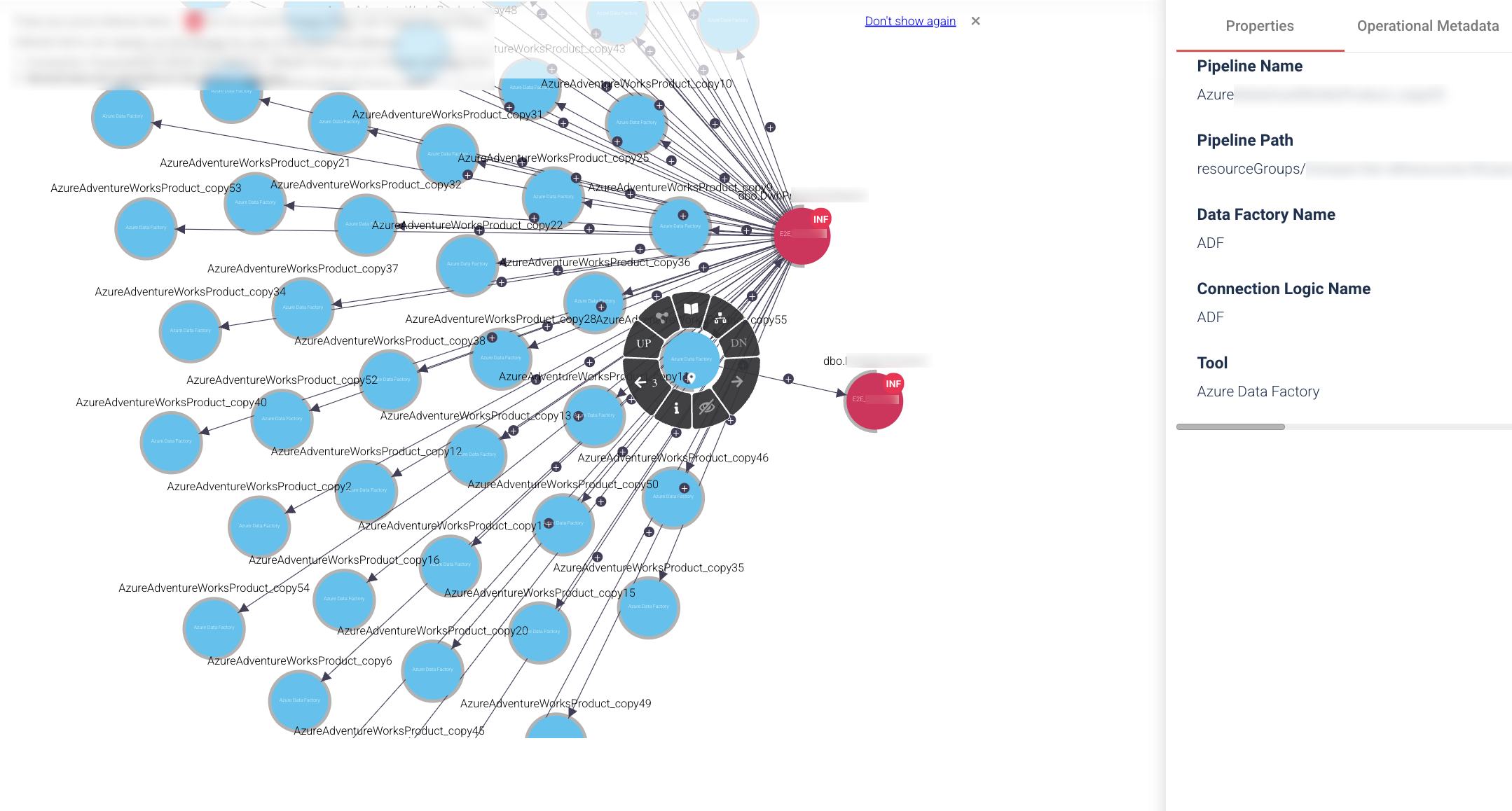
-
Switch to Admin Console from the user menu at the top
right.
Figure 4. Switch to Admin Console 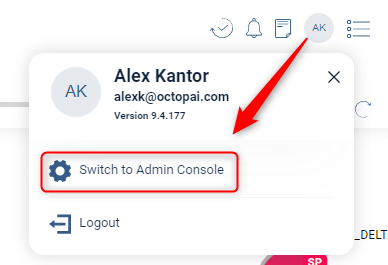
-
In the Admin Console, click Connection
Parameters, select the REPORT or
ETL tab depending on the object type, and find the row
matching the path you noted.
Figure 5. Admin Console — Connection Parameters 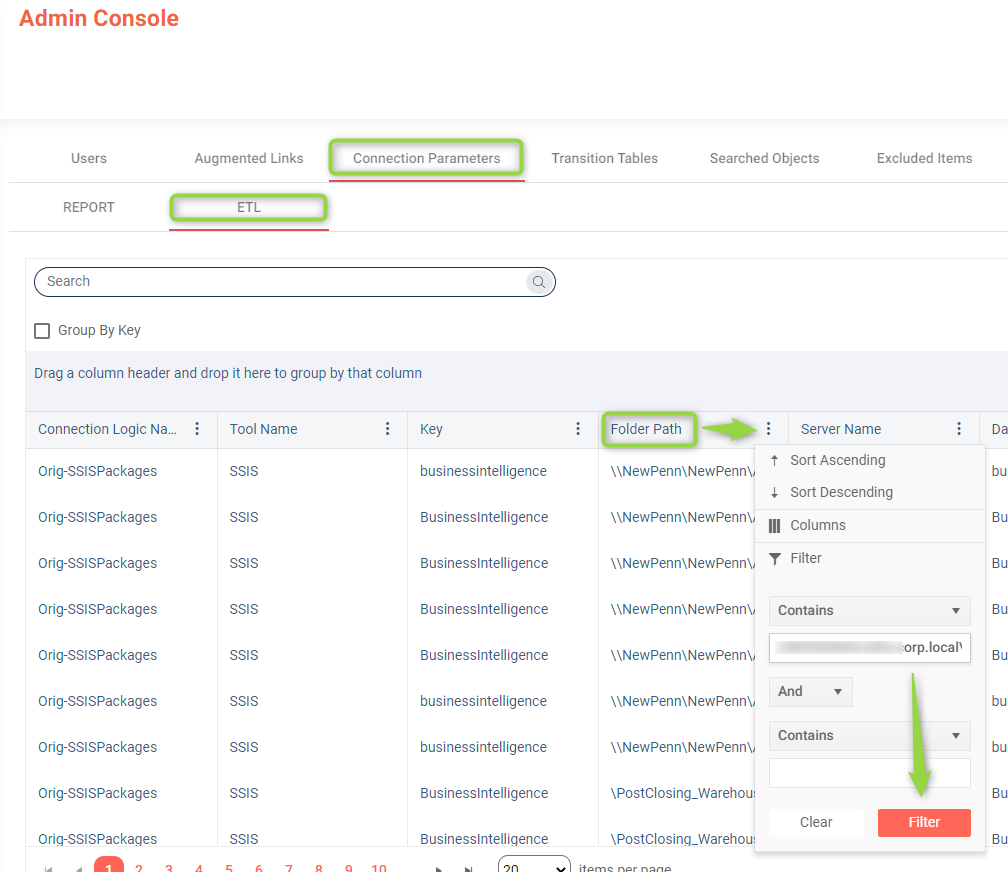
-
Click the Edit icon, fill in the missing Database
Name and Schema Name, and click
Submit.
Figure 6. Add the connection parameters 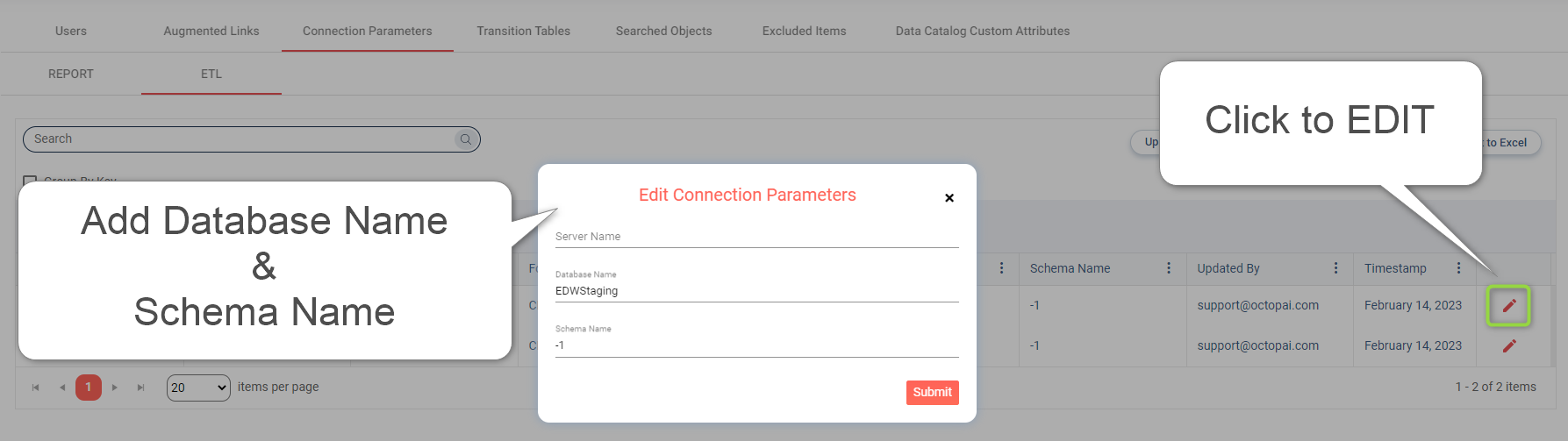
The next Cloudera Data Lineage nightly job picks up the changes and re-resolves affected objects.
Bulk (many objects at once)-
From , click Export to Excel.
Figure 7. Bulk edit — Export to Excel 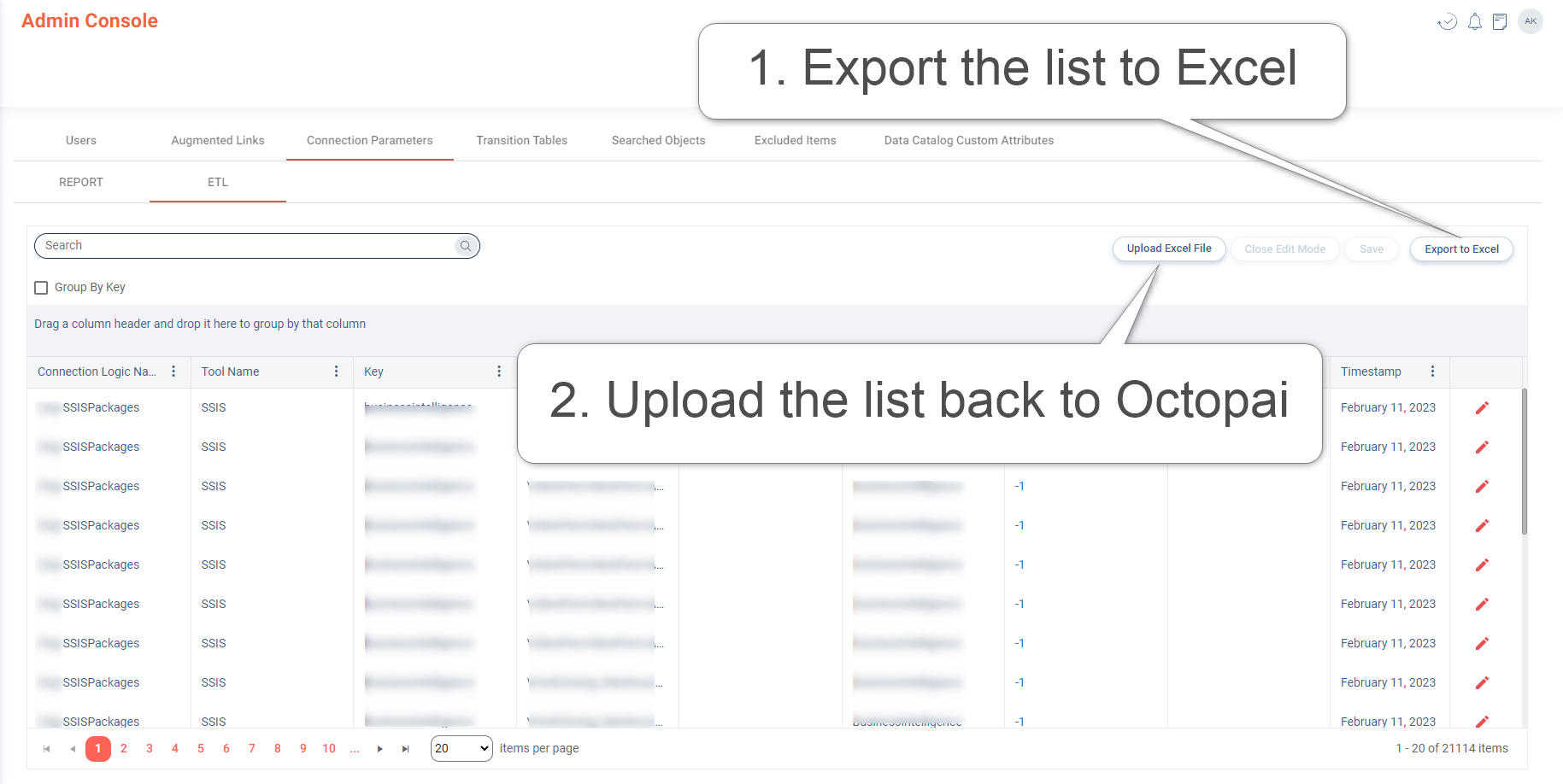
-
From the Properties panel of the Data Object, note the Report
or ETL path.
