Knowledge Hub User Guide
How to navigate the Knowledge Hub to streamline data discovery and management.
This guide helps you effectively navigate and utilize the Knowledge Hub to simplify data discovery and management. By centralizing metadata and offering advanced search, collaboration, and integration features, the Knowledge Hub enhances productivity and facilitates informed decision-making.
Key features and benefits:
- Metadata Management: Capture and organize metadata, enabling users to understand data structure and quality.
- Search and Discovery: Find specific datasets, tables, or files quickly using advanced search and navigation options.
- Collaboration and Data Governance: Share, comment, and collaborate on data assets while ensuring security and compliance.
- Integration with Data Ecosystem: Seamlessly integrate with data sources, management tools, and analytics platforms.
Target Audience: Data analysts, scientists, business intelligence professionals, and data engineers can benefit from this guide.
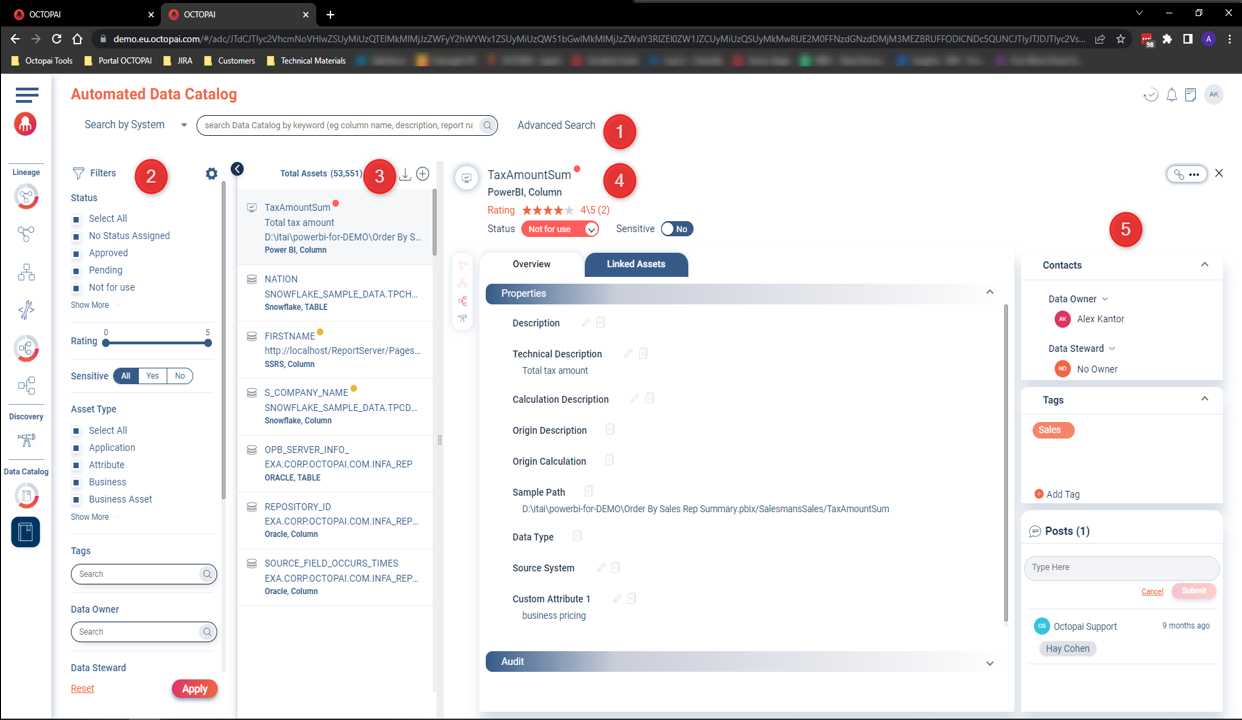
- Access the Knowledge Hub interface
- Navigate to the Knowledge Hub main interface to begin your data discovery journey.
Search
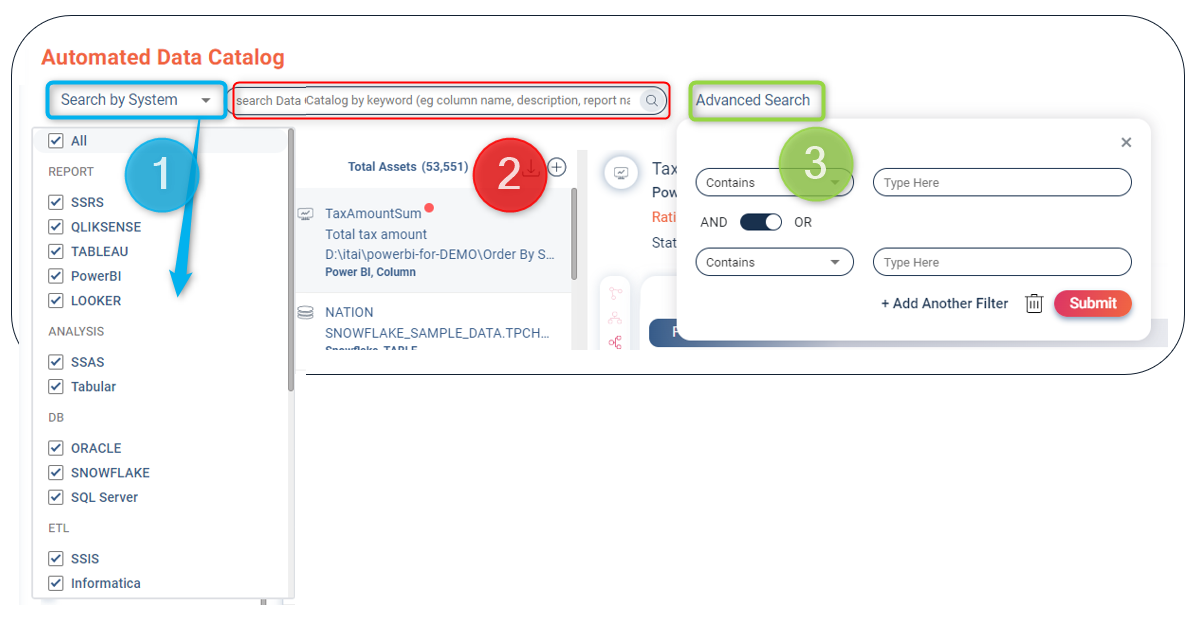
Search by system
Enter a keyword in the search box and Cloudera Data Lineage (formerly Octopai) finds it within the asset definitions.
Advanced search
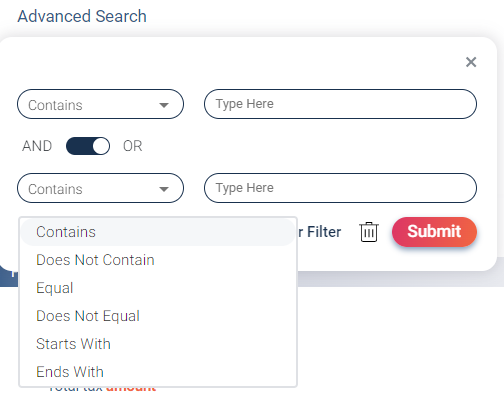
With advanced search, you can refine your query by combining up to three options using AND or OR.
Filter Section
The search filters in the Cloudera Data Lineage platform include various attributes that help users quickly find the desired data assets, offering a seamless shopping-like experience. Once all the attribute filters are set, simply click on "Apply" to filter the results.
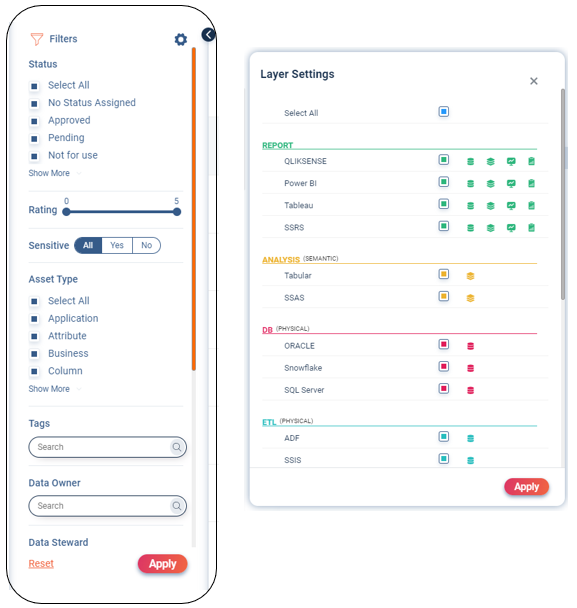
- Collapse or expand the filter section.

- Layer settings let you customize asset visibility by selecting specific layers using the Layer Setting selector. The selected layer setting is saved for the user and remains unchanged between sessions.

| Layer Type | Layer Name | Comments |
| Reports | Report Name | |
| Presentation | Assets of Identical name are aggregated per tool. | |
| Semantic | ||
| Physical | Assets of Identical name are aggregated per tool. | |
| Analysis | Semantic | |
| Database | Physical | |
| ETL | Physical | |
| Custom Asset Types | Custom Asset Types | Assets that are created within the Data Catalog |
Assets Results
The section displays all assets based on the search and filter criteria, including the Asset Layer, Name, Path, Type, and Tool. Users have the option to export the list to an Excel Spreadsheet and also create new Augmented Assets.
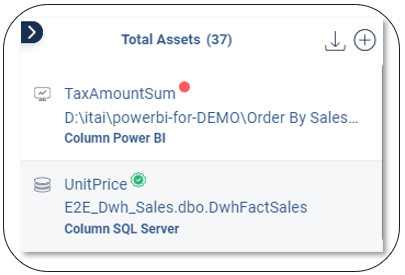
Total assets: After searching and filtering, this indicates the number of assets found.
Each asset row shows:
- Layer icon (hover to see the description).
- Asset name.
- Asset path.
- Asset type and asset tool.
- Export the total assets to an Excel spreadsheet (limited to 50,000 values).

- Create augmented assets.

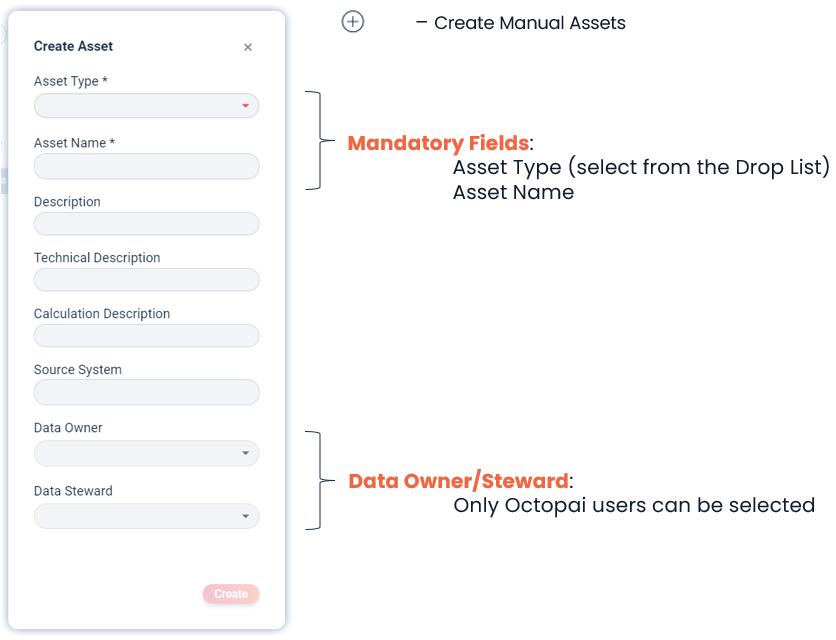
| Asset Type | Purpose |
|---|---|
| Master | To create a single asset to represent multiple assets that would be linked to it. |
| Business | To hold the business terminology / to create a single asset to represent multiple assets that would be linked to it. |
| Project | An asset that represents a Project, its scope, who is responsible for it, etc. and can be linked to other assets relevant to the project. |
| Policy | An asset that represents a Policy, its description, what it applies to, who is responsible for it, etc. and can be linked to other assets associated to the policy. |
| Report | To Represent Report objects that were not automatically harvested (for example, from an unsupported system). |
| Analysis | To Represent Analysis objects that were not automatically harvested (for example, from an unsupported system). |
| Database | To Represent Database objects that were not automatically harvested (for example, from an unsupported system) |
| ETL | To Represent ETL objects that were not automatically harvested (for example, from an unsupported system) |
| Data Catalog | General for any other type of asset. (formerly 'ADC Asset') |
Additional resources
Use the in-product help links and tooltips for contextual guidance while working in the Knowledge Hub.
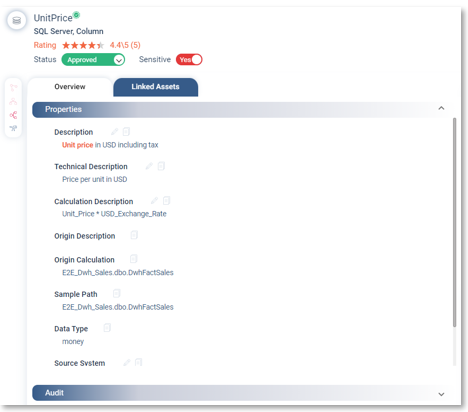
Asset Details Pane
| Icon | Description |
|---|---|
 |
Layer - (Physical / Semantic / Presentation) |
 |
Asset Name + Status Badge Asset Tool | Asset Type |
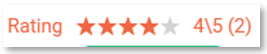 |
Rating - Average rating is intended to imply of the quality of the data asset as perceived by the users, the detail pane will display the avg rating as well as amount of ratings. Clicking on the rating will give: a. option to rate b. list of all users that rated the asset and their rating. Range 1-5 |
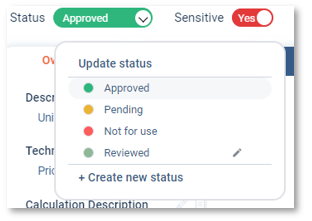 |
Status - indicates whether the Assets can be used/trusted. Each status is assigned a color to easily be identified. Default statuses ‘Approved', ‘Pending', ’Not for use’ Approved assets add a badge to their asset in the result pane. Admins can add/edit new statuses including assigning a relevant color. Sensitive - Assign sensitivity of asset to indicate how the asset can be used. (Yes/No) |
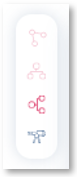 |
Presentation/Physical Columns integrate with End to End Column Lineage Reports, Views, Procedures, Processes and Functions integrate with Inner System and Cross System Lineage Tables integrate with Cross System Lineage Discovery - Searches for the Asset by Name in the Discovery module |
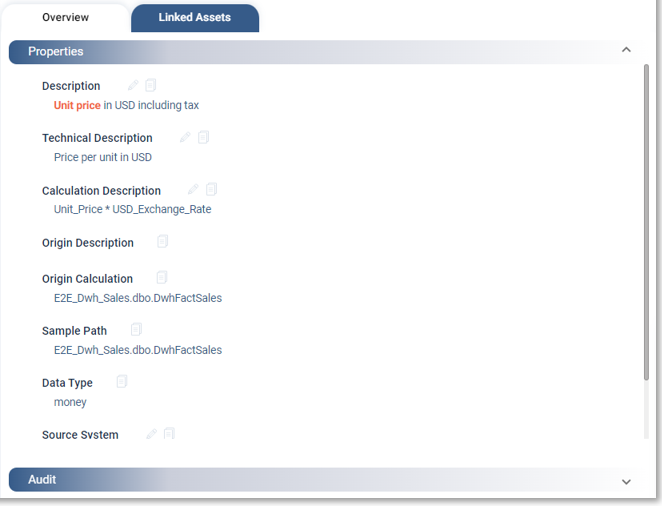 |
Overview Properties Description Technical Description Calculation Description Origin Description Origin Calculation Sample Path Data Type s Source system (List of Custom Attributes) Audit (Refers to Cloudera Data Lineage Only) Updated By Entry Date Last Update |
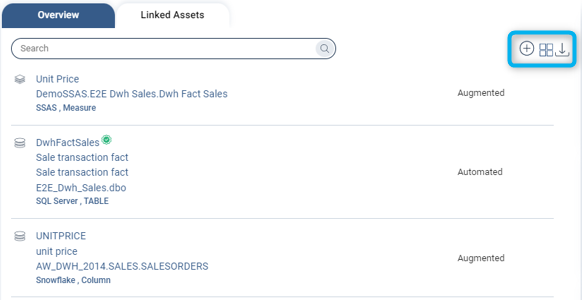 |
Linked Assets Automated - non-editable links created as a result of analysis (Example, Report Presentation Assets linked to Report, View columns linked to View). Augmented - links that can be added/removed by user. |
 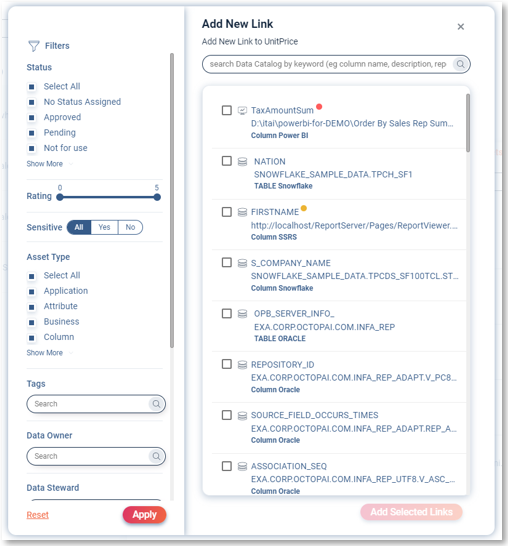 |
Create Manual (Augmented) Linked Assets Select from the proposed list the existing asset to create an augmented link. |
 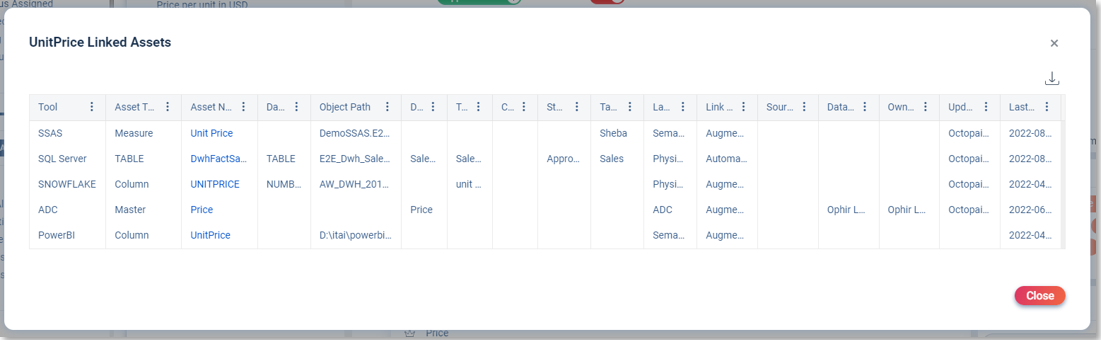 |
Grid - Pop-up window detailing the Linked Assets Properties The list can be downloaded to Excel. |
 |
Export - The lists can be downloaded to Excel. |
Contacts / Tags / Posts
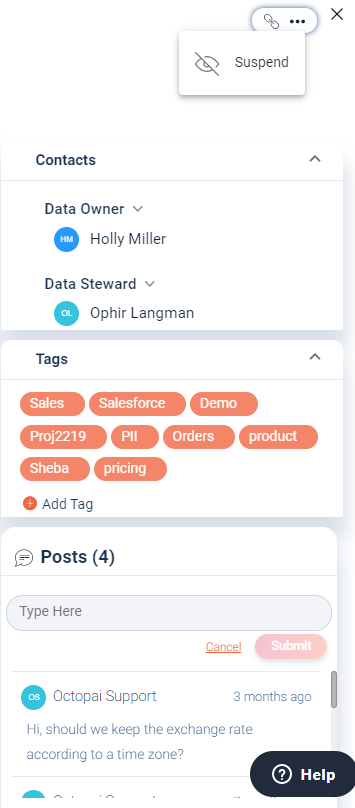 |
Suspend (...) - Suspend an asset to disable modifications and gray out the details. Chain icon – Share the asset location to increase collaboration (copy the unique URL). X – Close the detail pane. Contacts – Data owner (technical owner) and data steward (administrative owner). Tags - Select from existing tags or create new ones. Posts - Create posts for collaborative discussions. Within the Knowledge Hub, foster collaboration by creating posts and mentioning other users using the "@" sign and selecting their name from the dropdown list. When you mention users in a post, they receive email notifications that include the asset name, post details, and a direct link to the relevant asset, ensuring efficient communication and easy access to the discussed information. All posts are saved and publicly visible, allowing for transparency and enabling users to benefit from shared knowledge and insights. |
