Example for finding parent object for assigned classification or term
You can view and search for Atlas entities by using the assigned name for the classification or term.
When you create an entity and assign a classification or term to the entity, the immediate parent of the assigned classification or term is displayed when you hover over the classification or term. The parent-child relationship lineage appears in the assigned @parent1, parent2, parent3 format, depending upon the number of parent-child relationships. Click the assigned classification and term to view the details.
Finding parent classifications
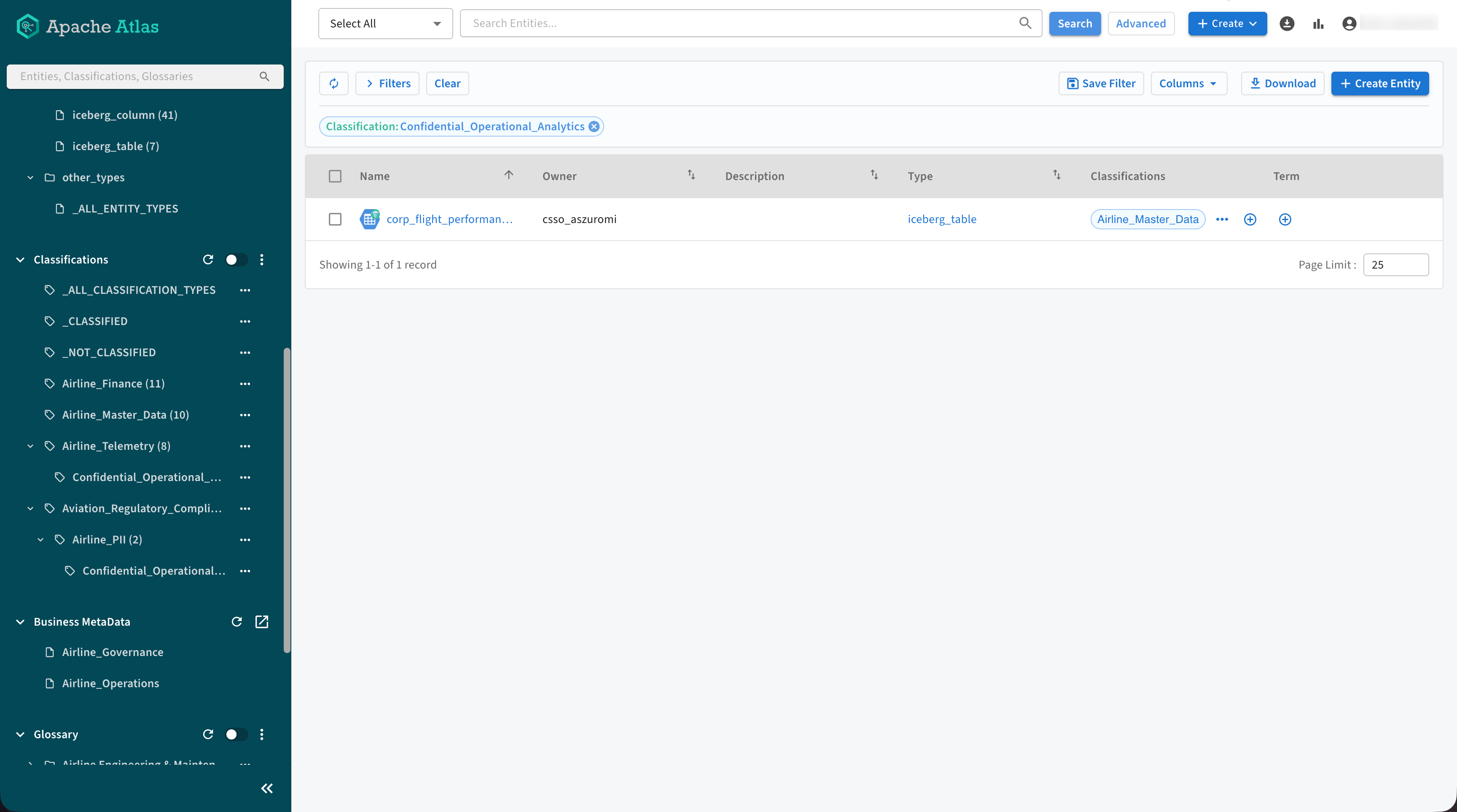
As an example, assume that there is an entity called Customer_360_View for which a classification named Confidential_Operational_Analytics is assigned. Under the Classification tab on the Atlas user interface, you can search for the list of classifications and their child classifications, including child classifications another level deeper and so on.
The following image provides an example of how a classification is listed in Atlas.
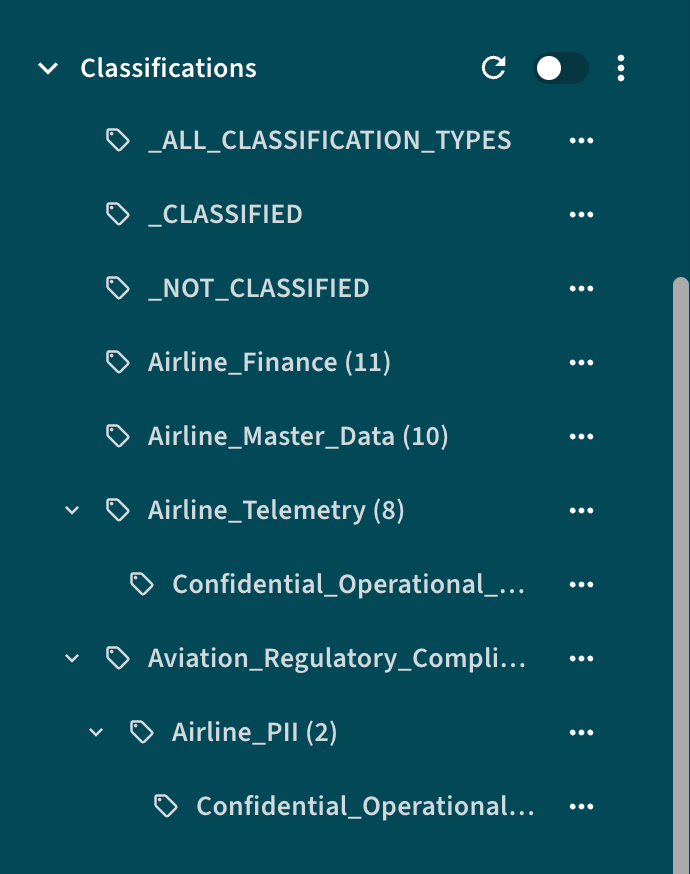
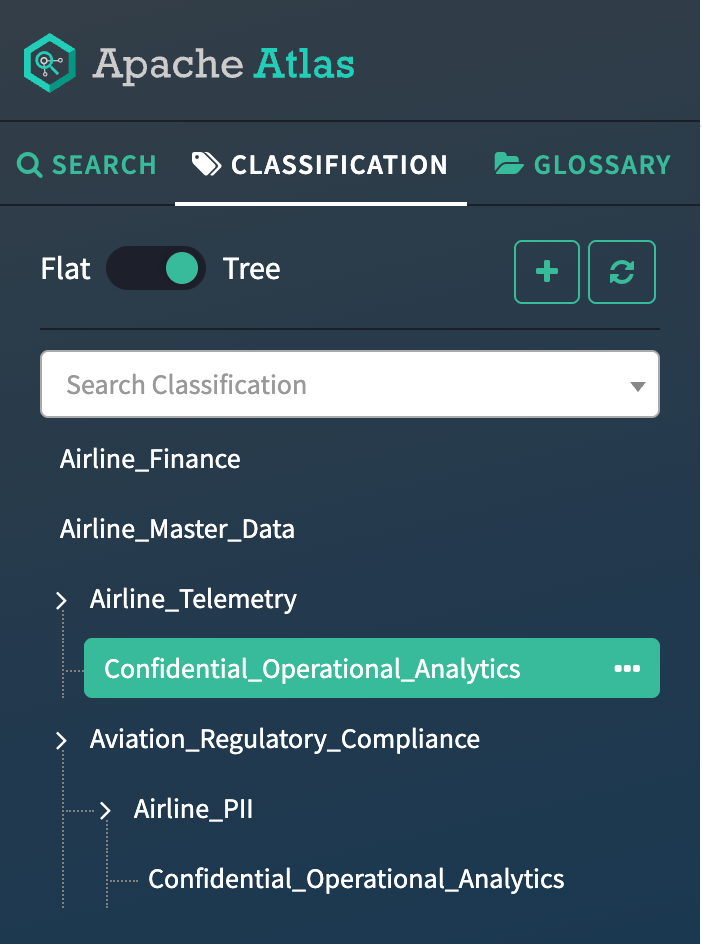
The classification named Confidential_Operational_Analytics has parent classifications named Airline_Telemetry and Airline_PII respectively.
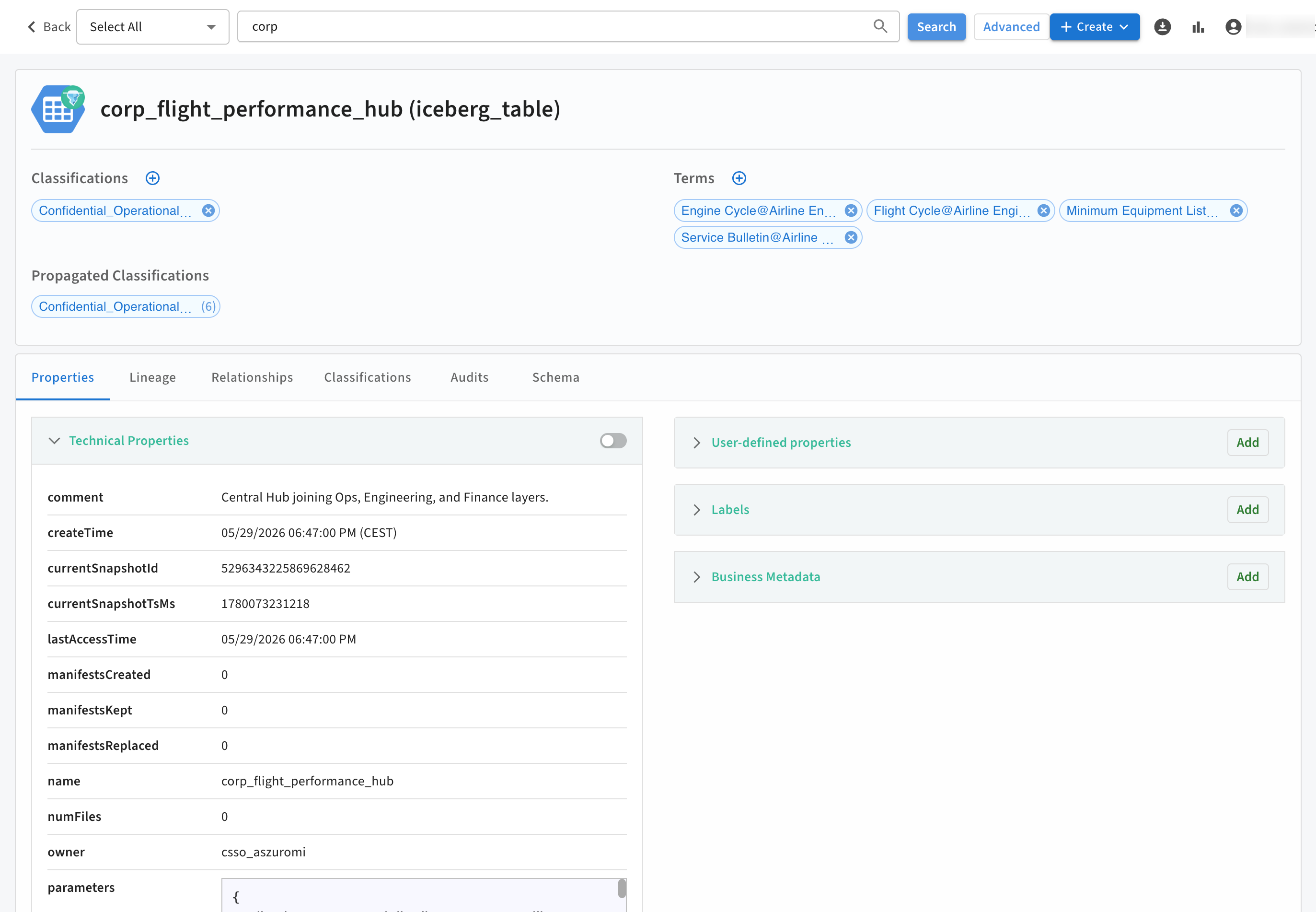
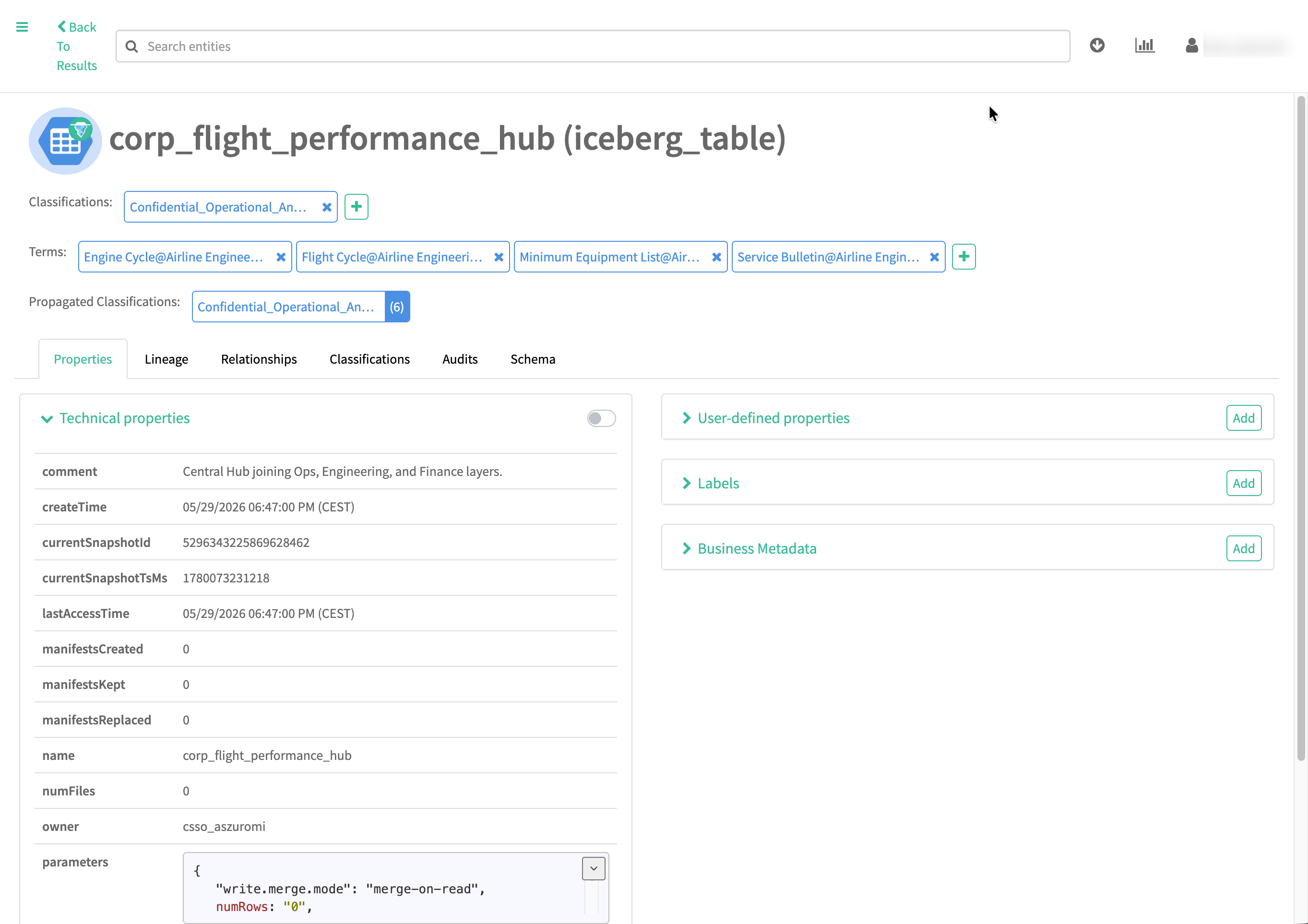
In the following image, the parent classifications are displayed on an entity for which Confidential_Operational_Analytics is assigned.
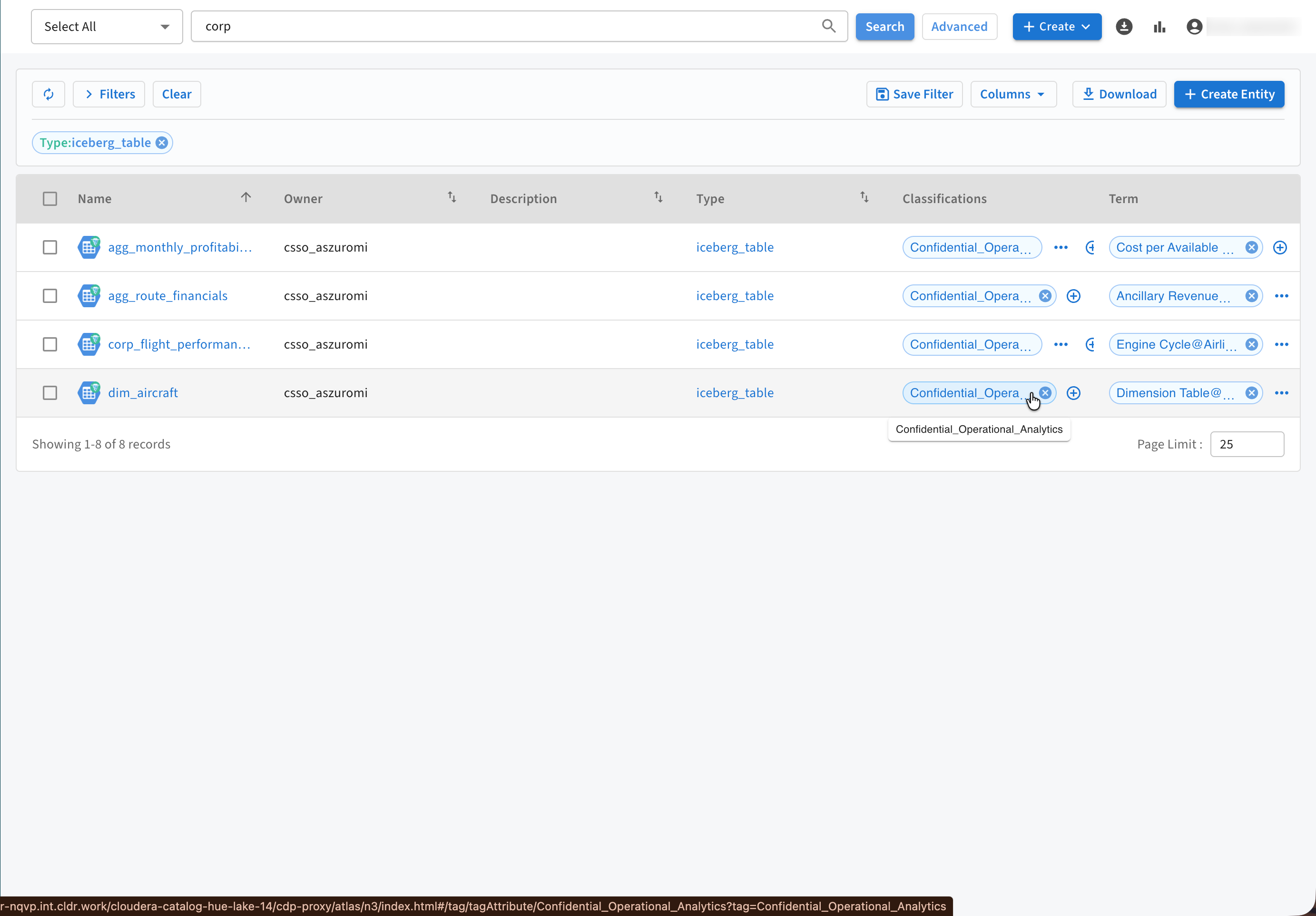
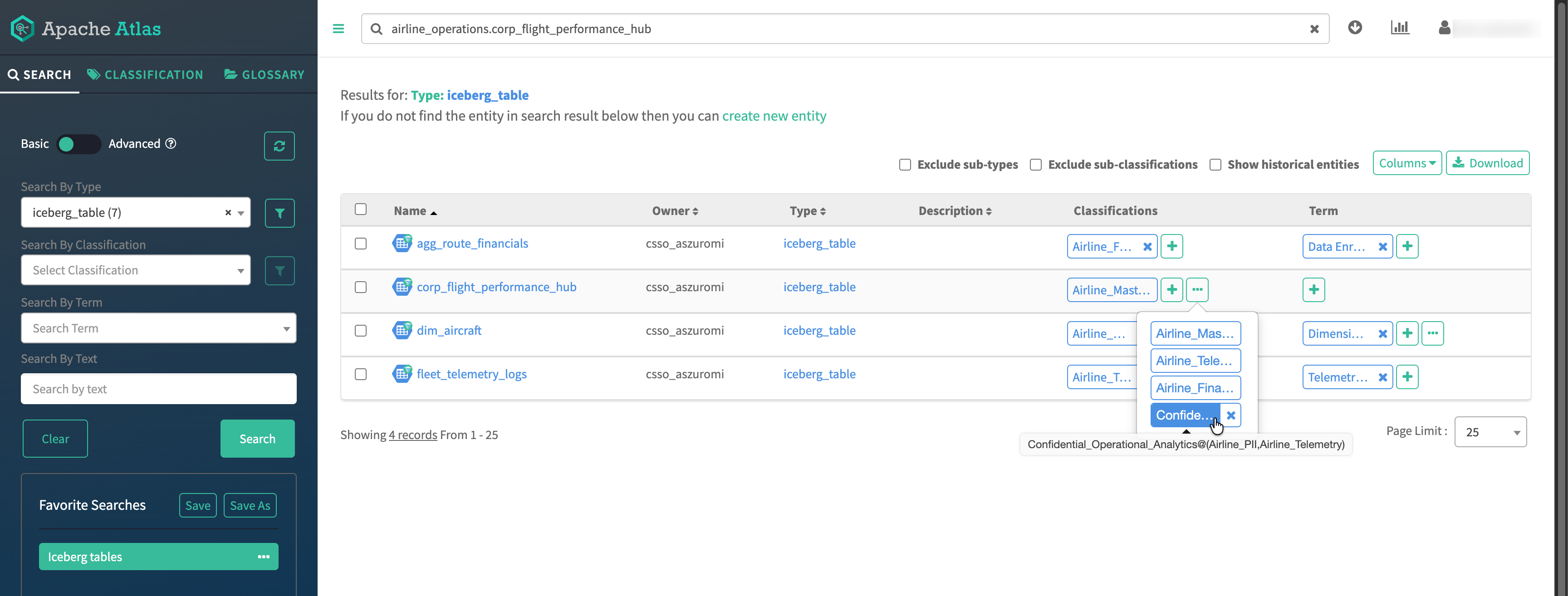
Hovering over the assigned classification displays the parent-child relationship. In this example: Confidential_Operational_Analytics@(Airline_PII,Airline_Telemetry)
Clicking on the assigned classification navigates to the classification details page.
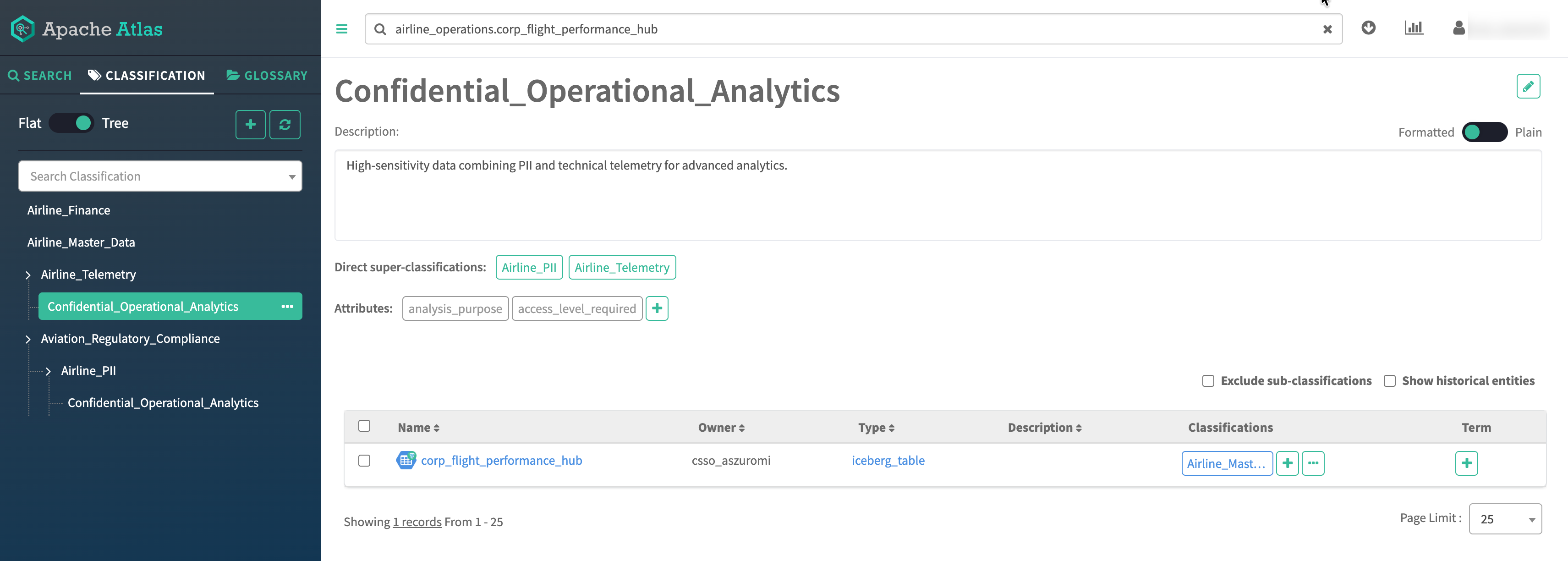
The entity page for the classification is as shown in the following image:
Finding parent glossary terms
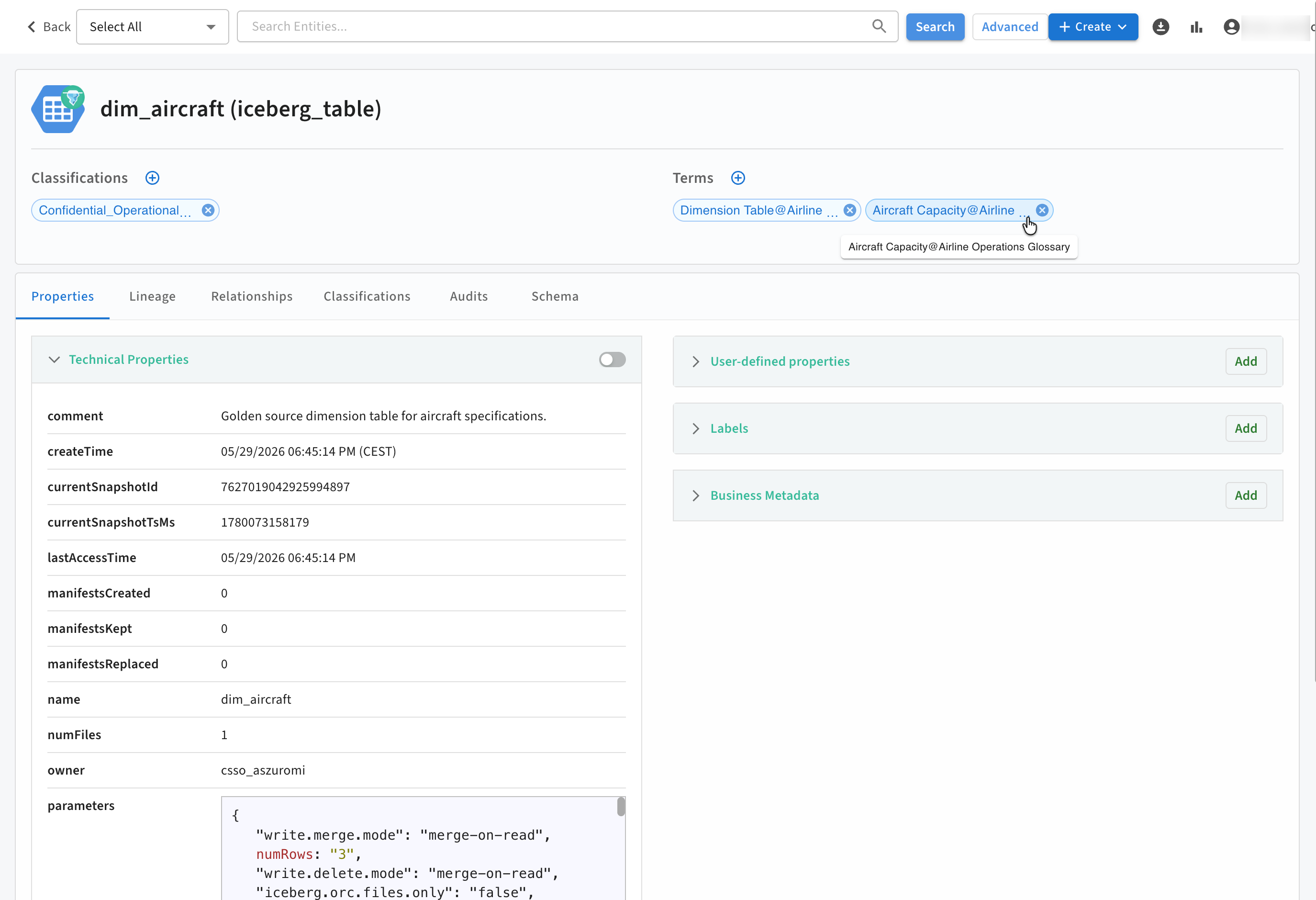
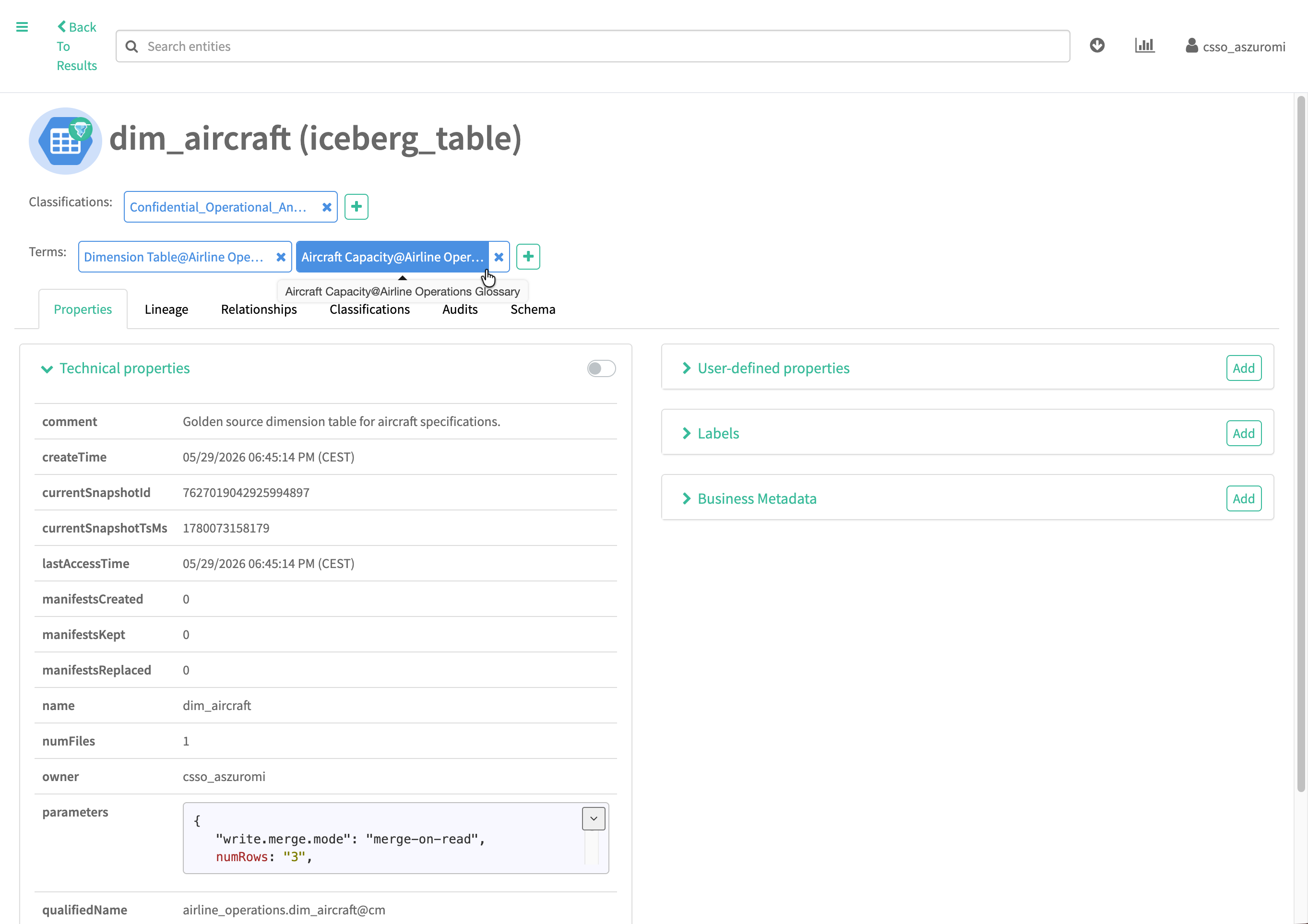
The following image provides an example of how are listed in Atlas.
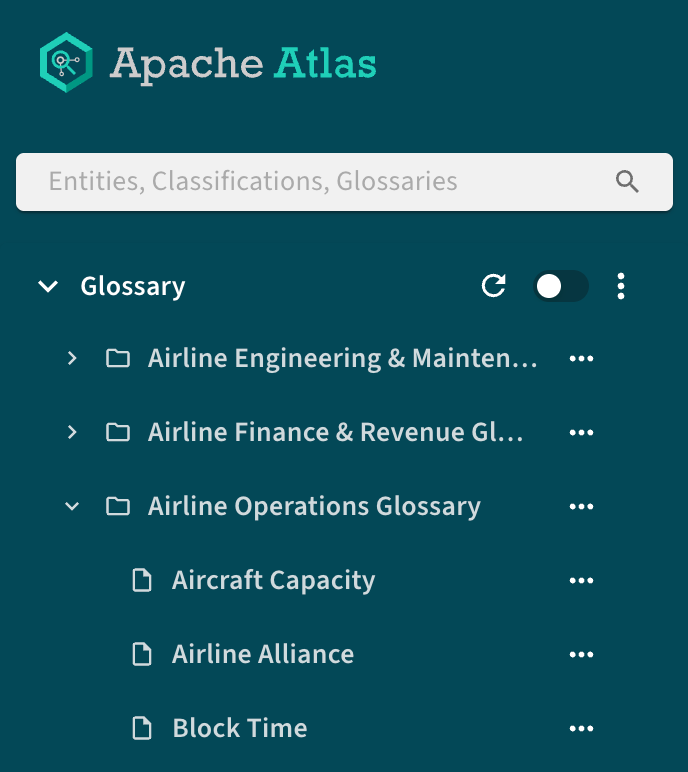
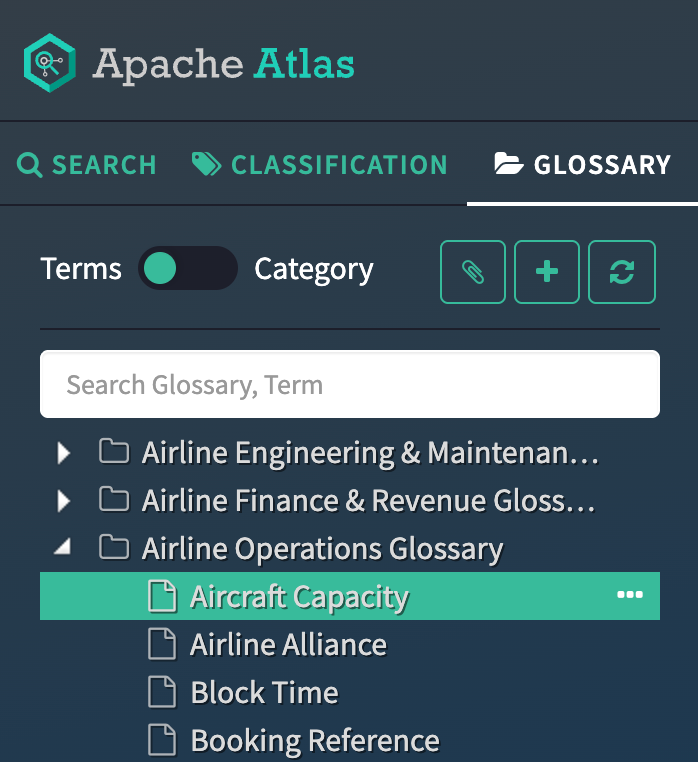
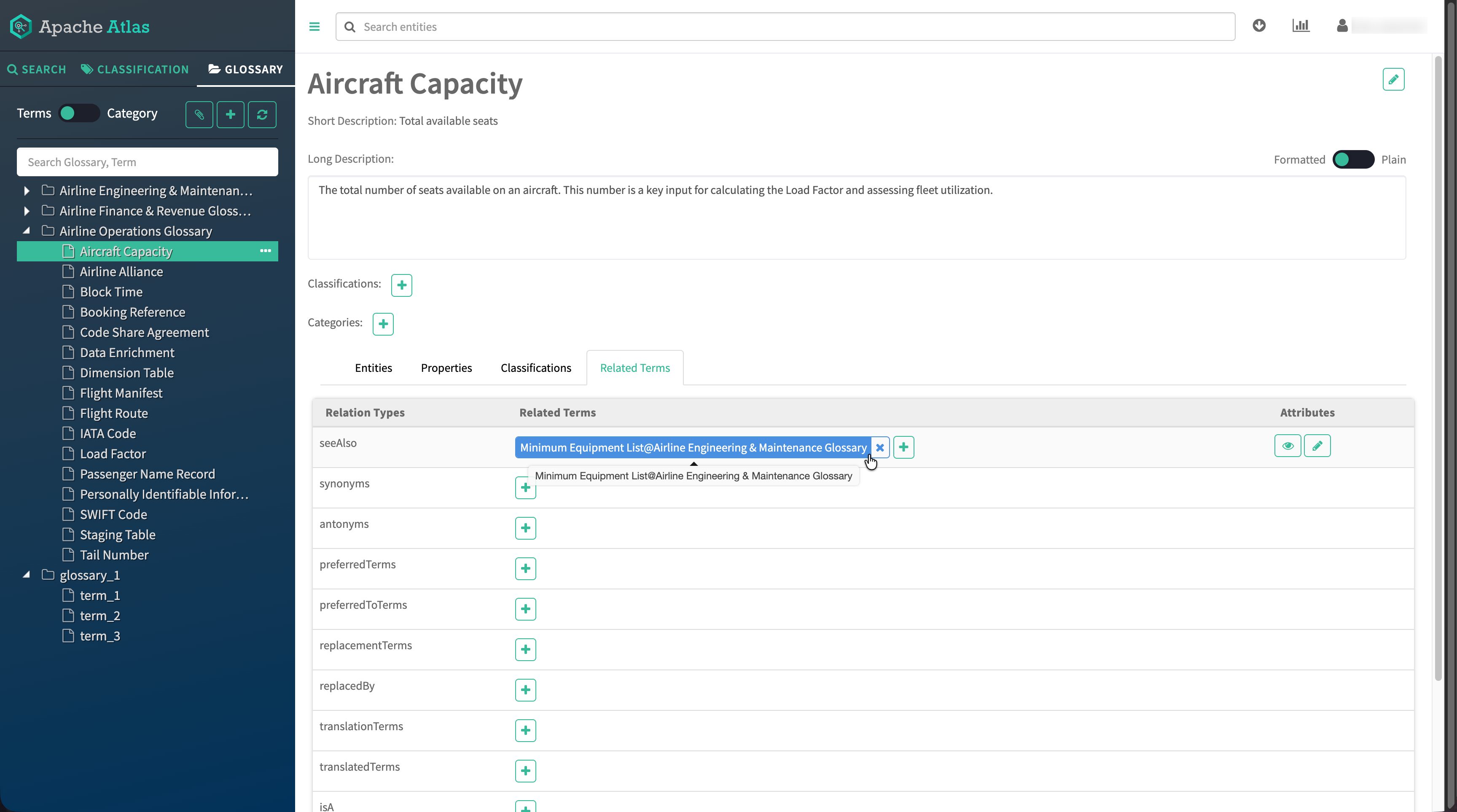
The term named Aircraft Capacity has a parent glossary named Airline Operations Glossary, which is displayed on an entity for which Aircraft Capacity is assigned. The glossary of the term is visible for the assigned term in the assigned term@parent Glossary format. In this example: Aircraft Capacity@Airline Operations Glossary. Clicking on the assigned term navigates to the term details page.
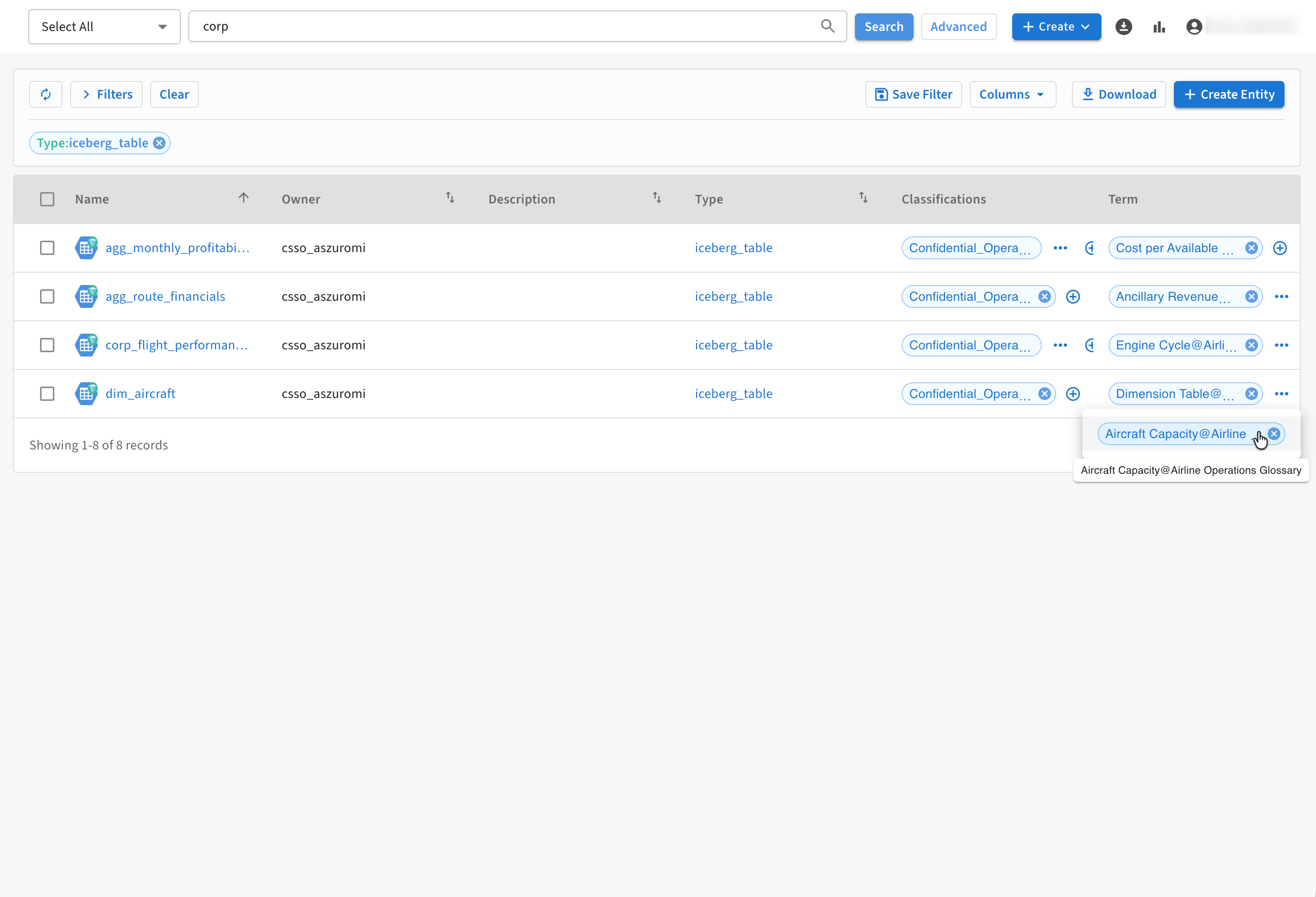
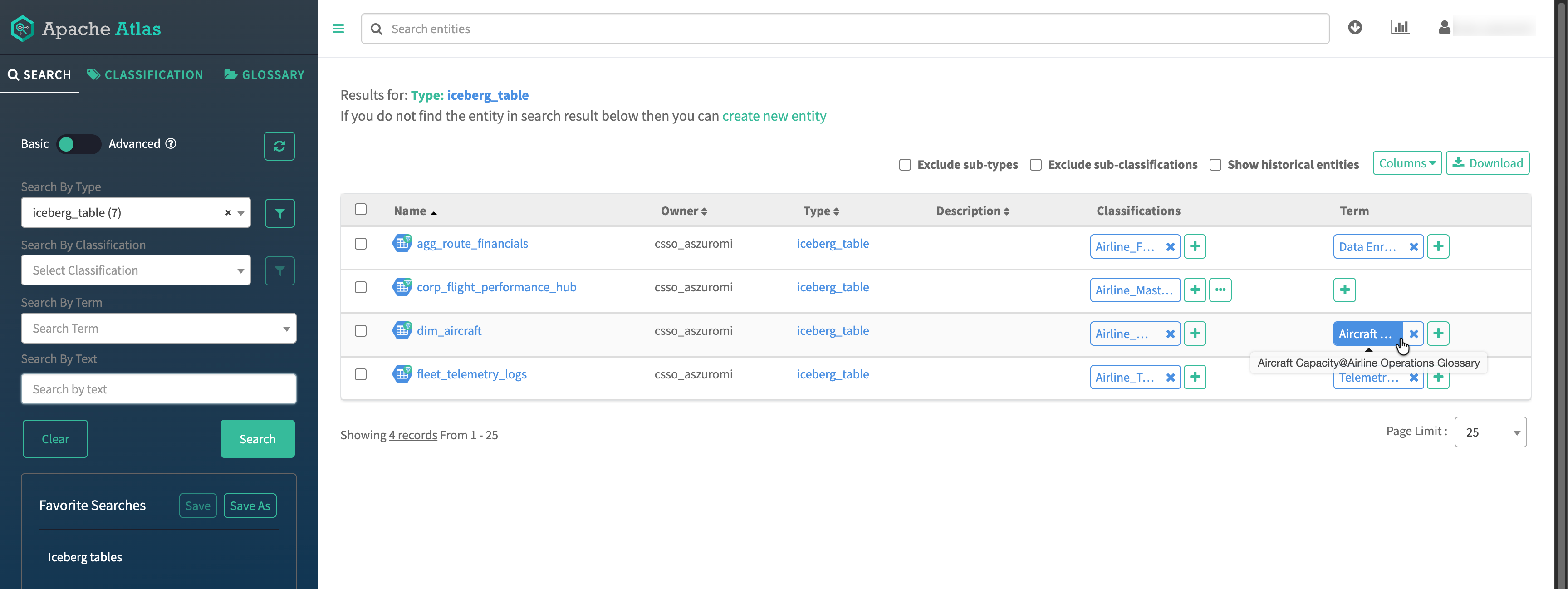
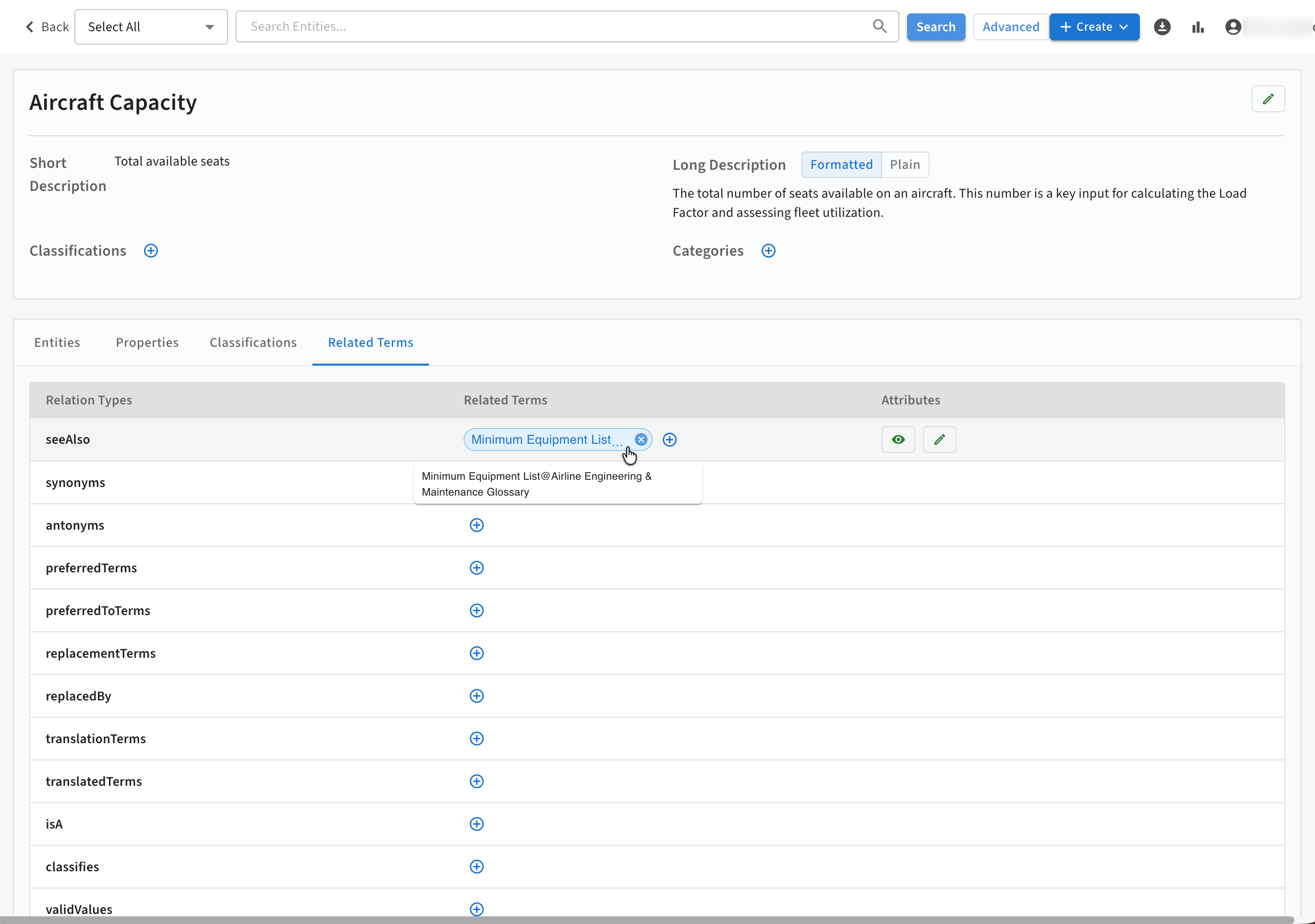
The entity page for the term is as shown in the following image: