You can enable multi-hop Longhorn upgrades to allow direct Cloudera Embedded Container Service upgrades starting from Cloudera Data Services on premises 1.5.5 SP2 to Cloudera Data Services on premises 1.5.5 SP4, bypassing the intermediate
releases.
A new feature flag Enable Longhorn Multi-hop
Upgrade is introduced which is disabled by default. When enabled, it
separates the Longhorn upgrade into a dedicated step during the upgrade process. A
separate Update Longhorn step is added to the upgrade process,
which is specific to Cloudera Embedded Container Service.
You can lookup for this new feature flag in your Cloudera Manager instance under
Clusters → [Select your Experience
Cluster] → Configuration. And search for
the feature flag (longhorn_multihop_enabled).
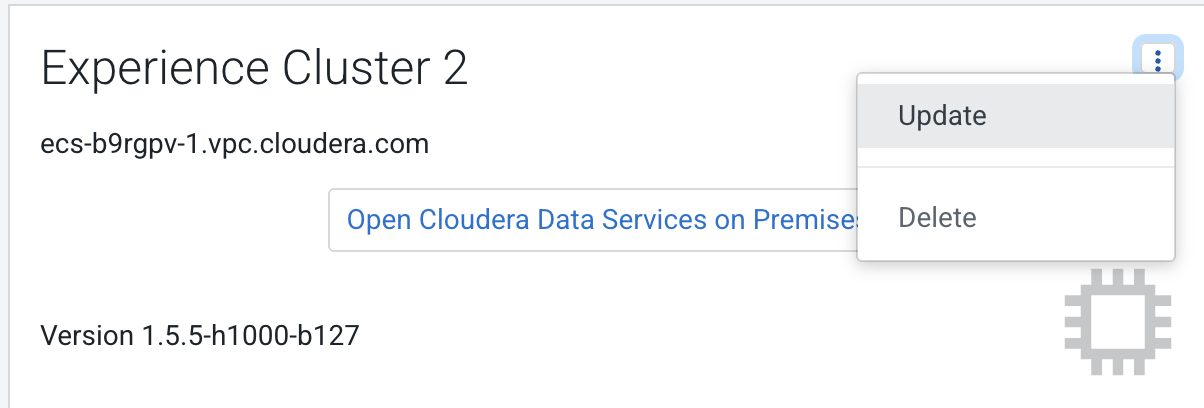
In Cloudera Manager, navigate to Cloudera on premises and click the icon, then click
Update.
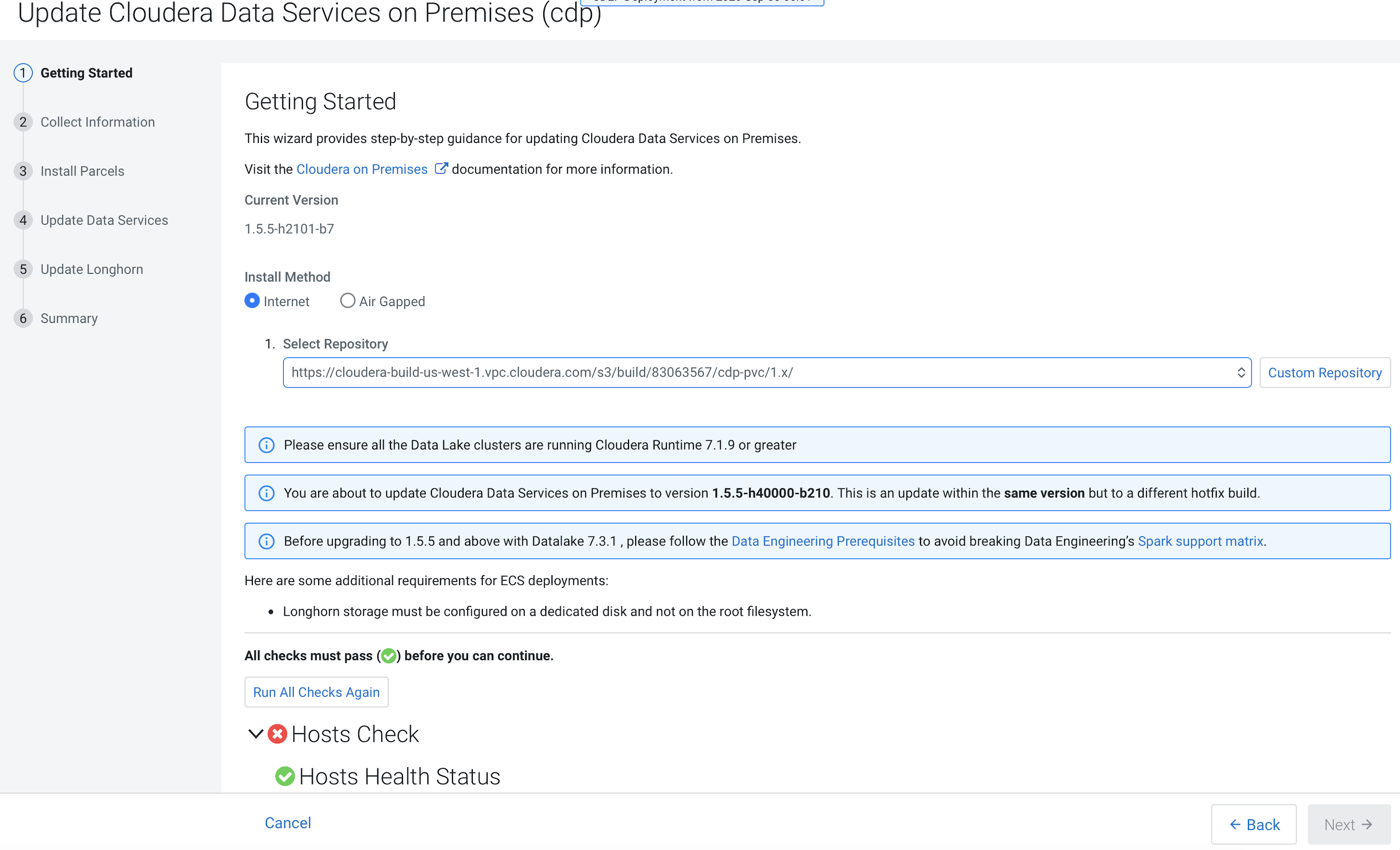
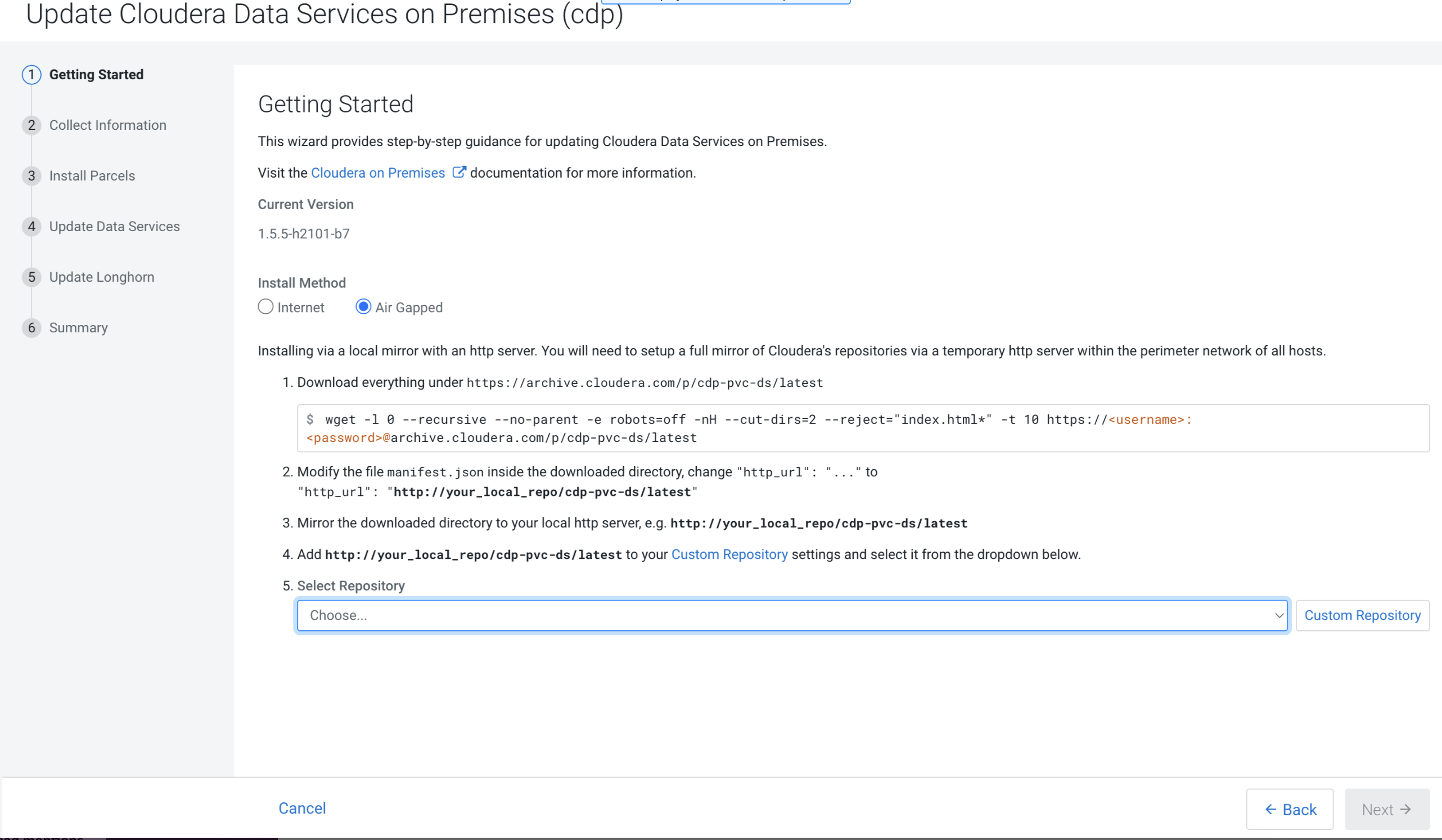
On the Getting Started page, you can select the Install
method - Air Gapped or Internet
and proceed. For more information on the pre-upgrade checklist, see Pre-upgrade checklist.
Internet install method
Air Gapped install method
Click Next.
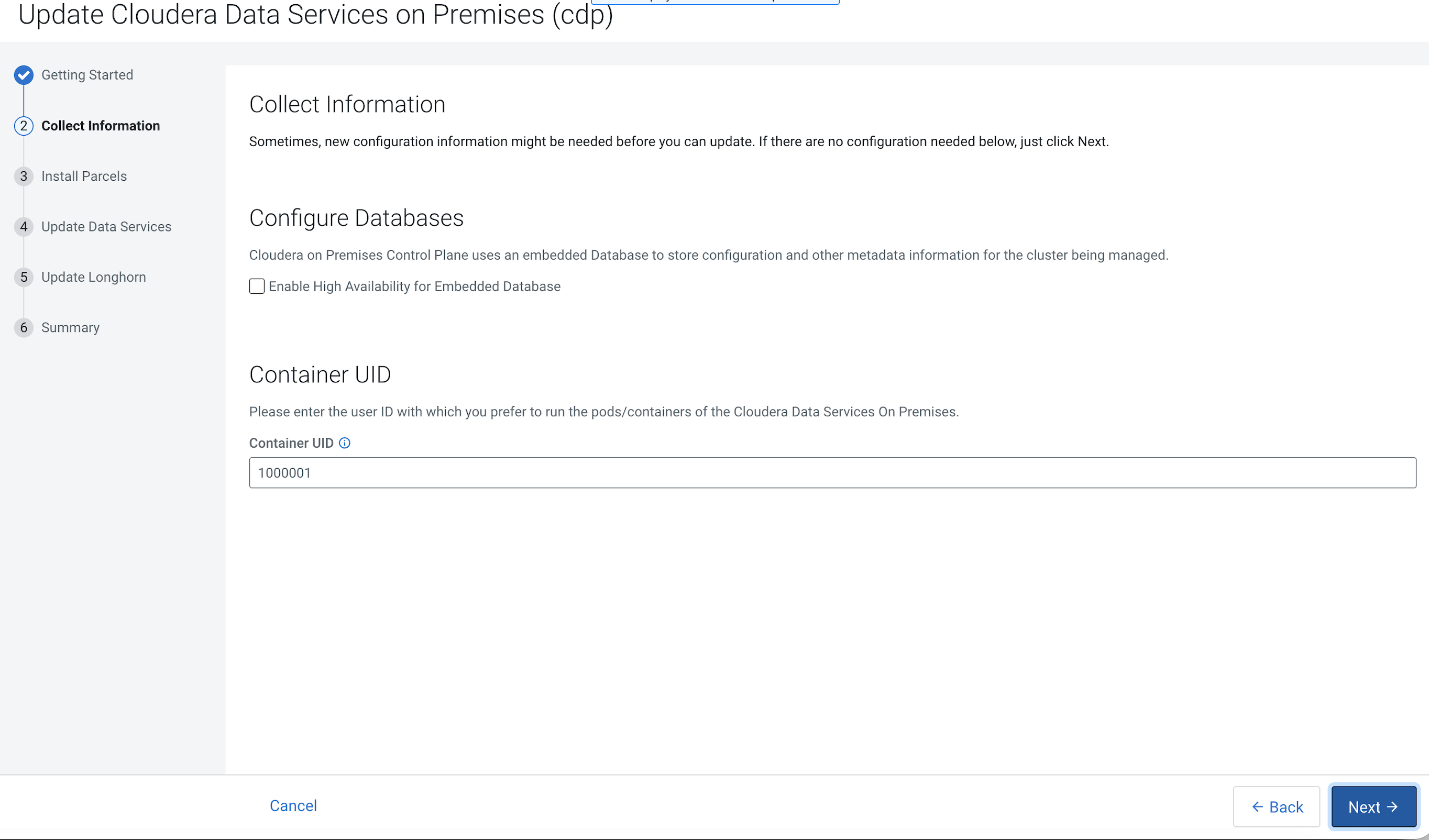
On the Collect Information page, click
Next.
As part of the upgrade process workflow, this step is the only
opportunity for you to generate a post-upgrade cleanup script.
Must be run only after the successful upgrades of all Cloudera Embedded Container Service clusters using the same custom
docker repository.
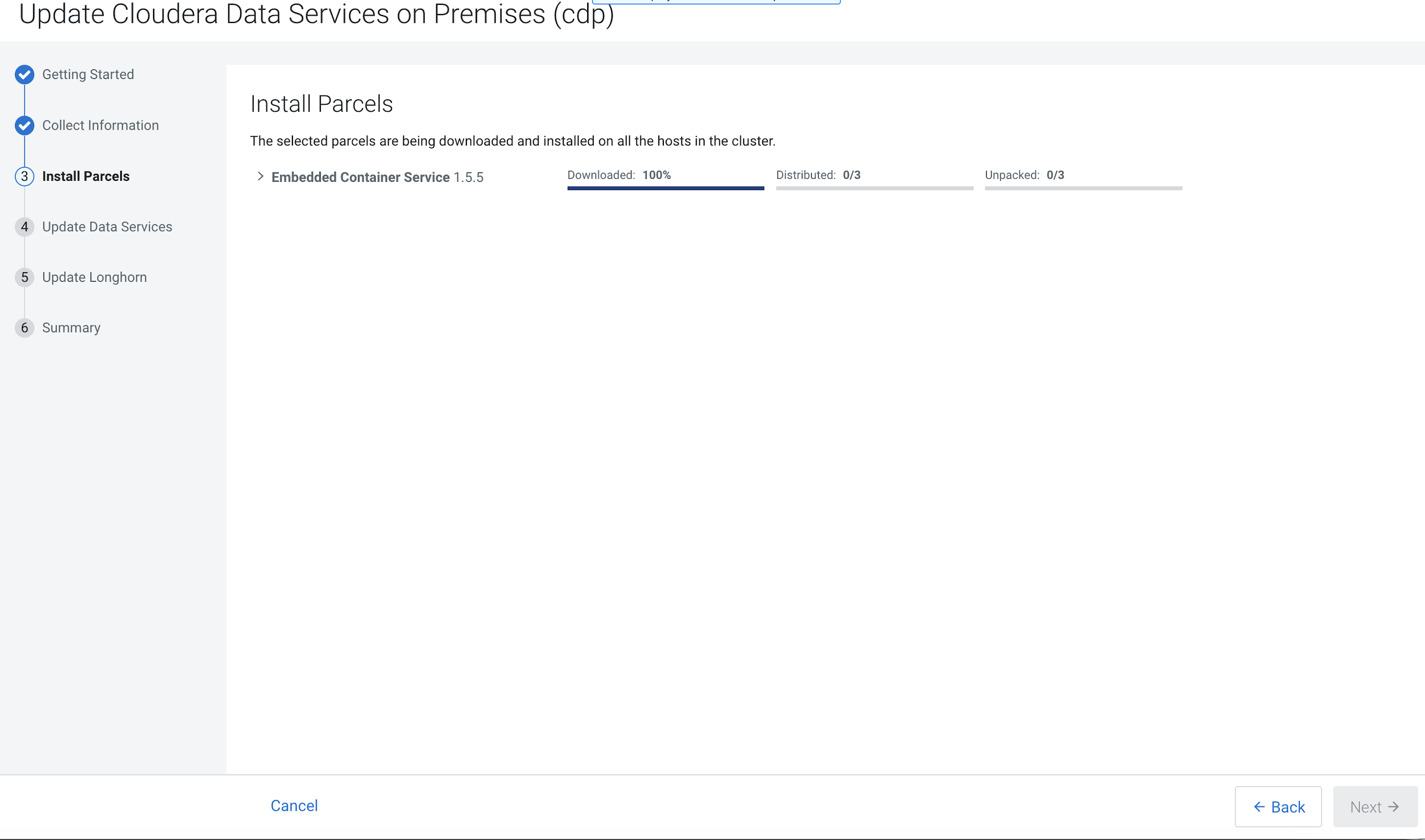
On the Install Parcels page, click
Next.
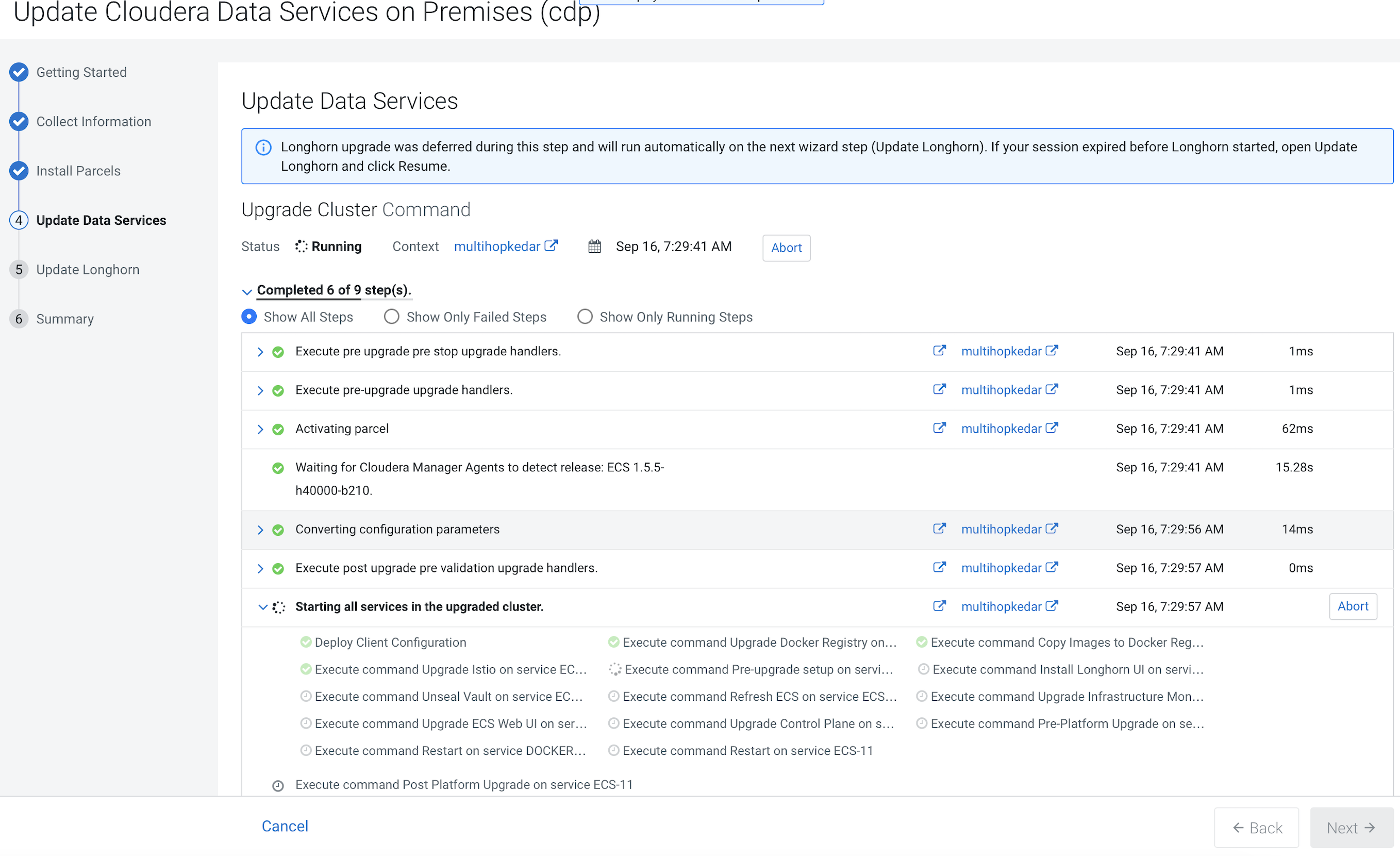
On the Update Data Services page, you can view the
progress of your upgrade. Post Upgrade
Validation is run and these are a set of health checks added as the
last step in the upgrade to verify that the upgrade was successful and the
cluster is healthy. This includes verifying that the services are healthy, the
hosts are upgraded to the new version, and that the control plane is in a
healthy state after upgrade. For the control plane to be determined as good
health, it will verify that RKE2, Longhorn, and Vault are healthy. It will also
check that the critical pods in the Cloudera Control Plane
namespace are up and running.
Click Next after the upgrade is complete .
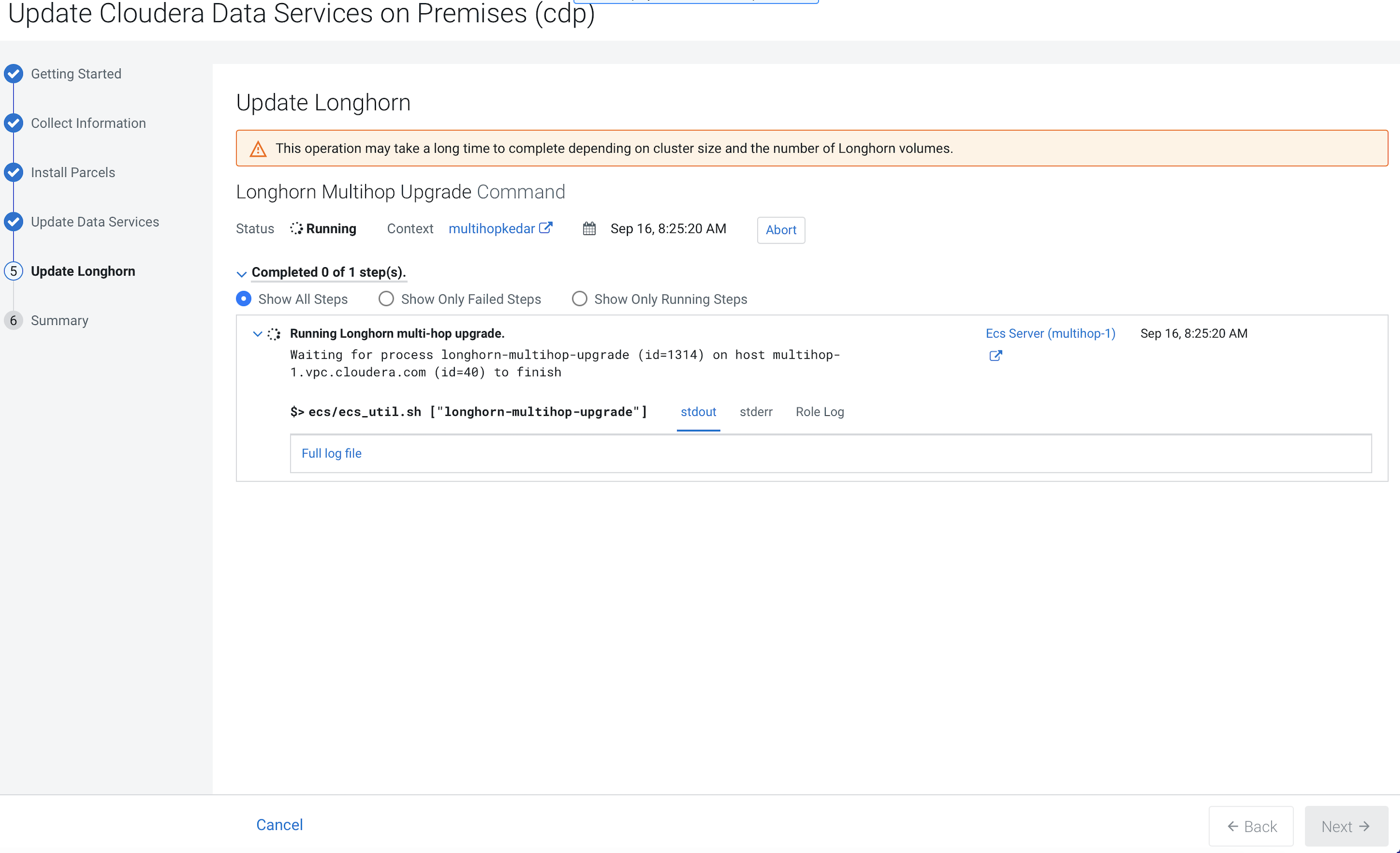
On the Update Longhorn page you can view the progress of
the Longhorn upgrade.
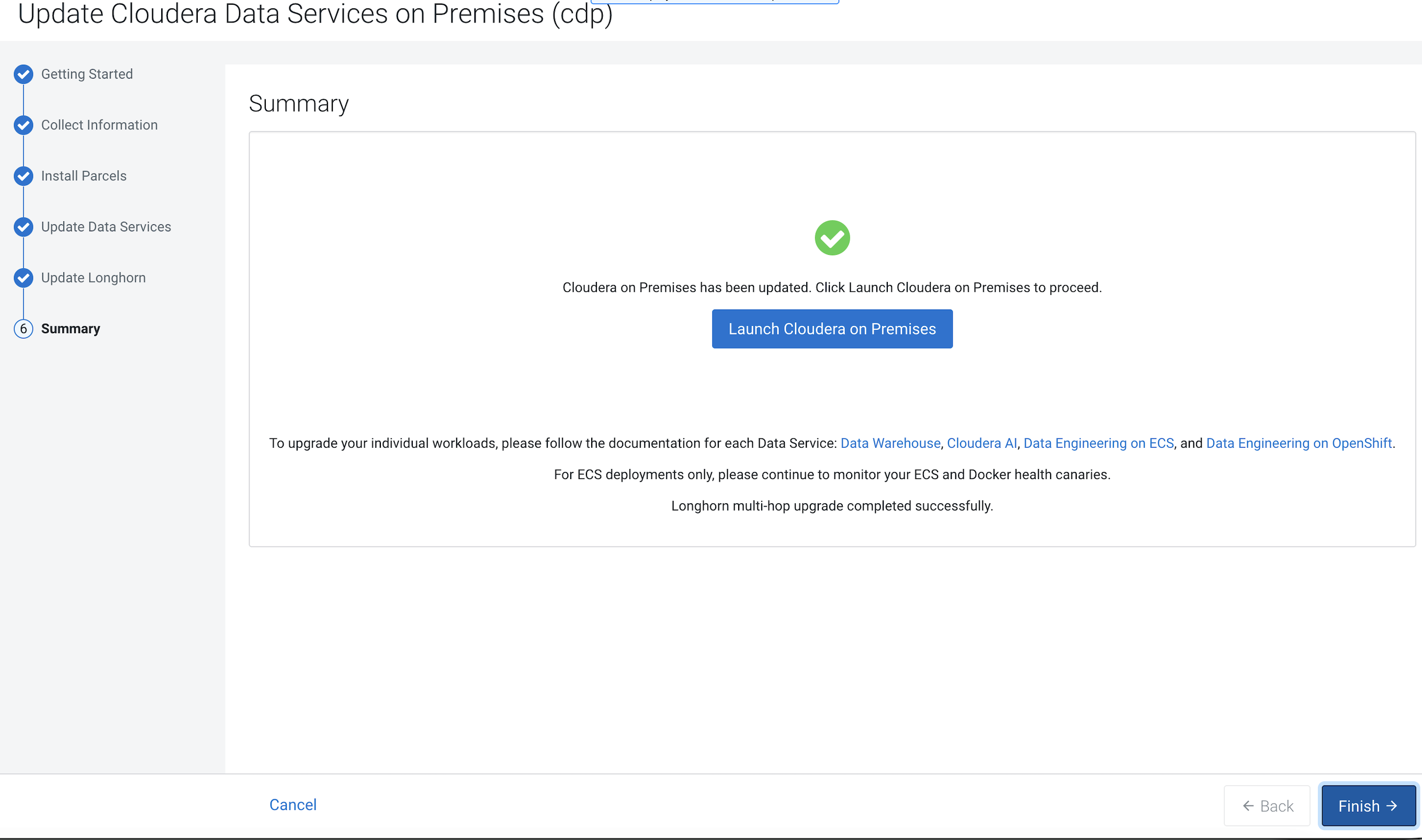
After the upgrade is complete, the Summary page appears.
You can now Launch Cloudera on premises from here.
If you see a Longhorn Health Test message about a degraded Longhorn
volume, wait for the cluster repair to complete.
Or you can navigate to the Cloudera Data Services on premises page and
click Open Cloudera on premises.
Cloudera Data Services on premises UI displays in a new
window.
 icon, then click
Update.
icon, then click
Update.