Managing deployments in Cloudera Edge Management
Learn about the Dashboard page in Cloudera Edge Management, which provides a centralized view for monitoring and managing C2 server and agent deployments. It is the default landing page in the Edge Flow Manager UI.
The Dashboard combines monitoring and operational capabilities in a single view. It allows you to track agent health, flow updates, and command status in real time and access agent class details.
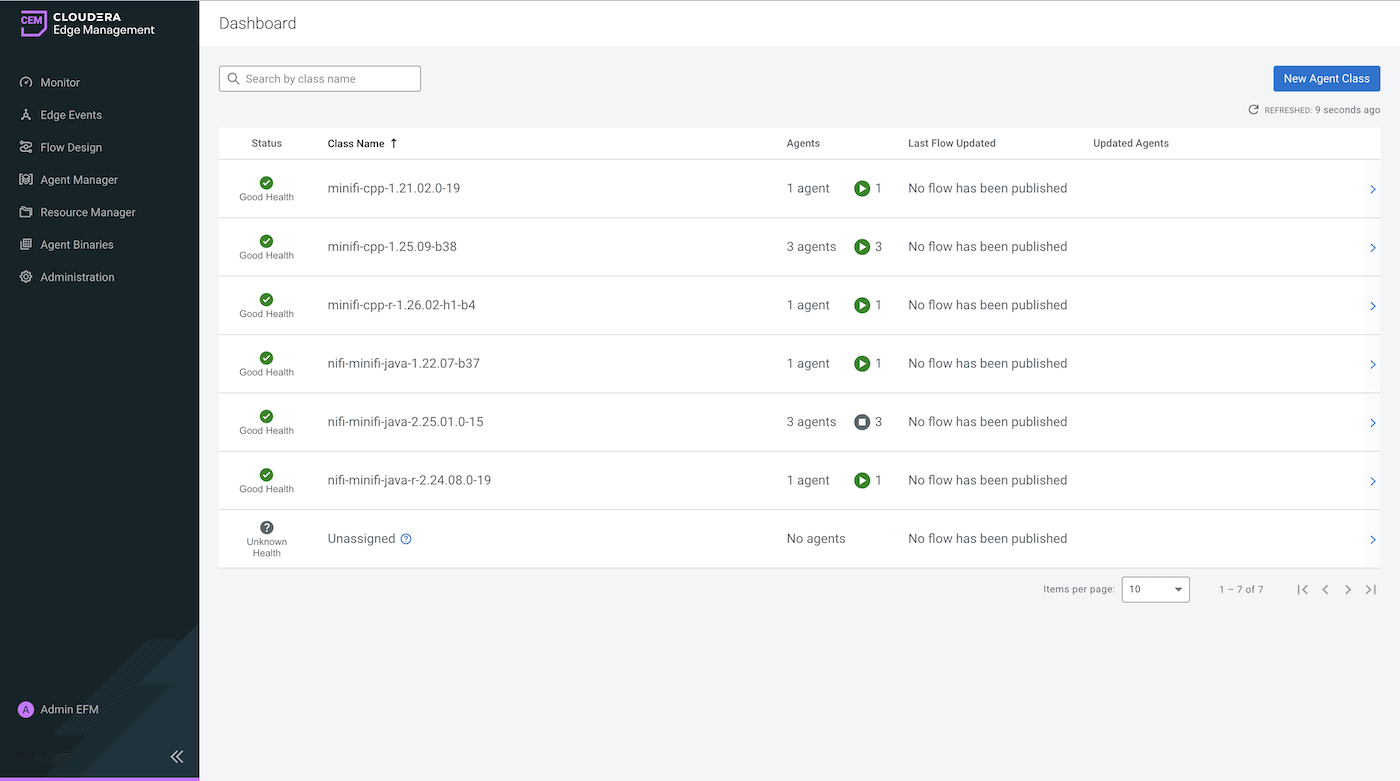
Agent class list
The Dashboard provides the following information for each agent class:
- Status
-
Indicates the overall health of agents in an agent class, based on heartbeat activity:
- Good Health: Recent heartbeats are received from all agents in the agent class.
- Concerning Health: Some agents have not sent a
heartbeat within the time period defined by the
efm.monitor.maxHeartbeatInterval. - Bad Health: No agents have sent a heartbeat in
the given class for the time period defined in
the
efm.monitor.maxHeartbeatInterval. - Unknown Health: The agents in the class may not yet be registered, or the heartbeat intervals cannot be determined.
An indicator next to the status icon shows that there are alerts associated with the agent class.
Possible alert messages include:-
A recent heartbeat has not been received for [a number of] agents. - You can click View Recent Alerts to learn more about the issue.
-
Errors occurred during previous flow publishing. - This lists the most frequent errors since the last publish. The number in brackets indicates how many times the error occurred. You can click View Errors to learn more about the issue.
-
Agent Class contains agents with expiring certification within 30 days. - This notifies you that the certification of an agent will expire soon and you should renew it. You can click View Recent Alerts to learn more about the issue. Once the renewal is addressed, the alert disappears.
-
Agent property sync is in progress
-
Resource sync is in progress
Configuration inconsistency alerts indicate that agents in a class are temporarily not aligned. This can occur during updates or when a change has not yet propagated to all agents. These alerts highlight configuration drift, allowing you to investigate and resolve it before they cause inconsistent behavior across agents. To investigate,, switch to the Agent Manager view, which displays an indicator for agents whose manifest is out of sync.
Examples of configuration inconsistencies:- Manifest out of sync
- Agent certification expiration
- Operation in progress
- Class Name
-
Displays the name of the agent class.
- Agents
-
Displays the total number of agents assigned to the agent class, including both online and missing agents. Status icons next to the agent count indicate how many agents are running or stopped.
- Last Flow Updated
-
Indicates when the flow was last updated for the agent class.
- Updated Agents
-
Shows the status of the last batched command (for example flow publishing or property updates). Batched commands cannot fully complete for all agents if there are missing agents in the class.
- Arrow
-
Click the arrow at the end of a row to open the agent class details pane and review metrics, alerts, resources, and configurations.
Sorting and searching agent classes
You can sort data by most of the columns in ascending or descending order by clicking the column header.
To search for an agent class by class name, add your search string in the search field.
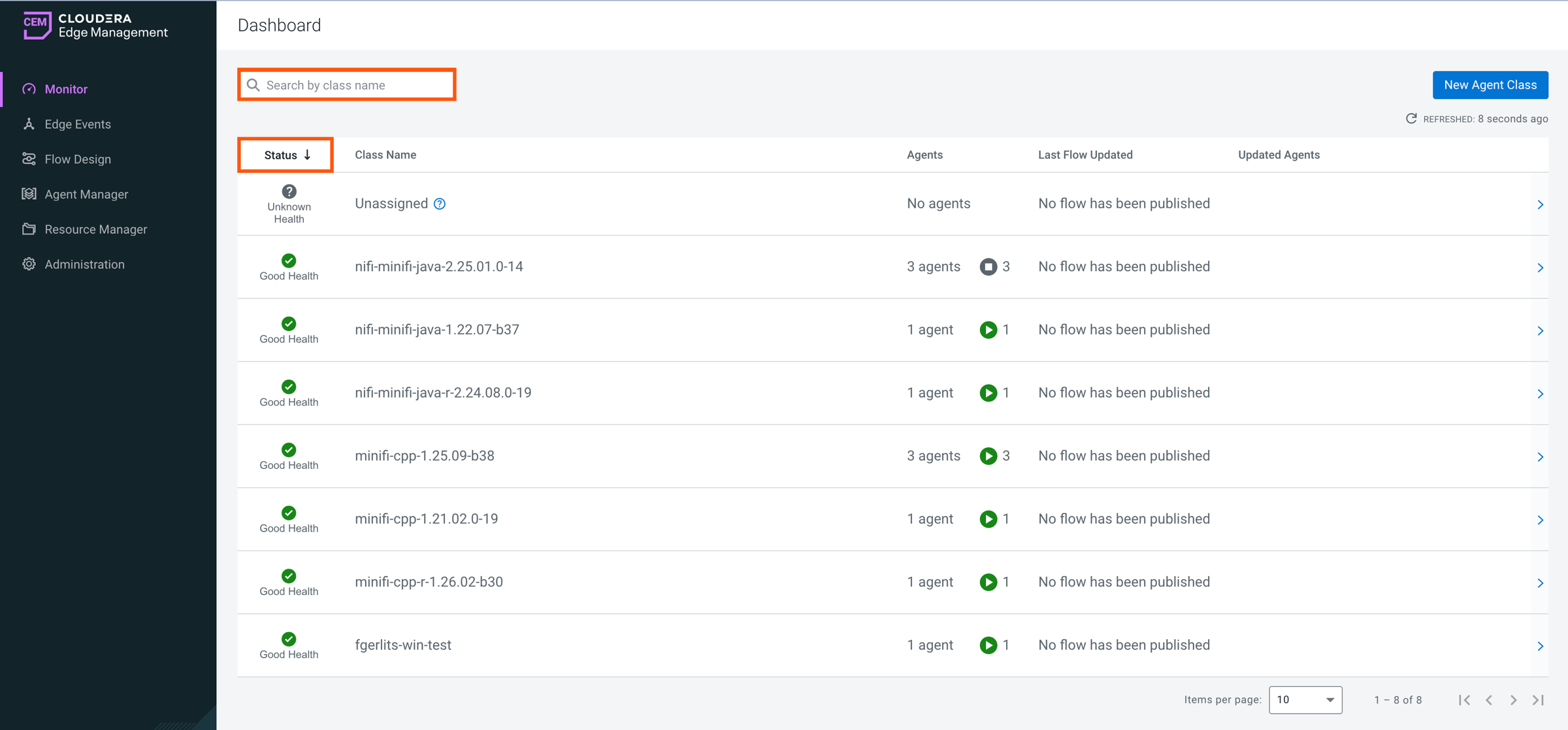
Items per page
Use the Items per page dropdown at the bottom of the table to control how many agent classes are displayed on a page.
If multiple pages are available, use the pagination controls to navigate between pages (first, previous, next, or last).
