Creating collections for migration
After scanning, group datasets and workloads into collections so you control what migrates in each plan execution.
After scanning the source cluster, use collections to organize the datasets and workloads that need to be migrated. Collections group related items together, allowing you to run phased migrations by selecting which collections to include in a migration plan.
Accessing collections
Collections are managed within a migration plan. Navigate to Plans, open your plan, and click the Collections tab.
The Collections tab shows:
Scanned Services panel (left) — lists available data sources (Datasets & Workloads)
Data browser (center) — displays scanned items in a navigable tree, filtered by service type
Collections sidebar (left, below Scanned Services) — lists all collections with item counts
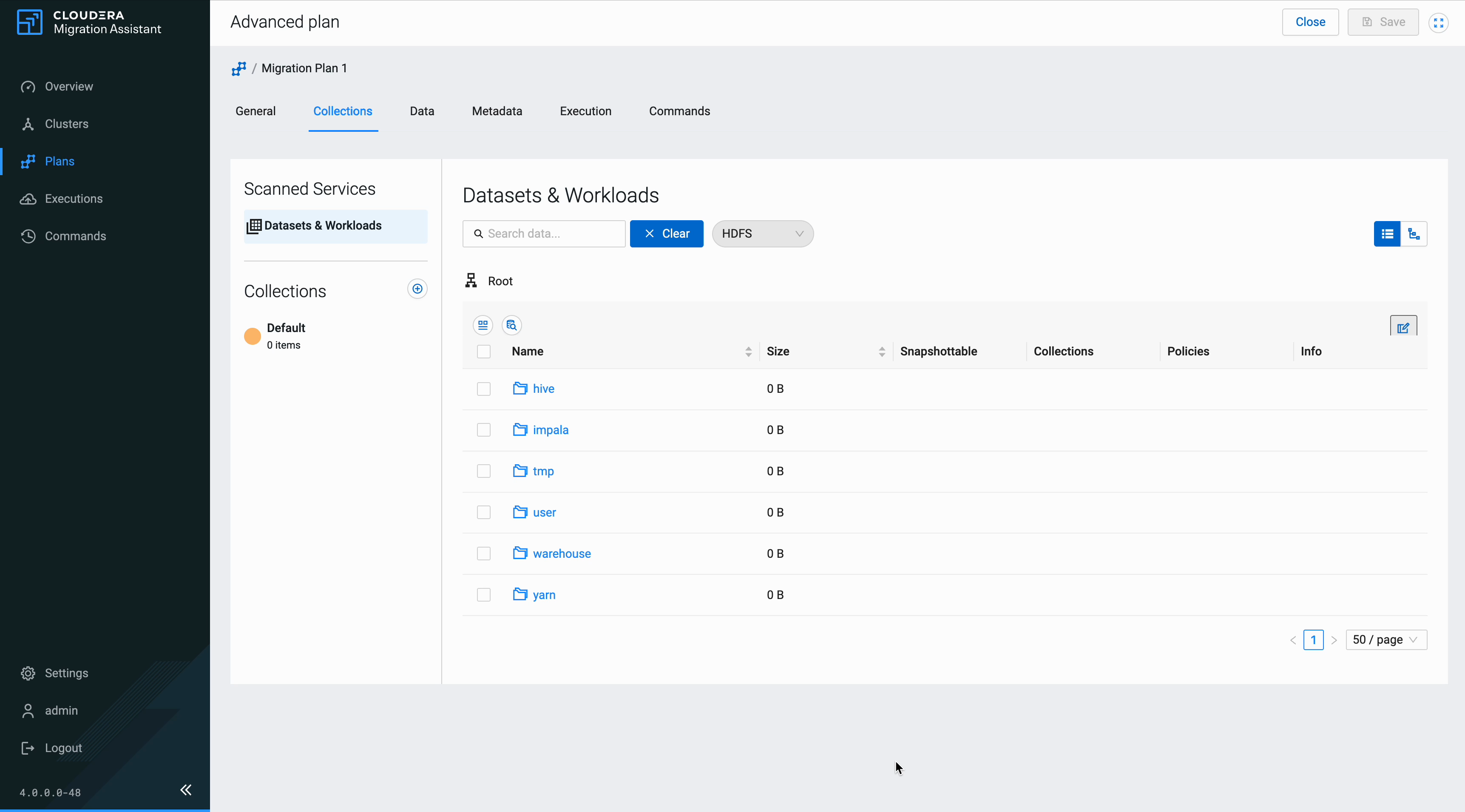
Filtering data
Use the service type dropdown to filter the data browser by scan type:
HDFS — HDFS directories and files
Hive — Hive tables and databases
Ozone — Ozone volumes, buckets, and keys
-
In the Collection Details drawer, enter a Collection name and select a Color for identification.
Figure 2. Cloudera Migration Assistant create collection 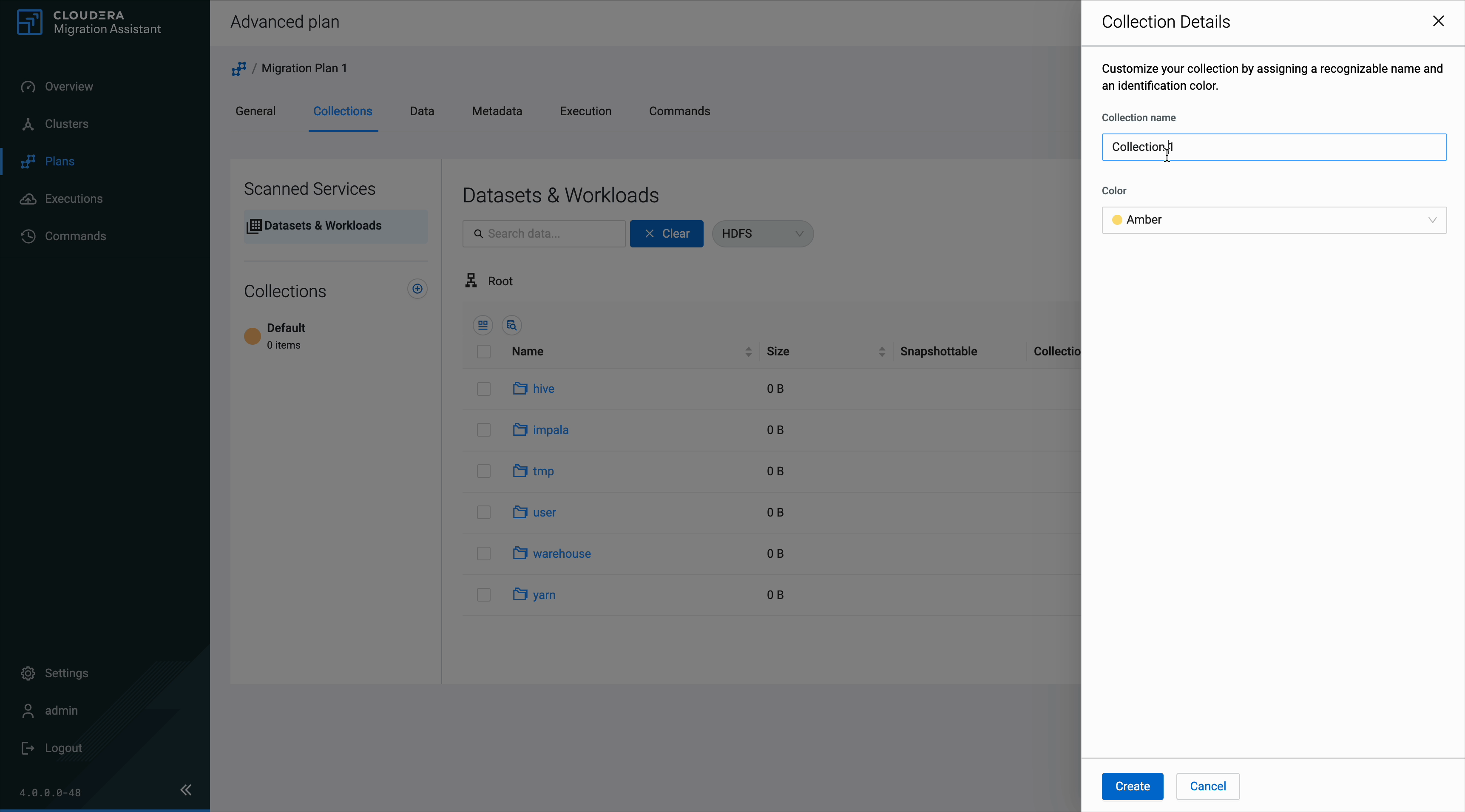
-
Click Apply.
Figure 3. Cloudera Migration Assistant assign to collection 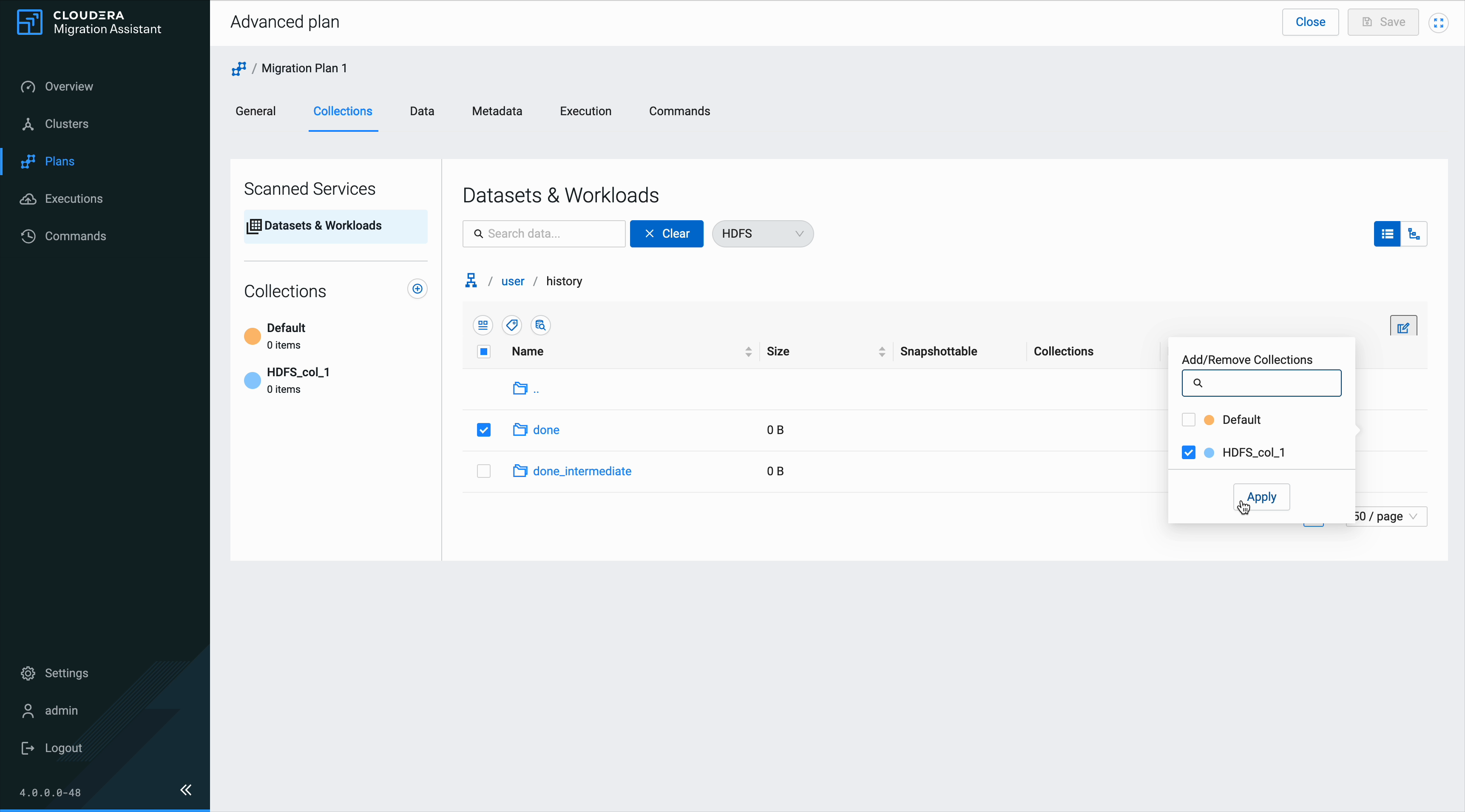
-
Click a collection name in the sidebar to view its contents. The data browser switches to show only the items assigned to that collection.
Figure 4. Cloudera Migration Assistant view collection 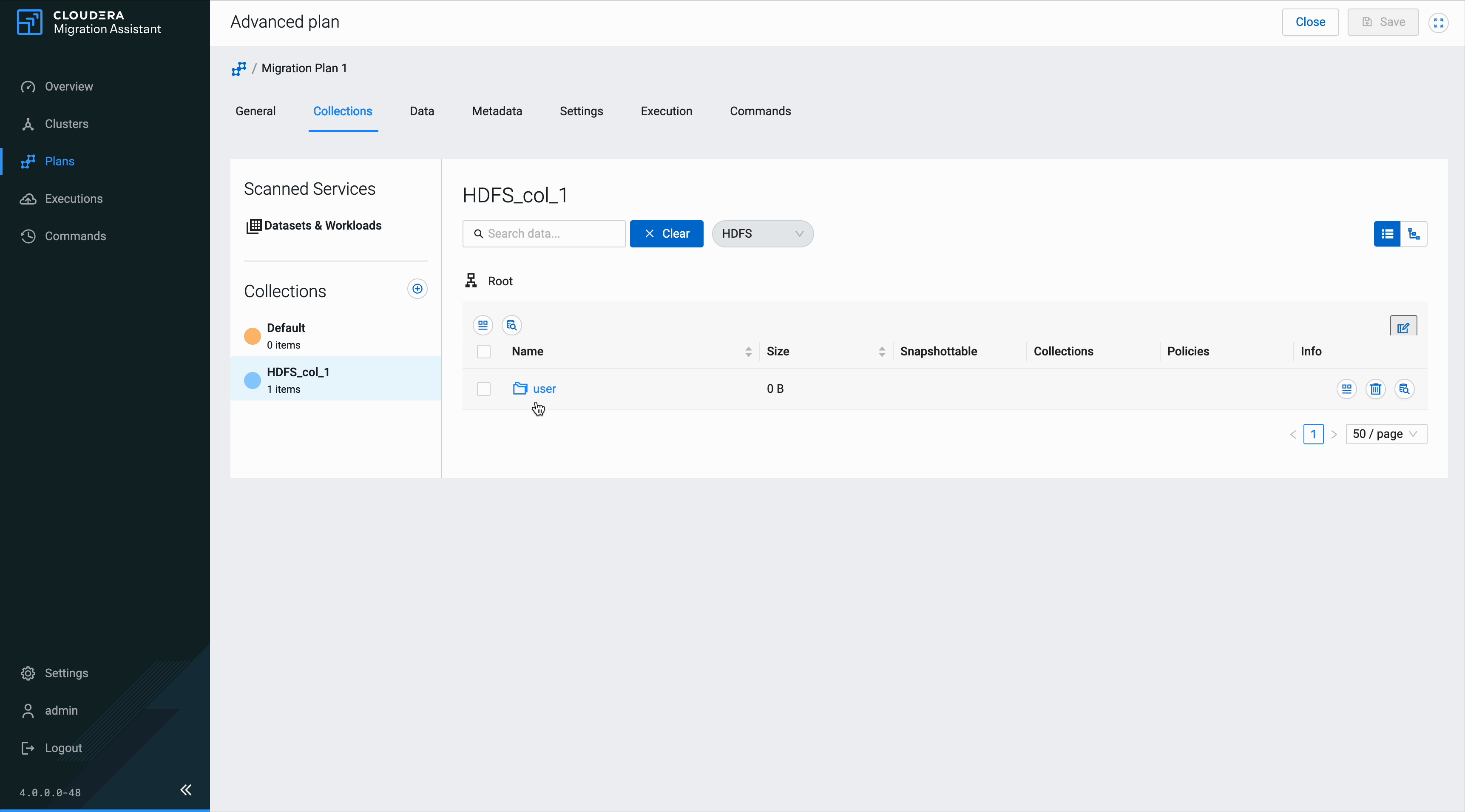
Collections group scanned datasets for phased migration planning.
You can edit or remove collections from the sidebar. Removing a collection does not affect the source data — only the grouping is deleted.
Create a migration plan to begin migrating the collected datasets. See the migration type guides for specific workflows:
Migrating HDFS data to Ozone
Migrating Airflow DAGs from Cloudera Data Engineering to a Cloudera Workflow Orchestrator Git repository
Migrating Ranger policies
