Example: Deploying the Apache Iceberg Sink Connector for Kafka Connect

If you need to make your Kafka streaming data accessible for analytics, you can deploy the Apache Iceberg Sink Connector to write data into Iceberg table format. This example shows you how to configure the connector with a Nessie catalog and S3 storage, enabling you to query your real-time Kafka data using analytics engines such as Spark.

This example demonstrates how to set up the following end-to-end Apache Iceberg Sink Connector deployment:
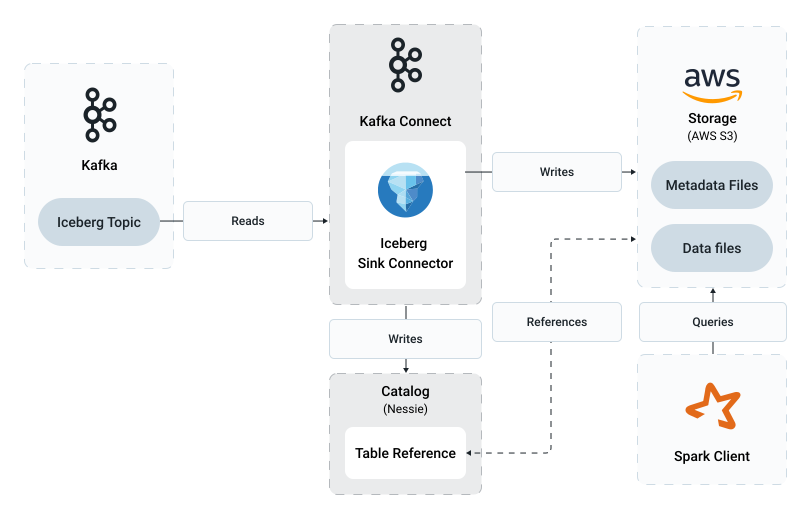
Figure 1. Apache Iceberg Sink Connector example deployment

In this example setup, the connector reads records from a Kafka topic and writes them to S3 storage as Parquet files with enhanced metadata including schema and partitioning information. The connector also updates a Nessie data catalog with references to the current metadata and schema.

After the connector is deployed and data from the Kafka topic is written to S3, you retrieve the data by querying the table with Apache Spark.

About connector dependencies

The Apache Iceberg Sink Connector is part of a large ecosystem with many storage and catalog options. The required dependencies vary depending on your specific use case, including the target storage system, such as S3, ADLS, or HDFS, the data catalog implementation, such as Nessie, AWS Glue, Hive, or JDBC, and the data serialization format, such as Parquet, ORC, or Avro. Each combination requires a different set of artifacts to function correctly.

For this example, which uses Nessie as the data catalog, S3 as the storage backend, and Parquet as the data format, the following artifacts are required:

  • iceberg-kafka-connect – The connector plugin itself

  • hadoop-common – Core Hadoop libraries

  • iceberg-parquet – Parquet file format support

  • iceberg-nessie – Nessie catalog client libraries

  • iceberg-aws-bundle – AWS SDK bundle for S3 integration

  • iceberg-aws – Iceberg AWS integration libraries

These artifacts are specified in your KafkaConnect resource and will be downloaded from Maven.

  • Ensure that the Strimzi Cluster Operator is installed and running. See Installation.

  • Ensure that you have a Kafka cluster deployed and running on Kubernetes. If not, deploy one, see Deploying Kafka.

    This example assumes a Kafka cluster deployed with Cloudera Streams Messaging Operator for Kubernetes. The name of the cluster is referred to as [***KAFKA CLUSTER NAME***]. The namespace is referred to as [***KAFKA NAMESPACE***].

  • Ensure that a namespace is available where you can deploy your Kafka Connect cluster. If not, create one.

    kubectl create namespace [***KAFKA CONNECT NAMESPACE***]
  • Ensure that you have access to a container registry where you can upload a Kafka Connect container image.

    The registry is required as you will be building your own custom Kafka Connect image that includes the Apache Iceberg Sink Connector and its dependencies. You can use your own private registry or a public registry such as Quay.io or Docker Hub. The registry is referred to as [***YOUR REGISTRY***] in this example.

  • Ensure that you have an S3 bucket available for storing Iceberg table data.

    You will need the name and AWS region of the bucket as well access credentials (access key ID and secret access key). These are referred to as [***S3 BUCKET***], [***S3 REGION***], [***AWS ACCESS KEY ID***], and [***AWS SECRET ACCESS KEY***] in this example.

  • Download the kafka_shell.sh tool from the Cloudera Archive.

    You will use this tool to create topics and to produce data for testing.

  1. Deploy the Nessie data catalog.

    The catalog is required to track table metadata and schemas.

    1. Create a YAML configuration file for the Nessie Deployment and Service.
      apiVersion: apps/v1
      kind: Deployment
      metadata:
        name: nessie
      spec:
        selector:
          matchLabels:
            app: nessie
        template:
          metadata:
            labels:
              app: nessie
          spec:
            containers:
            - name: nessie
              image: projectnessie/nessie:latest
              env:
                - name: NESSIE_VERSION_STORE_TYPE
                  value: IN_MEMORY
              ports:
              - containerPort: 19120
      ---
      apiVersion: v1
      kind: Service
      metadata:
        name: nessie
      spec:
        type: ClusterIP
        ports:
        - port: 19120
          name: http
        selector:
          app: nessie
    2. Deploy Nessie.
      kubectl apply --filename [***NESSIE YAML CONFIG***] \
        --namespace [***NESSIE NAMESPACE***]

      Take note of the namespace where you deploy Nessie, as you will need it when configuring the connector.

  2. Create a Docker configuration Secret for image registry authentication.

    Strimzi needs credentials to pull base images from the Cloudera repository and push the built Kafka Connect image to your registry.

    1. Create a Docker configuration JSON file named docker_secret.json that contains your credentials to both the Cloudera container repository and your own repository where the images will be pushed.
      {
          "auths": {
              "container.repository.cloudera.com": {
                  "username": "[***CLOUDERA USERNAME***]",
                  "password": "[***CLOUDERA PASSWORD***]"
              },
              "[***YOUR REGISTRY***]": {
                  "username": "[***USERNAME***]",
                  "password": "[***PASSWORD***]"
              }
          }
      }
    2. Create a Kubernetes Secret from the Docker configuration file.
      kubectl create secret docker-registry [***SECRET NAME***] \
        --from-file=.dockerconfigjson=docker_secret.json \
        --namespace [***KAFKA CONNECT NAMESPACE***]
  3. Deploy a Kafka Connect cluster that includes the connector and its dependencies.

    The Kafka Connect cluster must include the connector plugin and its dependencies. Strimzi automatically builds a custom image and uploads it to the specified registry when the build.output and build.plugins properties are configured.

    1. Create a YAML configuration file for the KafkaConnect resource.
      apiVersion: kafka.strimzi.io/v1
      kind: KafkaConnect
      metadata:
        name: [***CONNECT CLUSTER NAME***]
        annotations:
          strimzi.io/use-connector-resources: "true"
      spec:
        version: 4.1.1.1.6
        replicas: 3
        bootstrapServers: [***KAFKA CLUSTER NAME***]-kafka-bootstrap.[***KAFKA NAMESPACE***]:9092
        build:
          output:
            type: docker
            image: [***YOUR REGISTRY***]/iceberg/kafka-connect-iceberg:latest
            pushSecret: [***SECRET NAME***]
          plugins:
            - name: iceberg-kafka-connect
              artifacts:
                - type: maven
                  group: org.apache.iceberg
                  artifact: iceberg-kafka-connect
                  version: 1.10.0
                - type: maven
                  group: org.apache.iceberg
                  artifact: iceberg-nessie
                  version: 1.10.0
                - type: maven
                  group: org.apache.iceberg
                  artifact: iceberg-parquet
                  version: 1.10.0
                - type: maven
                  group: org.apache.hadoop
                  artifact: hadoop-common
                  version: 3.4.1
                - type: maven
                  group: org.apache.iceberg
                  artifact: iceberg-aws-bundle
                  version: 1.10.0
                - type: maven
                  group: org.apache.iceberg
                  artifact: iceberg-aws
                  version: 1.10.0
        groupId: connect-cluster
        offsetStorageTopic: connect-cluster-offsets
        configStorageTopic: connect-cluster-configs
        statusStorageTopic: connect-cluster-status
        config:
          config.providers: secrets
          config.providers.secrets.class: io.strimzi.kafka.KubernetesSecretConfigProvider
    2. Deploy the KafkaConnect resource.
      kubectl apply --filename [***KAFKA CONNECT YAML CONFIG***] \
        --namespace [***KAFKA CONNECT NAMESPACE***]
    3. Wait until images are built and pushed. The Kafka Connect cluster is automatically deployed afterwards.
      While you wait, you can monitor the deployment process with kubectl get and kubectl logs.
      kubectl get pods --namespace [***KAFKA CONNECT NAMESPACE***]

      The output lists a Pod called [***CONNECT CLUSTER NAME***]-connect-build. This is a build Pod responsible for constructing and pushing your image.

      NAME                                                   READY     STATUS      RESTARTS
      #...
      [***CONNECT CLUSTER NAME***]-connect-build             1/1       Running     0       

      You can get additional information by checking Pod logs.

      kubectl logs [***CONNECT CLUSTER NAME***]-connect-build --namespace [***KAFKA CONNECT NAMESPACE***]

      The log will contain various INFO entries related to building and pushing the image. After the image is successfully built and pushed, the build Pod is deleted and the Kafka Connect cluster is deployed.

    4. Verify that the Kafka Connect cluster is deployed.
      kubectl get kafkaconnect [***CONNECT CLUSTER NAME***] --namespace [***KAFKA CONNECT NAMESPACE***]

      The output is expected to show the cluster as ready.

      NAME                           DESIRED REPLICAS   READY
      #...
      [***CONNECT CLUSTER NAME***]   3                   True
  4. Configure AWS credentials for S3 access.

    The Iceberg connector needs credentials to write data to S3. You store these credentials in a Kubernetes Secret and configure Role-Based Access Control (RBAC) to allow the Kafka Connect service account to access the Secret.

    1. Create a Kubernetes Secret for AWS credentials.
      kubectl create secret generic iceberg-aws-credentials \
        --namespace [***KAFKA CONNECT NAMESPACE***] \
        --from-literal=access_key_id=[***AWS ACCESS KEY ID***] \
        --from-literal=secret_access_key="$(echo -n 'Enter your AWS secret access key: ' >&2; read -s key; echo >&2; echo $key)"
      Enter your AWS secret access key when prompted.
    2. Create a YAML configuration file for RBAC.
      apiVersion: rbac.authorization.k8s.io/v1
      kind: Role
      metadata:
        name: iceberg-connector-role
      rules:
      - apiGroups: [""]
        resources: ["secrets"]
        resourceNames: ["iceberg-aws-credentials"]
        verbs: ["get"]
      ---
      apiVersion: rbac.authorization.k8s.io/v1
      kind: RoleBinding
      metadata:
        name: iceberg-connector-role-binding
      subjects:
      - kind: ServiceAccount
        name: [***CONNECT CLUSTER NAME***]-connect
      roleRef:
        kind: Role
        name: iceberg-connector-role
        apiGroup: rbac.authorization.k8s.io
    3. Deploy the RBAC resources.
      kubectl apply --filename [***AWS RBAC YAML CONFIG***] \
        --namespace [***KAFKA CONNECT NAMESPACE***]
  5. Deploy the Apache Iceberg Sink Connector.
    1. Create a YAML configuration file for the KafkaConnector resource.
      apiVersion: kafka.strimzi.io/v1
      kind: KafkaConnector
      metadata:
        name: iceberg-sink
        labels:
          strimzi.io/cluster: [***CONNECT CLUSTER NAME***]
      spec:
        class: org.apache.iceberg.connect.IcebergSinkConnector
        tasksMax: 1
        config:
          value.converter: org.apache.kafka.connect.json.JsonConverter
          value.converter.schemas.enable: false
          topics: "data-topic"
          iceberg.catalog.type: "nessie"
          iceberg.catalog.uri: "http://nessie.[***NESSIE NAMESPACE***]:19120/api/v2"
          iceberg.catalog.ref: "main"
          iceberg.catalog.warehouse: "s3a://[***S3 BUCKET***]"
          iceberg.catalog.io-impl: "org.apache.iceberg.aws.s3.S3FileIO"
          iceberg.catalog.s3.region: "[***S3 REGION***]"
          iceberg.catalog.s3.access-key-id: "${secrets:iceberg-aws-credentials:access_key_id}"
          iceberg.catalog.s3.secret-access-key: "${secrets:iceberg-aws-credentials:secret_access_key}"
          iceberg.catalog.s3.path-style-access: "true"
          iceberg.tables.auto-create-enabled: "true"
          iceberg.tables: "data-topic"
          iceberg.control.commit.interval-ms: 60000
    2. Deploy the KafkaConnector resource.
      kubectl apply --filename [***CONNECTOR YAML CONFIG***] \
        --namespace [***KAFKA CONNECT NAMESPACE***]
    3. Verify that the connector is running.
      kubectl get kafkaconnectors \
        --namespace [***KAFKA CONNECT NAMESPACE***]

      The output is expected to show the connector as ready.

      NAME            CLUSTER              CONNECTOR CLASS                                  MAX TASKS   READY
      iceberg-sink    [***CONNECT CLUSTER NAME***]   org.apache.iceberg.connect.IcebergSinkConnector  1           True
  6. Test the deployment with Apache Spark.

    You can verify that the connector is writing data correctly by creating a Kafka topic, producing messages to the topic, and querying the Iceberg table using Spark.

    1. Run kafka_shell.sh.
      ./kafka_shell.sh \
        --namespace=[***KAFKA NAMESPACE***] \
        --cluster=[***KAFKA CLUSTER NAME***]
      This tool opens an interactive shell with configuration presets that enable you to quickly run Kafka command line tools.
    2. Create a Kafka topic.
      bin/kafka-topics.sh \
        --command-config /tmp/client.properties \
        --bootstrap-server $BOOTSTRAP_SERVERS \
        --create --topic data-topic \
        --partitions 1 \
        --replication-factor 1
    3. Start a console producer.
      bin/kafka-console-producer.sh \
        --producer.config /tmp/client.properties \
        --bootstrap-server $BOOTSTRAP_SERVERS \
        --topic data-topic
    4. Enter the following JSON records:
      {"id": 203, "user_name": "Bob", "department": "Sales", "event_ts": "2023-10-27T11:00:00Z"}
      {"id": 204, "user_name": "Charlie", "department": "Marketing", "event_ts": "2023-10-27T11:05:00Z"}
    5. Exit the console producer and the interactive shell.
    6. Create a YAML configuration file for a Spark Pod.
      apiVersion: v1
      kind: Pod
      metadata:
        name: spark-client
      spec:
        containers:
        - name: spark
          image: apache/spark:3.5.0
          securityContext:
            runAsUser: 0
          command: ["/bin/bash", "-c", "sleep infinity"]
          env:
            - name: HOME
              value: "/root"
    7. Deploy the Spark Pod.
      kubectl apply \
        --filename [***SPARK POD YAML CONFIG***] \
        --namespace [***SPARK NAMESPACE***]
    8. Start a Spark shell with the Iceberg extension.
      kubectl exec -it spark-client --namespace [***SPARK NAMESPACE***] -- /opt/spark/bin/spark-shell \
        --packages "org.apache.iceberg:iceberg-spark-runtime-3.5_2.12:1.10.0,org.apache.hadoop:hadoop-aws:3.4.2" \
        --conf spark.sql.extensions="org.apache.iceberg.spark.extensions.IcebergSparkSessionExtensions" \
        --conf spark.sql.catalog.nessie="org.apache.iceberg.spark.SparkCatalog" \
        --conf spark.sql.catalog.nessie.catalog-impl="org.apache.iceberg.nessie.NessieCatalog" \
        --conf spark.sql.catalog.nessie.uri="http://nessie.[***NESSIE NAMESPACE***]:19120/api/v1" \
        --conf spark.sql.catalog.nessie.ref="main" \
        --conf spark.sql.catalog.nessie.authentication.type="NONE" \
        --conf spark.sql.catalog.nessie.warehouse="s3://[***S3 BUCKET***]" \
        --conf spark.sql.catalog.nessie.io-impl="org.apache.iceberg.aws.s3.S3FileIO" \
        --conf spark.sql.catalog.nessie.s3.path-style-access="true" \
        --conf spark.sql.catalog.nessie.s3.access-key-id="[***AWS ACCESS KEY ID***]" \
        --conf spark.sql.catalog.nessie.s3.secret-access-key="$(echo -n 'Enter your AWS secret access key: ' >&2; read -s key; echo >&2; echo $key)"
      Enter your AWS secret access key when prompted.
    9. Query the Iceberg table using the Spark shell.
      spark.sql("USE nessie")
      spark.sql("SELECT * FROM `data-topic` LIMIT 10").show()
The Iceberg Sink Connector is deployed and writing data from Kafka topics to Iceberg tables stored in S3. The Nessie catalog tracks references to the table metadata and schemas, allowing analytics engines such as Spark to query the data.