Data Sharing user interface in Cloudera Data Catalog
The Data Sharing user interface in Cloudera Data Catalog enables Data Providers to manage logical data shares and external user access. Key features include lifecycle management of data shares, detailed share metrics, and secure credential handling for external Data Consumers.
Data Providers interact with the following pages in Cloudera Data Catalog:
All Shares
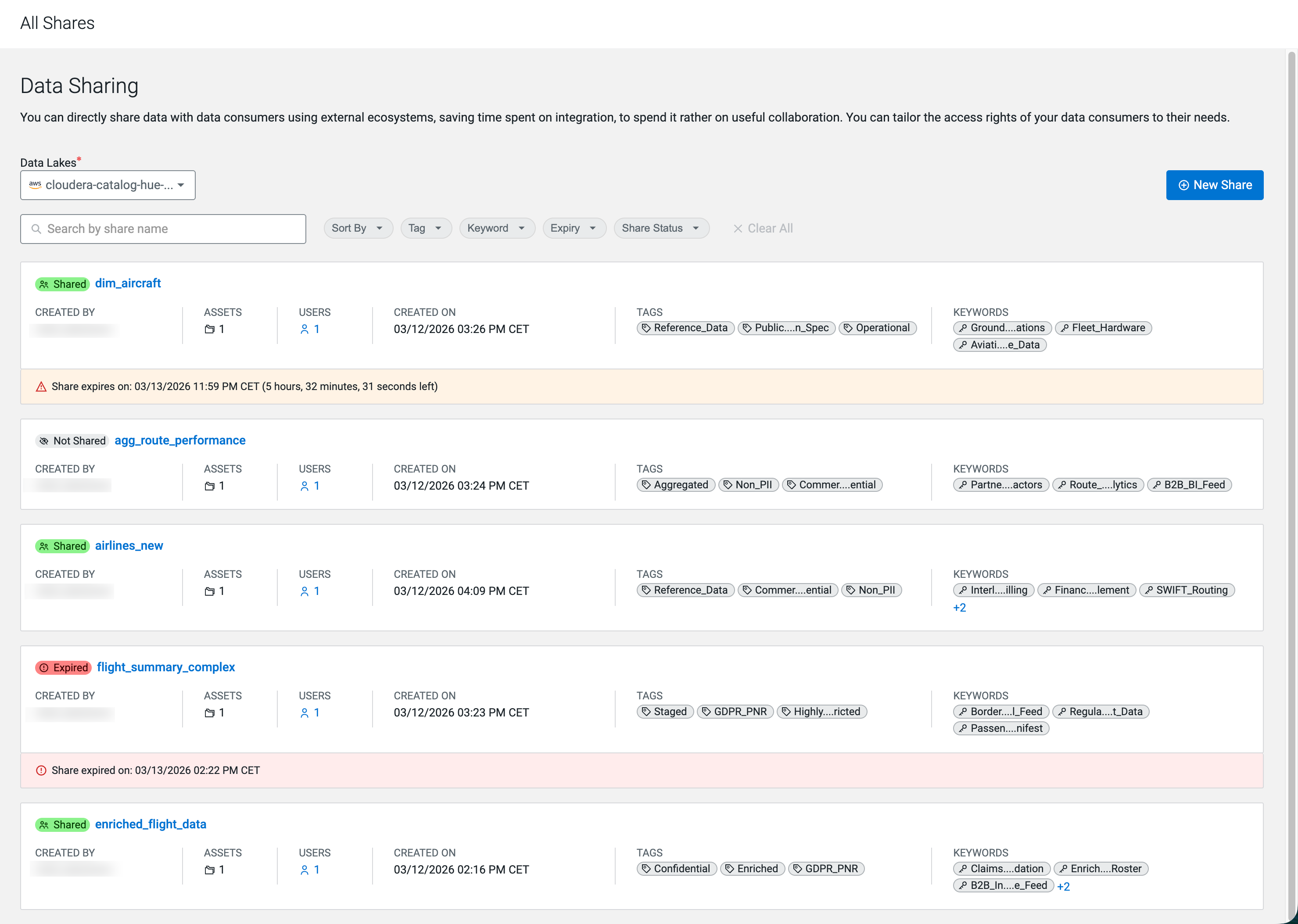
The All Shares page serves as the central command hub where Data Providers can search, discover, and manage the lifecycles of their logical data shares. As Data Providers have a federated view, they can manage shares across multiple data lakes within a specific environment.
- Share Creation and Modification
- Admins can initiate the creation of a new Data Share, defining its name, summary, terms and conditions, and time-bound validity period. They can also modify existing shares (which temporarily places them in an unshared state) to add or remove assets and users.
- Filtering and Discovery
- The page provides filtering to easily locate shares. Admins can search by share name, or filter by specific Atlas Tags, custom Keywords (for example, "finance" or "B2B_Operational"), expiration status, and the current share status (for example, Shared or Not Shared).
- Metrics
- The main list view displays critical information for each share, including the number of assets included (up to a limit of 15 per share), the number of external users with access, and exact creation and expiration dates.
- Share Details
-
Clicking into a specific share opens a detailed view with dedicated tabs for:
- Assets
- Lists the specific Iceberg tables included in the share.
- Users
- Lists the external consumers authorized to view the data.
- Metadata Audits
- Tracks administrative changes made to the share itself, such as adding a
new table or changing the summary.
Figure 2. Accessing metadata audit details 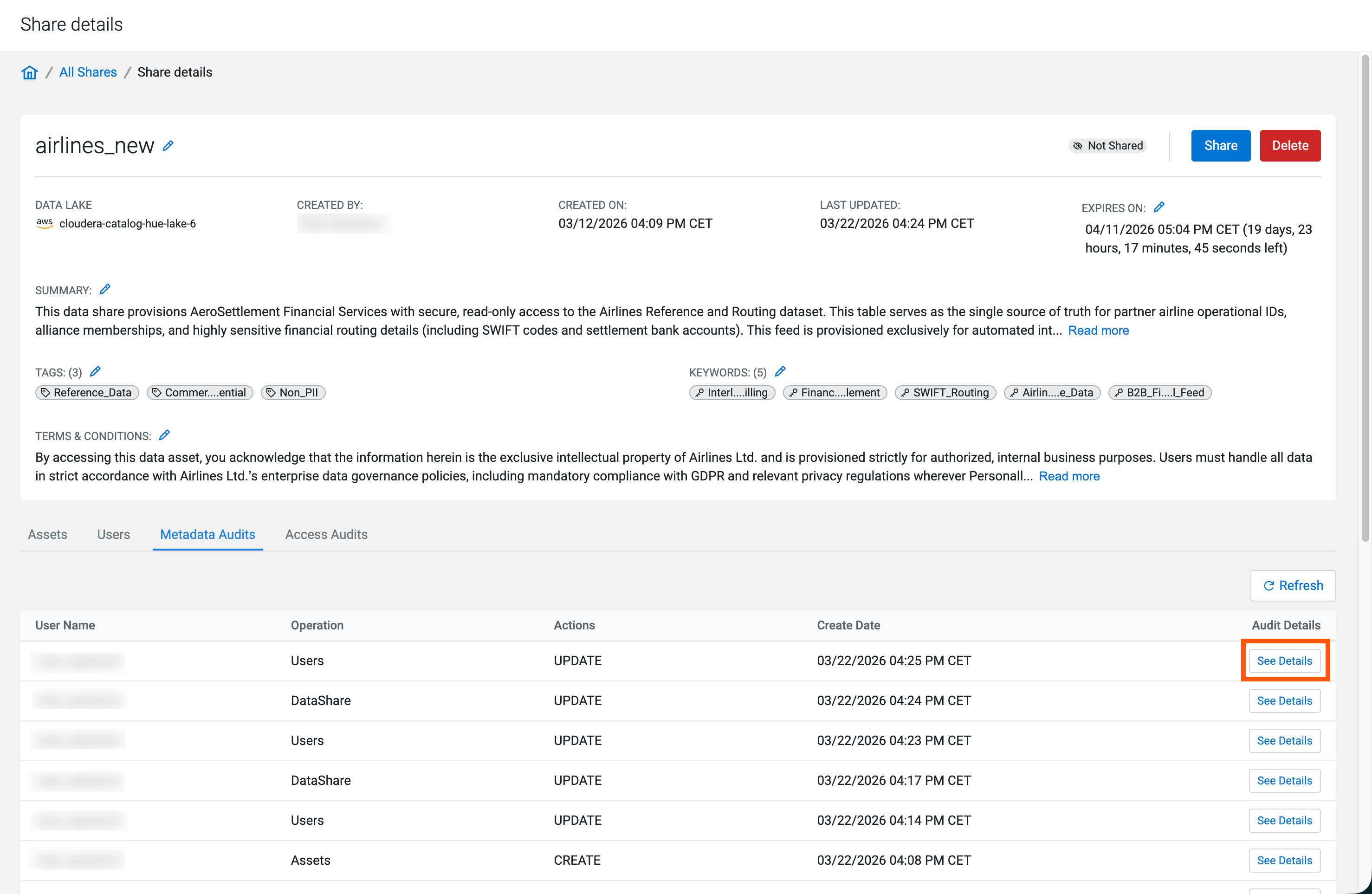
Figure 3. Metadata audit of updating the user access time for a Data Share 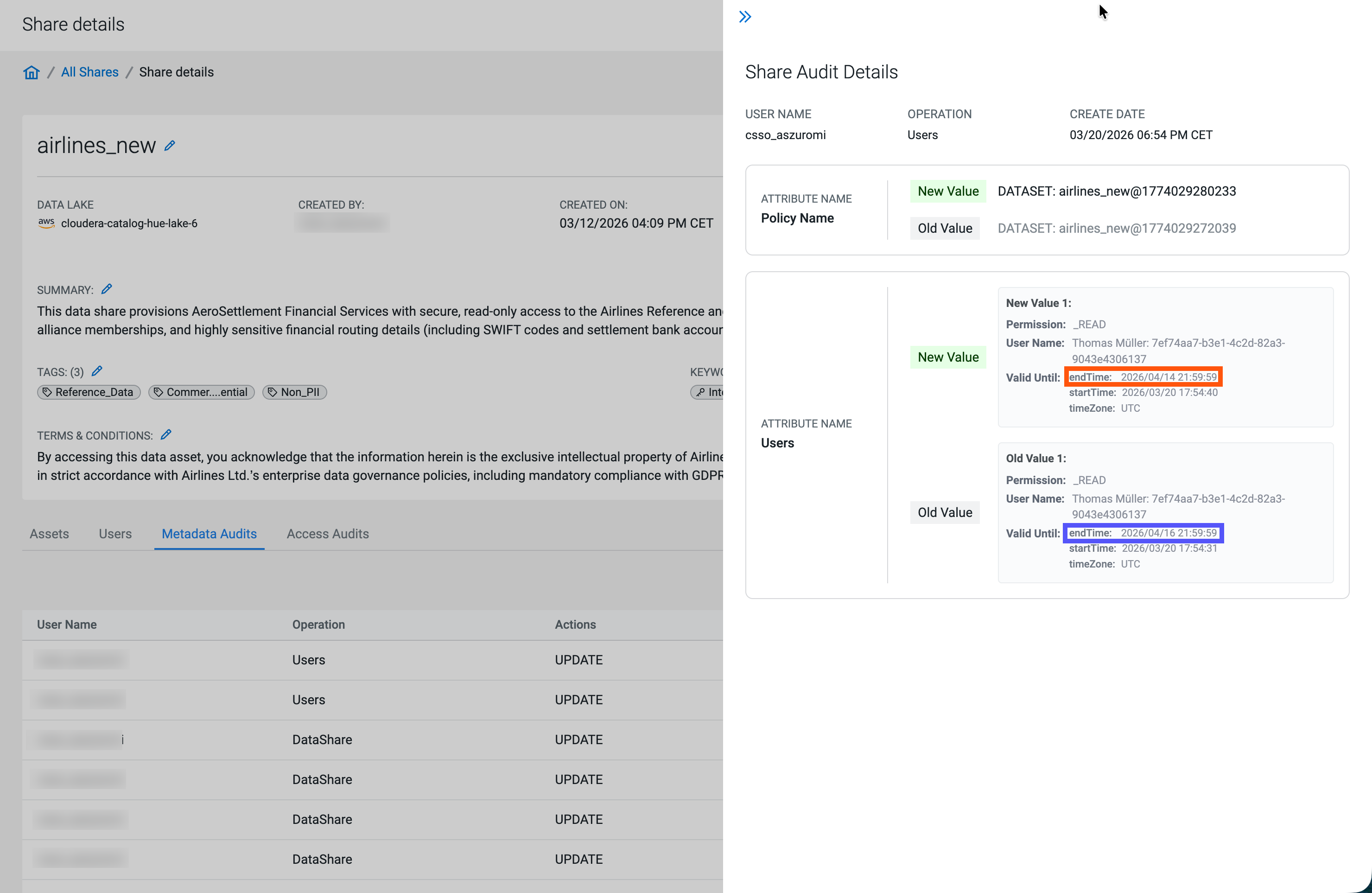
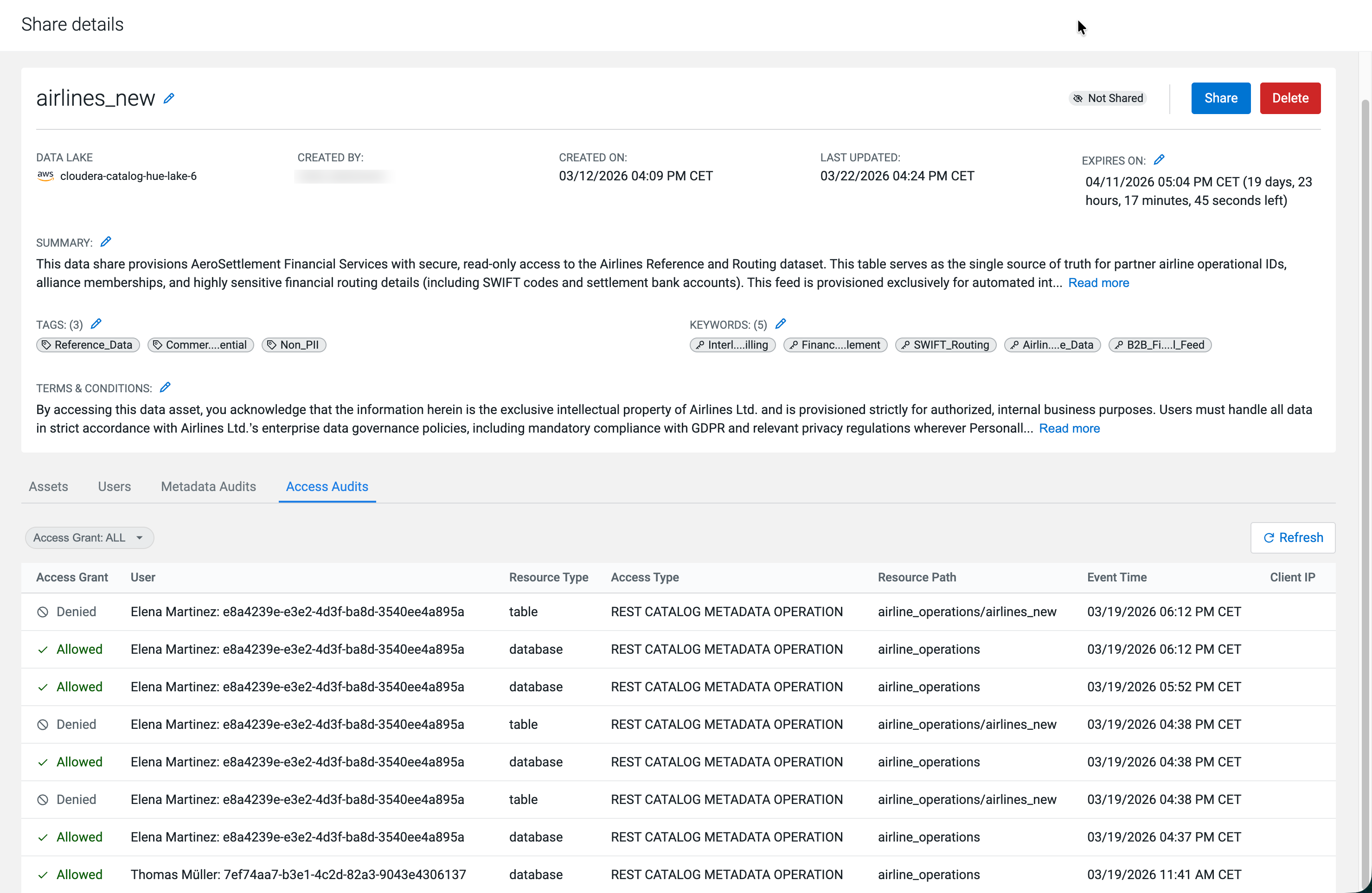
- Access Audits
- Displays logs of actual data access events, showing exactly which user
queried which table and whether the API request was allowed or denied by Ranger.
Manage Users
The Manage Users page is dedicated to handling the identities and credentials of external Data Consumers. Because these consumers operate outside of the Cloudera ecosystem (using third-party engines like Snowflake or Databricks), this page acts as the bridge to securely grant them access.
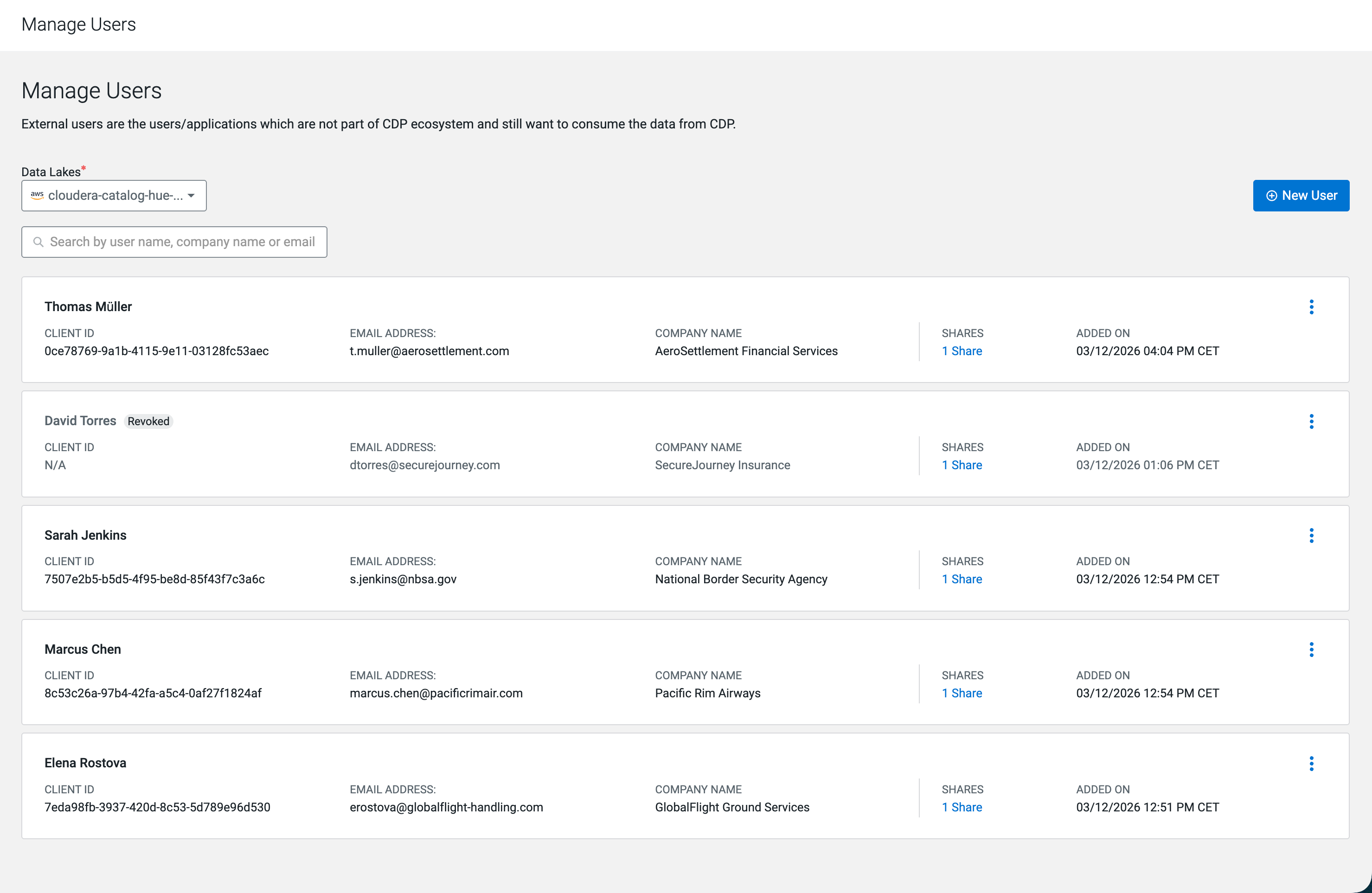
Key capabilities of this interface include:
- External User Registration
- Admins can register a new user by inputting their name, email address, and company name.
- Secure Credential Generation
-
Upon registering a new user, the system automatically uses Knox to generate OAuth2 credentials (a Client ID and Secret). The UI immediately prompts the Share Admin to download these credentials as a CSV file.
- Credential Lifecycle Management
-
To ensure strict security, admins can use an action menu next to any user to fully control their access:
- Revoke Credential
- Immediately disables the user's access to any shares. The user remains in the system for auditing purposes, and the UI displays a Revoked status next to their name.
- Regenerate Credential
- Invalidates the user's old token and issues a brand new Client ID and Secret. This is highly useful if a consumer loses their credential file or if a security compromise is suspected.
- Delete User
- Permanently removes the user and revokes their access.
