Creating external users
Register external users in Cloudera Data Catalog so that they can be granted access to Data Shares as Data Consumers.
External users are users or applications that are not part of the Cloudera ecosystem but need to consume data from Cloudera through Data Shares. Before a user can be added to a Data Share, they must be registered in the Manage Users page. Registration generates a credentials file (Client ID and Secret) that the user needs to authenticate with their Iceberg REST Catalog compatible compute engine.
You must have the DataShareAdmin resource role for the relevant
environment.
-
Select the target Data Lake from the dropdown at the
top of the page.
The user list shows all existing external users for the selected Data Lake, including their Client ID, email address, company name, associated shares, and registration date.
Figure 1. Manage Users page 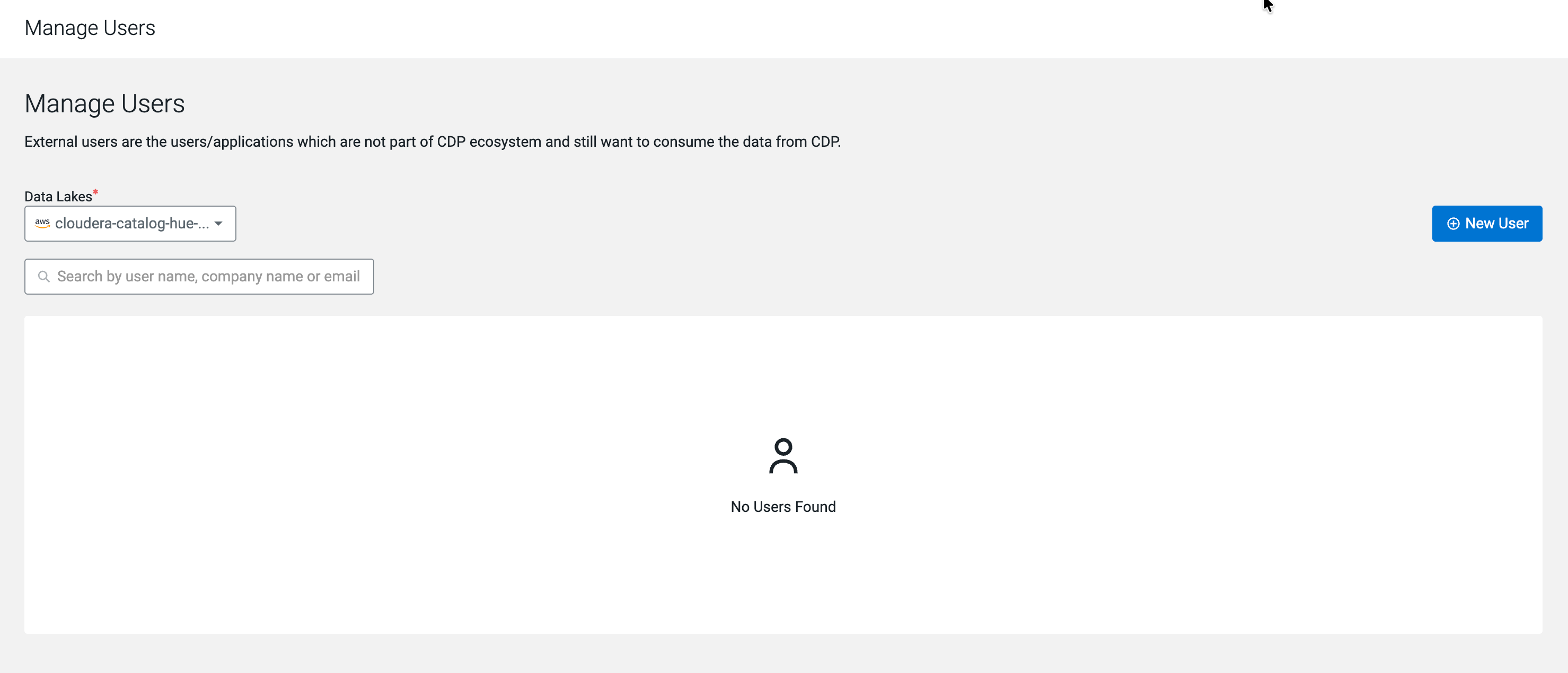
-
Click New User in the top right corner.
The Create User dialog opens.
Figure 2. Create User dialog 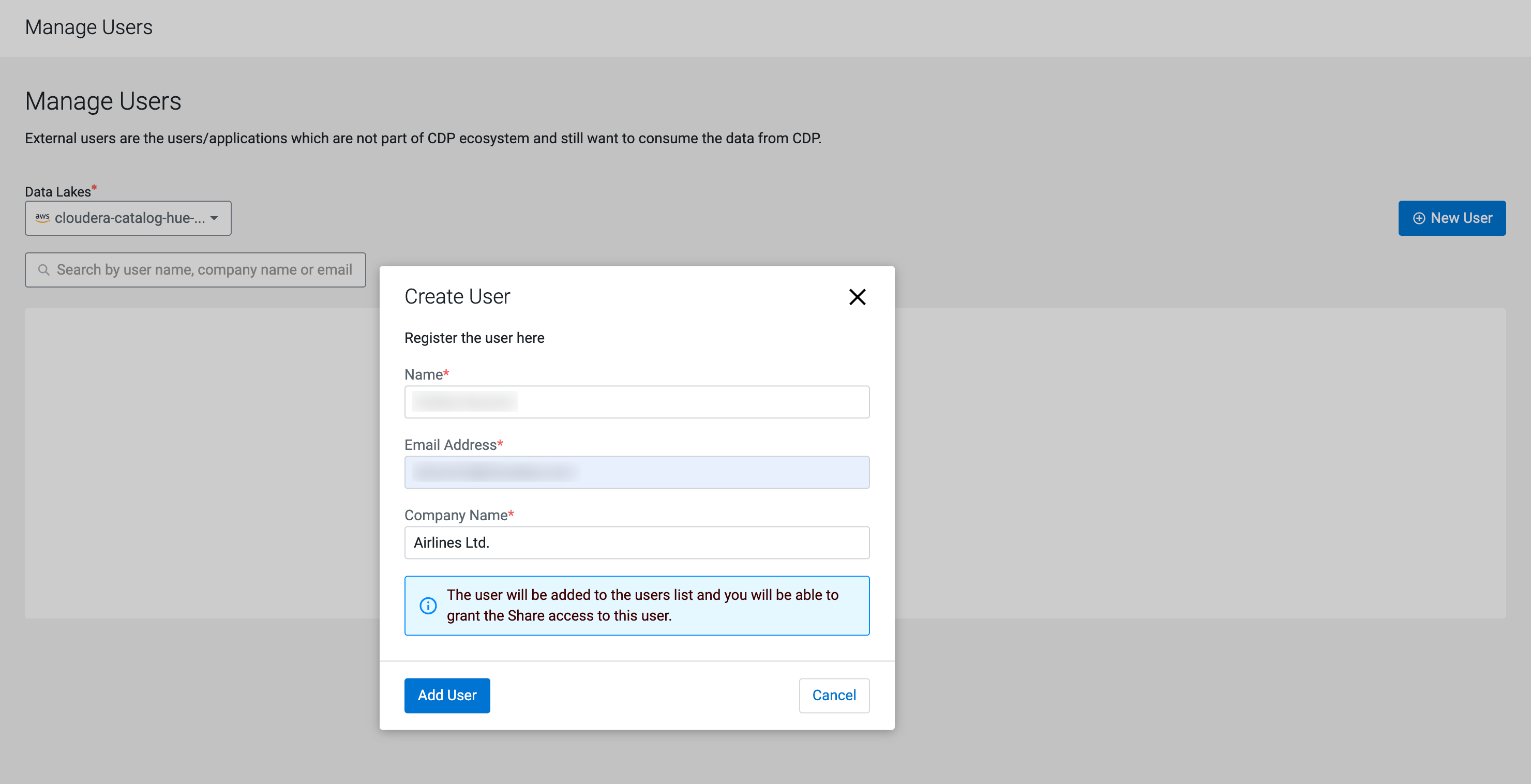
-
Click Download Credentials File to save the
credentials before closing the dialog.
Figure 3. New User credentials download dialog 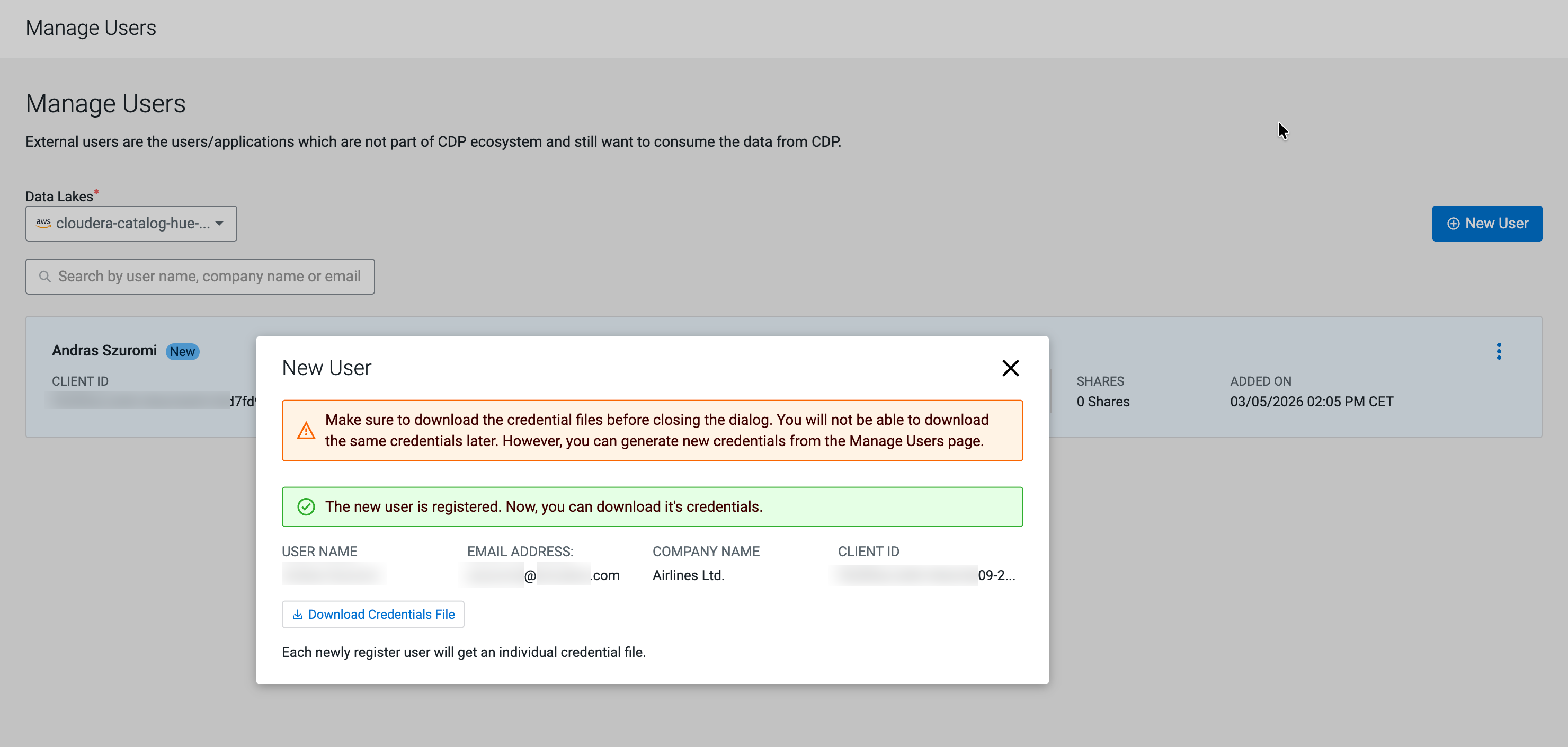
The external user is registered and appears in the Manage Users list. You can now add this user to a Data Share.
External user Client IDs are also visible in Knox under
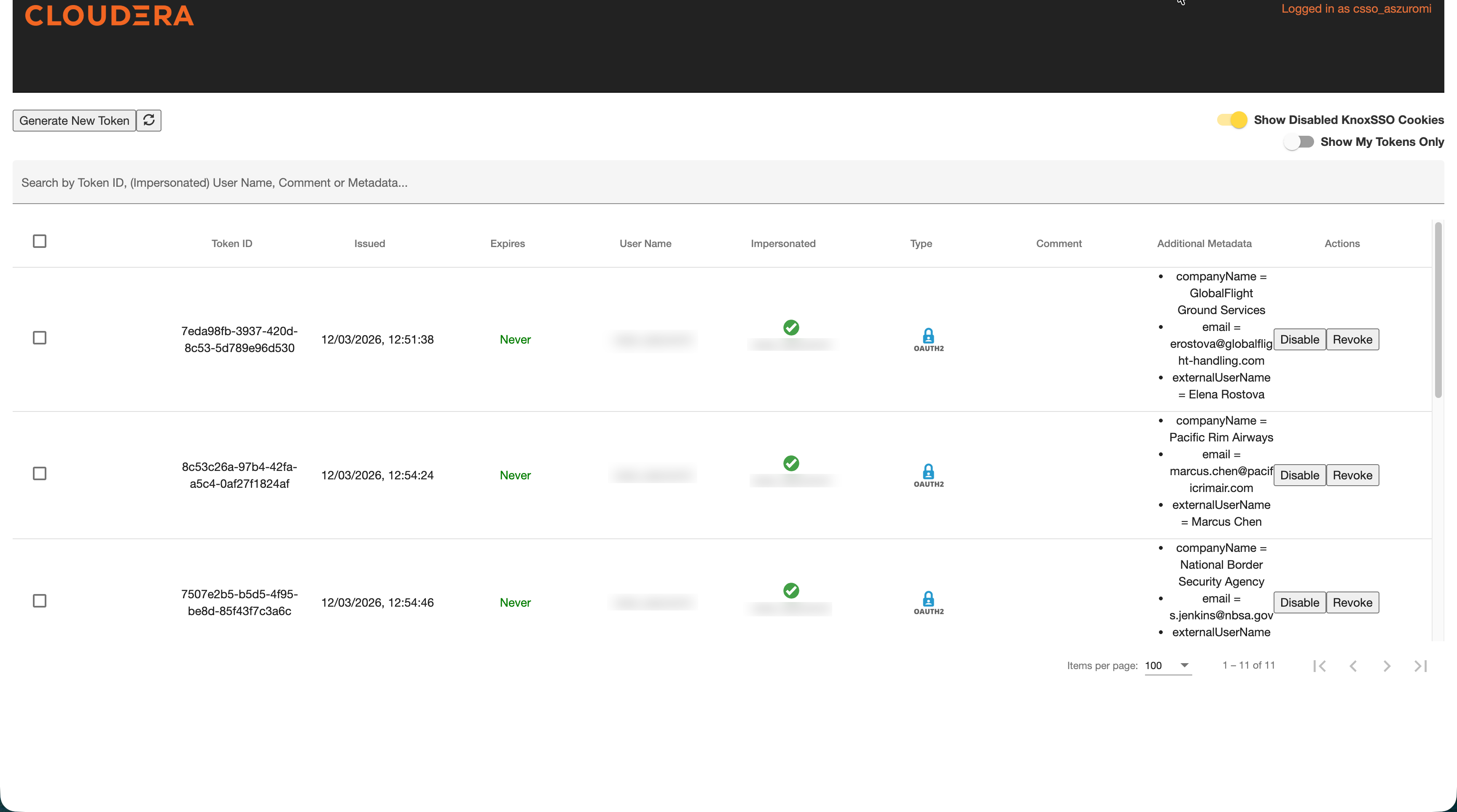
Securely share this downloaded credential file (for example, via secure email) to the external consumer so they can authenticate their compute engine by exchanging their Client ID and Secret for a Knox Access token.
