Approving Data Compliance Profiler tags
You are able to check and approve tags created by the Data Compliance Profiler assigned to your assets before applying them.
Once your Data Compliance Profiler job completes, you can check your profiled assets one-by-one and decide to keep the suggested tags or remove them from asset before they are synchronized to Apache Atlas.
This gives you the ability, for example, to correct the tagging of assets mistakenly marked as PII. Incorrectly applied tags can affect your tag-based policies, unexpectedly changing the access of your users.
-
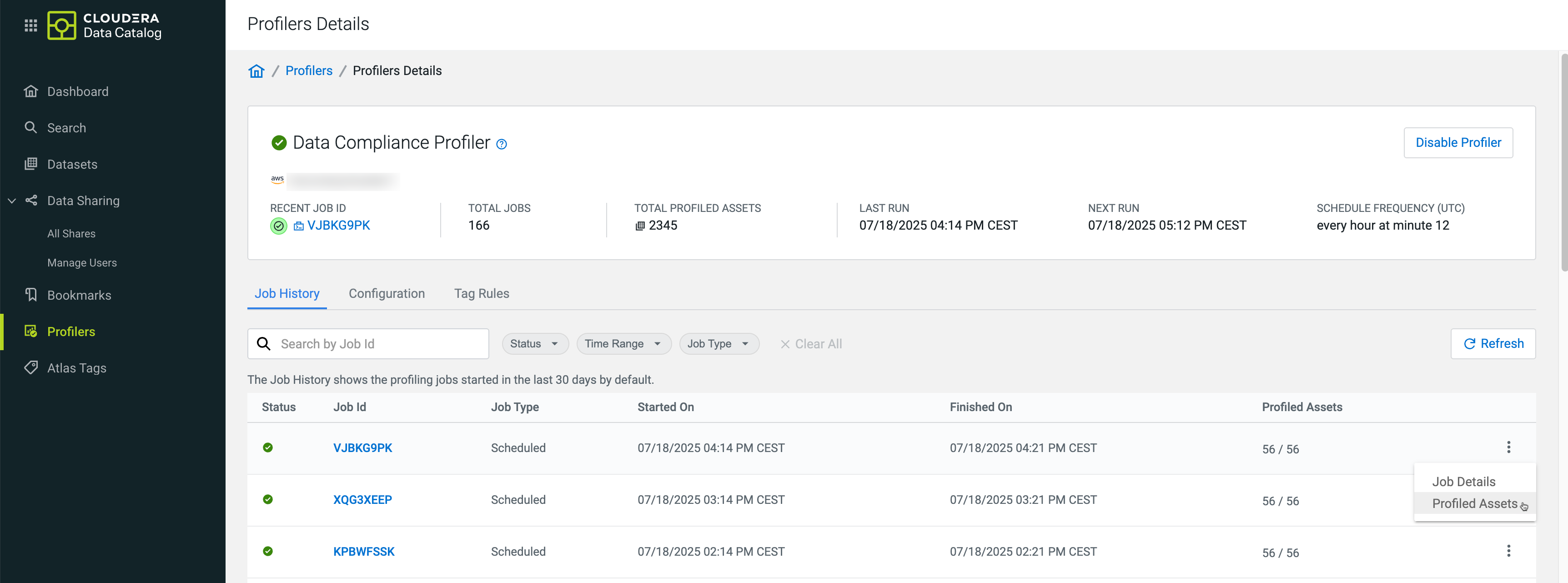
Once your profiler job is completed, go to .
-
Select the row with the relevant Job
Id and click
 , then
open Profiled Assets.
, then
open Profiled Assets.
-
Select the row with the relevant Job
Id and click
-
Check the content of either of the following columns:
Option Description Asset Name Opens the Asset Details. Suggested Tags Count Opens the list of identified tags for the asset. If the asset has columns, you can see the tags assigned to each of them. 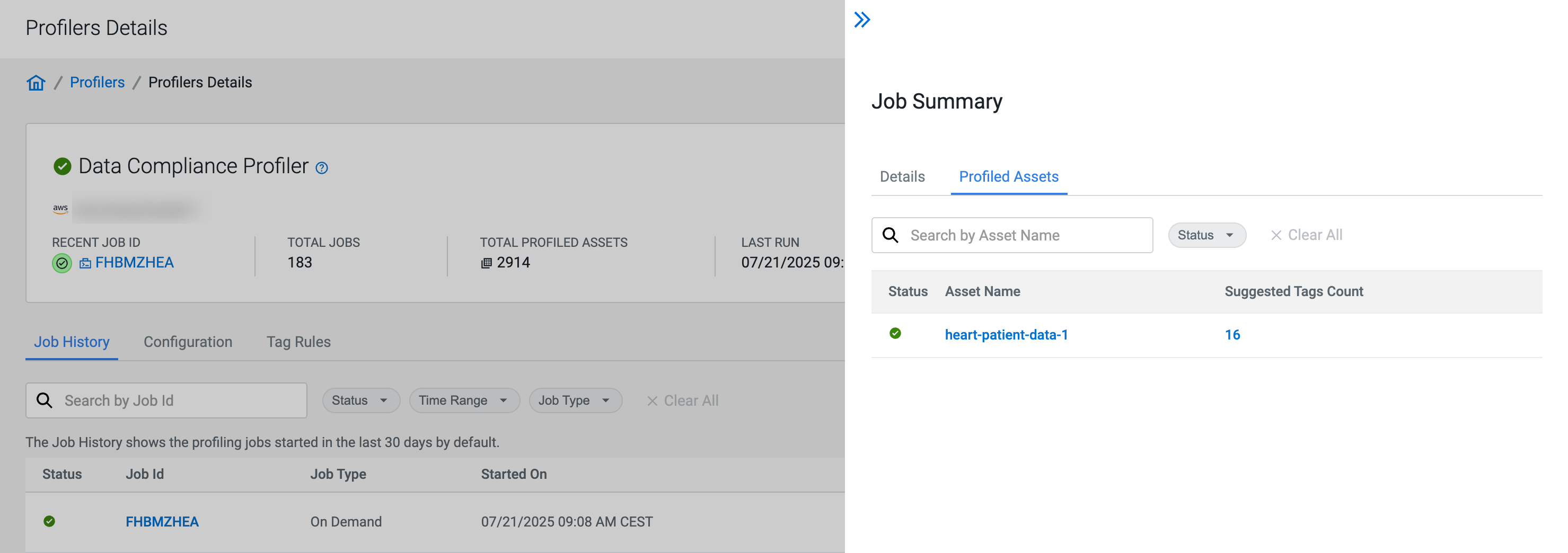
Figure 1. List of tags in Suggested Tags Count 
-
Click Asset Details > Classifications > > Edit.
Tags (Apache Atlas classifications) pending approval are marked with the
 icon.
icon.Approved tags are marked with the
 icon.
icon.
You can remove suggested and already applied tags by clicking the
 icon.
icon.
