Using Cloudera Data Engineering UI
Update and synchronize stale configurations using Cloudera Data Engineering UI in Cloudera Data Services on premises 1.5.5 SP3 and higher releases, when environmental settings, such as Proxy or LDAP in the Cloudera Management Console, or Kerberos in Cloudera Base on premises, change.
-
Click the Review & Sync button. The
Confirm Service Synchronization modal window
opens.
The Confirm Service Synchronization modal window displays the configuration changes and the service pods to restart.
Figure 2. Confirm Service Synchronization modal window 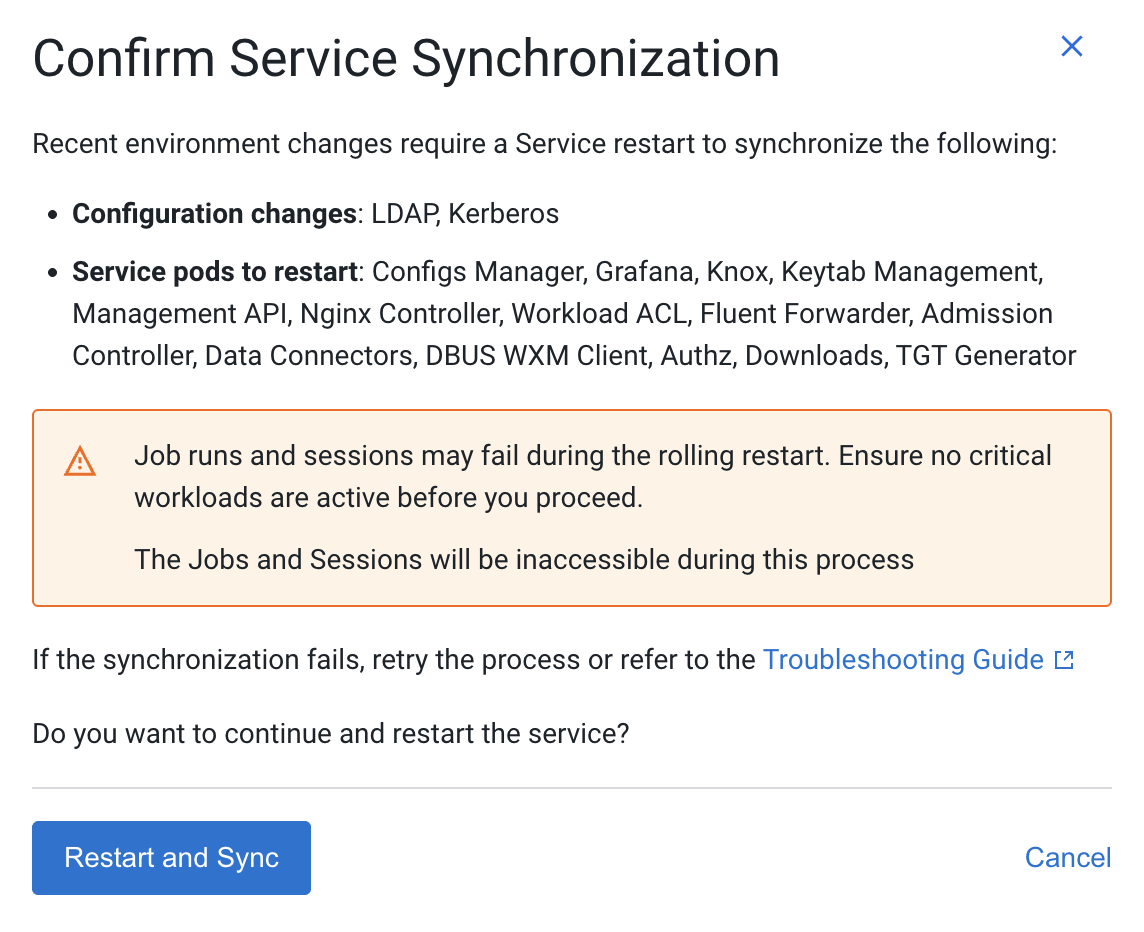
- If all the configurations are correctly applied and synchronized, the Cloudera Data Engineering Service restarts successfully.
- If the synchronization fails, retry the synchronization process again. For troubleshooting steps, see Troubleshooting.
